# Connect Your Accounts
Connect Instagram, TikTok, and WhatsApp to your agent so comments and DMs can be answered automatically.
Automations only work once your accounts are connected to the agent. You only need to do this once per account.
| Account | Plan | Requirement |
| --- | --- | --- |
| Instagram | Plus and Pro | A professional account (creator or business) |
| TikTok | Plus and Pro | A TikTok Business account |
| WhatsApp | Pro | The WhatsApp number on your phone |
{% hint style="info" %}
This guide is for the **new dibales.ai dashboard**. Still on the old layout? See [Connect Your Instagram Account](/instagram/integrasi-akun-instagram) and [Connect Your TikTok Account](/tiktok/integrasi-akun-tiktok).
{% endhint %}
## Before you start
- **A dibales.ai account** you're signed in to, see [Sign Up & Log In](/dashboard/mulai/daftar-dan-login). Connect accounts as the **agent owner**, not as a team member.
- **The account you want to connect, ready to go**: a professional Instagram account, a TikTok Business account, or the phone with the WhatsApp number you want to use.
- **A browser that allows pop-ups**, ideally not signed in to a different Instagram or TikTok account.
- One Instagram, TikTok, or WhatsApp account can only be connected to **one agent** at a time.
## Instagram
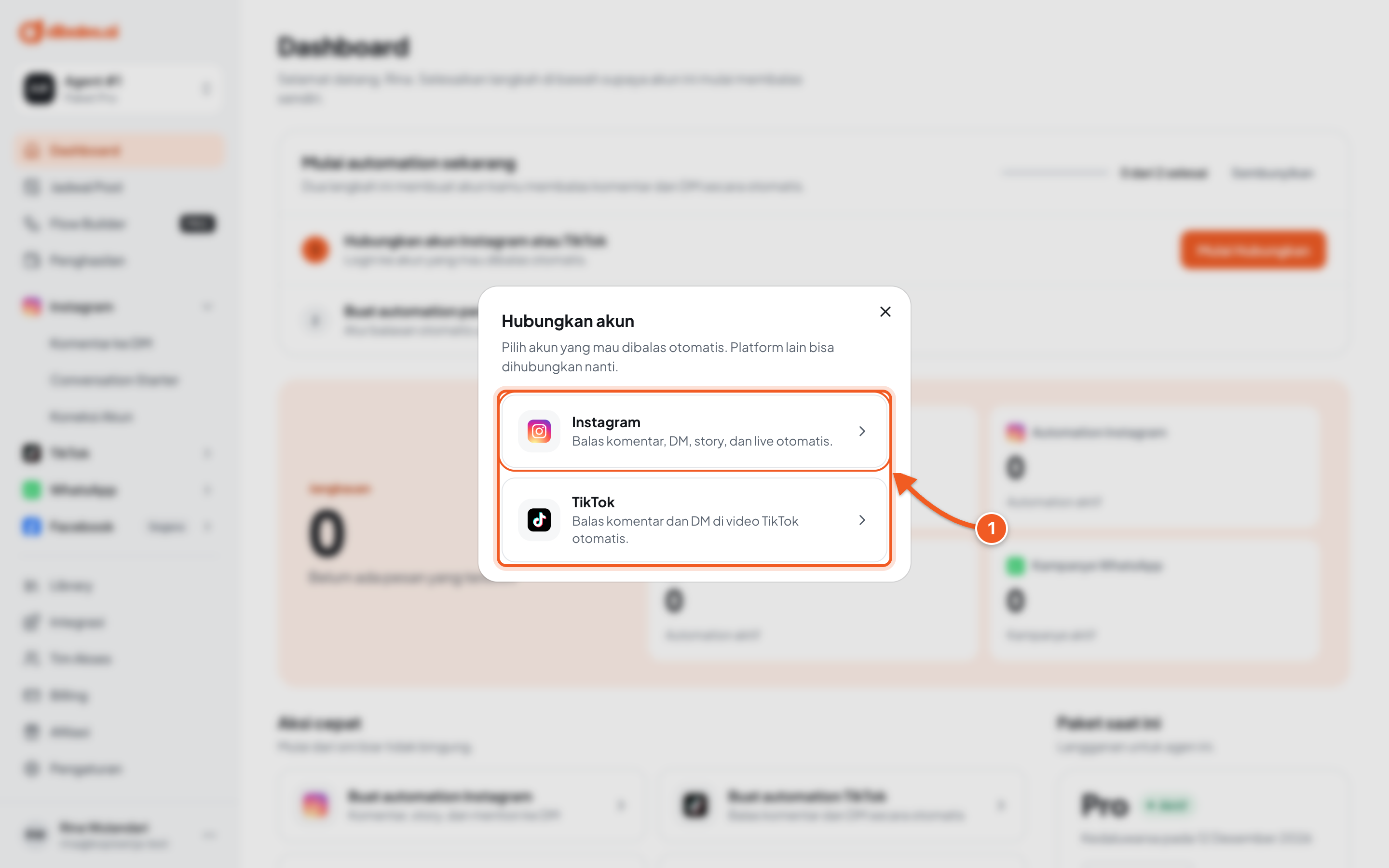
1. On the **Dashboard**, click **Start connecting**, then choose **Instagram**. You can also use **Instagram** › **Account connection** in the sidebar. On a phone, open the menu first with the ☰ icon at the top right.
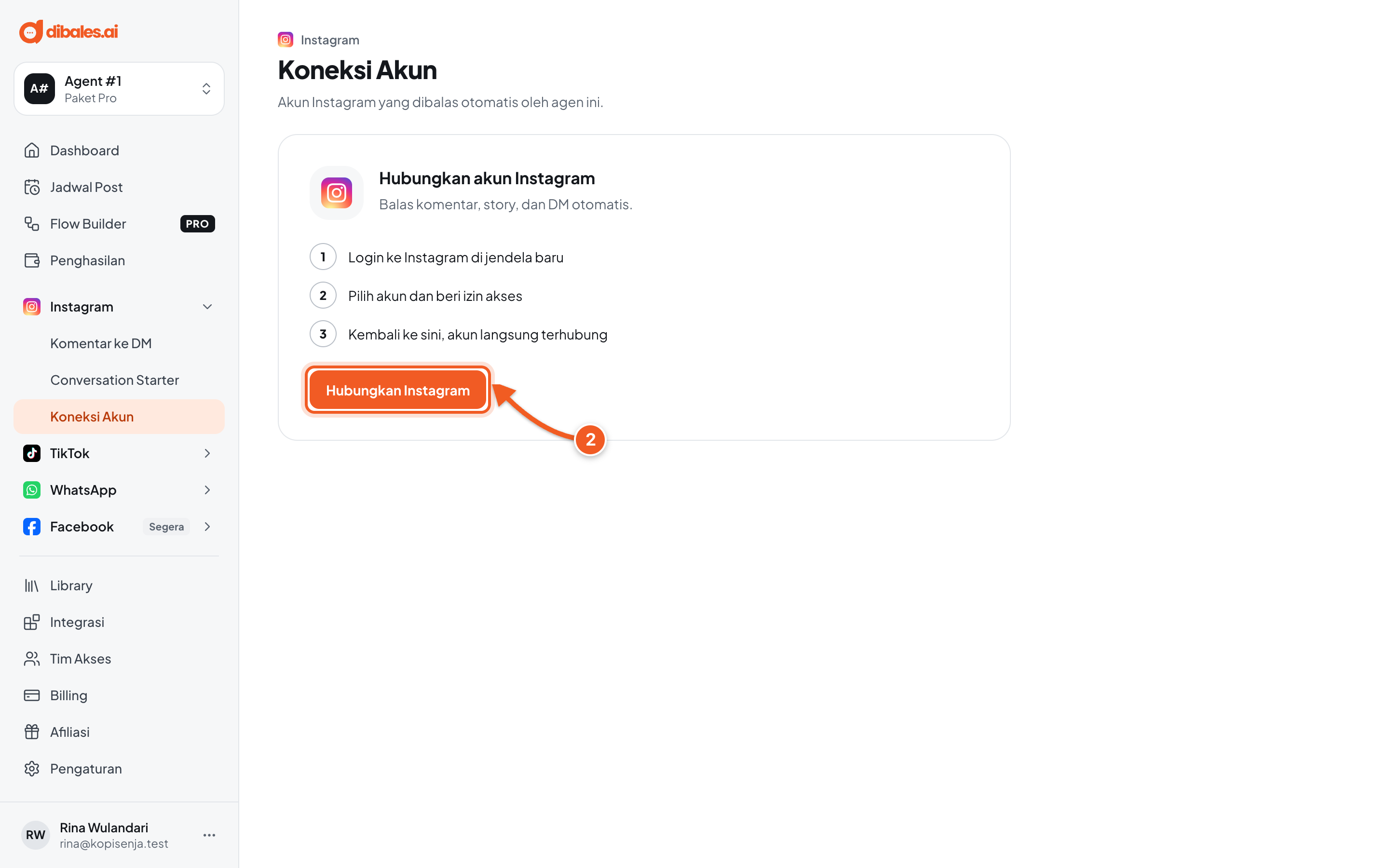
2. On the **Account connection** page, click **Connect Instagram**. A new window to instagram.com opens.
In the Instagram window:
- Log in with the Instagram account you want to connect.
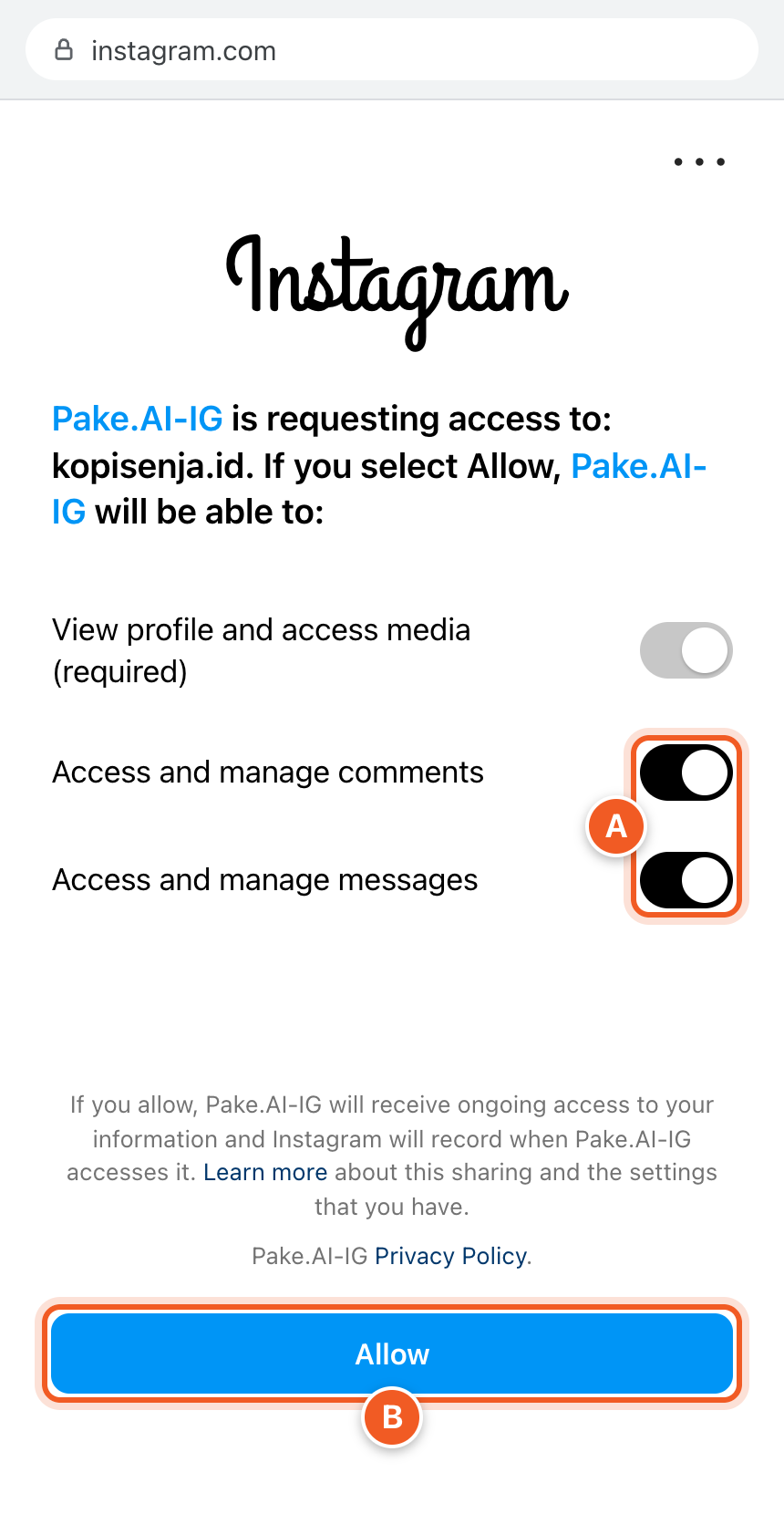
- Instagram shows an access request from **Pake.AI-IG**, dibales.ai's official app. Make sure all permissions are on **(A)**, especially *Access and manage comments* and *Access and manage messages*. Without them, comments can't be read and DMs can't be sent.
- Click **Allow** **(B)**.
Allow all access for Pake.AI-IG
Once you allow access, the Instagram window closes on its own.
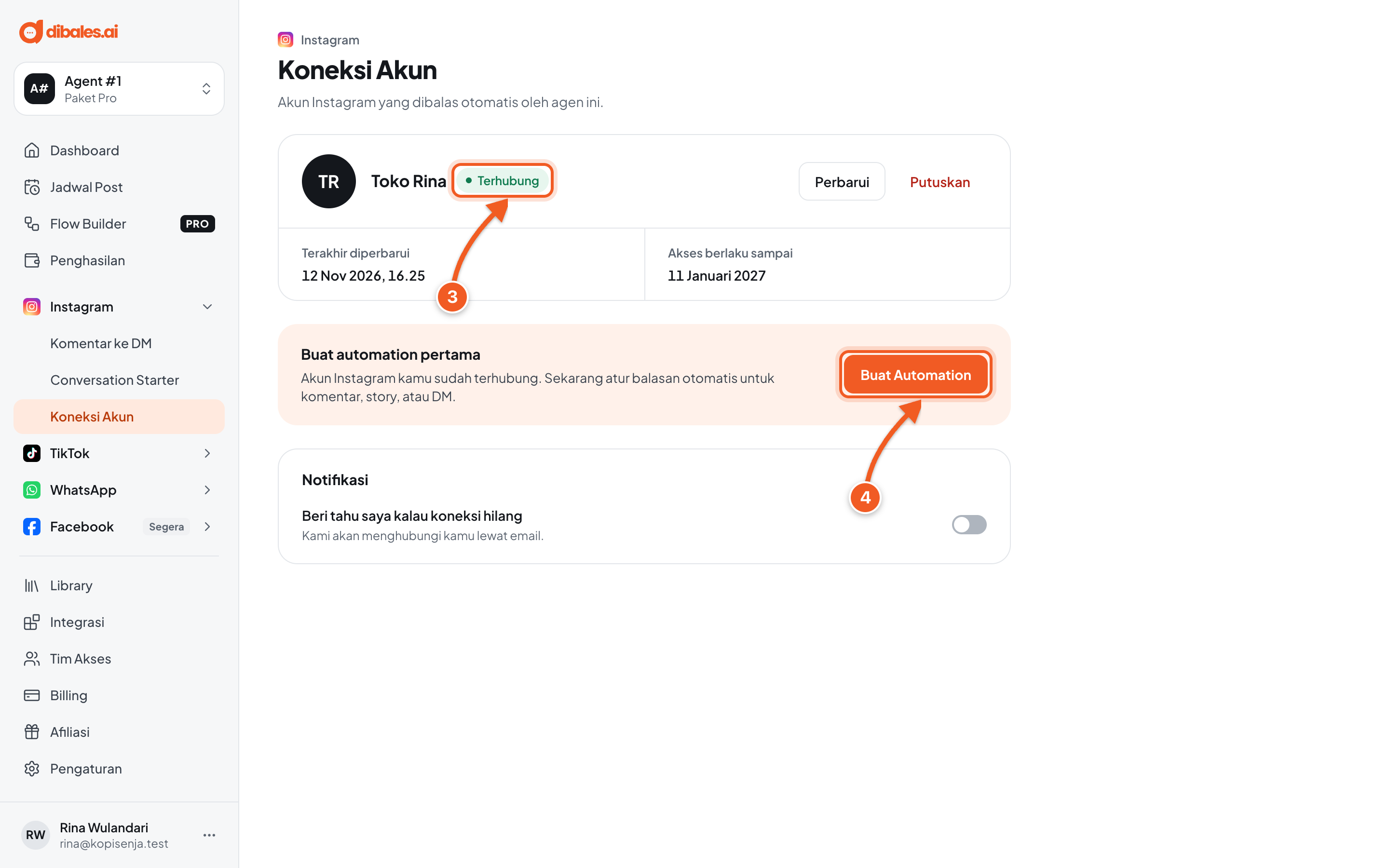
3. The status changes to **Connected**.
4. Click **Create automation** to create your first automation right away.
{% hint style="warning" %}
If the Instagram window doesn't appear, check whether your browser is blocking pop-ups. To avoid connecting the wrong account, use a browser that isn't logged in to a different Instagram account.
{% endhint %}
## TikTok
Open **TikTok** › **Account connection**, or choose **TikTok** after clicking **Start connecting** on the Dashboard.
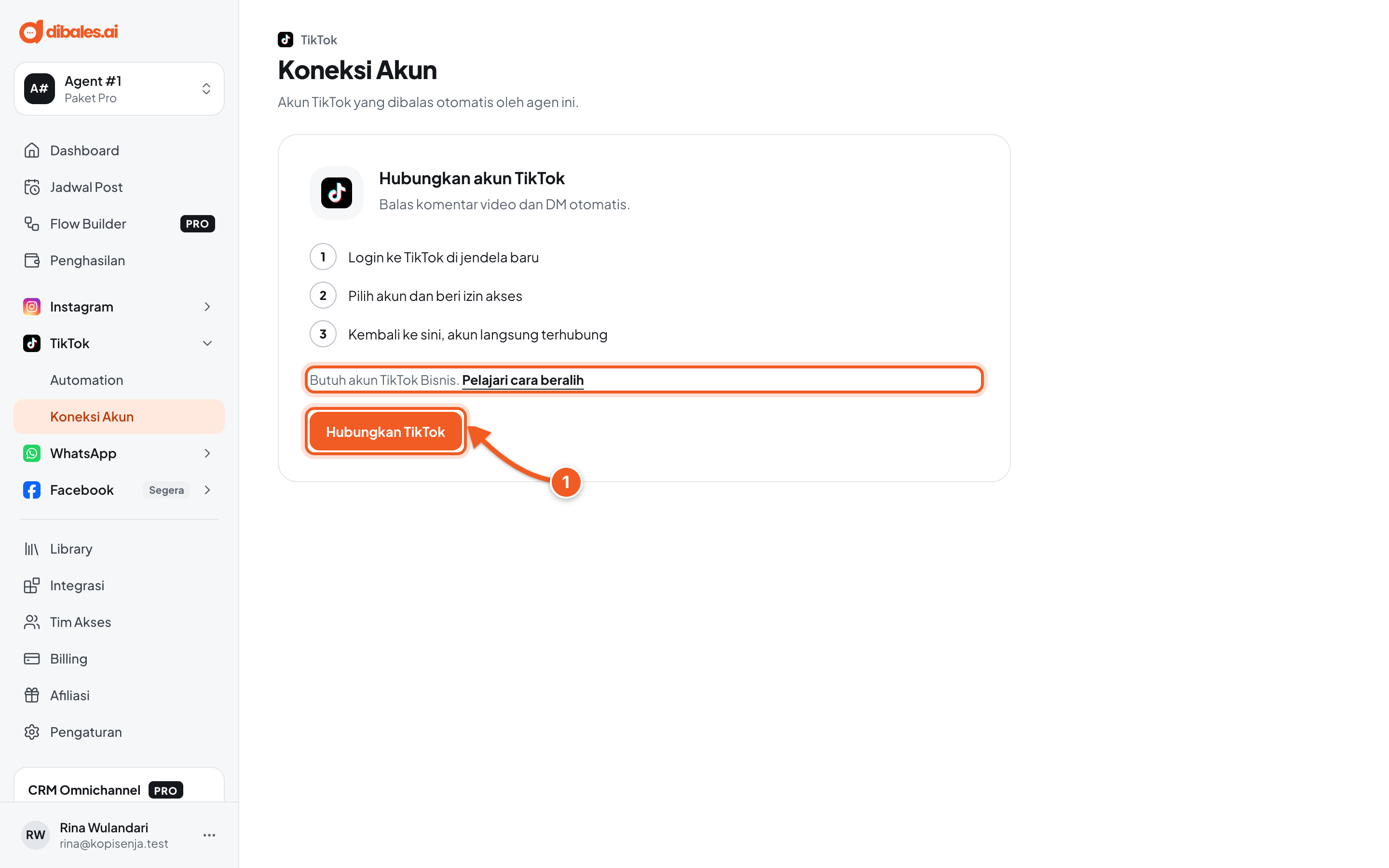
1. Click **Connect TikTok**, then log in with the TikTok account you want to connect.
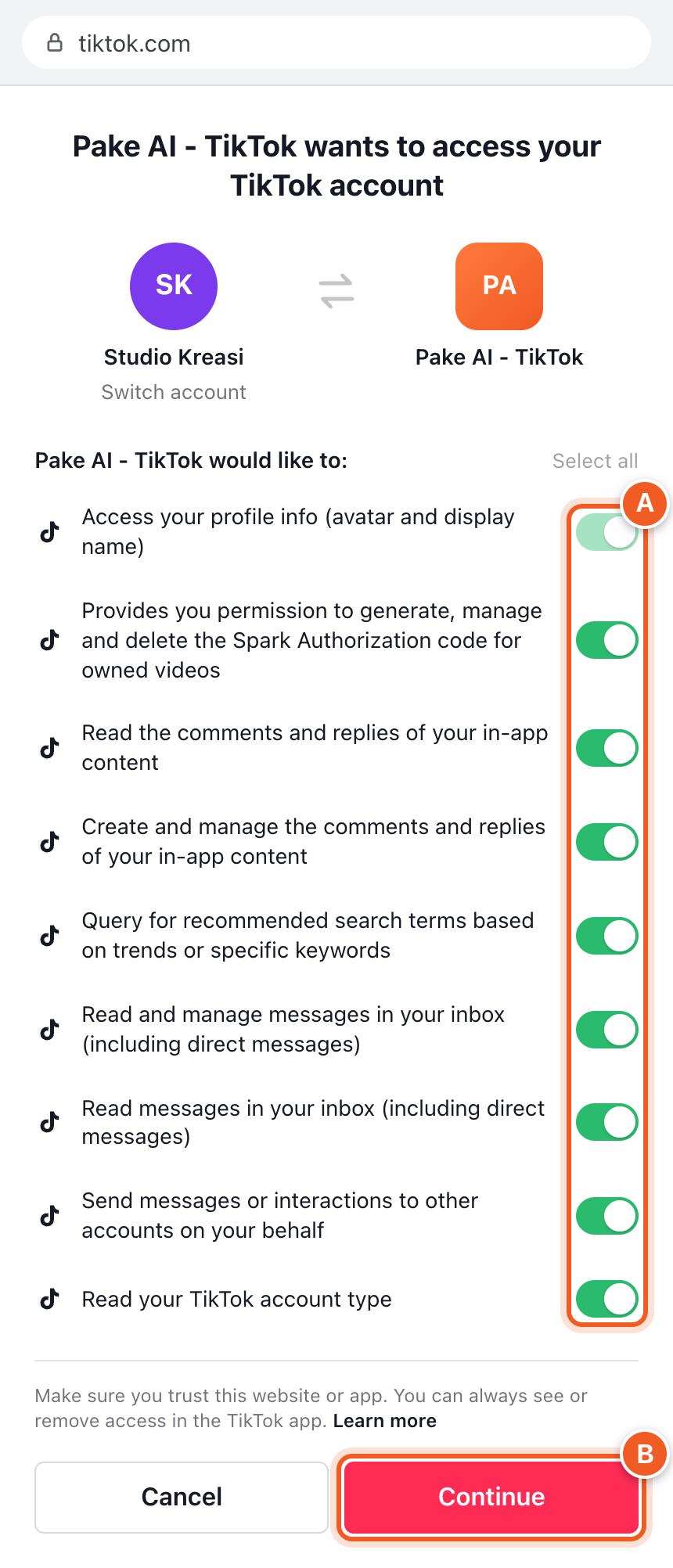
TikTok shows an access request from **Pake AI - TikTok**. Leave all permissions on **(A)**, then click **Continue** **(B)**.
Allow all access for Pake AI - TikTok
Once you click **Continue**, you're taken back to the dashboard and the status changes to **Connected**.
If the account is still a personal account, **Personal account** shows. Switch to a Business account in the TikTok app, then click **Check account again**. If it works, you'll see *Business account detected. TikTok automations are on.*
{% hint style="warning" %}
TikTok automations only work with a **TikTok Business account**. You switch in the TikTok app, see [how to switch to a Business account](/tiktok/integrasi-akun-tiktok#how-to-switch-to-a-business-account).
{% endhint %}
## WhatsApp (Pro plan)
WhatsApp connects just like WhatsApp Web, with a QR code. Have the phone with the WhatsApp number you want to use ready.
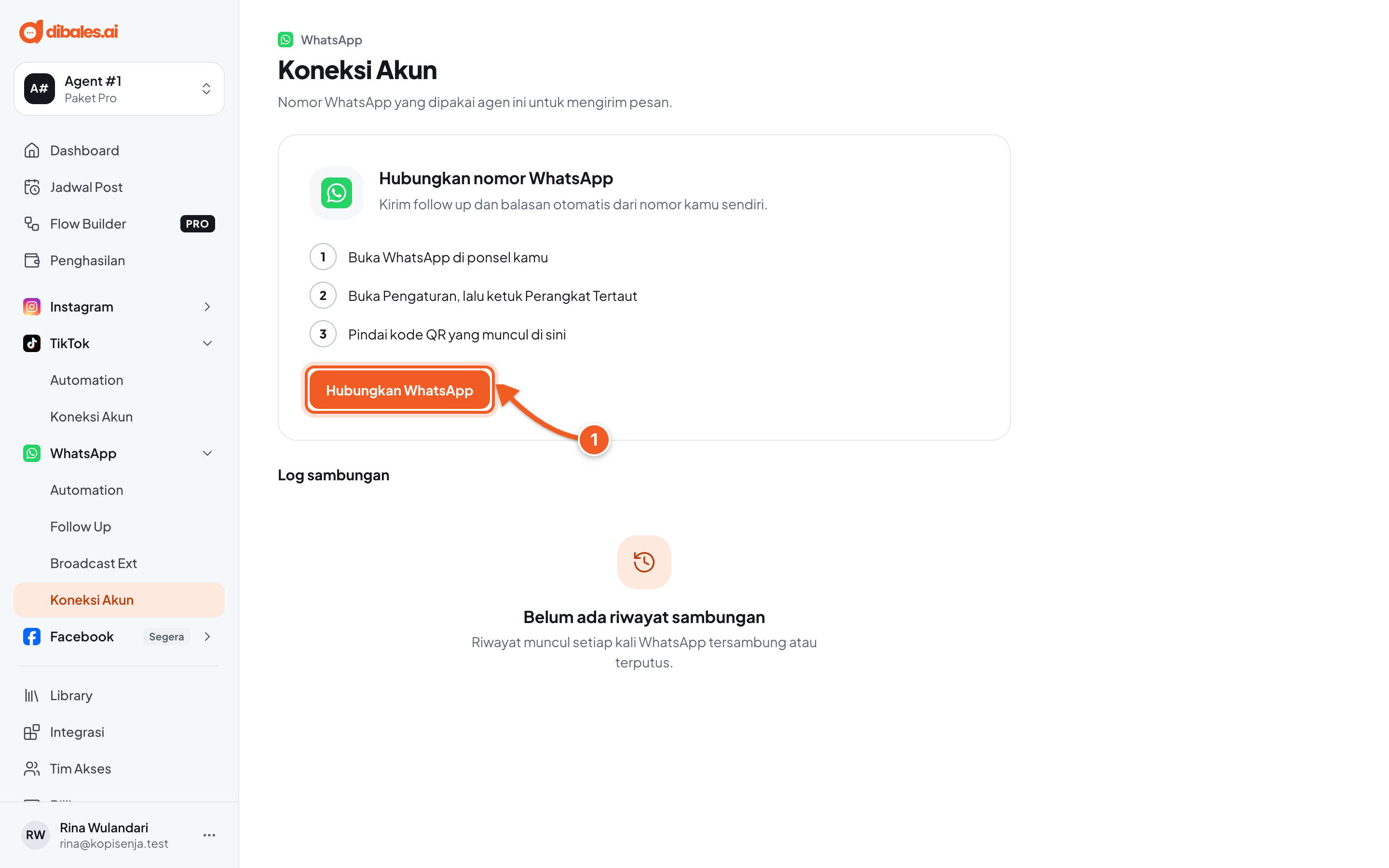
1. Open **WhatsApp** › **Account connection**, then click **Connect WhatsApp**.
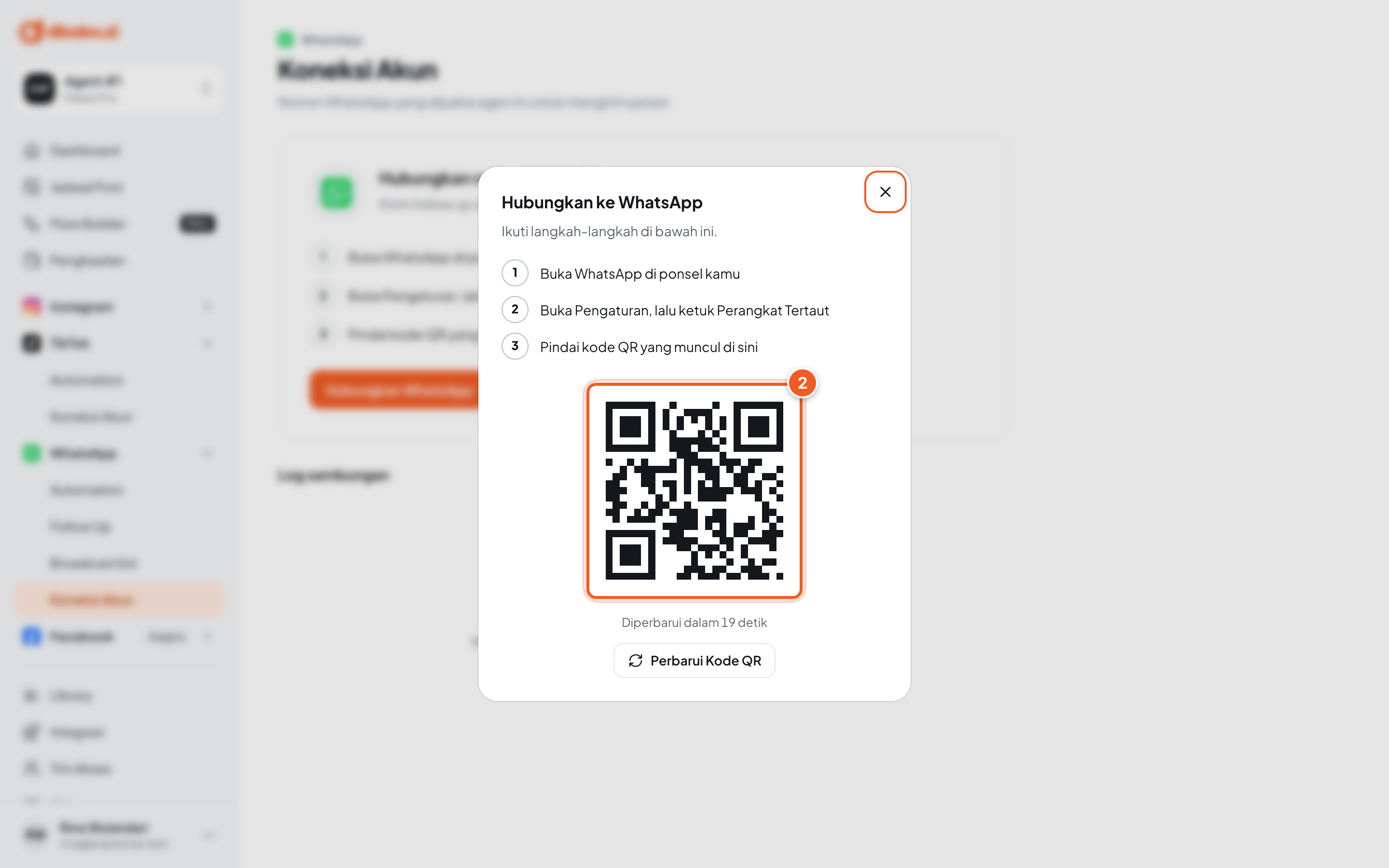
2. On your phone, open WhatsApp, go to **Settings** › **Linked devices** › **Link a device**, then scan the QR code on the screen. The code changes every few seconds. If it has expired, click **Refresh QR code**.
Once connected, the status changes to **Connected**, and every connection or disconnection is recorded in the **Connection log**.
## Check the result
1. On each platform's **Account connection** page, the status says **Connected** and the account name shows.
2. Create one simple automation, such as [Comment to DM](/dashboard/instagram/comment-to-dm), [TikTok Automation](/dashboard/tiktok/automation), or [WhatsApp Automation](/dashboard/whatsapp/automation), then test it from another account. If the reply arrives, the connection works.
## Managing a connection
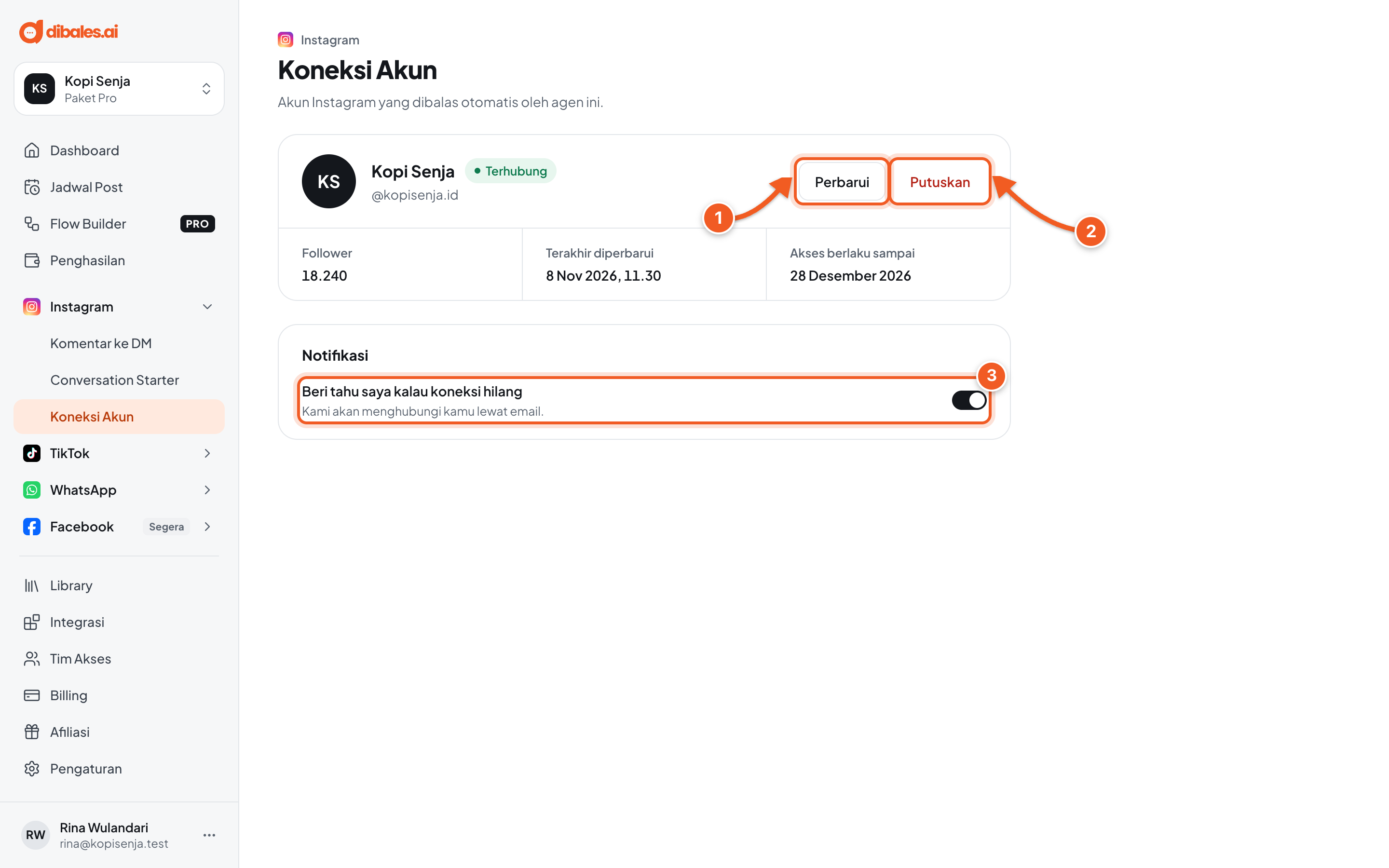
1. **Refresh**: refreshes the account connection. Use this button if automations suddenly stop replying.
2. **Disconnect**: removes the account from this agent. You'll be asked to confirm first. Automations for that account need a connected account, so connect it again if you want to use them.
3. **Notify me if the connection is lost**: when it's on, we let you know if the connection drops. For Instagram by email, and for WhatsApp by WhatsApp to the **notification phone number** you fill in.
## Troubleshooting
| Problem | Fix |
| --- | --- |
| The Instagram or TikTok window doesn't appear | Your browser is blocking pop-ups. Allow pop-ups for app.dibales.ai, then click the connect button again. |
| **Couldn't connect the account**: *The Instagram login didn't finish. Try connecting again.* (or TikTok) | The login or permission step was canceled partway. Try again, and allow all the access requested. |
| *This … account is already connected to another agent. Disconnect it from that agent first, then try again.* | One account can only be connected to one agent. Disconnect it from that other agent first, or click **Disconnect and try again**. If that agent isn't yours, click **Contact customer service**. |
| **Signed in with a different account** | You're signed in to the dashboard with an account other than the agent owner's. Click **Sign out and sign in again**, then sign in as the agent owner. |
| *This is still a Personal account. Switch to a Business account first, then check again.* | Switch to a Business account in the TikTok app, then click **Check account again**. |
| *Code expired. Select Refresh QR code.* | The WhatsApp QR code changes every few seconds. Click **Refresh QR code**, then scan again. |
| *The connection was just refreshed. Try again later.* | Wait a moment before clicking **Refresh** again. |
| Automations suddenly stop replying | Open **Account connection**. If the status isn't connected, connect the same account again. If it's still connected, click **Refresh**. |