
Integrations
Connect your agent to other apps with the Public API and Webhooks, and limit who gets replies on WhatsApp with Whitelister.
The Integrations page gathers everything your agent is connected to: platform accounts, developer tools (Public API and Webhooks), and add-on apps such as Whitelister.
| Feature | What it does | Plan |
|---|---|---|
| Public API | Send messages and read agent data from other apps, such as n8n or Zapier | Pro |
| Webhooks | Forward Instagram, TikTok, and WhatsApp events to your endpoint | Pro |
| Whitelister | The agent only replies to WhatsApp numbers on a list | Needs WhatsApp connected |
This guide is for the new dibales.ai dashboard.
Before you start
- The Pro plan for Public API and Webhooks. On the Plus plan, their cards say Available on the Pro plan.
- A publicly reachable HTTPS endpoint, if you want to use Webhooks, such as a webhook node in n8n.
- A connected WhatsApp number, if you want to use Whitelister. See Connect Your Accounts.
1. Open Integrations
In the sidebar, click Integrations. On a phone, open the menu first with the ☰ icon at the top right.
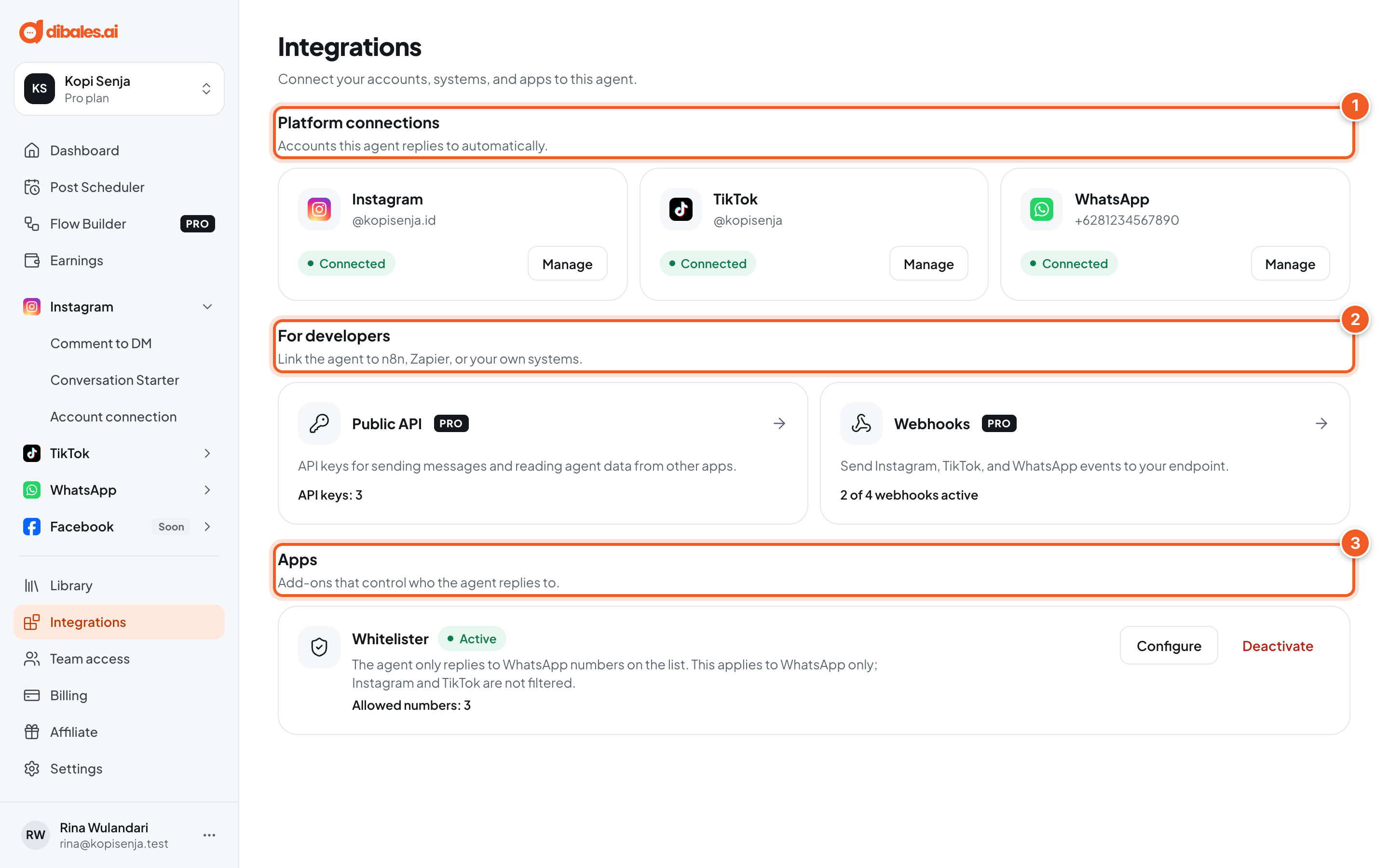
- Platform connections: the Instagram, TikTok, and WhatsApp accounts this agent replies to. Click Manage to open its connection page, see Connect Your Accounts.
- For developers: Public API and Webhooks to link the agent to n8n, Zapier, or your own system.
- Apps: add-ons such as Whitelister that control who the agent replies to.
Public API (Pro plan)
2. Create an API key
Click the Public API card.
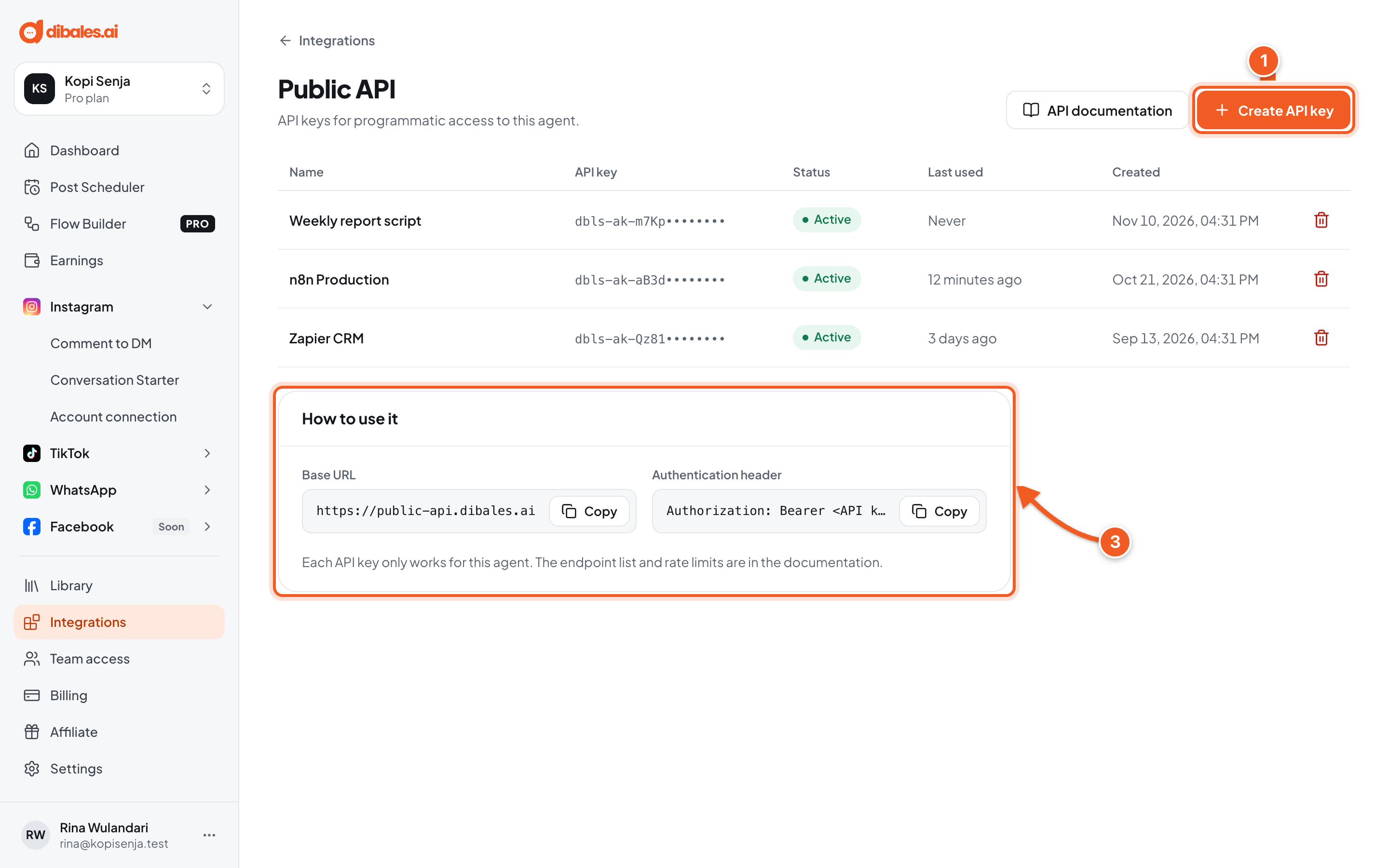
- Create API key: give it a name so you remember where it's used, for example n8n Production, then click Create.
- The API key list: name, masked key, status, when it was last used, and the creation date. Click the trash icon to delete a key. Apps using that key stop working right away.
- How to use it: the Base URL (
https://public-api.dibales.ai) and the Authentication header (Authorization: Bearer <API key>). Each API key only works for this agent. The endpoint list and request limits are in the API documentation.
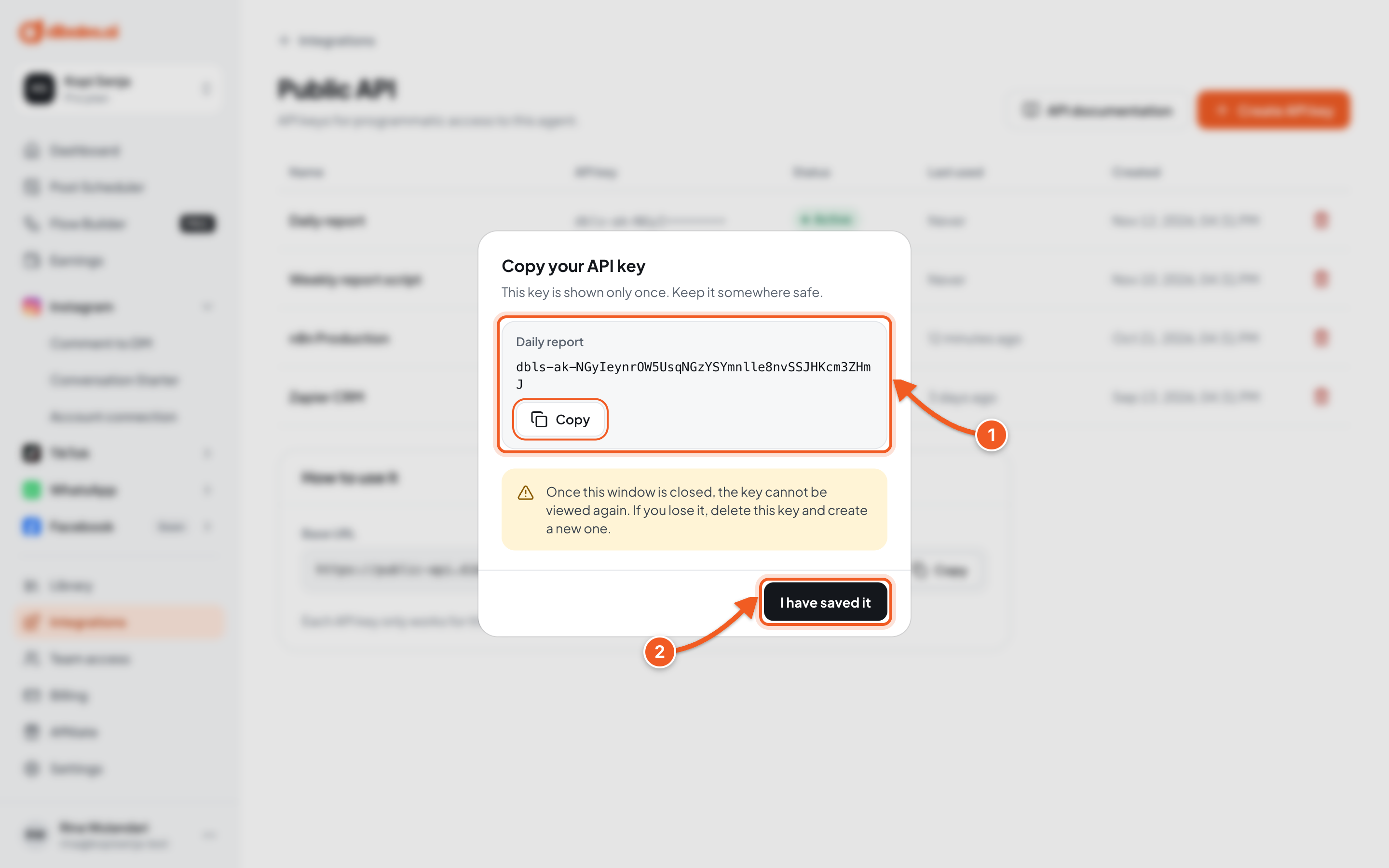
- The API key is shown only once. Click Copy, then keep it somewhere safe.
- Click I have saved it. Once this window closes, the key can't be shown again. If you lose it, delete the key and create a new one.
💡 If the agent is no longer on the Pro plan, every API key is rejected until the agent is upgraded again.
Webhooks (Pro plan)
Webhooks send events from Instagram, TikTok, and WhatsApp straight to your URL, for example to log new DMs in Google Sheets or post a notification in Slack.
3. The Webhooks page
Click the Webhooks card.
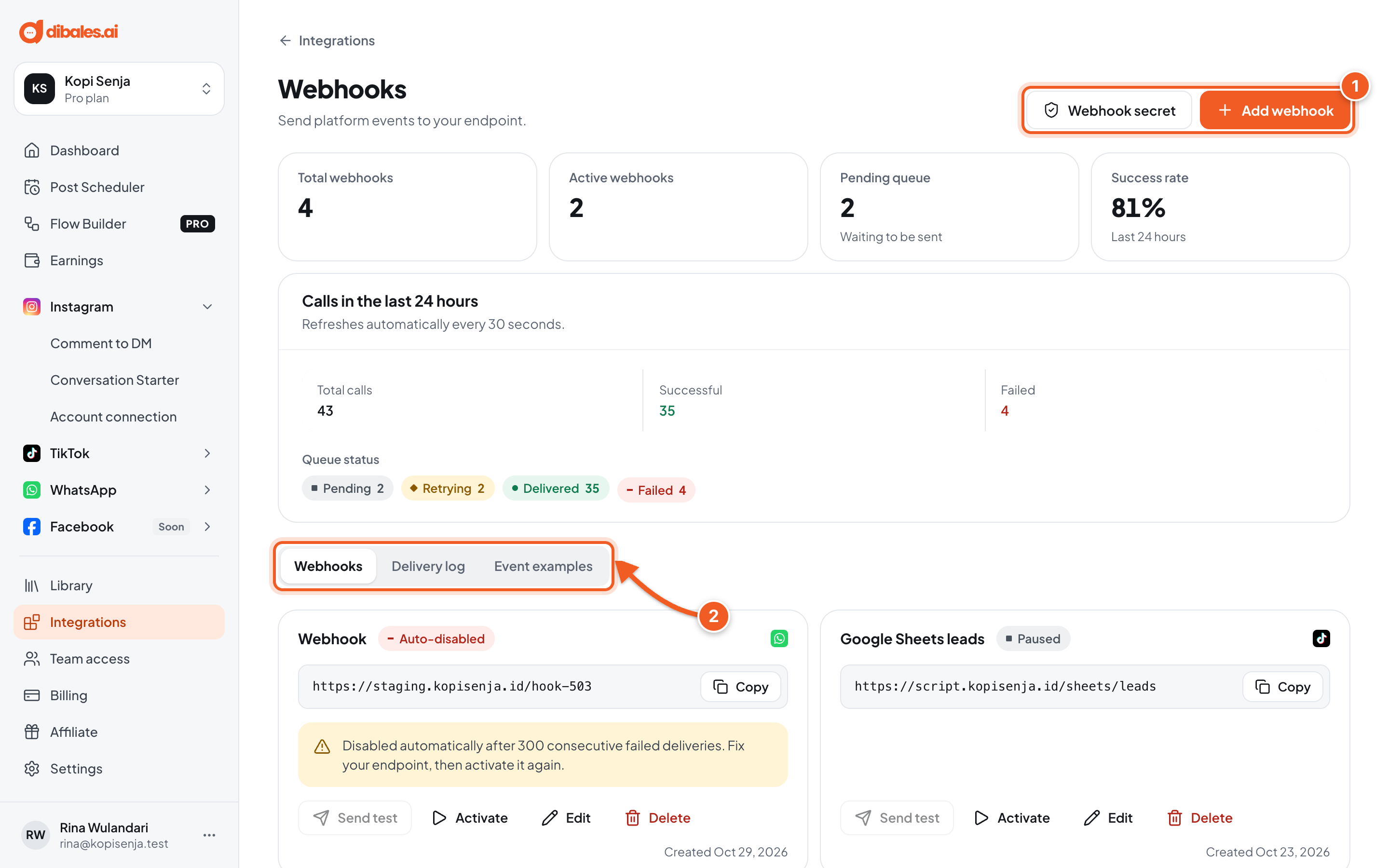
- Webhook secret and Add webhook (see steps 4 and 5). Below them is a summary of your webhooks, the queue, and the delivery success rate over the last 24 hours.
- The Webhooks tab lists your webhooks, Delivery log records every event sent, and Event examples shows a sample payload for each event.
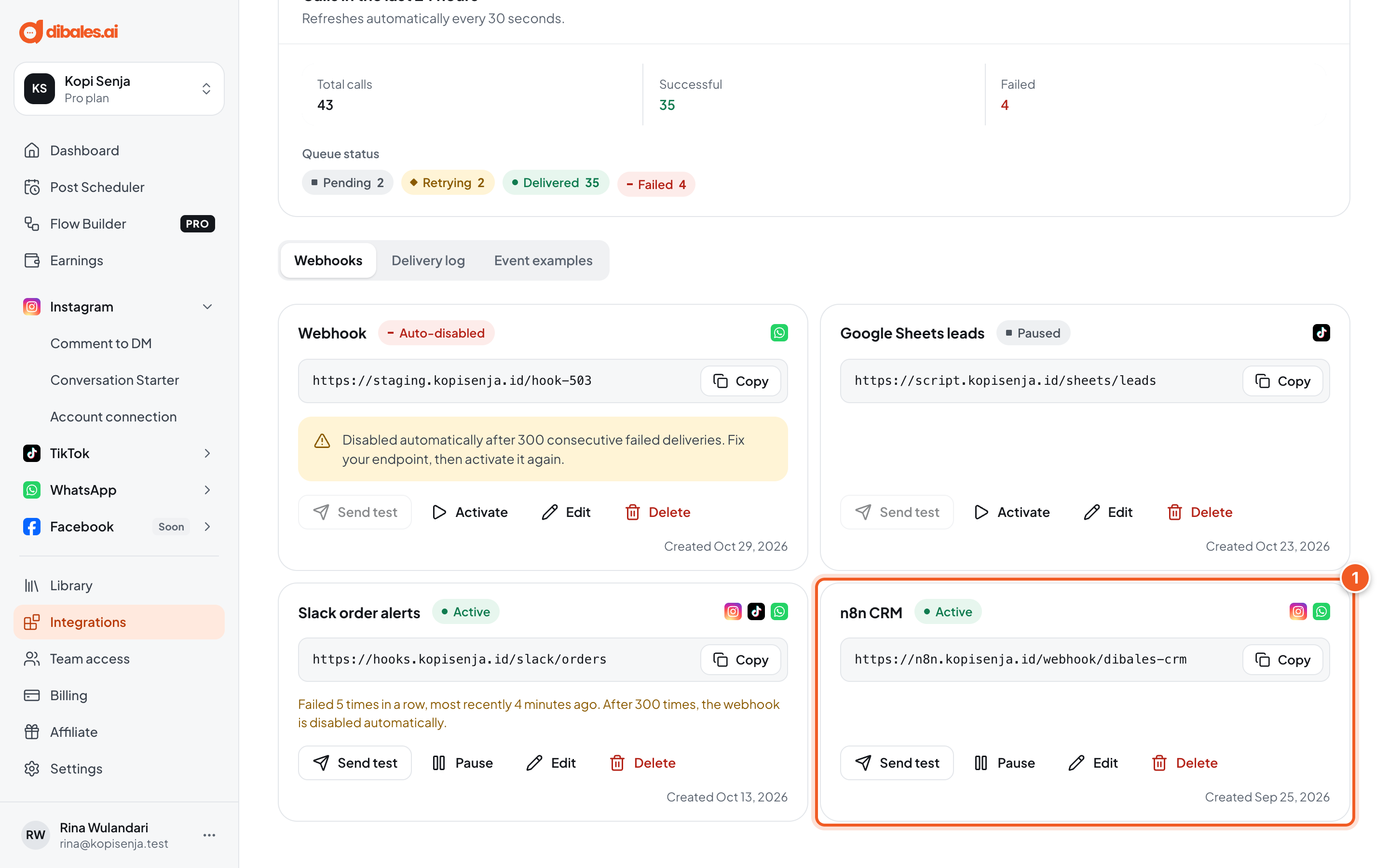
- Each webhook card shows its name, status, platforms, and endpoint URL:
- Send test: sends a
test.pingevent to the endpoint. Test events aren't added to the Delivery log. - Pause / Activate: stops or resumes deliveries to this webhook.
- Edit and Delete. A deleted webhook stops receiving events and its delivery log is deleted too.
- Send test: sends a
Each delivery is tried up to 5 times, waiting 30 seconds, 2 minutes, 10 minutes, then 1 hour. A webhook that fails 300 times in a row is auto-disabled. Fix the endpoint, then click Activate. Delivery logs are kept for 30 days, and failed deliveries can be sent again with Retry.
4. Add a webhook
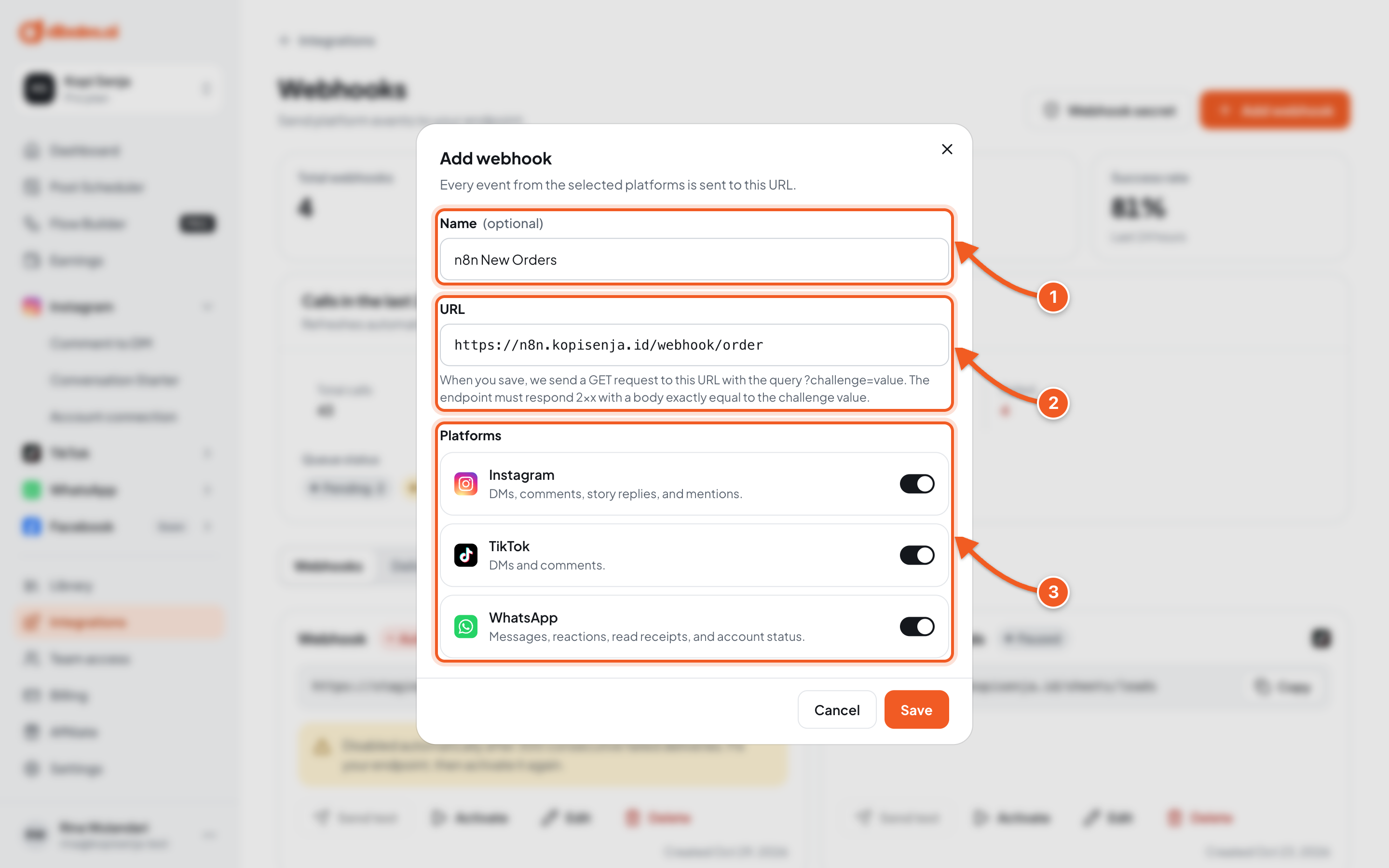
- Name (optional): for example n8n New Orders.
- URL: your endpoint address, which must start with
https://. When you save, we send aGETrequest to this URL with the query?challenge=value. The endpoint must respond with a 2xx status and a body exactly equal to the challenge value. - Platforms: turn on the platforms whose events you want to forward.
- Instagram: DMs, comments, story replies, and mentions.
- TikTok: DMs and comments.
- WhatsApp: messages, reactions, read receipts, and account status.
Click Save. Every event from the selected platforms is sent to this URL.
Check the result: click Send test on the webhook card. If it works, you'll see Test sent, the endpoint responded … and the test.ping event reaches your endpoint. Then send a real DM or comment from another account, and check the Delivery log tab.
5. Verify events with the webhook secret
Click Webhook secret to make sure incoming events really come from dibales.ai.
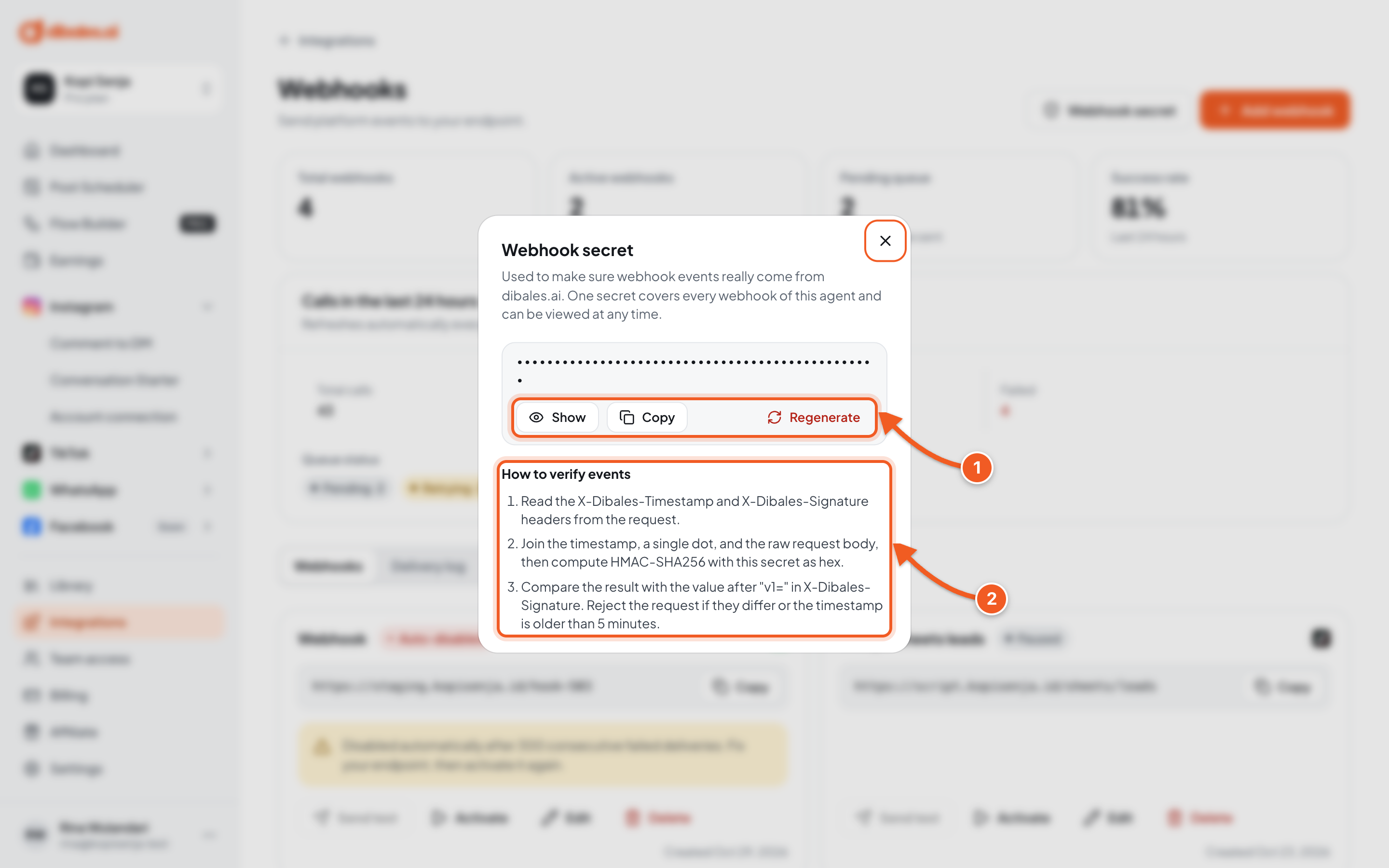
- One secret applies to every webhook on this agent. Click Show or Copy to see it, or Regenerate if it leaks. The old secret stops working right away, so update the value in your system too.
- How to verify events:
- read the
X-Dibales-TimestampandX-Dibales-Signatureheaders from the request; - join the timestamp, a single dot, and the raw request body, then compute HMAC-SHA256 with this secret as hex;
- compare the result with the value after
v1=inX-Dibales-Signature. Reject the request if they differ or the timestamp is older than 5 minutes.
- read the
Whitelister
Whitelister makes the agent reply only to WhatsApp numbers on a list, for example when your WhatsApp number is just for registered customers. Instagram and TikTok aren't filtered. Whitelister only takes effect once WhatsApp is connected.
6. Set up Whitelister
In the Apps section, click Activate (or Configure if it's already on) on the Whitelister card.
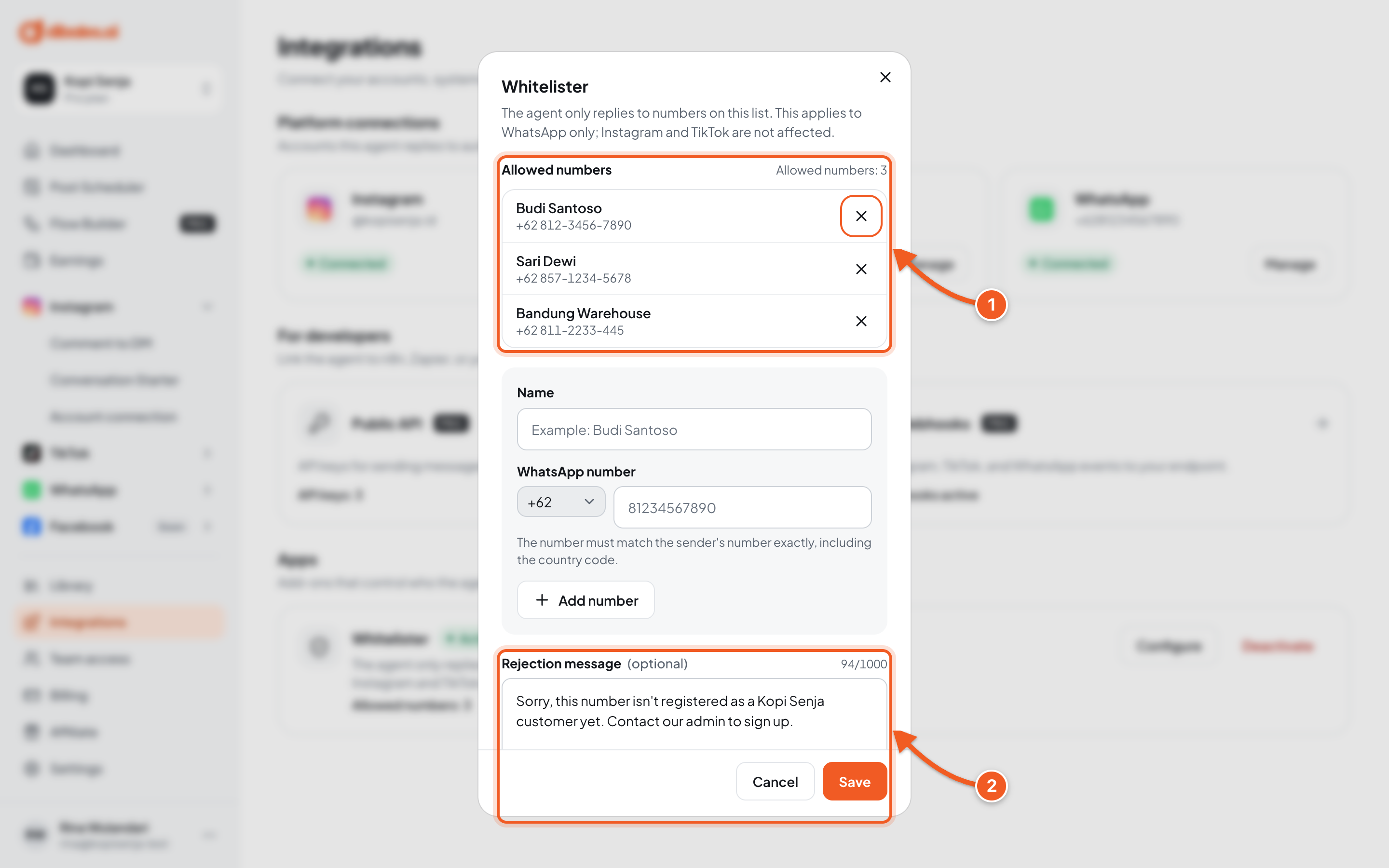
- Allowed numbers: fill in the Name and WhatsApp number, then click Add number. The number must match the sender's number exactly, including the country code.
- Rejection message (optional): sent to numbers that aren't on the list. Leave it empty if those numbers don't need a reply.
Click Save and activate (or Save). To turn it off, click Deactivate on the Whitelister card. The agent replies to every number again, and the list is kept.
Check the result: you'll see Whitelister saved and active. Send a message to the agent's number from a number on the list (it gets a reply as usual) and from a number not on the list (no reply, or the rejection message if you filled it in).
Troubleshooting
| Problem | Fix |
|---|---|
| Public API is on the Pro plan or Webhooks are on the Pro plan | Upgrade the agent to Pro in Billing. |
| Every API key is rejected, or every webhook is paused | The agent is no longer on the Pro plan. Click Upgrade to Pro, and the keys and webhooks work again. |
| URL must start with https:// | Use an endpoint address that starts with https://. |
| The endpoint responded 2xx, but the body does not match the challenge value. | Your endpoint must return the value of the ?challenge= parameter exactly as the body. |
| The endpoint responded with HTTP … or The endpoint could not be reached … | Make sure the URL is correct, live, publicly reachable, and responds 2xx. |
| Select at least one platform. | Turn on at least one platform in the webhook form. |
| A webhook is auto-disabled | The webhook failed too many times in a row. Fix the endpoint, then click Activate. |
| Too many tests sent. or Too many webhooks created. | Wait for the time shown, then try again. |
| Event signatures stop matching after you click Regenerate | The old secret stops working right away. Update the secret value in your system. |
| Enter a valid number, … digits including the country code. or This number is already on the list. | Write the full number with the country code, for example 6281234567890, and don't add the same number twice. |