
Ask for Follow
Ask customers to follow your account before the link is sent, using the Opening Message and Ask for Follow.
The product link is only sent after the customer follows your Instagram account.
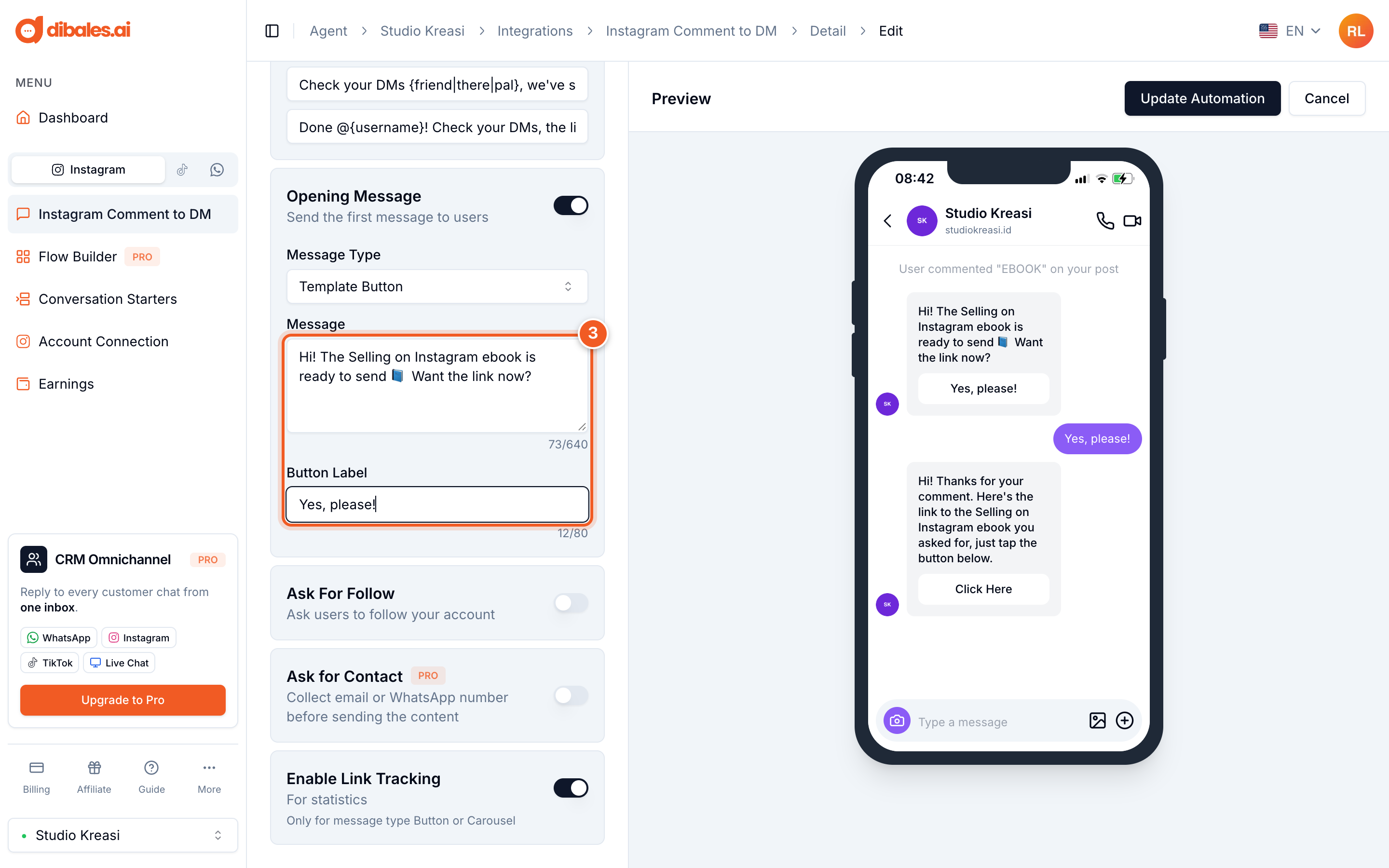
Hi! The Selling on Instagram ebook is ready to send 📘 Want the link now?
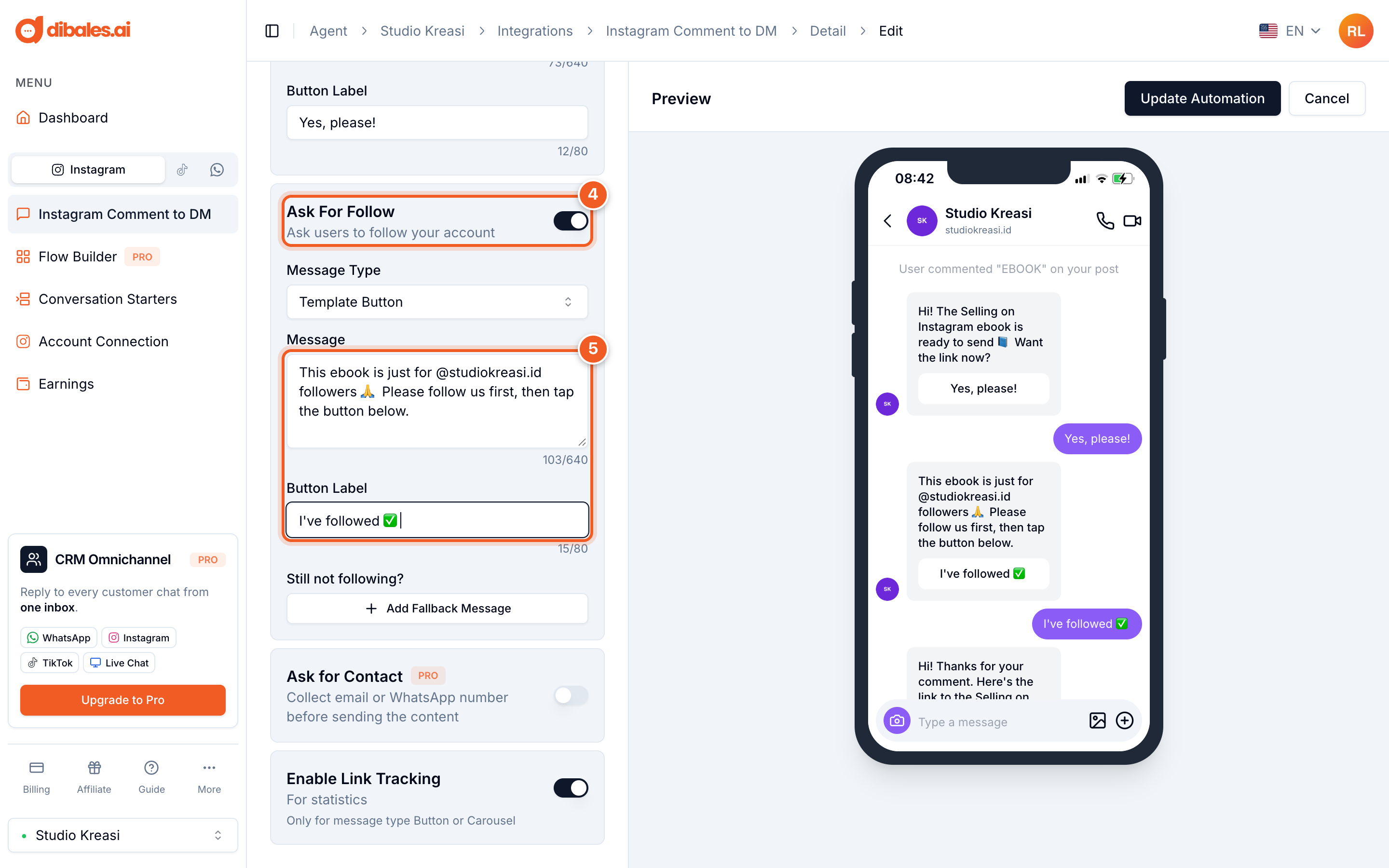
Yes, please!This ebook is just for @sebelumkreatif followers 🙏 Please follow us first, then tap the button below.
I've followed ✅Looks like you haven't followed yet 🙈 Follow @sebelumkreatif first, then tap this button again.
I've followed ✅Hi! Thanks for your comment. Here's the link to the Selling on Instagram ebook you asked for, just tap the button below.
Click HereCustomers who already follow you get the link right after tapping the Opening Message button. Ask for Follow only works when the Opening Message is turned on.
The video is in Indonesian. The steps below walk through the same setup in English.
This guide builds on the automation from Set Up Comment to DM.
Setting up the Opening Message and Ask for Follow
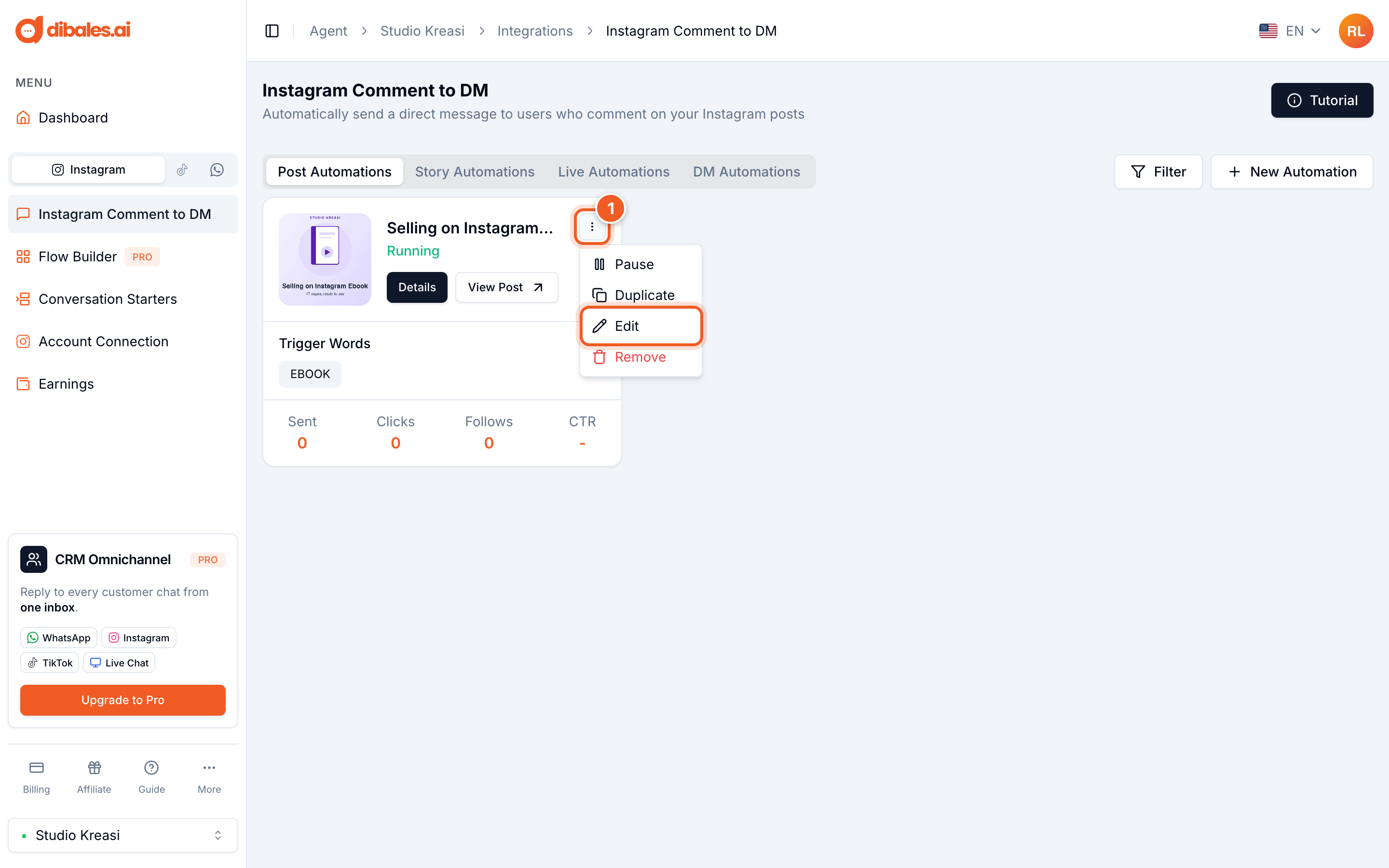
- On the Instagram Comment to DM page, click the ⋮ icon on the automation you want to change, then choose Edit.
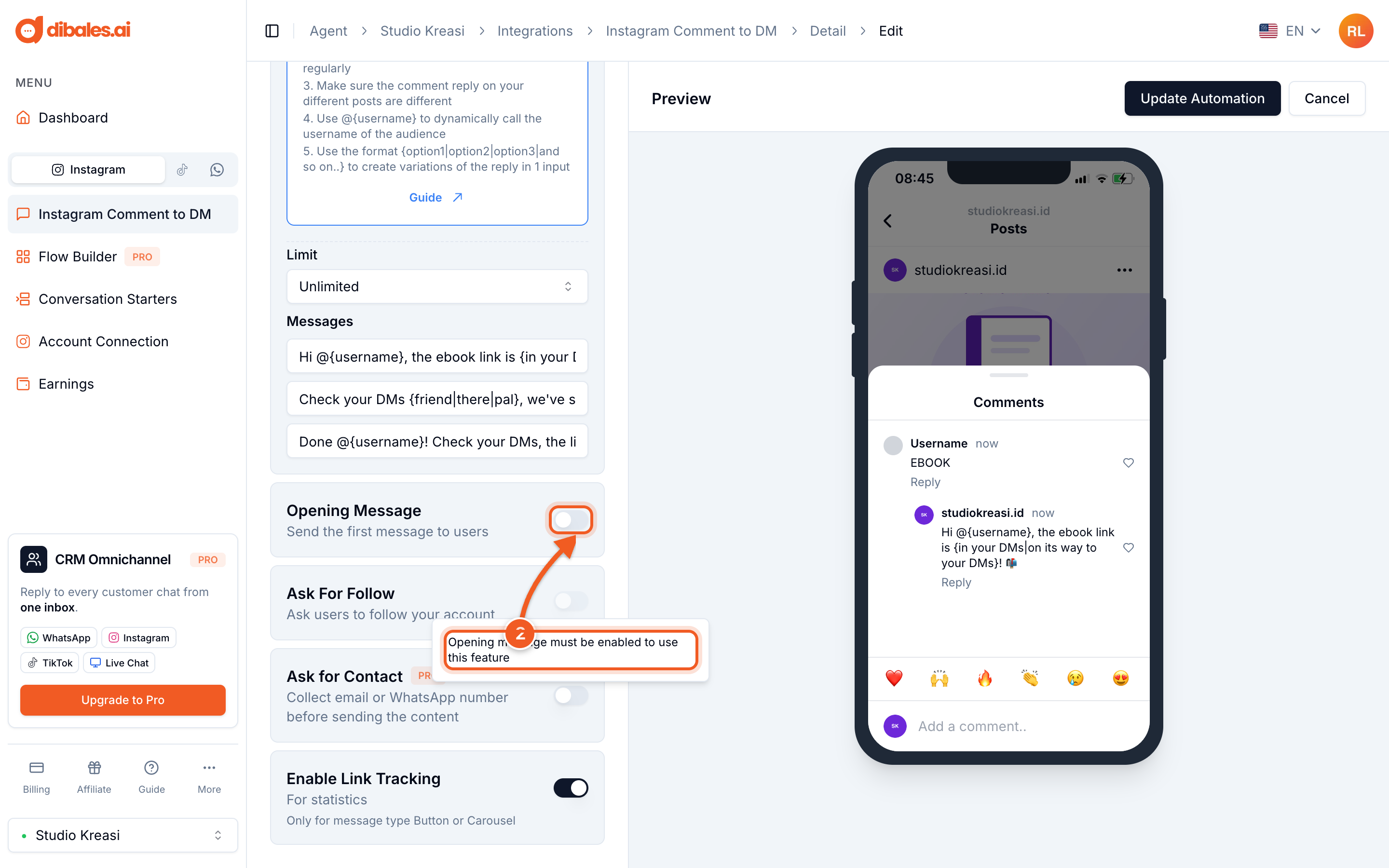
- Under Additional Features, turn on Opening Message. If you don't see Additional Features yet, click Show Additional Features first. While the Opening Message is off, Ask For Follow can't be turned on, and tapping it shows "Opening message must be enabled to use this feature".
- Write the opening Message and its Button Label. Write a message that invites the customer to tap the button, for example "Hi! The Selling on Instagram ebook is ready to send 📘 Want the link now?" with the label Yes, please!
- Turn on Ask For Follow.
- Write the Message asking the customer to follow, then fill in the Button Label, for example I've followed ✅. The customer taps this button after following your account.
- Recommended: under Still not following?, click Add Fallback Message, then write a message for customers who tap the button but haven't actually followed yet, for example "Looks like you haven't followed yet 🙈 Follow @sebelumkreatif first, then tap this button again." Click the trash icon if you want to remove it.
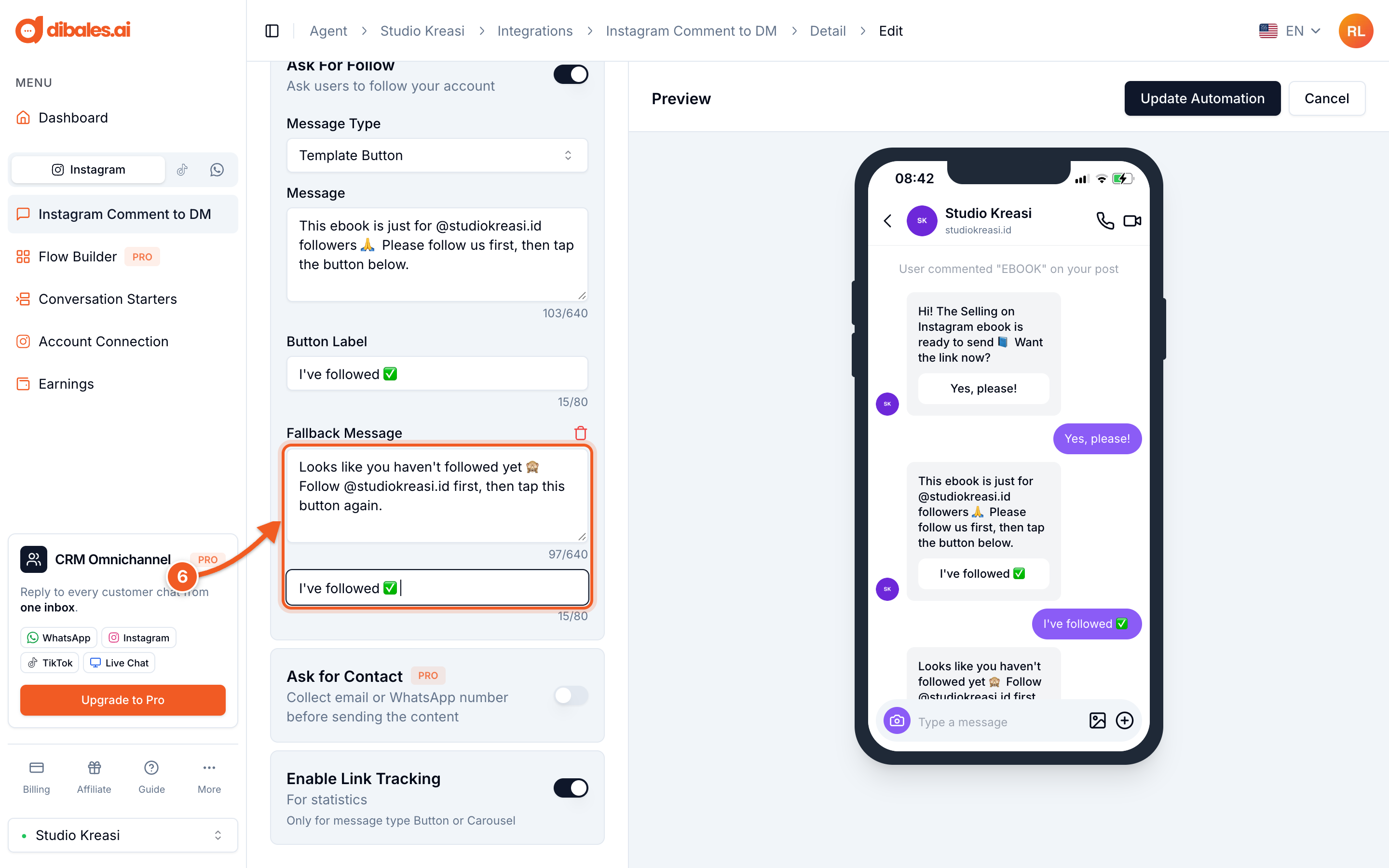
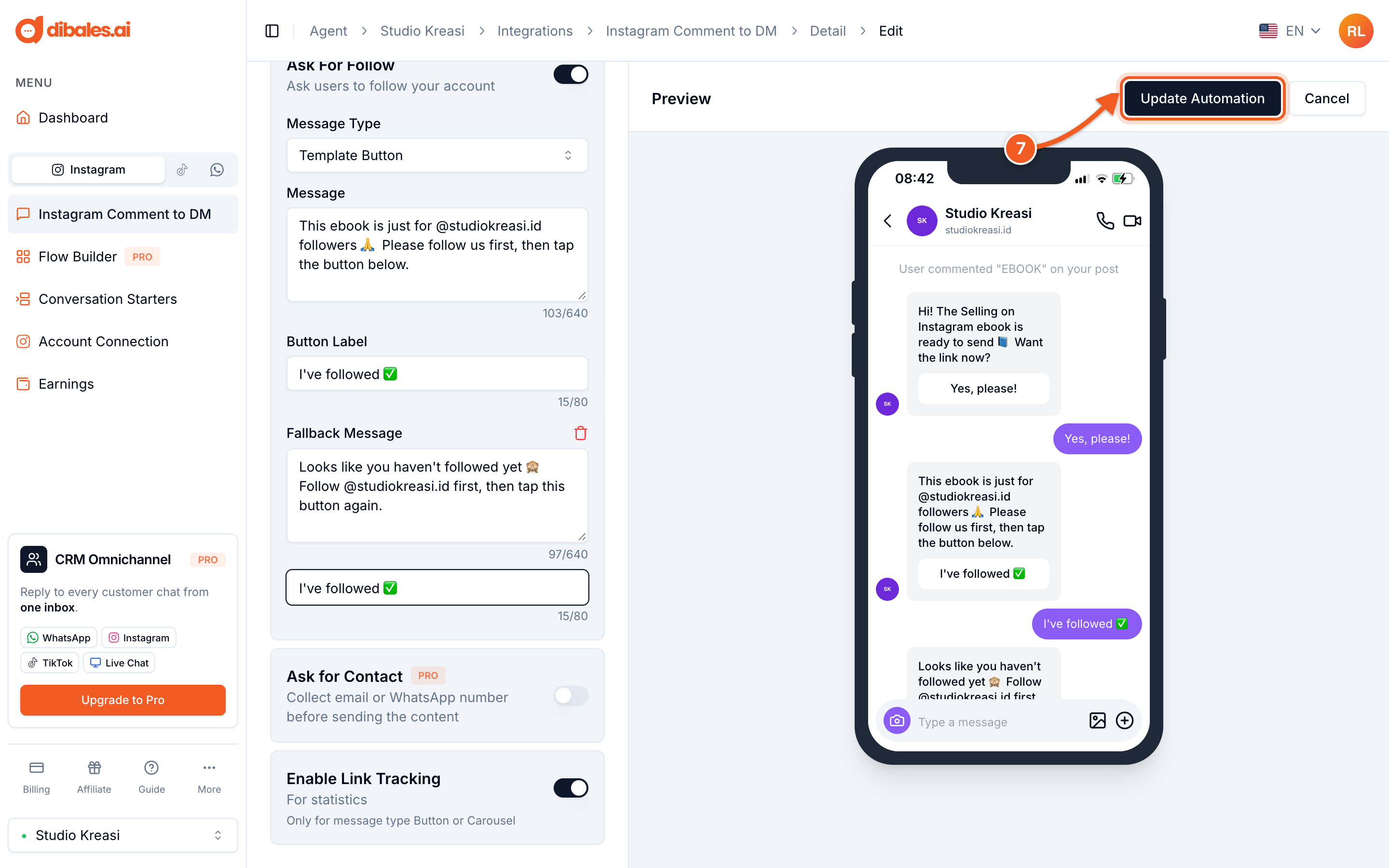
- Check the whole flow in the Preview, then click Update Automation.
If you later turn off the Opening Message, Ask For Follow turns off automatically too. Turn both back on if you want to use them again.
Tips
- Mention your account's username in the Ask for Follow message, for example Follow @sebelumkreatif first, so customers know which account to follow.
- Use a clear button label, such as I've followed ✅, so customers know to tap it after following.
- Turn on Reply to Comments too, because DMs from accounts customers don't follow land in their Message Requests.
Go back to Set Up Comment to DM, or see Message Types and Reply to Comments.