
Reply to DMs
Automatically reply to TikTok DMs that contain a keyword, with text, buttons, an image, or a video.
This automation replies to DMs sent to your TikTok account when they match your keywords. It pairs well with Reply to Comments that invites viewers to send that word.
Kopi Senjakopisenja
MENU
Hi! Here's today's Kopi Senja menu ☕ kopisenja.id/menu
Make sure you meet everything in Before you start. Open TikTok › Automation, click Create automation, then choose Start from scratch. Fill in the Automation name at the top left, for example Menu info by DM.
1. Set up the DM trigger
In the Trigger step:
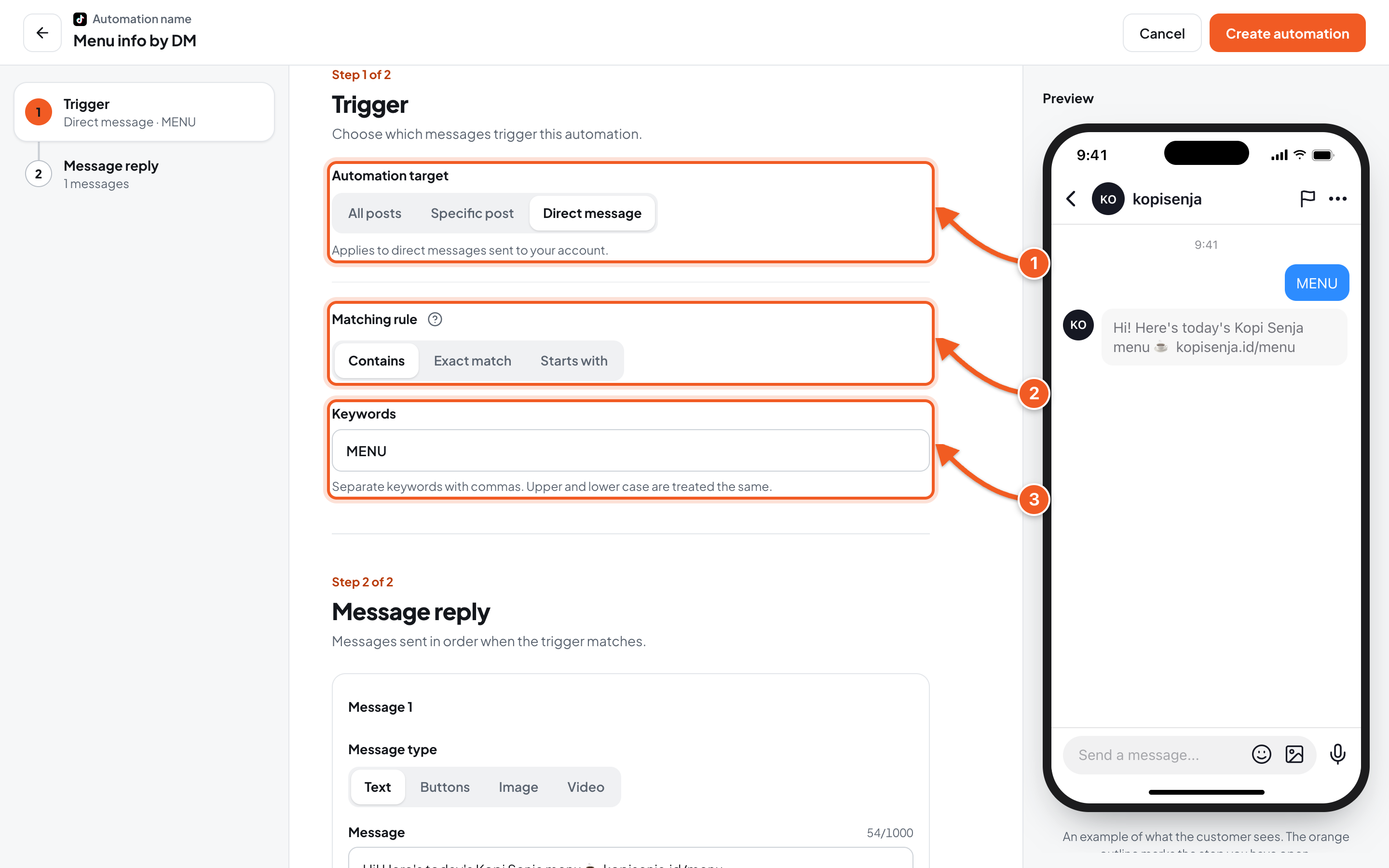
- Automation target: choose Direct message.
- Matching rule: Contains, Exact match, or Starts with. Any words isn't available for direct messages.
- Keywords: for example MENU. Use the same word you mention in your comment reply.
2. Put together the reply messages
Click the Message reply step.
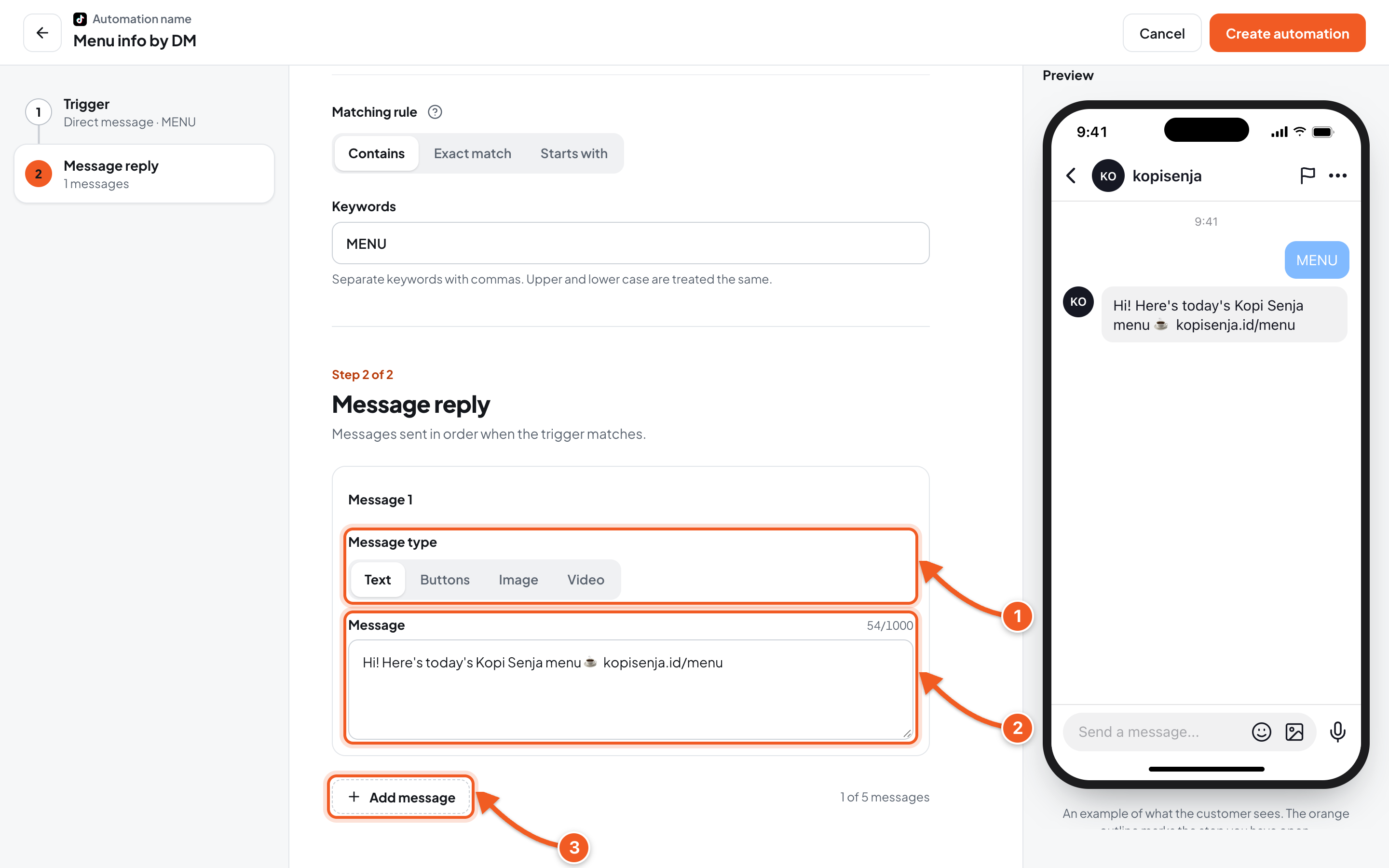
- Message type: Text, Buttons, Image, or Video (shares one of your videos).
- Message: write the reply. Click First name or another variable under Insert to include the viewer's name.
- Add message: add the next message, up to 5 messages. They're sent in order, and you can change the order with the arrows on each message.
Click Create automation to save. The automation starts right away.
3. Check the result
- From another TikTok account, send a DM with the keyword to your account, for example MENU.
- The reply arrives in that account's DMs, in the order you set.
Troubleshooting
| Problem | Fix |
|---|---|
| The test DM gets no reply | Make sure you sent it from another account, the keyword fits the Matching rule, and the automation isn't paused. |
| This rule isn't available for direct messages. | Change Any words to Contains, Exact match, or Starts with. |
| Already used by another automation: … | That keyword is already used by another automation. Change the keyword, or edit the old automation. |
| Add at least one message. or Up to 5 messages. | Fill in 1 to 5 messages in the Message reply step. |
| Choose one image. | For the Image type, click Choose image. |