
WhatsApp Automation
Automatically reply to WhatsApp messages based on keywords, with files and an action that saves contacts to a Follow-up list.
WhatsApp automation replies to messages sent to your WhatsApp number automatically, based on keywords. For example: a customer types PRICE, and your price list is sent right away.
This guide is for the new dibales.ai dashboard. Still on the old layout? See Set Up Automation (CTWA).
Before you start
- The Pro plan. WhatsApp is available on the Pro plan.
- A connected WhatsApp number. If it isn't connected, the Automation page shows WhatsApp not connected. Connect it first through Connect Your Accounts.
- Another WhatsApp number to test with, such as your personal number (not the number connected to the agent).
- A Follow-up list (optional), if you want to use the Actions step. See Create a List.
1. Open WhatsApp Automation
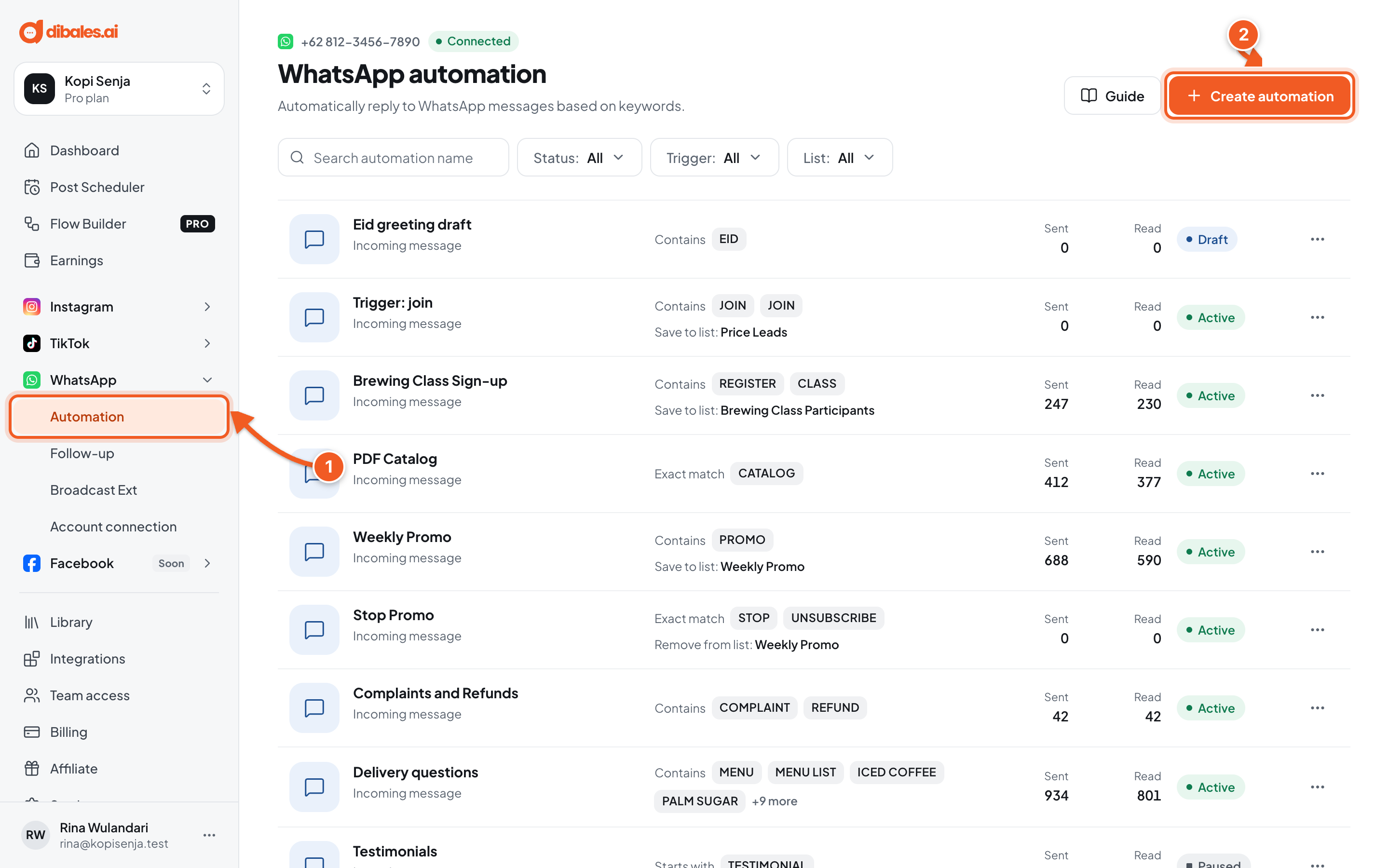
- In the sidebar, open WhatsApp › Automation. On a phone, open the menu first with the ☰ icon at the top right.
- Click Create automation.
Fill in the Automation name at the top left of the editor, for example Full price list.
2. Set up the Trigger
A WhatsApp automation checks every message sent to your number.
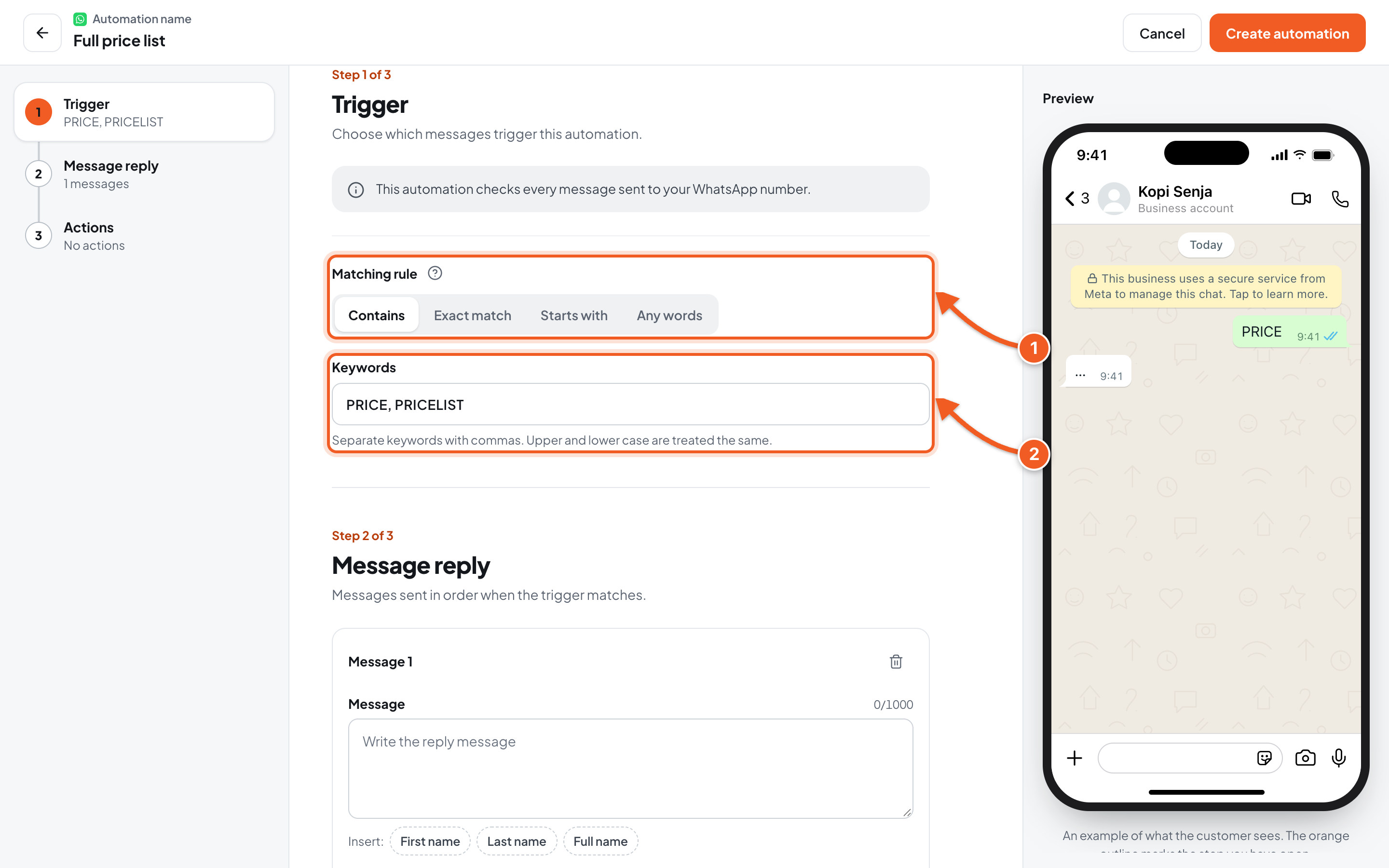
- Matching rule: Contains, Exact match, Starts with, or Any words (every incoming message triggers the automation). Click the question mark icon next to it for an example of each rule.
- Keywords: for example PRICE, PRICELIST. Separate them with commas. Upper and lower case are treated the same.
When several automations match at once, the order is: Exact match, Starts with, Contains, then Any words.
3. Write the Message reply
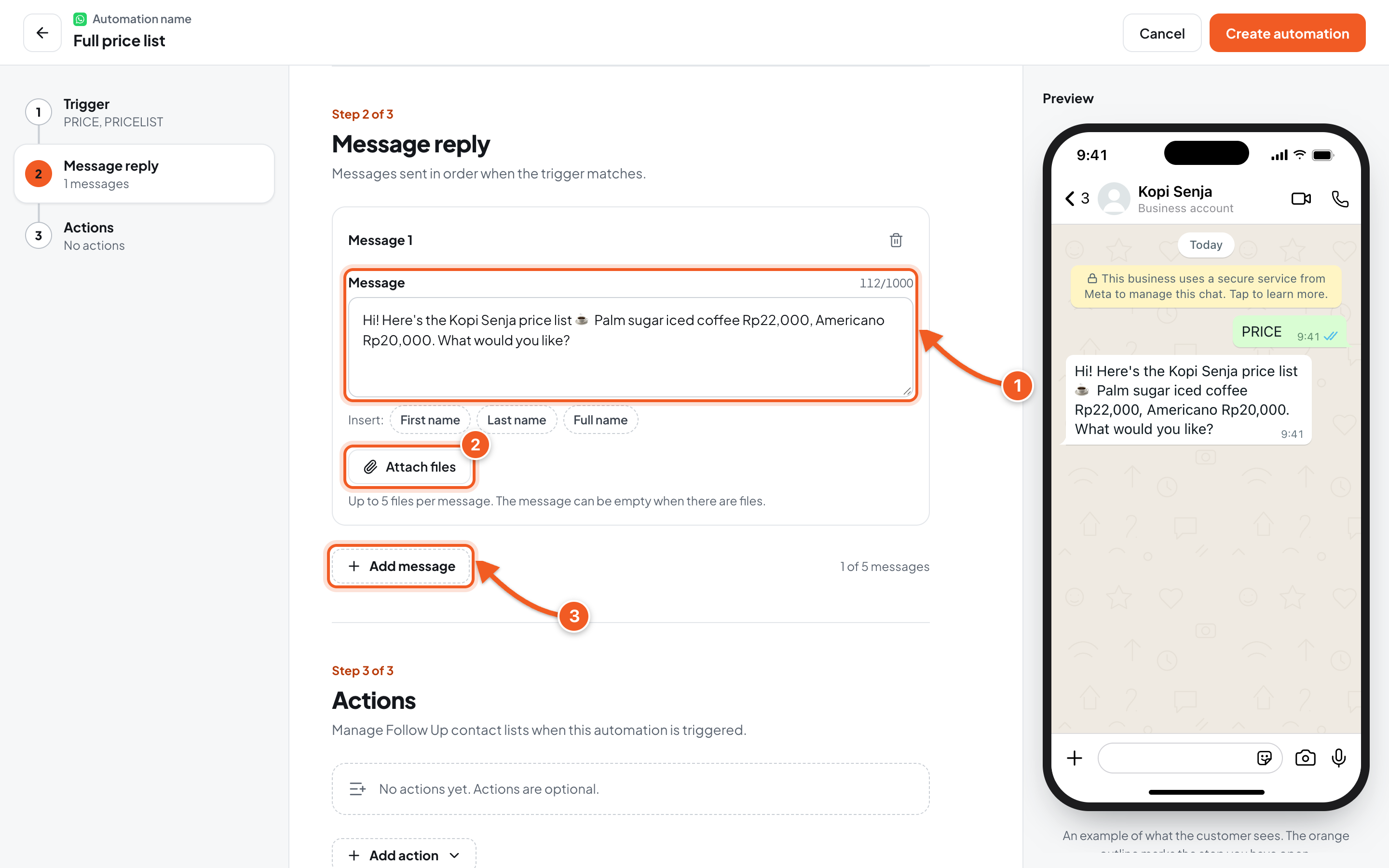
- Message: write the reply. Click First name, Last name, or Full name under Insert to include the customer's name.
- Attach files: add images, PDFs, or other files, up to 5 files per message. The message can be empty when there are files.
- Add message: add the next message, up to 5. They're sent in order.
One automation can send several messages in one go, for example text and then a catalog image.
4. Add Actions (optional)
Actions add a contact to, or remove it from, a Follow-up list when this automation is triggered. For example: customers who ask for prices are added to a Price Leads list automatically, then get follow-up messages from Follow-up.
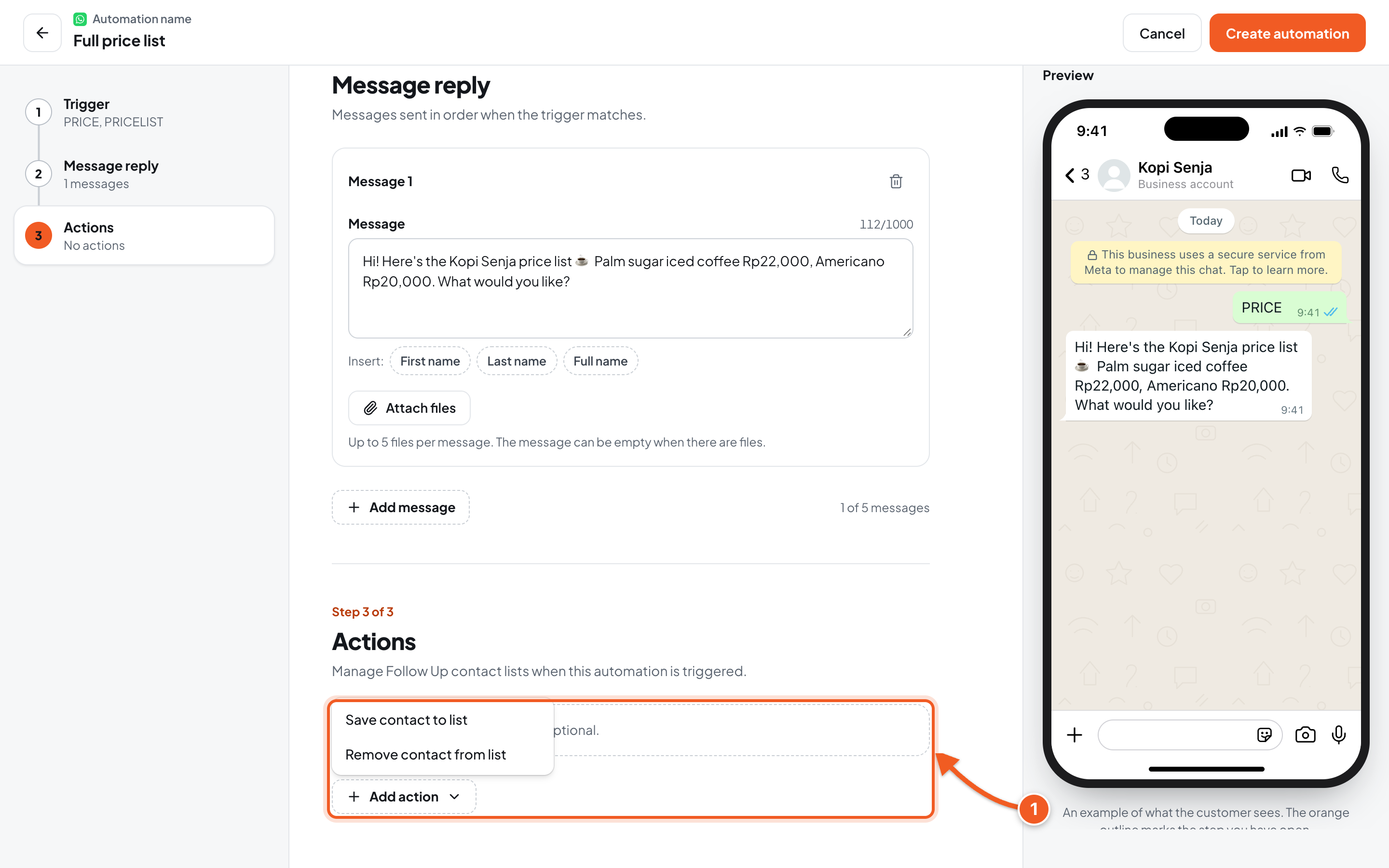
- Click Add action, choose Save contact to list or Remove contact from list, then choose the list.
No list yet? Create one first with Create a List, then come back here.
Click Create automation at the top right. The automation is active right away.
5. Share the WhatsApp link
Each automation has a WhatsApp link (wa.me) that fills in its first keyword. The link isn't available for the Any words rule. Put it in your bio, ads, or a website button, so prospects only need to tap Send.
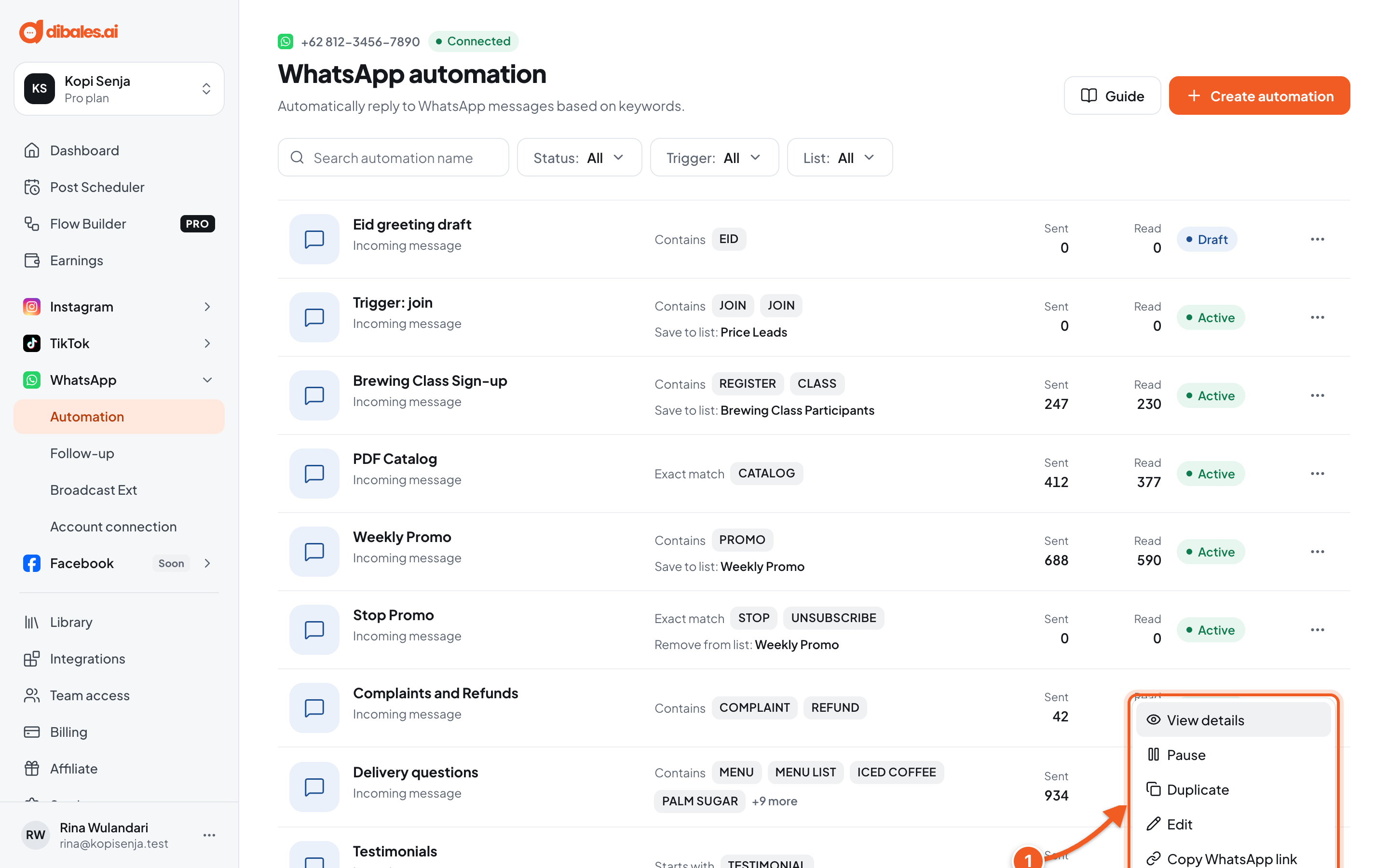
- Click the ⋯ icon on an automation's row, then choose Copy WhatsApp link. The same menu also has View details, Pause, Duplicate, Edit, and Delete.
6. Try it
- From another WhatsApp number, send a message with the keyword to the connected number, for example PRICE. You can also use the WhatsApp link from step 5.
- The reply arrives on that number, in the order of the messages you set up.
- If you used Actions, open the list in WhatsApp › Follow-up. The number is now in the list.
Troubleshooting
| Problem | Fix |
|---|---|
| WhatsApp not connected shows, or WhatsApp isn't connected. Connect it before saving. | Connect the number in WhatsApp › Account connection, then save again. |
| The automation stopped and says Can't resume because WhatsApp isn't connected. | When WhatsApp disconnects, active automations stop. Reconnect the number, then click Resume. |
| The test message gets no reply | Make sure you sent it from another number (not the agent's number), the keyword fits the Matching rule, and the automation isn't paused. |
| You can't save: Already used by another automation: … | That keyword is already used by another automation. Change the keyword, or edit the old automation. |
| Add at least one reply message or one action. | Fill in at least one message under Message reply, or add one action. |
| Choose a list. | In the Actions step, choose the Follow-up list. No list yet? Create one with Create a List. |
| Copy WhatsApp link doesn't show | The link isn't available for the Any words rule. |