
Create & Schedule Posts
Create a post, upload a photo or video, write the caption, then schedule it or publish it now to several accounts at once.
Make sure the destination accounts are connected. If they aren't yet, follow Connect Accounts first. The example in this guide: a weekend promo post to the Kopi Senja Instagram, scheduled for Thursday at 19:00. Kopi Senja's Instagram was connected with the same steps as Facebook in the Connect Accounts guide.
1. Open the post editor and pick accounts
In Post Scheduler, click Create post at the top right. Another way: hover over a date in the calendar, then click the plus sign, so the date is filled in for you.
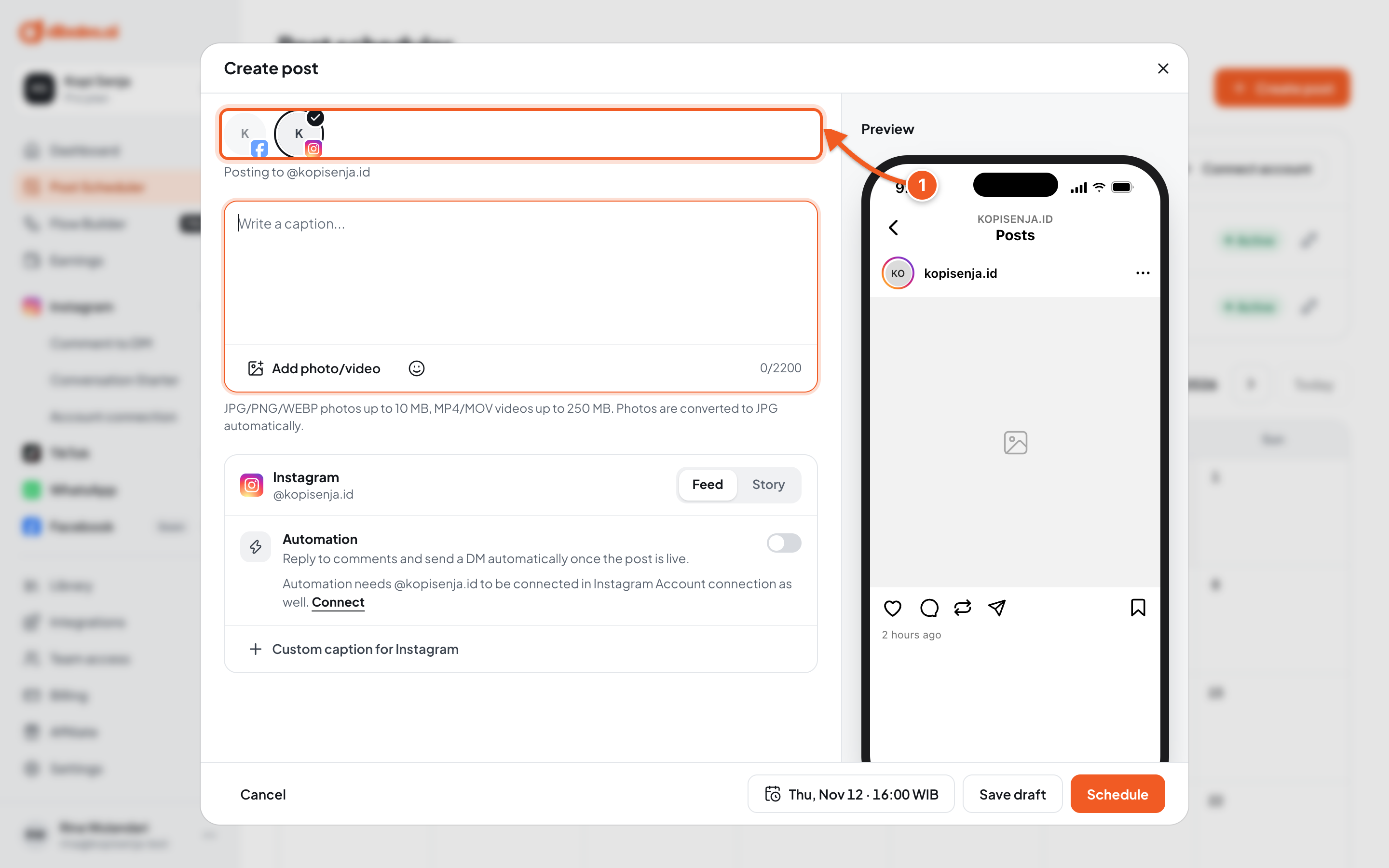
- Post to: click an account's photo until it shows a check mark. You can pick more than one account. The small icon on each photo shows its platform.
2. Upload media and write the caption
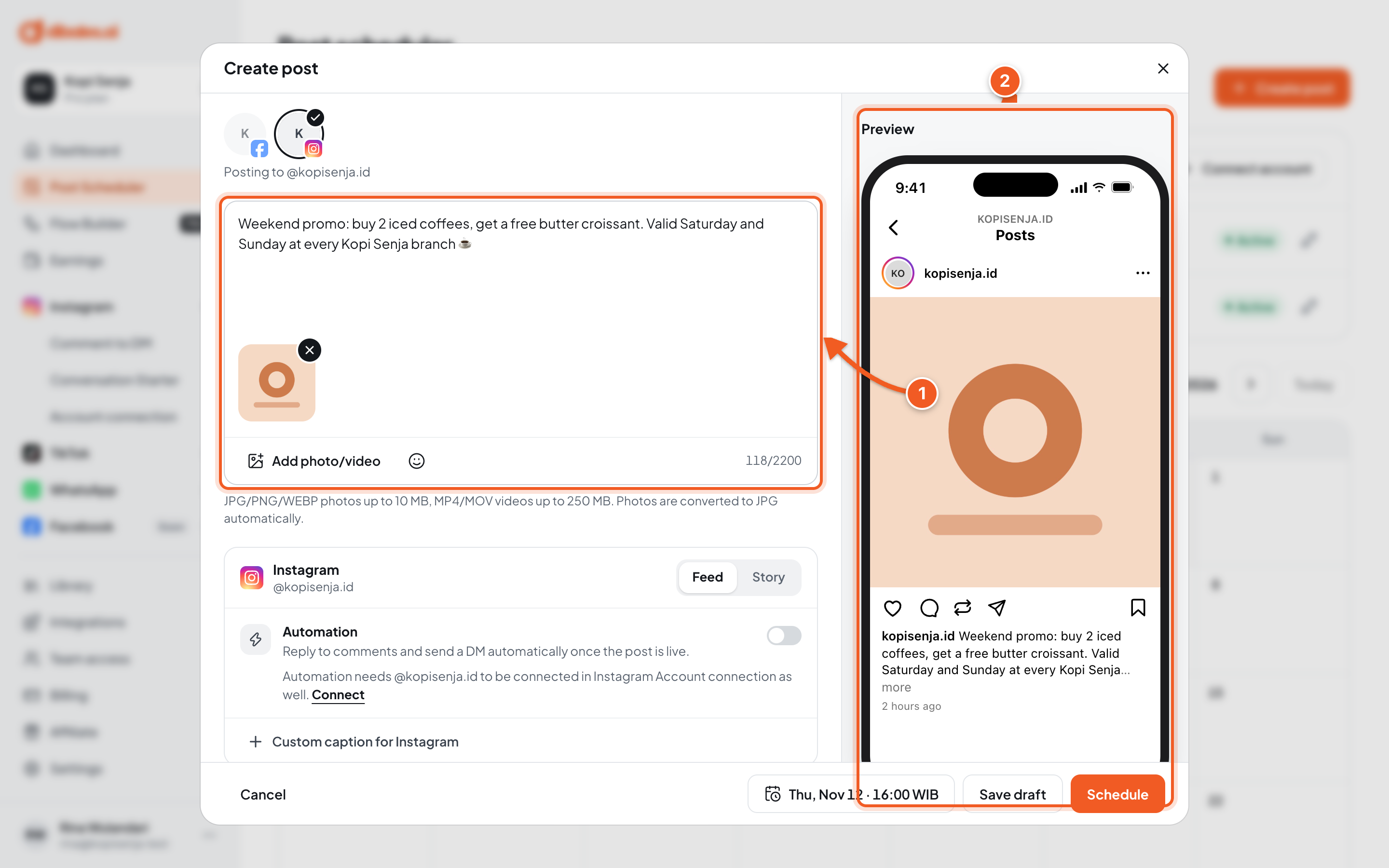
- Write the caption, then click Add photo/video. The number at the bottom right is the caption's remaining characters, based on the strictest limit among the selected accounts.
- Preview: how the post looks on each platform. On a phone, open it with the Preview tab at the top.
Each platform's media requirements are in the table below.
3. Set each platform's options
Each selected account has its own settings section below the caption.
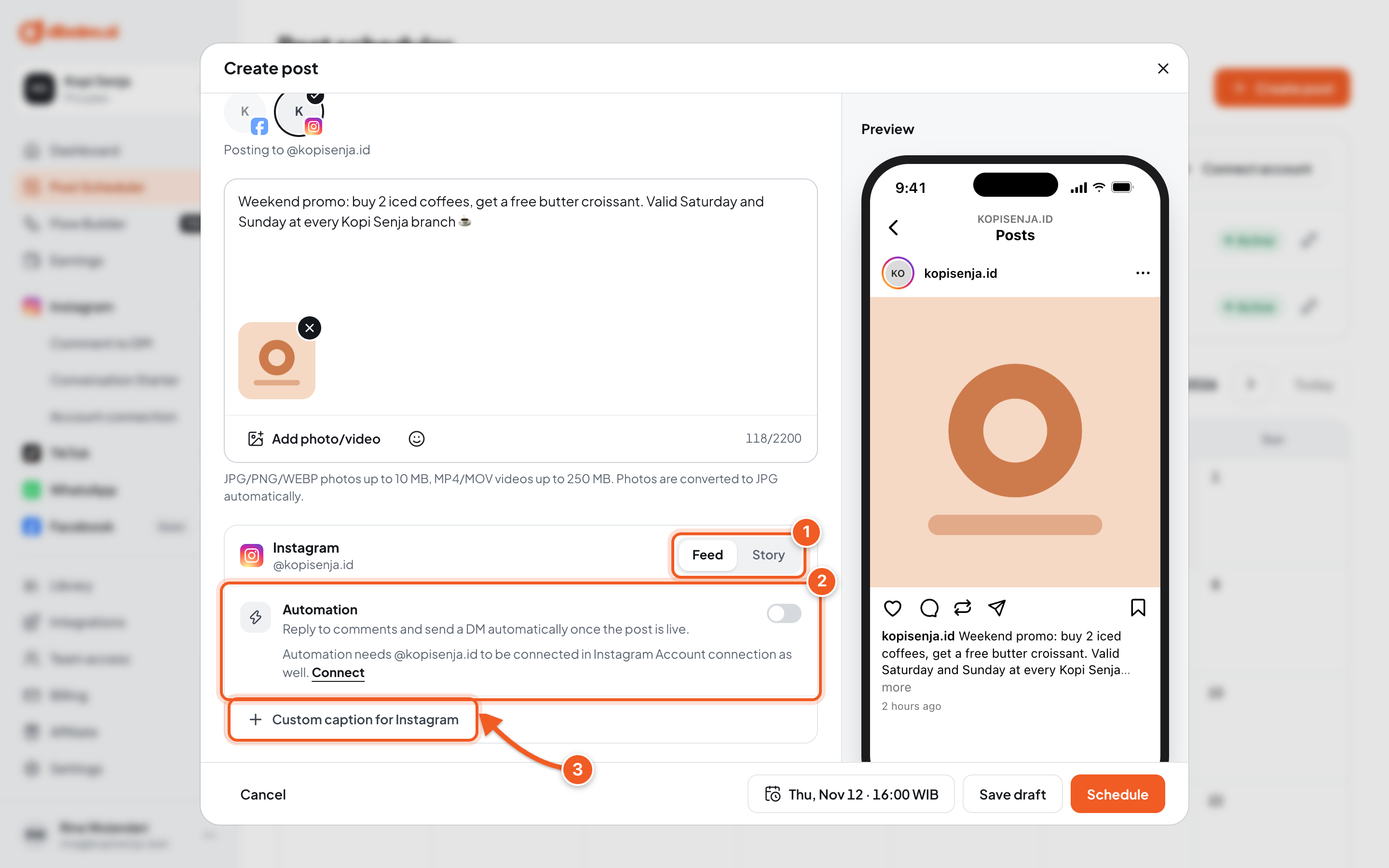
- Instagram: choose Feed or Story. Stories don't use a caption.
- Automation: optional, to reply to comments with an automatic DM once the post is live. See Automation from Posts.
- Custom caption for Instagram: a caption that differs from the main one, just for this platform. Leave it empty to use the main caption.
Settings for other platforms:
| Platform | Settings |
|---|---|
| Feed, Reels, or Story format | |
| TikTok | TikTok mode: Send to inbox or Publish directly. With Send to inbox, the video lands in your TikTok inbox. Open the TikTok app, tap the notification, and finish posting from there. Publish directly publishes the post right away with the Privacy you choose. |
| YouTube | Video title (up to 100 characters), Visibility (Public, Unlisted, Private), and a made-for-kids flag |
| Board (required), Pin title (up to 100 characters), and Destination link |
4. Choose the publish time
Click the date and time at the bottom of the editor.
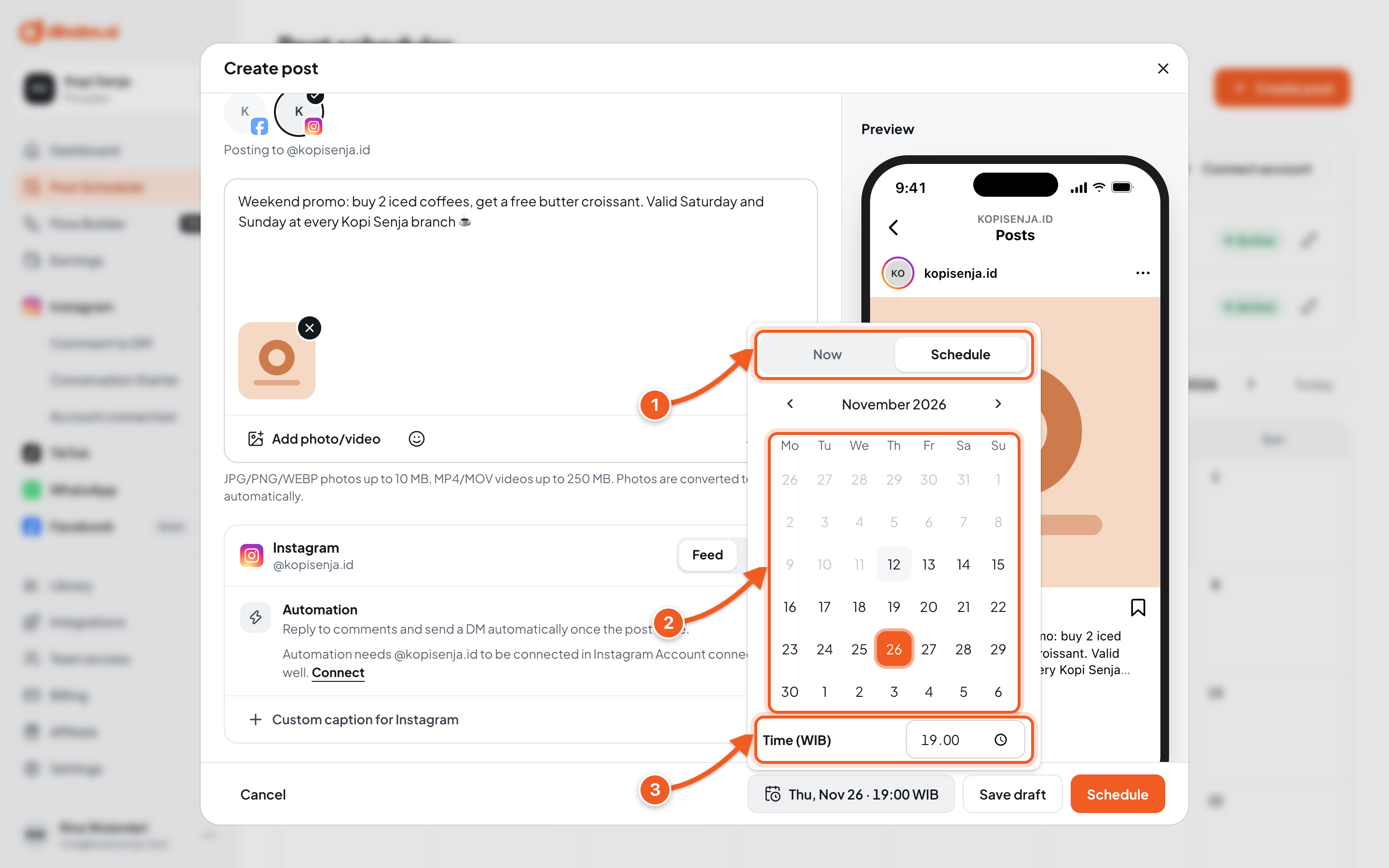
- Choose Schedule. Choose Now if the post should go out right away.
- Click the date, up to 90 days ahead.
- Time (WIB): enter the publish time.
Click the date and time again to close the picker.
5. Save
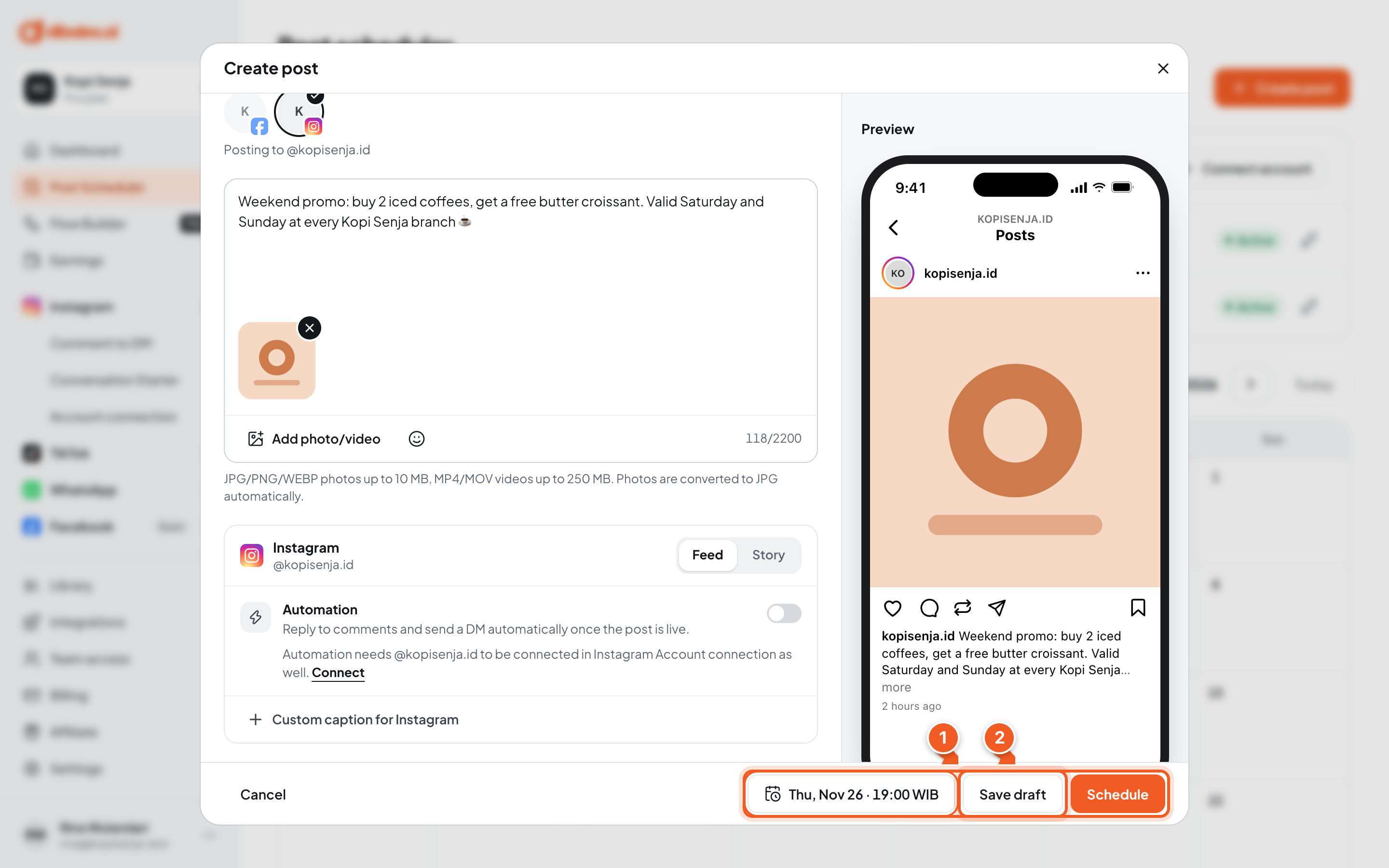
- Check the date and time, then click Schedule. If you chose Now, the button is Publish now.
- Save draft: saves the post without publishing it. Drafts without a schedule go to Undated drafts above the calendar.
If something doesn't meet the requirements, you'll see Check the parts marked in red. and the part is marked in red with an explanation, for example Instagram needs at least one photo or video. Fix it, then click Schedule again.
6. Check the result
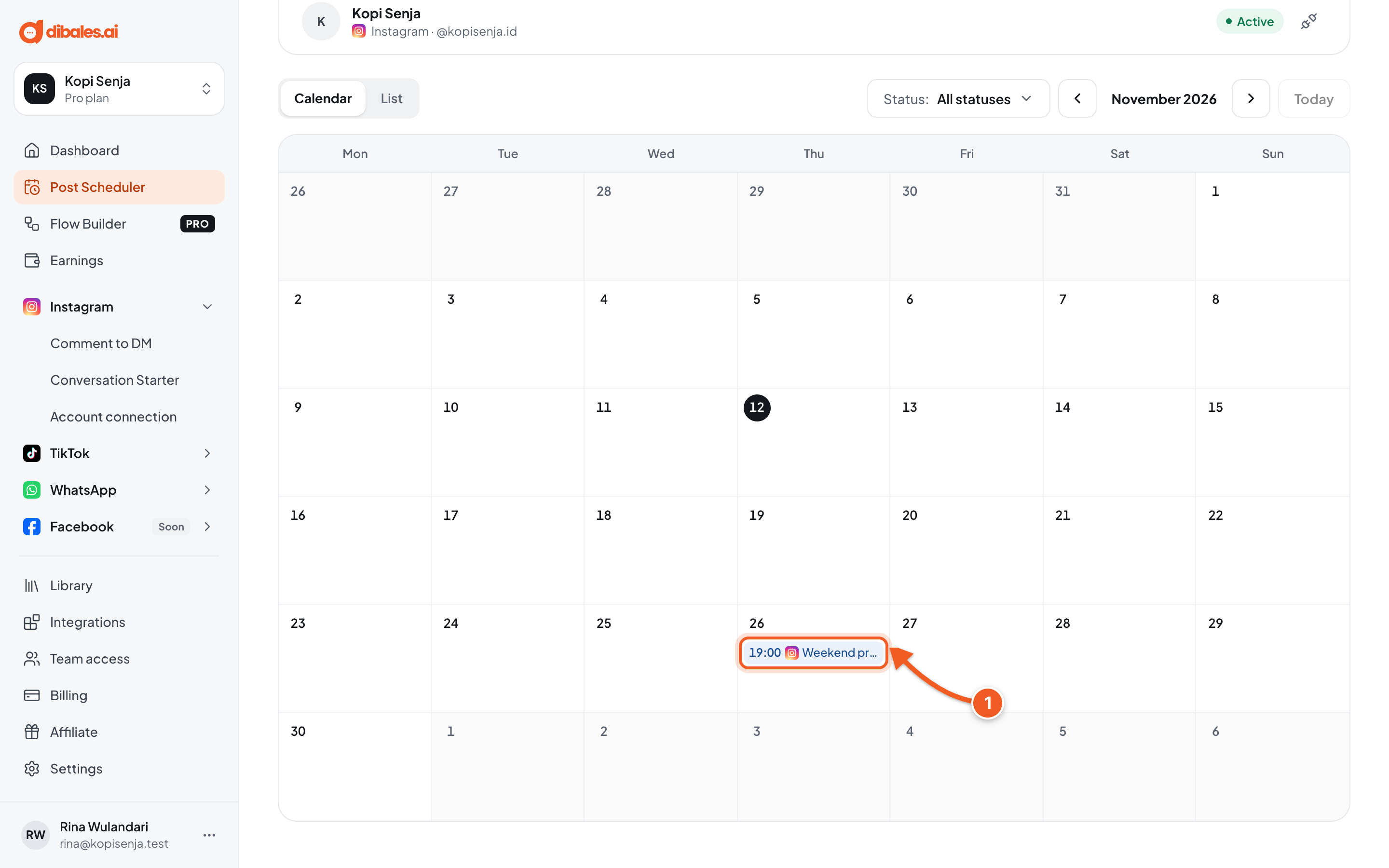
A Post scheduled notice appears, and the editor closes.
- The post shows on the calendar on the date you chose, as Scheduled, with its time and platform icons. On a phone, the calendar shows as a list by date.
At its time, the status changes to Sending, then Published if it succeeds. Other statuses are explained in Manage Posts.
Content requirements by platform
| Platform | Media | Caption |
|---|---|---|
| Required: 1 to 10 photos or videos. Feed photos between 4:5 and 1.91:1, up to 8 MB. Videos 3 seconds to 15 minutes. Story: exactly 1 photo or video, videos up to 60 seconds. | Up to 2,200 characters. Stories have no caption. | |
| Media optional (caption only is fine). Up to 10 photos, or 1 video. Photos and videos can't be mixed. Reels: exactly 1 video, 3 to 90 seconds. Story: exactly 1 photo or video, videos up to 60 seconds. | No specific limit | |
| Threads | Media optional. Up to 20 items, JPG or PNG photos up to 8 MB, videos up to 5 minutes. | Up to 500 characters |
| TikTok | Required: up to 35 photos, or 1 video. Photos and videos can't be mixed. Videos at least 3 seconds, up to your TikTok account's limit (shown in the editor). | Up to 2,200 characters |
| YouTube | Required: exactly 1 video | Description up to 5,000 characters |
| Media optional. Up to 20 photos, or 1 video of 3 seconds to 10 minutes. Photos and videos can't be mixed. | Up to 3,000 characters | |
| Required: up to 5 photos, or 1 video of 4 seconds to 15 minutes. Photos and videos can't be mixed. | No specific limit |
For every platform: JPG, PNG, or WEBP photos up to 10 MB per file (Instagram and Threads 8 MB), MP4 or MOV videos up to 250 MB. Photos are converted to JPG automatically.
Troubleshooting
| Message | Fix |
|---|---|
| Check the parts marked in red. | Something doesn't meet the requirements. Scroll to the part marked in red and read the explanation. |
| Instagram: feed photo ratio must be between 4:5 and 1.91:1. | Crop the photo, or choose the Story format. |
| The scheduled time has already passed. | Pick a time that hasn't passed yet, or choose Now. |
| Choose at least one account. | Click a destination account's photo under Post to. |
| This month's post limit has been reached | You've reached this month's fair usage limit. You can schedule again from the date shown in the message. |
| One of the accounts has reached the limit of posts per day. | Try again tomorrow, or schedule for another day. |
| ... needs reconnecting. | Reconnect the account in Connect Accounts, or deselect it. |
Next steps
- Want comments on this post answered with an automatic DM? See Automation from Posts.
- Want to edit or cancel the post? See Manage Posts.