
Ask for Payment
Sell an e-book, class, or file by DM: your audience pays first, then the product link is sent automatically.
With Ask for Payment, your audience pays in the DM first, then the Main message (a download link, access code, or file) is sent automatically as soon as the payment succeeds. No website or manual confirmation needed.
This guide is for the new dibales.ai dashboard. Still on the old layout? See Ask for Payment.
Before you start
- A professional Instagram account that's connected, see Connect Your Accounts.
- Identity verification, because your sales go to an account in your name. If you haven't verified yet, the dashboard shows Verify your identity first when you turn on Ask for Payment. Click Start verification, then follow the verification form guide. You only do this once for all your agents. Team members can't verify: ask the agent's owner to do it.
- The product you'll send after payment, such as an e-book download link, a class access code, or a file.
- Another Instagram account to test the flow.
How it works
| Step | What you do |
|---|---|
| Template | Choose Digital product, then fill in the automation name and trigger |
| 1–3 | Fill in the Product details, price, payment message, and payment methods |
| 4 | Fill in the Main message, which is the product sent after the payment succeeds, then save |
| 5 | Test from another account, then check the order in the Orders tab |
The example on this page sells an Iced Coffee Recipe E-book for Rp49,000:
25 iced coffee recipes with exact measurements and selling tips ☕
I want itIced Coffee Recipe E-book · Rp49,000
CheckoutPlease select a payment method
QRISBCA Virtual AccountThanks for buying! Here's the download link for your Iced Coffee Recipe E-book 👇
Download e-bookUse the Digital product template
The quickest way is the Digital product template: Ask for Payment is already on, and the Opening message is replaced by a Product details step that introduces your product.
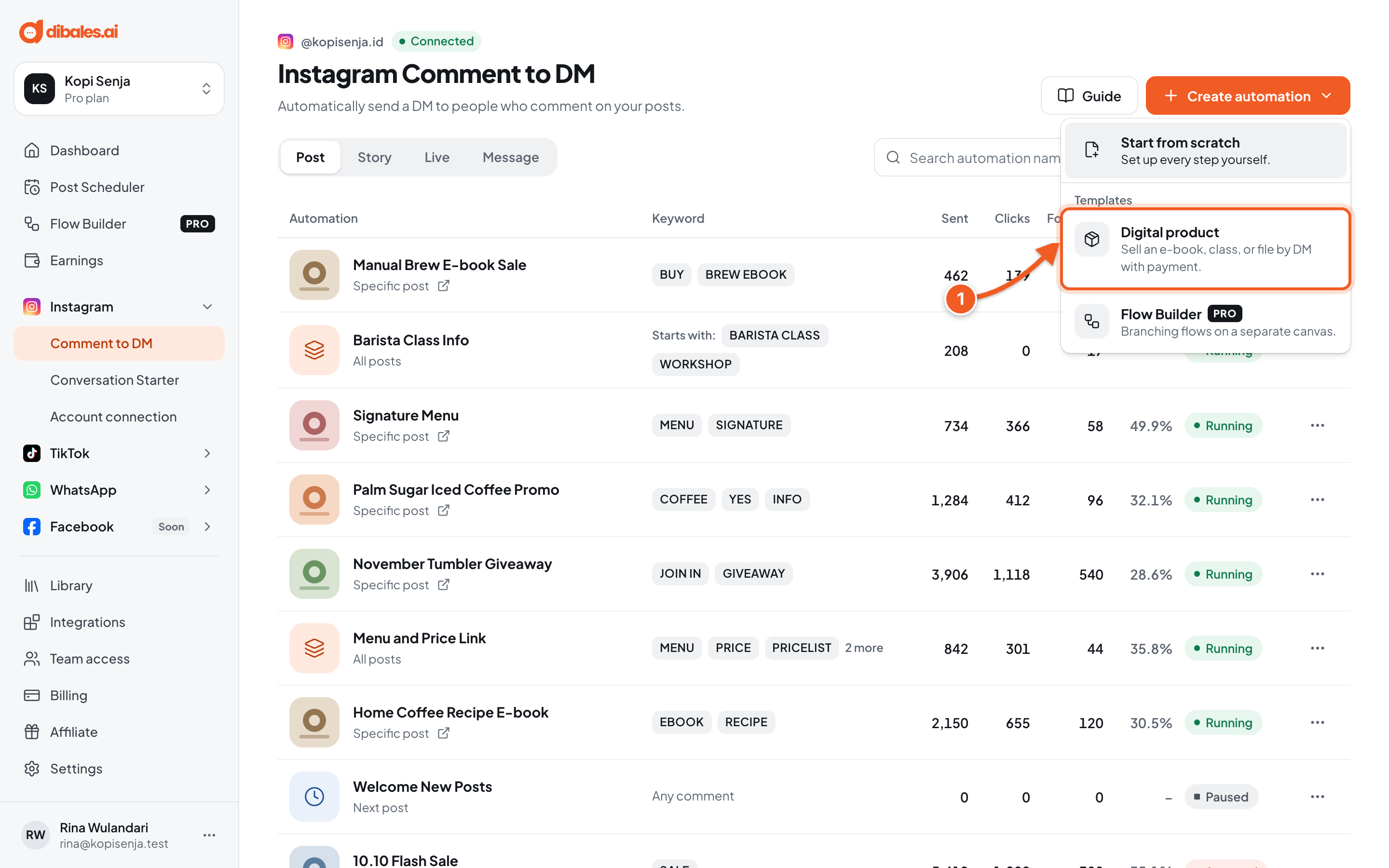
- In Instagram › Comment to DM, click Create automation, then choose Digital product.
Fill in the Automation name and Trigger as in Comment to DM, then continue with the steps below.
You can also turn on Ask for Payment in a regular automation with its switch in the step list.
1. Product details
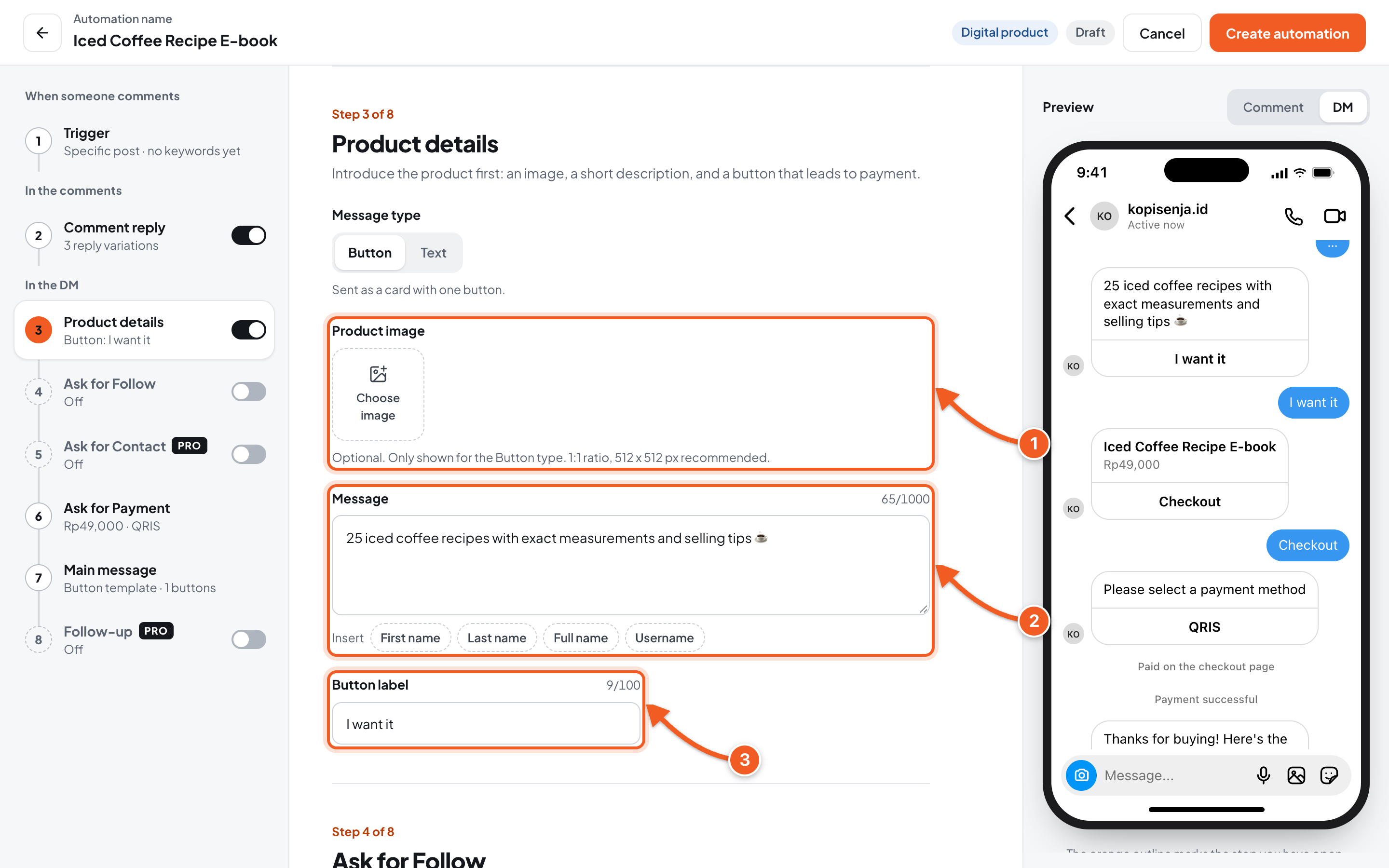
- Product image (optional): click Choose image. 1:1 ratio, 512 x 512 px recommended. The image only shows for the Button type.
- Message: a short description of your product.
- Button label: the button that leads to payment, for example I want it.
2. Price and payment message
Click the Ask for Payment step.
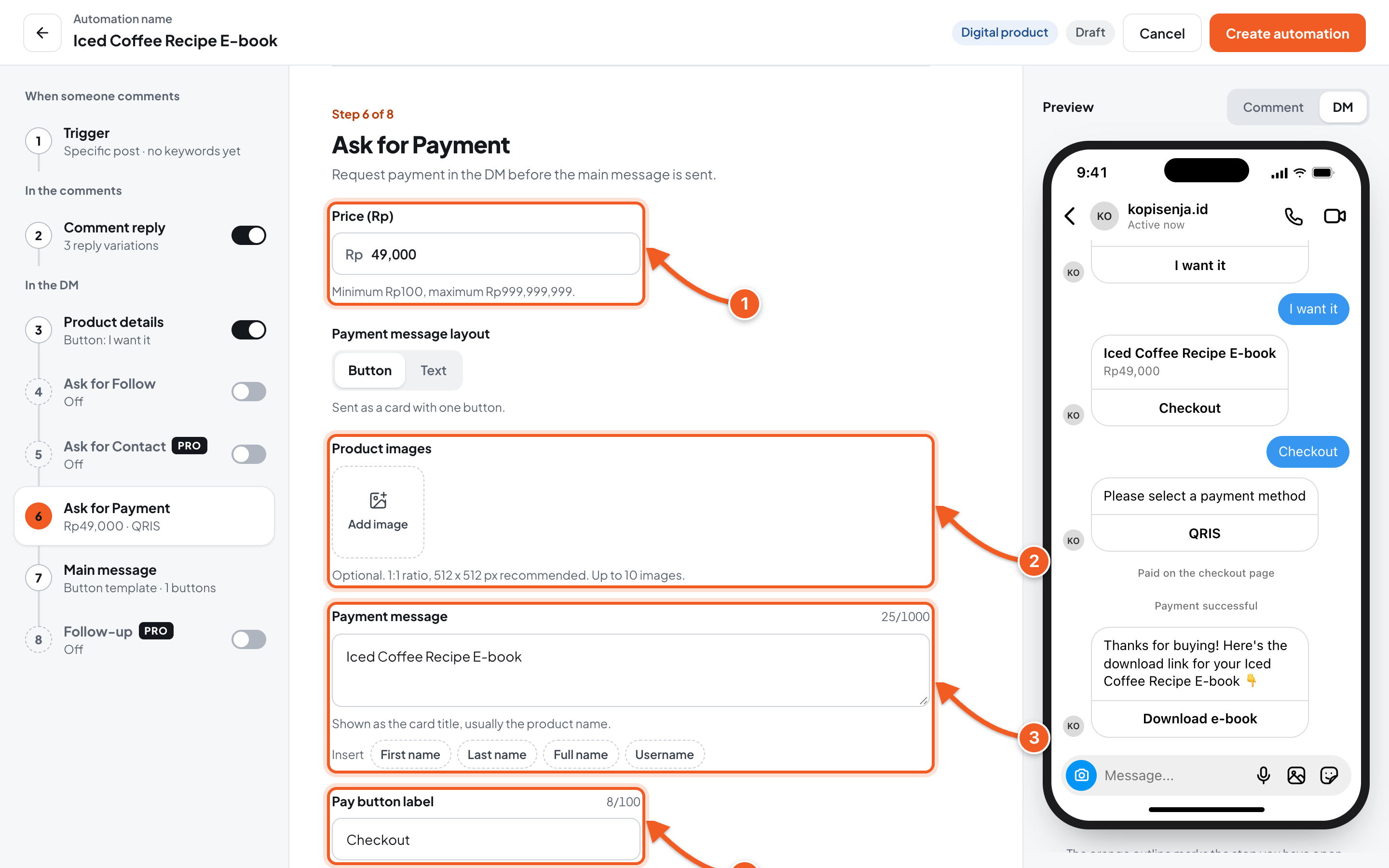
- Price (Rp): minimum Rp100, maximum Rp999,999,999.
- Product images (optional): click Add image, up to 10 images.
- Payment message: shown as the payment card's title, usually the product name.
- Pay button label: the button text. Click one of the Quick picks such as Buy now or Checkout, or write your own.
3. Payment flow and methods
Scroll down in the same step.
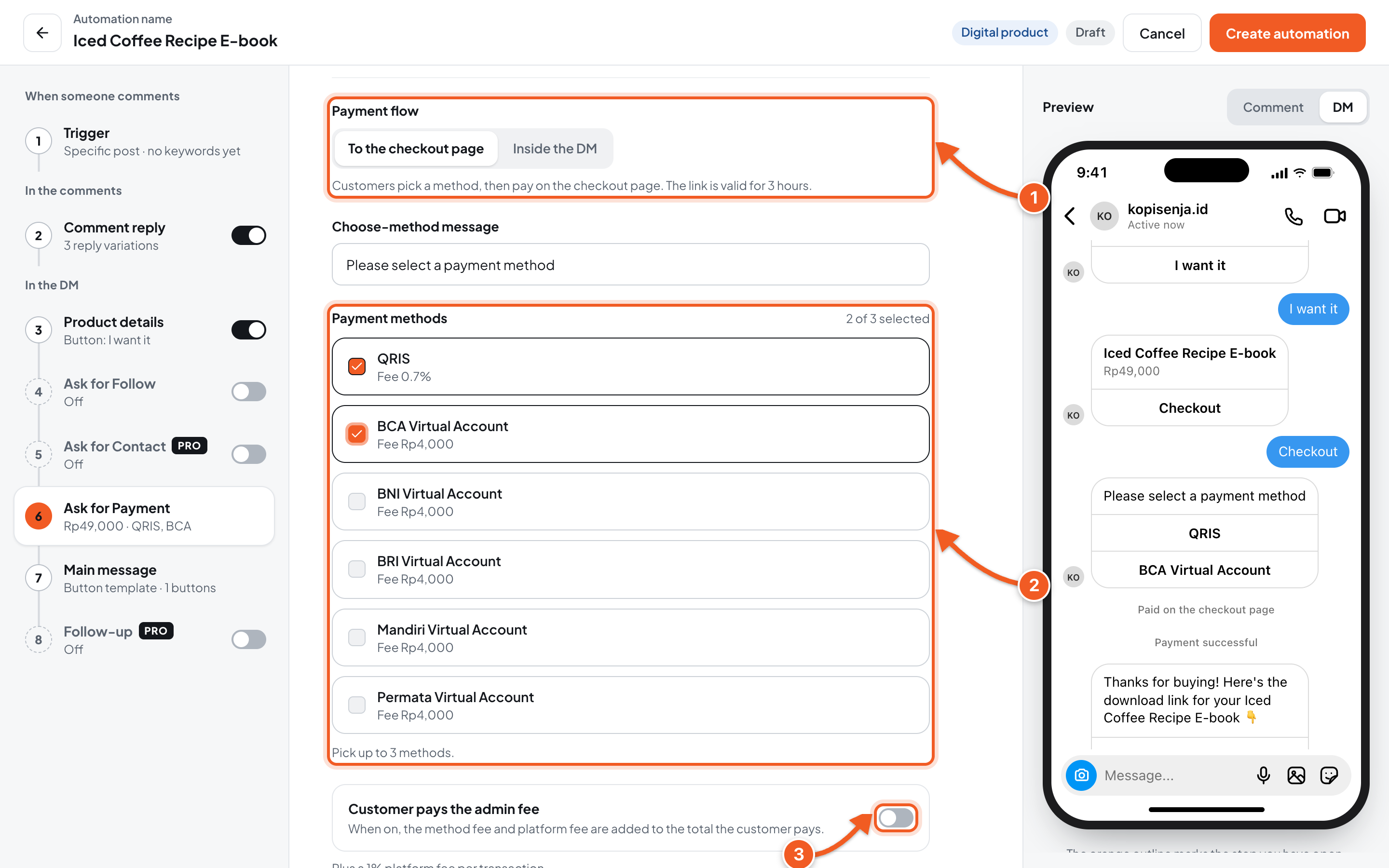
- Payment flow:
- To the checkout page: your audience picks a method in the DM, then pays on the checkout page. The link is valid for 3 hours.
- Inside the DM: your audience gets the QRIS code or virtual account number right in the DM. The bill is valid for 3 hours.
- Payment methods: tick up to 3 methods, for example QRIS and BCA Virtual Account. Each method's fee is shown under its name. The Choose-method message above it is the text shown with the method options.
- Customer pays the admin fee: when on, the method fee and platform fee are added to the total your audience pays. When off, the fees are deducted from your sales.
Below it is the Thank-you message (optional), sent after the payment succeeds, before the Main message.
| Fee | Plus plan | Pro plan |
|---|---|---|
| Platform fee per transaction | 3% | 1% |
Other fees are listed in the Ask for Payment FAQ.
4. Main message and save
Click the Main message step, then fill in what was bought. This message is only sent after the payment succeeds.
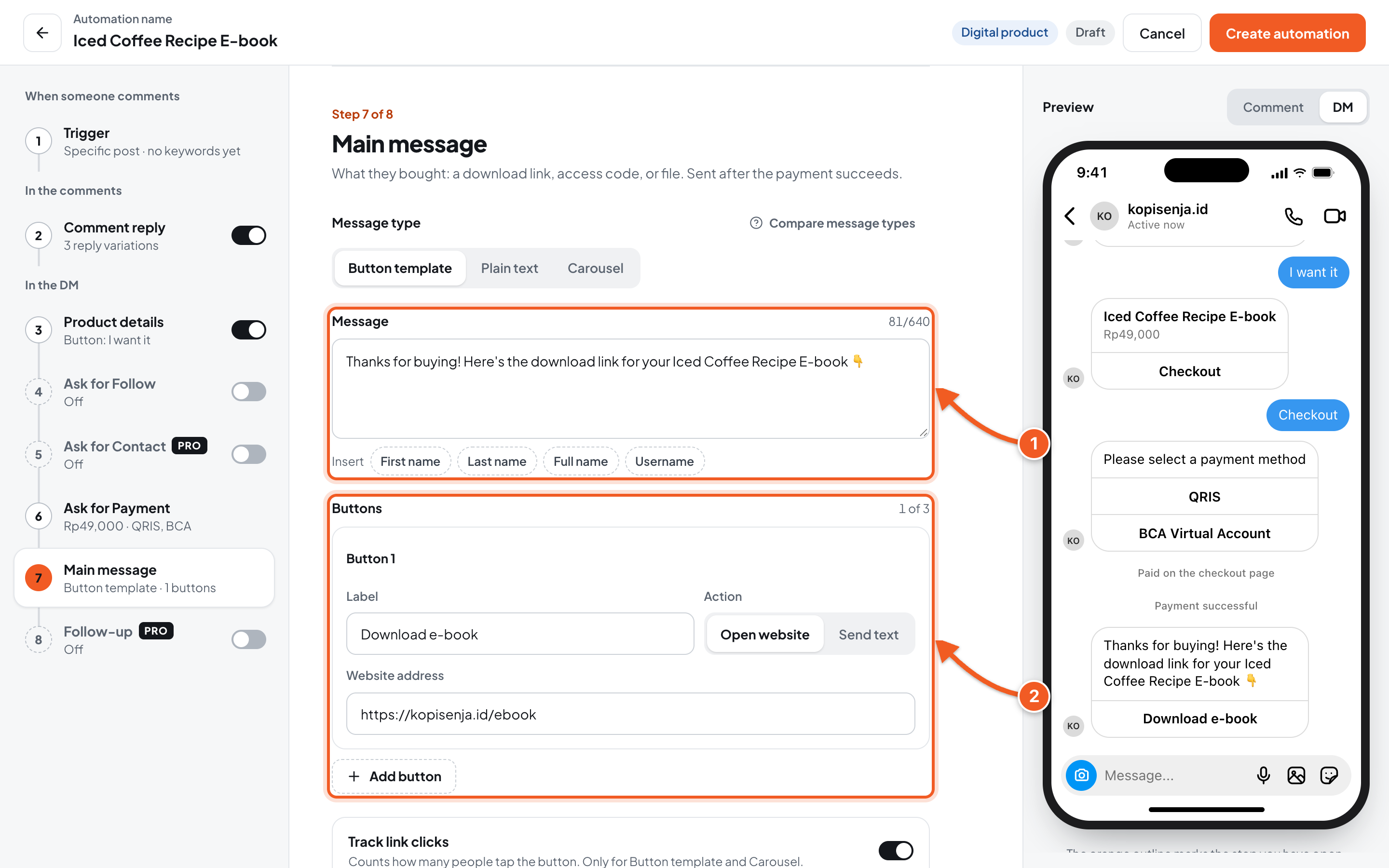
- Message: a thank-you and a note about the product, for example Thanks for buying! Here's the download link for your Iced Coffee Recipe E-book 👇.
- Buttons: fill in the Label (for example Download e-book), choose Open website, then fill in the Website address with your product link. The other message types are explained in step 7 of Comment to DM.
Check the DM tab in the preview to see the message order, then click Create automation.
💡 Turn on Follow-up (Pro plan) with the Not paid condition to remind people who haven't finished paying.
5. Test it, then check the order
- From another Instagram account, comment the keyword on the post.
- In that account's DMs, tap the Product details button, then the pay button, then pick a payment method. With To the checkout page, the payment page opens. With Inside the DM, the QRIS code or virtual account number is sent right in the DM.
- At this point the flow is proven to work. To test all the way until the product is delivered, finish the payment. A test payment is a real transaction, so fees still apply. You can temporarily set a low price, as long as it meets the minimum price of the method you pick.
- Once the payment succeeds, the Thank-you message (if filled in) and the Main message arrive in that account's DMs.
- In the dashboard, open the automation's detail page, then the Orders tab. The test order shows as Pending (not paid yet) or Paid, then Settled once the funds can be withdrawn. Bills not paid within 3 hours become Expired. The full explanation is in Manage Automations.
If you lowered the price for the test, set it back through Edit, then click Save changes.
Troubleshooting
| Problem | Fix |
|---|---|
| Verify your identity first shows when you turn on Ask for Payment | Click Start verification, then follow the verification form guide. Team members need to ask the agent's owner to verify. |
| A payment method says Needs a price of at least … or Only up to a price of … | Each method has a price range. Adjust the price, or pick another method. |
| You can't save: Pick at most 3 payment methods. | Untick one of the methods. |
| The buyer paid, but the Main message didn't arrive | In the Orders tab, click Resend message on that order's row. |
| The link or bill no longer works | Checkout links and bills in the DM are valid for 3 hours. Ask the buyer to tap the payment method button in the DM again: a new bill is created if the old one has expired. While the old bill is still valid, the same bill is sent again. |
| The Orders tab won't open (Orders cannot be opened) | Team member access doesn't include earnings data. Ask the agent's owner to open it. |
Other questions about fees, security, and withdrawals are answered in the Ask for Payment FAQ.