
Set Up Auto Reply Comment
Automatically reply to TikTok comments and invite viewers to continue in your DMs.
EBOOK
ReplySure! Send us the word EBOOK in our DMs 📩
ReplyOn TikTok, comment replies and DMs run as two separate automations (see the Overview). So the flow works like this:
- Auto Reply Comment (this page) replies to comments and invites viewers to send a keyword by DM, for example
EBOOK. - Auto DM with the same keyword sends the link or info you promised.
Before you start, make sure your TikTok Business account is connected. See Connect Your TikTok Account.
1. Create a new automation
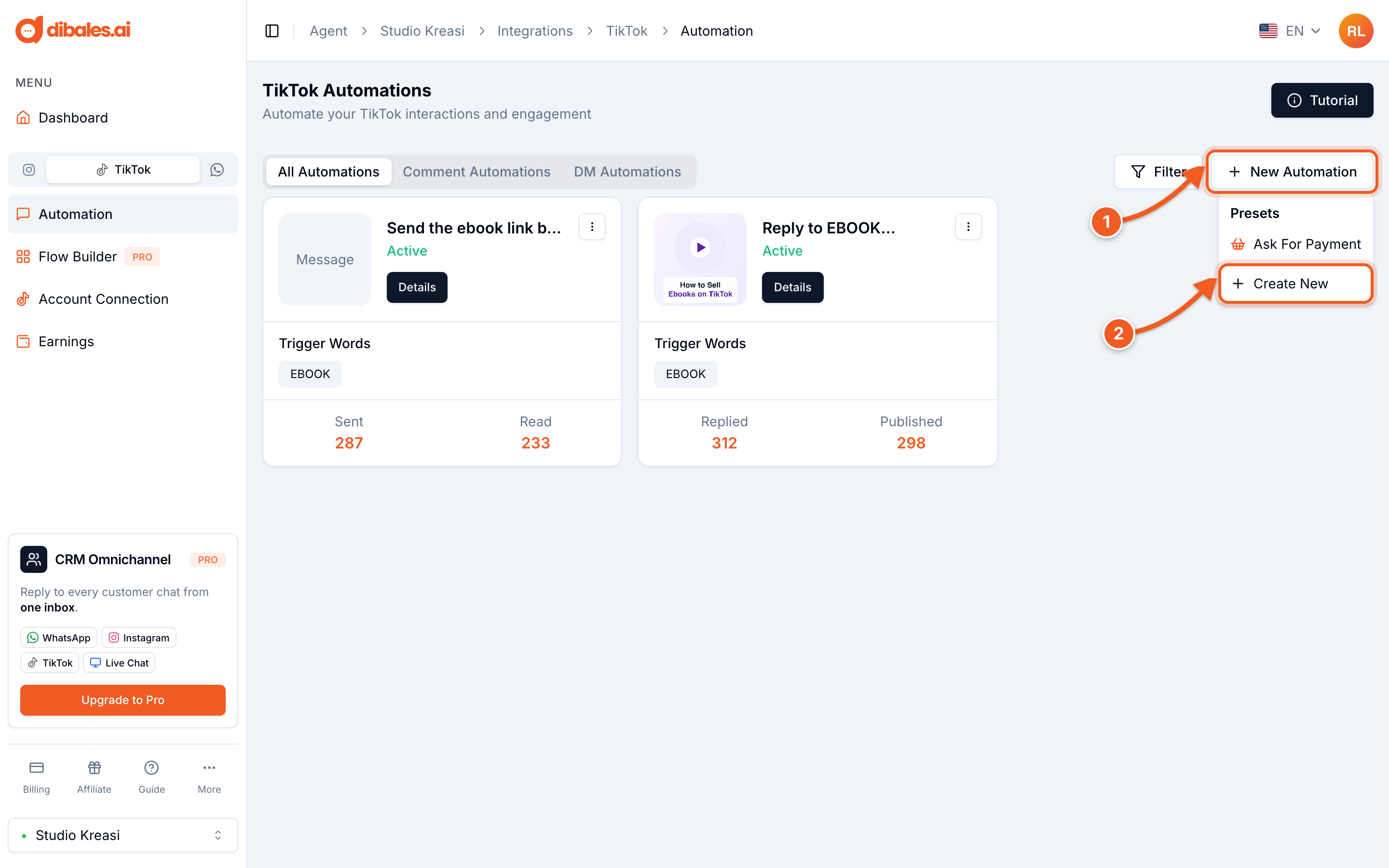
In the sidebar, choose the TikTok tab, then open Automation. On a phone, open the menu first with the icon at the top left.
- Click New Automation
- Choose Create New
2. Choose the target
Fill in the Automation Name as a label for yourself, for example Reply to EBOOK comments. Then click Set Automation Target under Listening to.
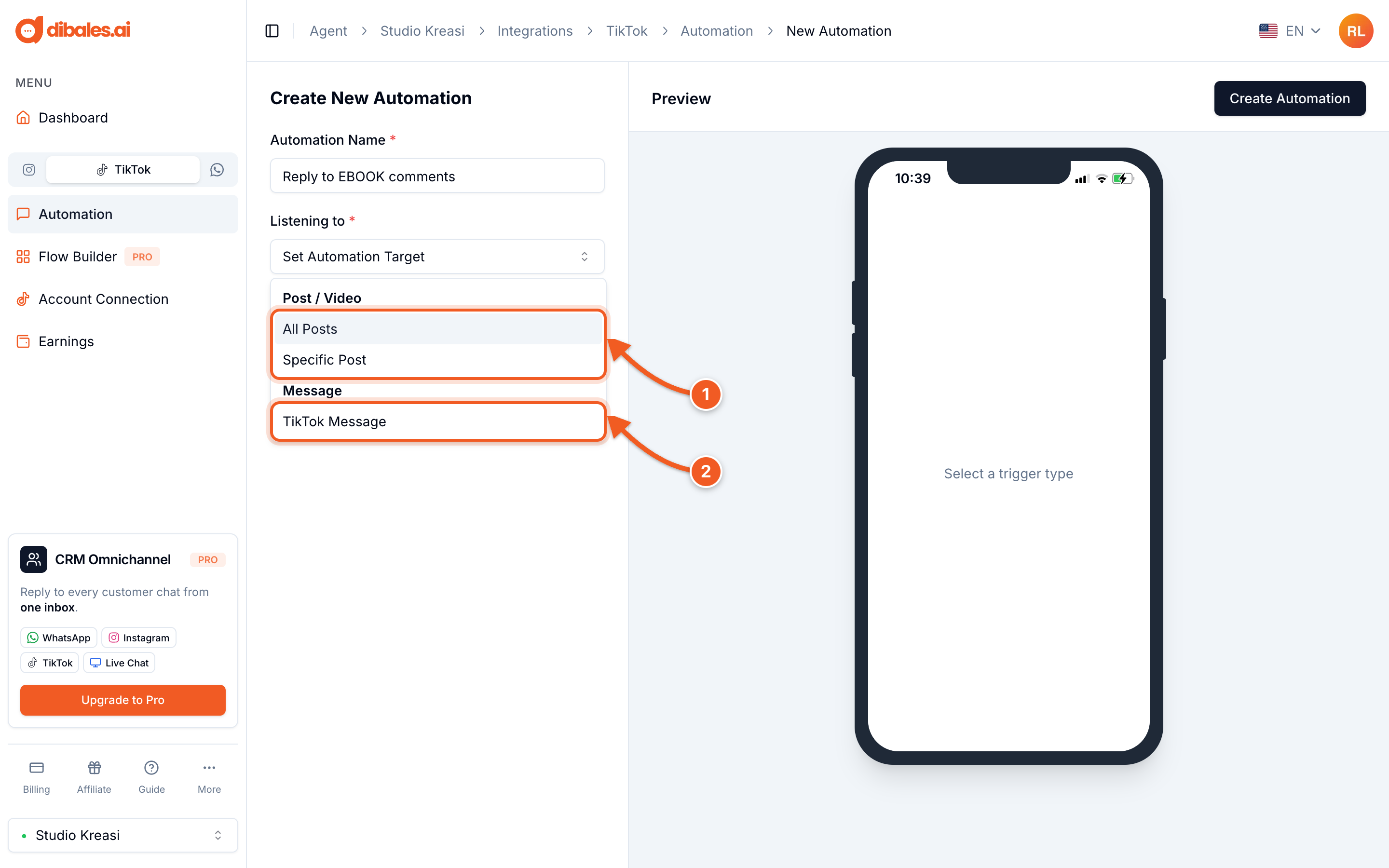
- Choose a comment target:
- All Posts: applies to comments on all your videos. Good when the keyword is always the same.
- Specific Post: only for the video you choose. Good for a single-product promo.
- TikTok Message is for replying to DMs, not comments. See Set Up Auto DM.
3. Choose the video and keyword
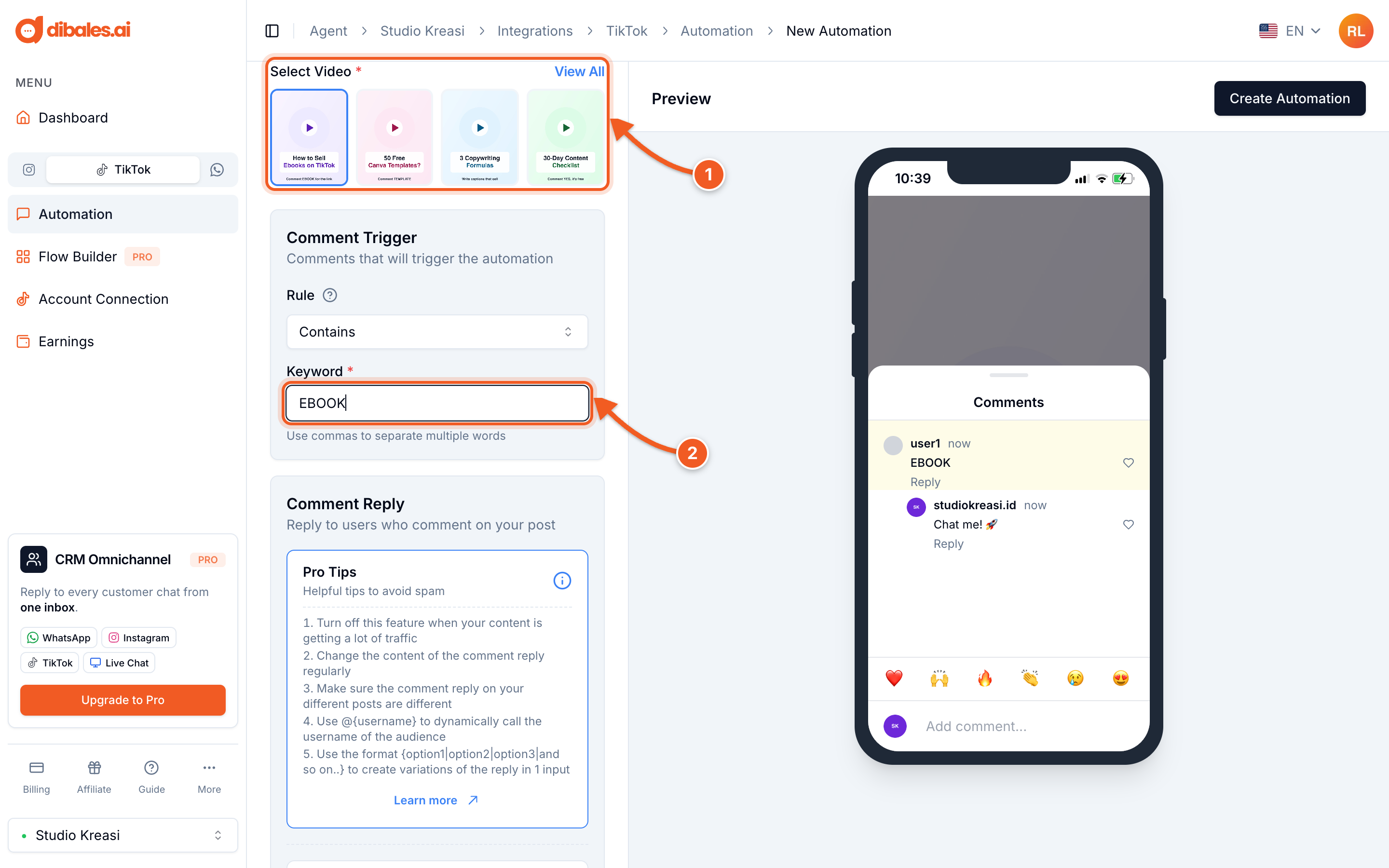
- If you chose Specific Post, click the video. Click View All if the video isn't in the list.
- Fill in the Keyword, the word viewers write in the comments, for example
EBOOK. Separate them with commas if there's more than one.
💡 The Rule decides how the keyword is matched:
- Contains: the comment contains the keyword, so "I want the EBOOK" also gets a reply. The safest option.
- Match: the comment must be exactly the keyword.
- Starts with: the comment must start with the keyword.
4. Write the comment reply
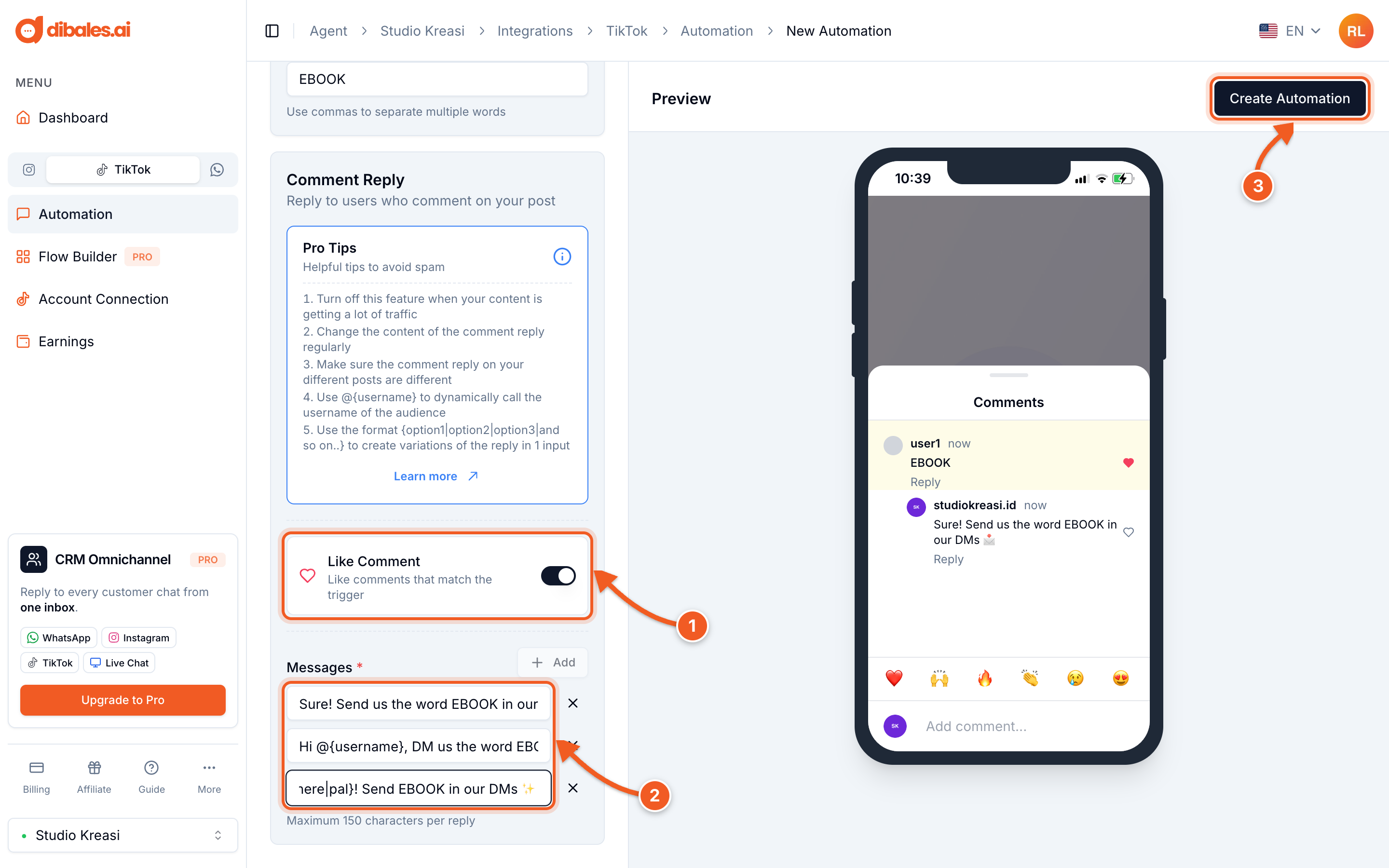
- Like Comment: when it's on, matching comments get a like automatically.
- Messages: the comment reply. Invite viewers to send the keyword by DM, for example "Sure! Send us the word EBOOK in our DMs 📩". Click Add to create up to 3 reply variations, each up to 150 characters. Replies are picked at random so they don't look like spam.
- Click Create Automation. On a phone, the button is below the form.
💡 Write @{username} to mention the viewer, and {friend|there|pal} so one of the words is picked at random. Example: "Thanks {friend|there|pal}! Send EBOOK in our DMs".
✅ The automation is active right away and appears in the Comment Automations tab. Don't forget to create an Auto DM with the same keyword too.
5. Track it in the Comments Log
Click Details on the automation, then scroll to the Comments Log section. It shows comments from the last 14 days that triggered the automation.
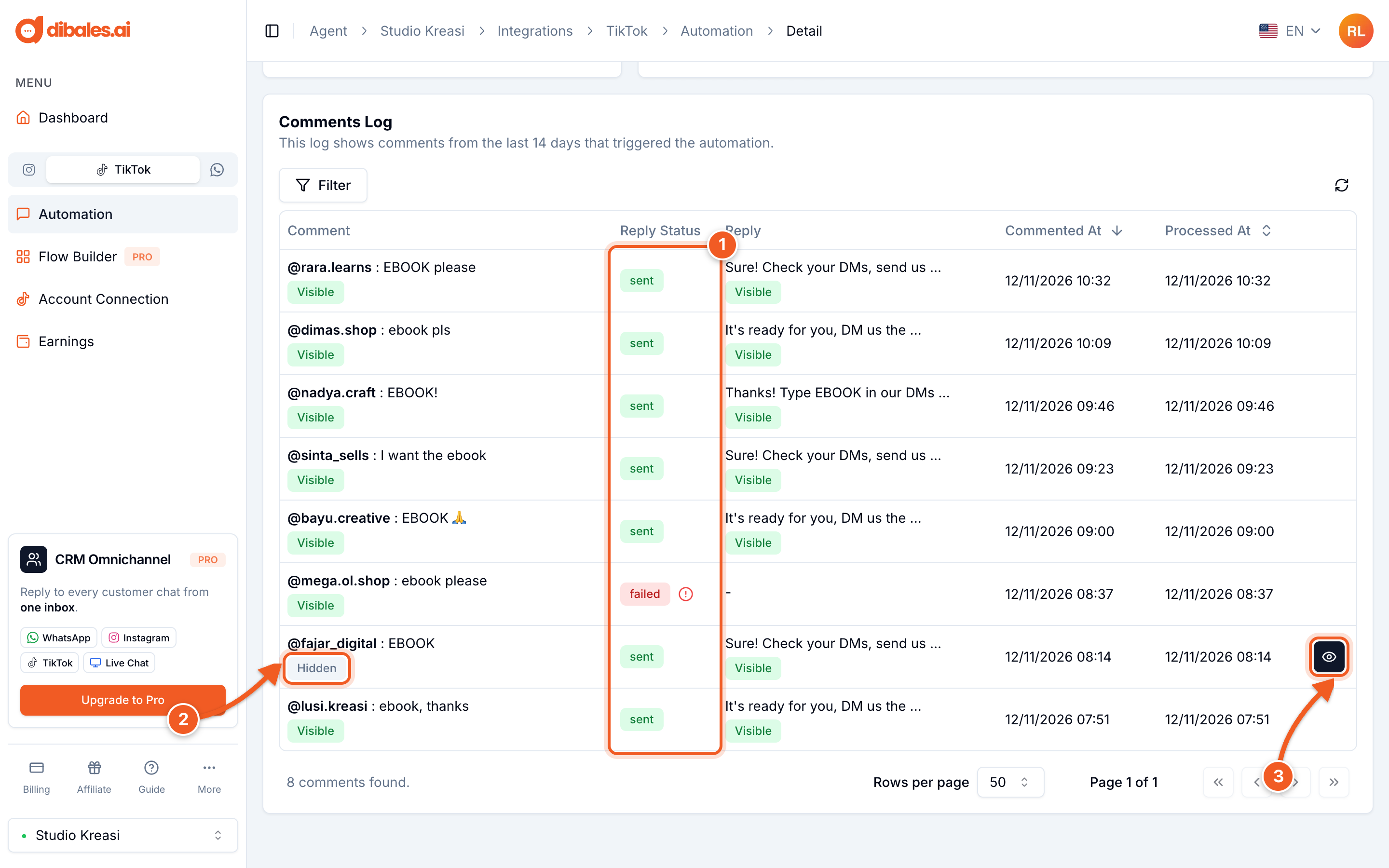
- Reply Status:
sentmeans the reply was sent,failedmeans it failed. Hover over the ! icon next to it to see why. - Hidden: the comment or its reply was hidden by TikTok's comment filter, so other people can't see it.
- Click the eye icon to show it again. It doesn't always work, because TikTok's filter can keep it hidden.
Why does TikTok hide so many replies?
Each automation card shows two numbers:
- Replied: replies successfully sent to TikTok.
- Published: replies TikTok has confirmed are visible to everyone.
If the Published number is much lower, the rest were hidden by TikTok's system. Hidden comments aren't deleted, but other people can't see them. In the Comments Log, these comments are marked Hidden.
TikTok checks every comment, including replies from your account, and hides the ones it considers spam. The most common causes:
- Similar replies sent in quick succession. TikTok's policy prohibits automation that sends repetitive content. Sending the same reply to many comments in a short time is easily treated as spam.
- The "Any words" trigger. Every comment gets a reply, including emojis and one-word comments, so there are even more similar replies.
- Comment filters on your TikTok account. If Filter unwanted comments, Creator Care Mode, or keyword filters are on, comments considered spam are hidden until you approve them (TikTok's explanation).
To get more replies to show:
- Use a specific keyword, for example
EBOOK, rather than Any words. - Fill in all 3 reply variations, and use
@{username}and{friend|there|pal}so every reply is different. - Change the reply text regularly, and pause the automation when your video is getting a huge number of comments.
- Check the filters in the TikTok app under Settings and privacy › Privacy › Comments. In Review filtered comments, you can approve comments that were held back.
- For replies that are already hidden, click the eye icon in the Comments Log (step 5). It doesn't always work, because TikTok's filter can keep them hidden.