
Manage Automations
Pause, edit, duplicate, or delete automations, and track their stats, comment log, contacts, and orders.
All your Instagram automations are in Instagram › Comment to DM, grouped into the Post, Story, Live, and Message tabs. Find an automation with Search automation name, or filter by Status and Trigger.
This guide is for the new dibales.ai dashboard. Still on the old layout? See Rewind Comments.
Don't have an automation yet? Create one first with Comment to DM.
Each automation's menu
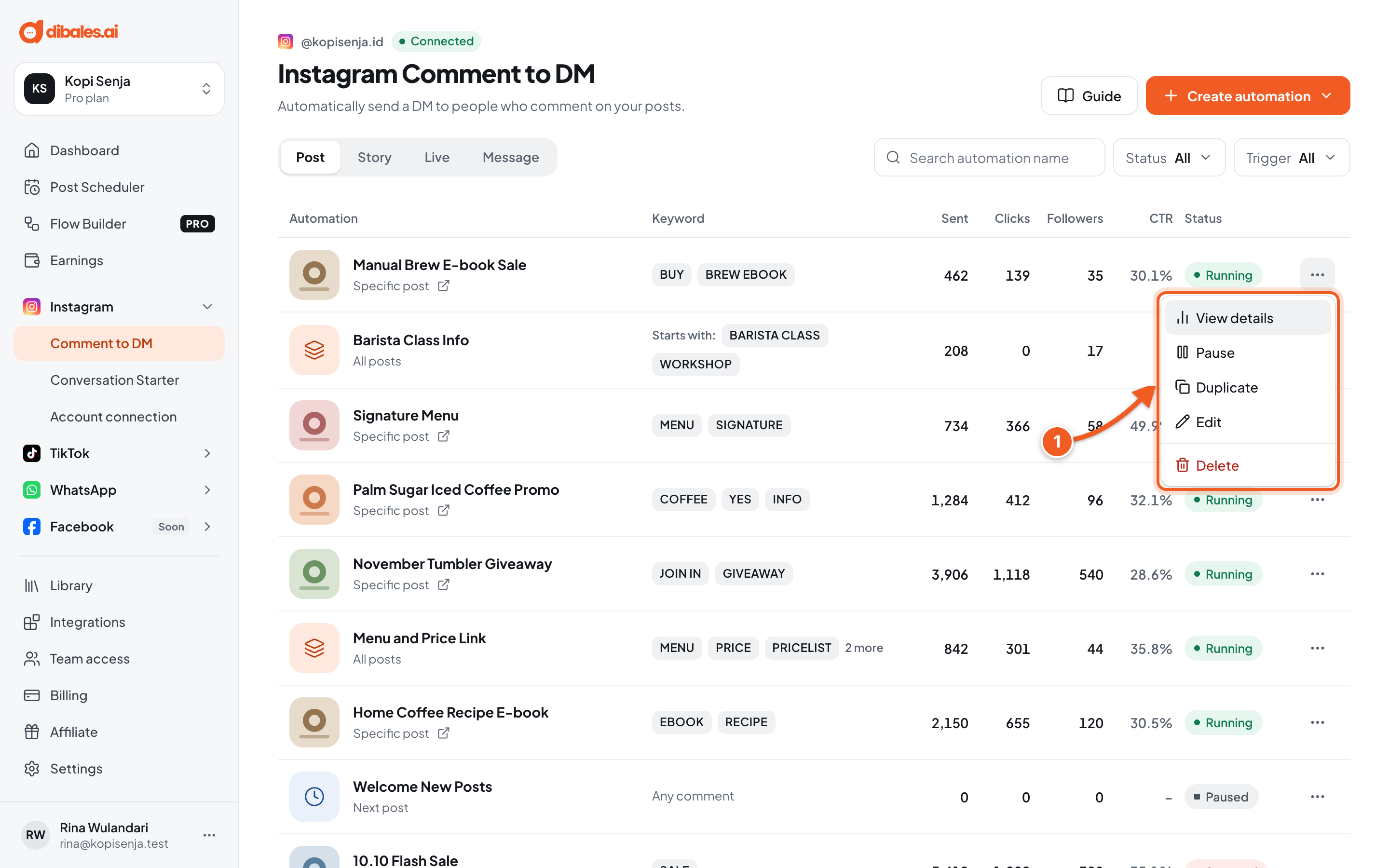
- Click the ⋯ icon on an automation's row to open its menu:
- View details: opens the stats and log page.
- Edit: opens the editor again. Click Save changes when you're done.
- Pause / Resume: stops the automation for now, then runs it again.
- Duplicate: creates a new automation with the same content, for example for another post.
- Delete: a Delete this automation? confirmation appears. After you click Delete automation, the automation stops replying and can't be restored. If you only want to stop it for a while, use Pause.
The link icon next to the target (for example Specific post) opens the post on Instagram.
The detail page
Click an automation's name to open its detail page.
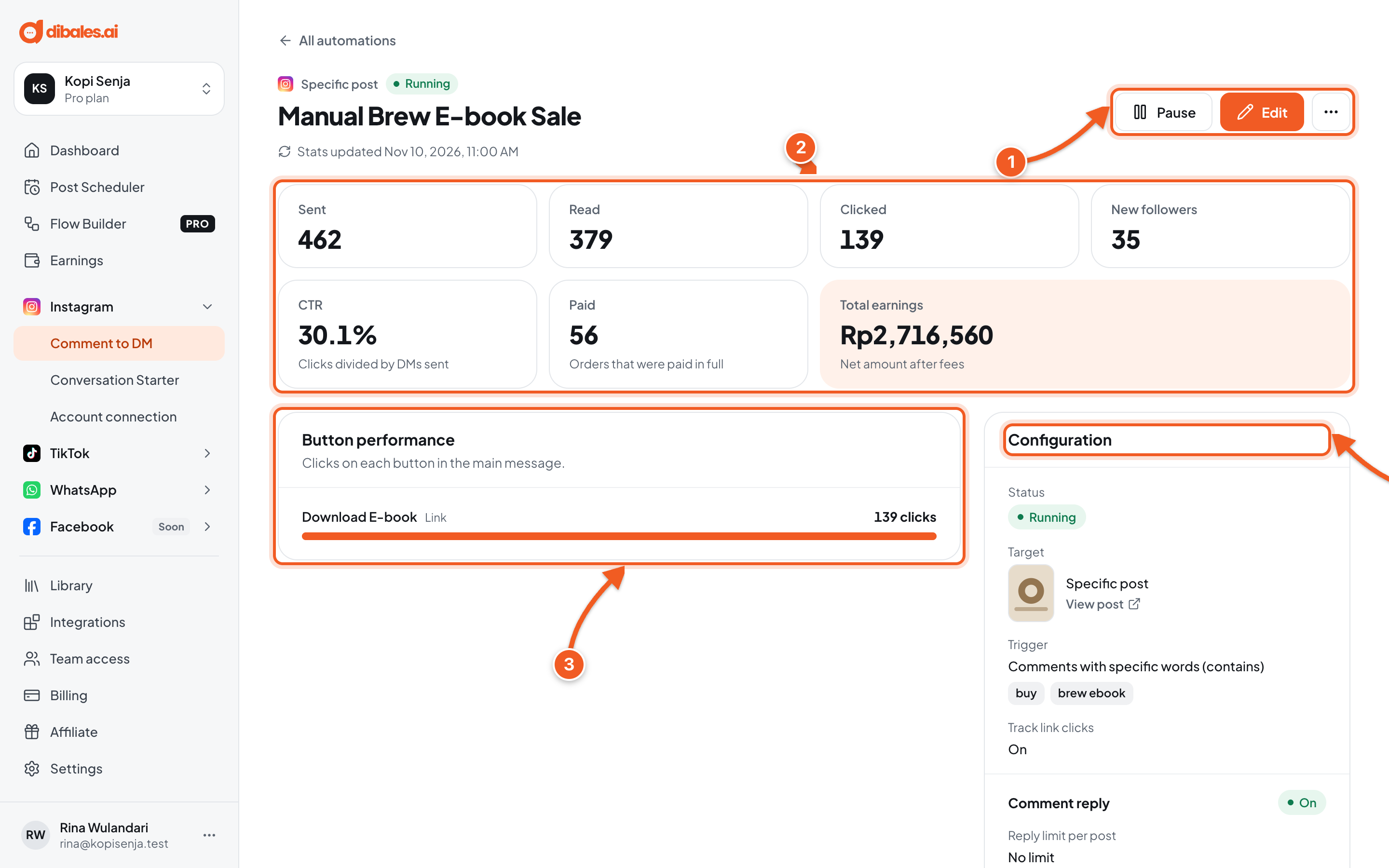
- Pause, Edit, and the ⋯ icon for more actions (Duplicate, View post, Delete).
- Stats: DMs Sent, Read, Clicked, New followers, and CTR (clicks divided by DMs sent). Automations with Ask for Payment also show Paid orders and Total earnings net of fees.
- Button performance: clicks on each button in the Main message. Clicks are only counted for a Button template or Carousel with Track link clicks on.
- Configuration: a summary of every step, from the trigger to the follow-up.
Comment log
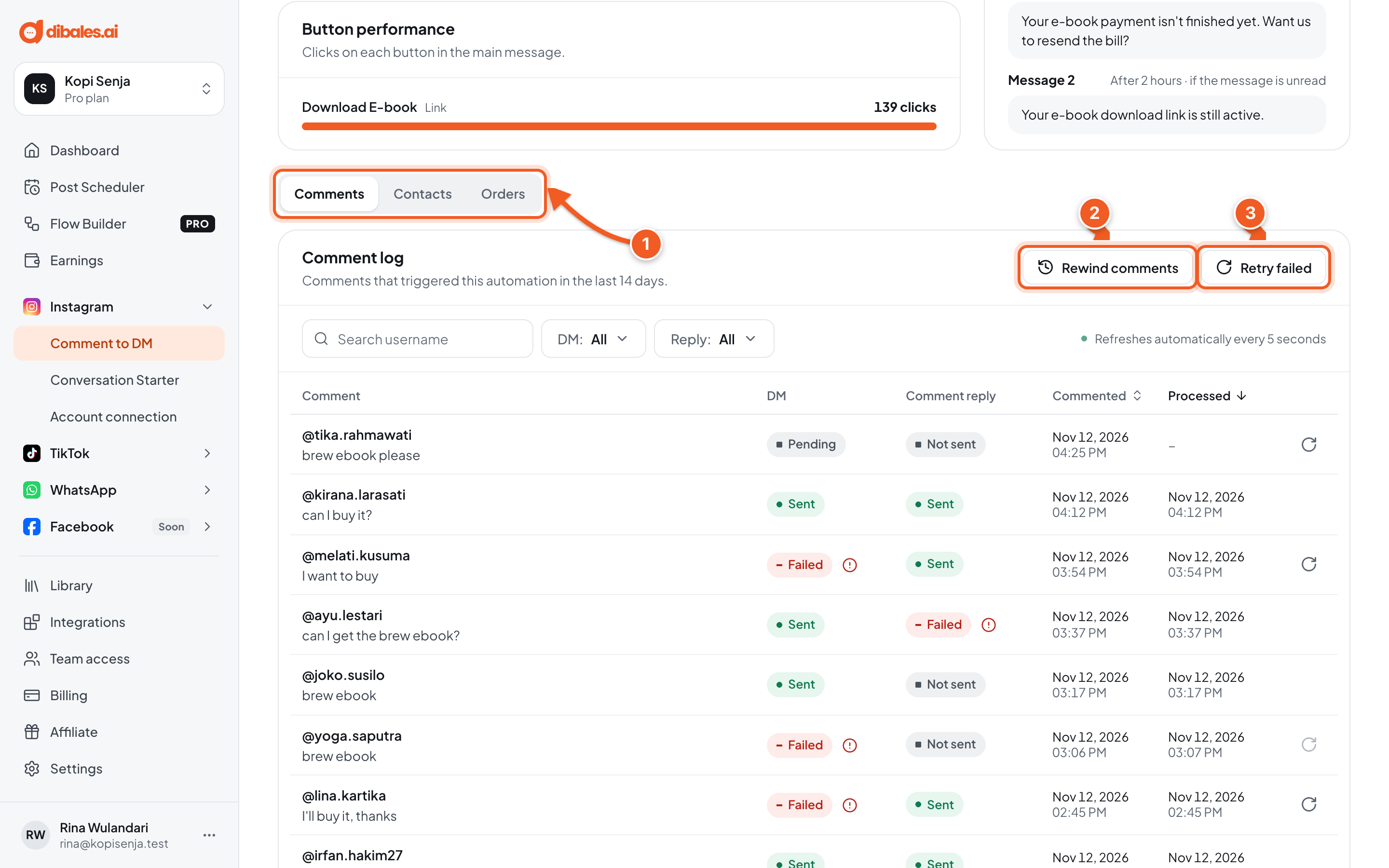
Scroll down to the Comments, Contacts, and Orders tabs.
-
The Comments tab holds the Comment log: comments that triggered this automation in the last 14 days. The log refreshes automatically every 5 seconds. The statuses:
- DM: Sent, Failed, or Pending (being processed).
- Comment reply: Sent, Failed, or Not sent (no comment reply was sent, for example because the Comment reply step is off or the reply limit was reached).
Click the icon next to a Failed status to see why it failed, then click the ↻ icon at the end of the row to try sending again (only for comments less than 24 hours old).
-
Rewind comments (Pro plan): reprocesses comments that were missed, see the next section.
-
Retry failed: queues every comment that failed in the last 24 hours again, one comment every 6 seconds.
Rewind comments (Pro plan)
Automations only reply to comments that come in after the automation is created. Comments that were already there can be processed with Rewind comments, for example when a post took off before the automation was ready.
Here's your Rp10,000 voucher! Show the code COFFEESAVER at the counter ☕
See the menu1. Open Rewind comments
Make sure the automation is Running and its keywords are right, because Rewind uses this automation's keywords. On the detail page, click Rewind comments in the Comment log section (number 2 in the previous picture).
2. Check the rules, then start
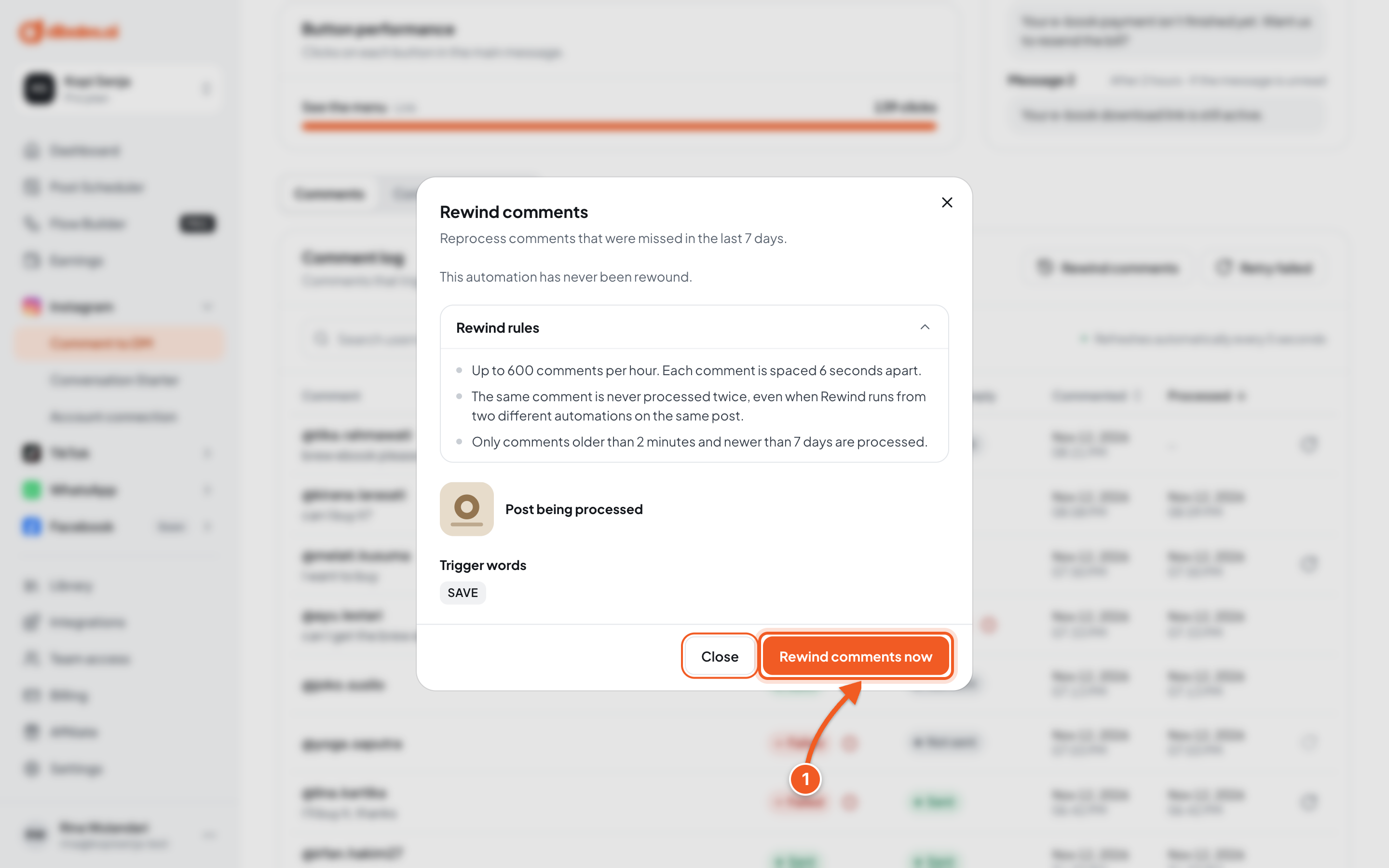
Read the Rewind rules in the window:
- up to 600 comments per hour, spaced 6 seconds apart;
- the same comment is never processed twice, even from two different automations on the same post;
- only comments older than 2 minutes and newer than 7 days are processed.
Below them are the Trigger words being used. Want to change them? Edit the automation first. If the automation covers All posts, pick one post under Choose a post first.
- Click Rewind comments now.
3. Track the progress
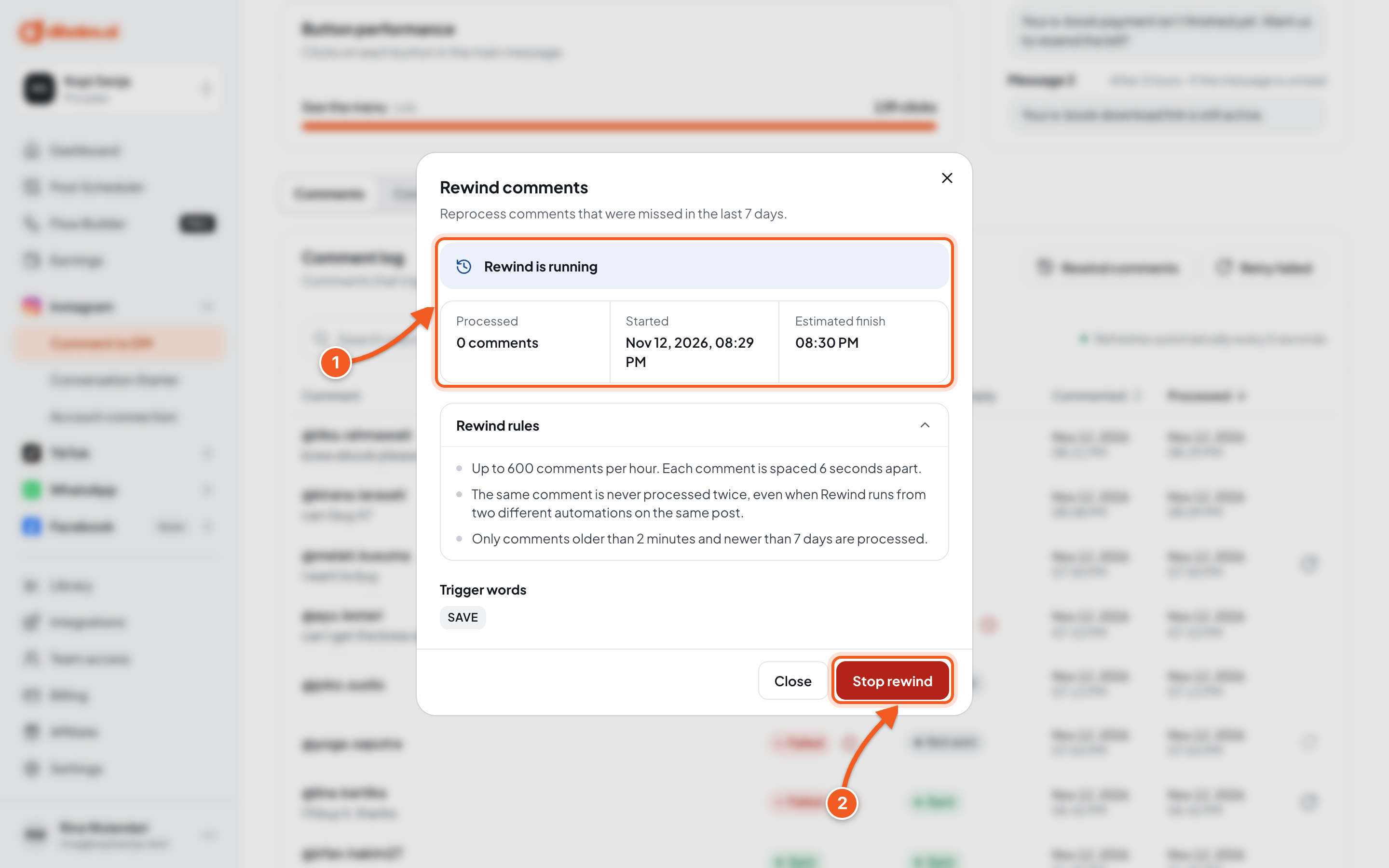
- Rewind is running, with the number of comments Processed, when it Started, and the Estimated finish. You can close the window, because the process keeps running.
- Stop rewind if you want to stop halfway.
Once it's done, the status becomes Last rewind completed. Older comments that match the keywords have been sent a DM and are listed in the Comment log. New comments are still answered by the automation as usual.
A rewind can only be started once a minute, and only one rewind can run per automation. Avoid very common keywords like ok or yes, so unrelated comments don't get a DM too.
Contacts
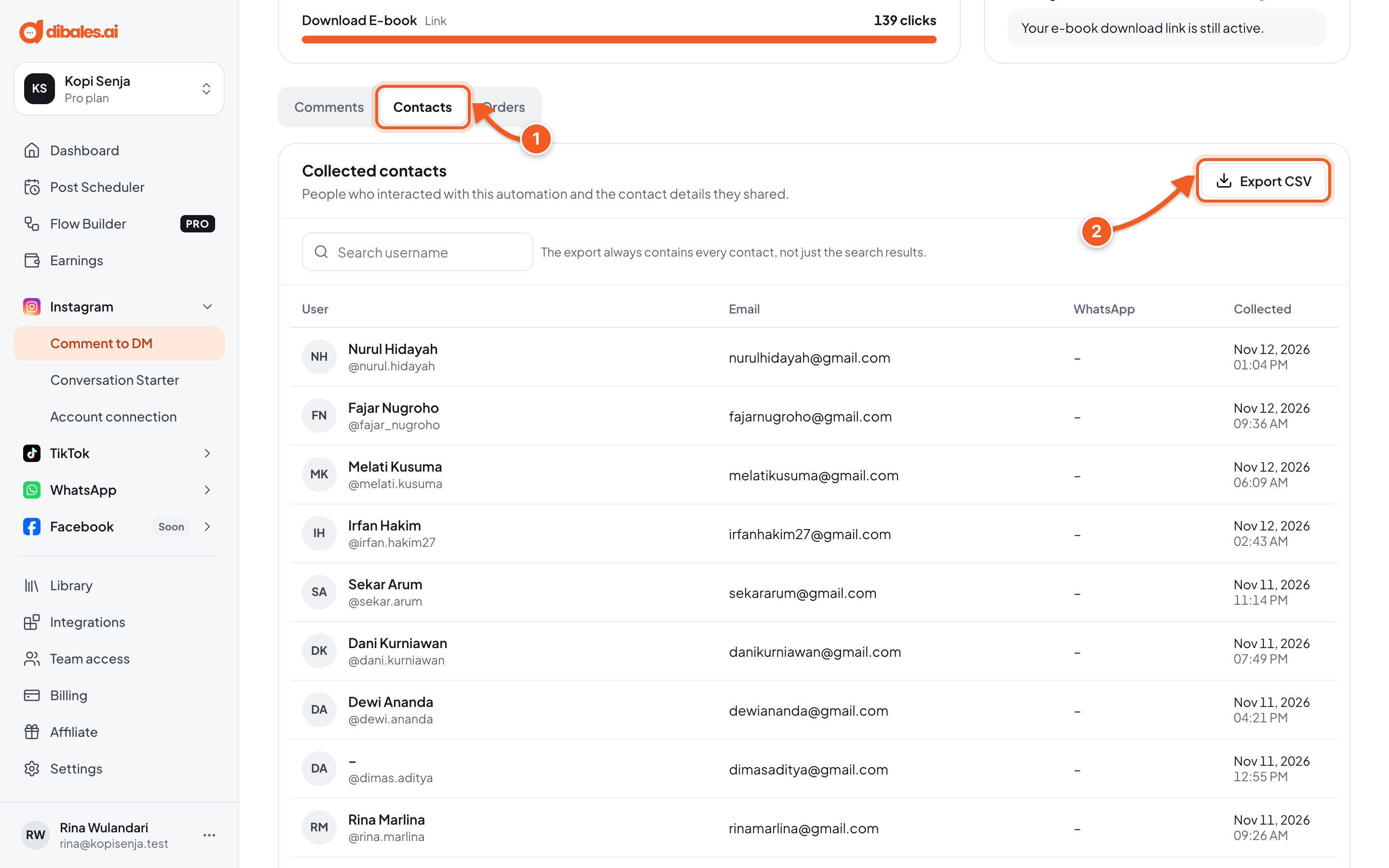
- The Contacts tab lists the people who interacted with this automation, with the email and WhatsApp number they shared through Ask for Contact.
- Export CSV downloads every contact, not just the search results.
Orders
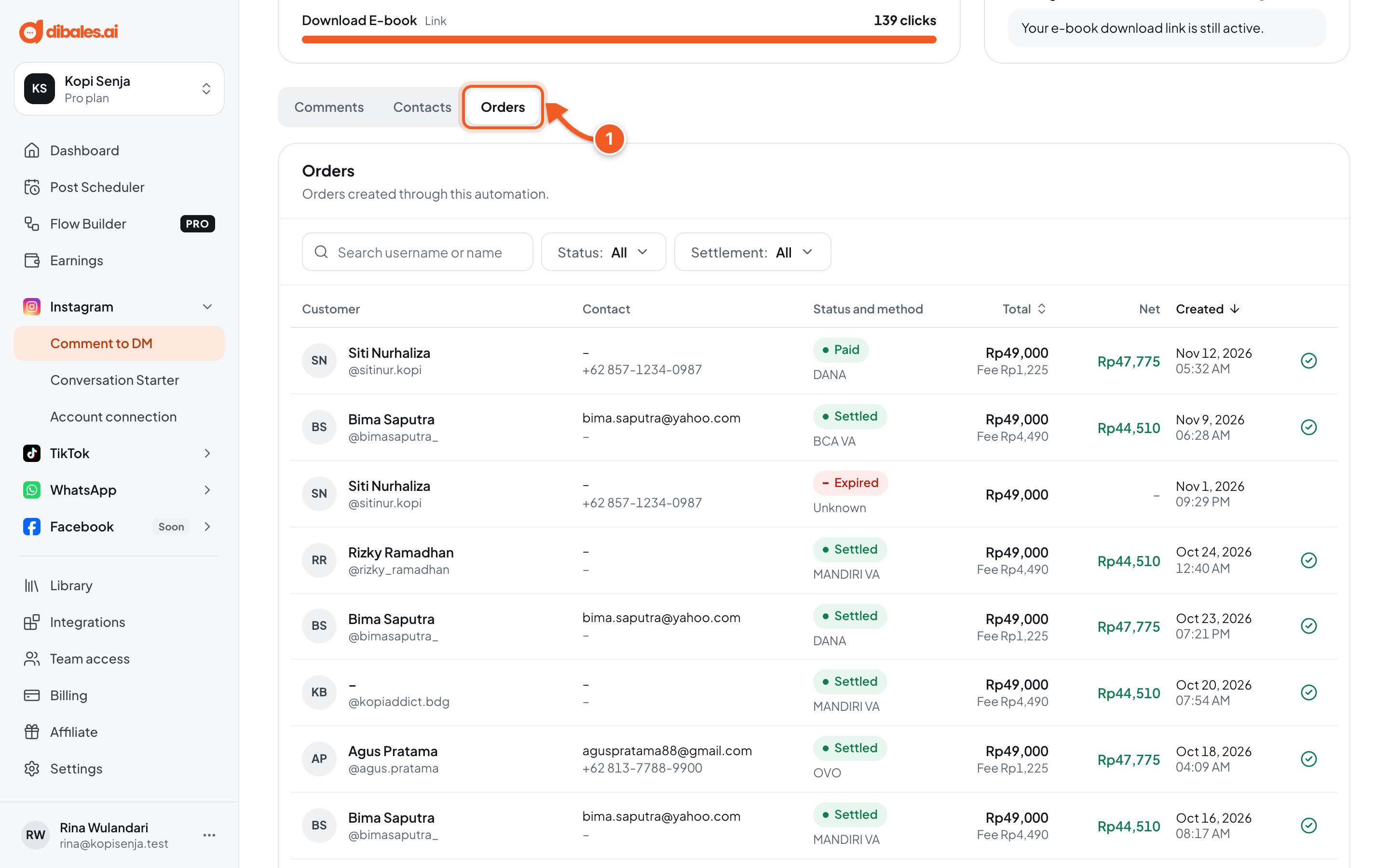
- The Orders tab lists orders from Ask for Payment: the customer, payment status and method, total, and net amount after fees.
Order statuses: Pending (not paid yet), Paid, Settled (the money can be withdrawn, usually 1 to 3 business days after payment), and Expired (the bill passed 3 hours). If a buyer who has paid didn't get the Main message, click Resend message on their order row.
Troubleshooting
| Problem | Fix |
|---|---|
| The comment log is empty (No comments yet) | No comment has triggered this automation in the last 14 days. Comment from another account, see step 9 of Comment to DM. |
| Failed status | Click the icon next to the status to see why. Once it's fixed, click ↻ at the end of the row, or Retry failed for all of them at once (while the comments are less than 24 hours old). |
| There are no failed comments that can be retried. | No comment failed in the last 24 hours without being retried in the last 5 minutes. |
| Rewind comments is locked | Rewind is only available on the Pro plan. |
| A rewind can only be created once a minute. | Wait a moment, then try again. |
| A rewind is still running for this automation. | Wait for the running rewind to finish, or stop it first with Stop rewind. |
| Last rewind failed | No comments were processed. Run it again. Also make sure there are comments between 2 minutes and 7 days old that match the keywords. |
| The Contacts tab is empty | Contacts appear after people share their email or WhatsApp number in the DM. Turn on Ask for Contact (Pro plan). |
| The Orders tab won't open (Orders cannot be opened) | Team member access doesn't include earnings data. Ask the agent's owner to open it. |