
Manage Posts
Track post statuses, edit or cancel scheduled posts, and reschedule failed ones.
All your posts are on the Post Scheduler page, below the connected accounts.
1. Find posts on the calendar
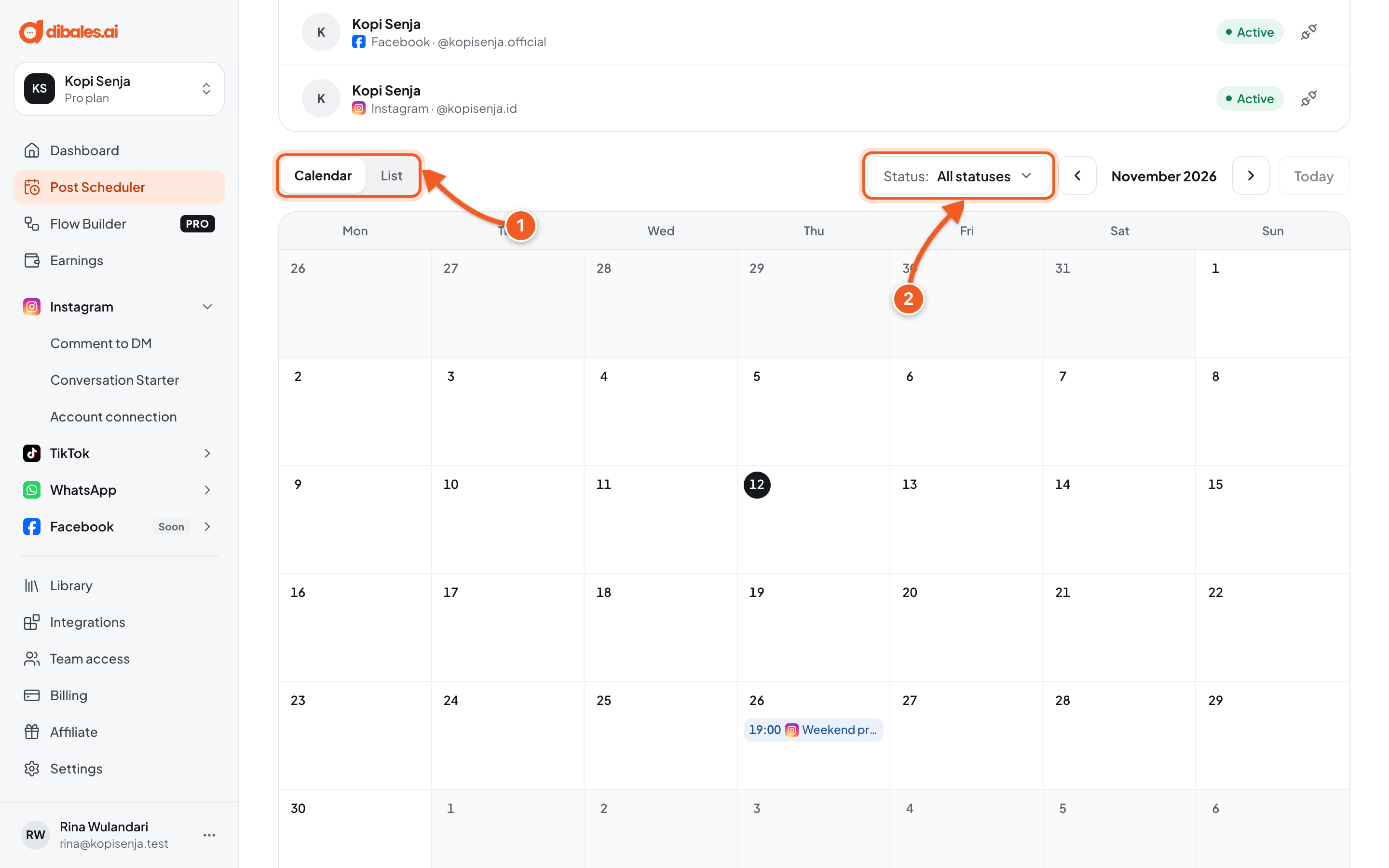
- Calendar shows posts by date, and List shows them as a table with schedule, caption, accounts, and status. Change months with the arrows on the right, or click Today. On a phone, the calendar shows as a list by date.
- Status: filter posts by status.
| Status | Meaning |
|---|---|
| Draft | Not scheduled yet. Undated drafts are in Undated drafts above the calendar. |
| Scheduled | Waiting for its time. Can still be edited or cancelled. |
| Sending | Being sent to the platform. The status in the post details updates automatically. |
| Published | Live on every destination account |
| Partially published | Live on some accounts, failed on others |
| Failed | Couldn't be published |
| Cancelled | Cancelled before it went live |
2. Edit or cancel a scheduled post
Click a post that's Scheduled or a Draft. The editor opens as Edit post.
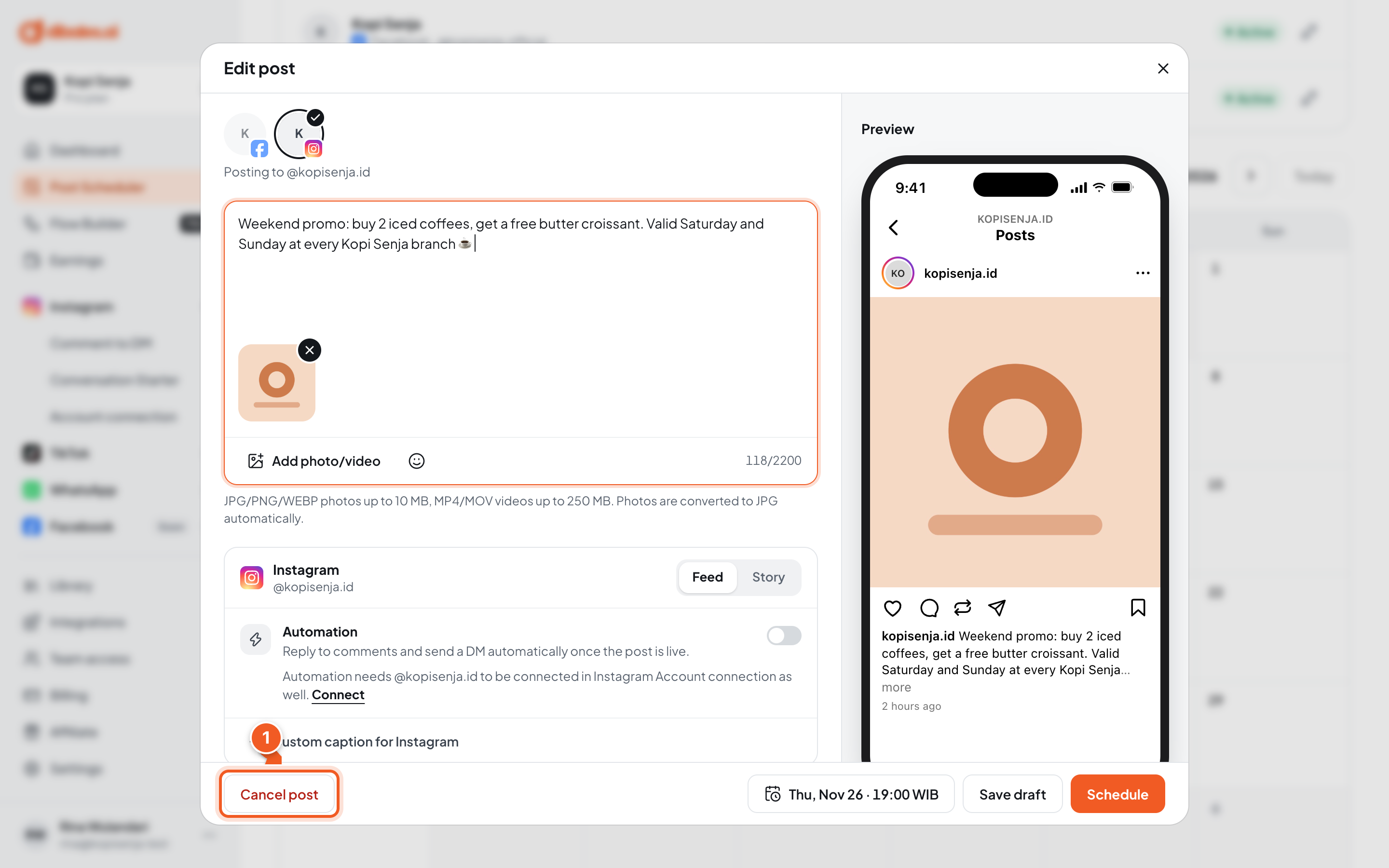
Change the caption, media, accounts, or time, then click Schedule. A Changes saved notice appears.
- Cancel post: the post won't be sent, and its status becomes Cancelled. For drafts, the button is Delete draft, which deletes the draft permanently.
Posts that have started sending can't be changed anymore. If you try, you'll see This post has already been processed and can no longer be changed.
3. Check a published post
Click a post that's Published, Partially published, Failed, or Cancelled to open Post details.
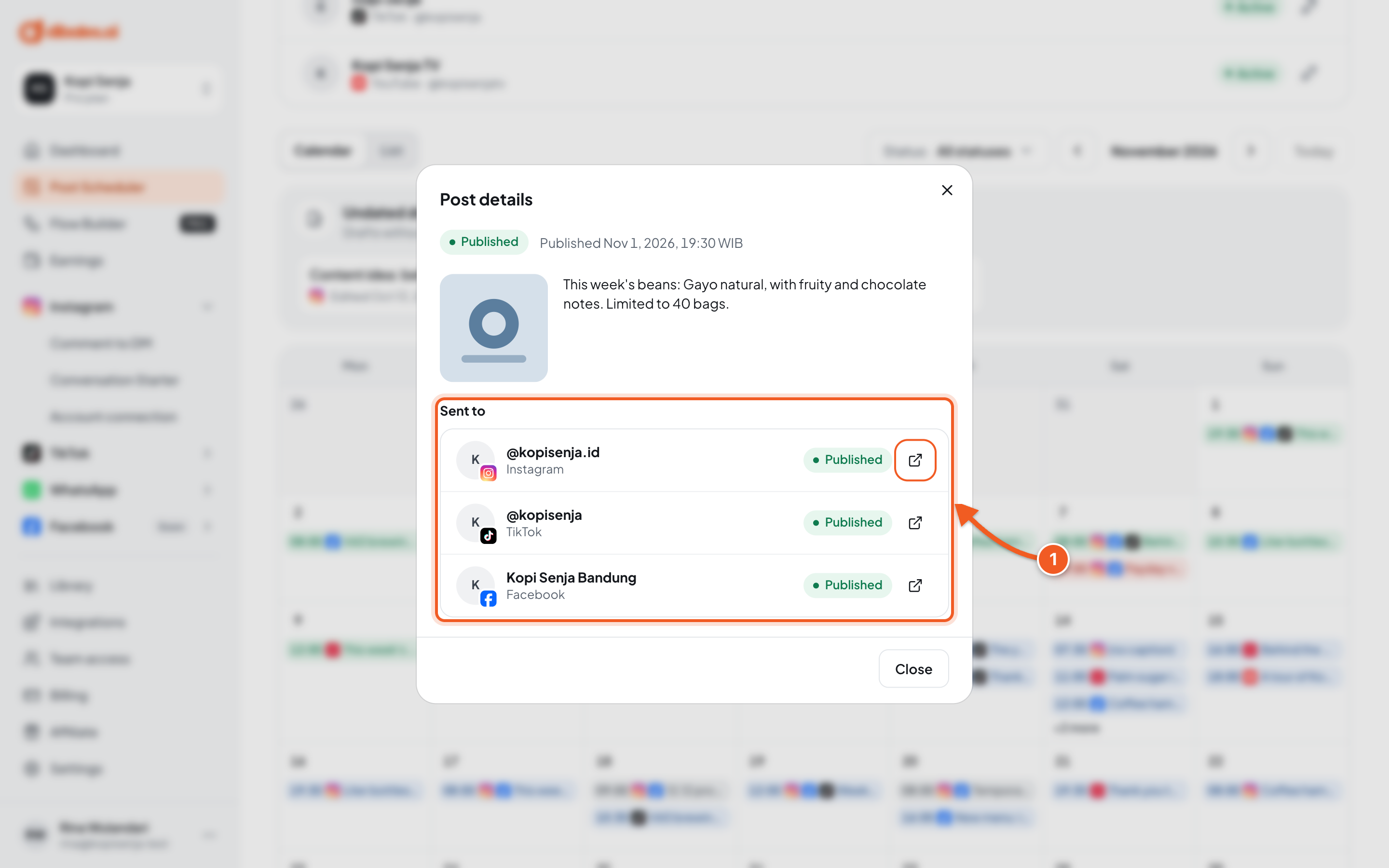
- Sent to: the post's status on each account. Click the icon at the end of a row to open the post on the platform.
If the post uses an automation, this also shows Automation active and a View automation button.
4. Reschedule a failed post
Failed, partially published, or cancelled posts aren't resent automatically. In the post details, click Reschedule. The editor opens with the same content as a new post. Set the time, then click Schedule.
Troubleshooting
| Problem | Fix |
|---|---|
| The post Failed on one account | Check whether that account shows Needs reconnecting. Reconnect it through Connect Accounts, then Reschedule. |
| This post has already been processed and can no longer be changed. | The post has started sending. Wait for the result, then reschedule if needed. |
| The publishing service is unavailable right now. Try again in a moment. | Try again in a few minutes. |