
Install & Connect the Extension
Install the WA Broadcast extension, create a license key in the dashboard, then connect the extension.
The extension needs to be linked to your agent with a license key before you can use it. Make sure you meet everything in Before you start: the Pro plan, Chrome on a computer, and WhatsApp Web logged in.
1. Open Broadcast Ext and install the extension
In the sidebar, open WhatsApp › Broadcast Ext.
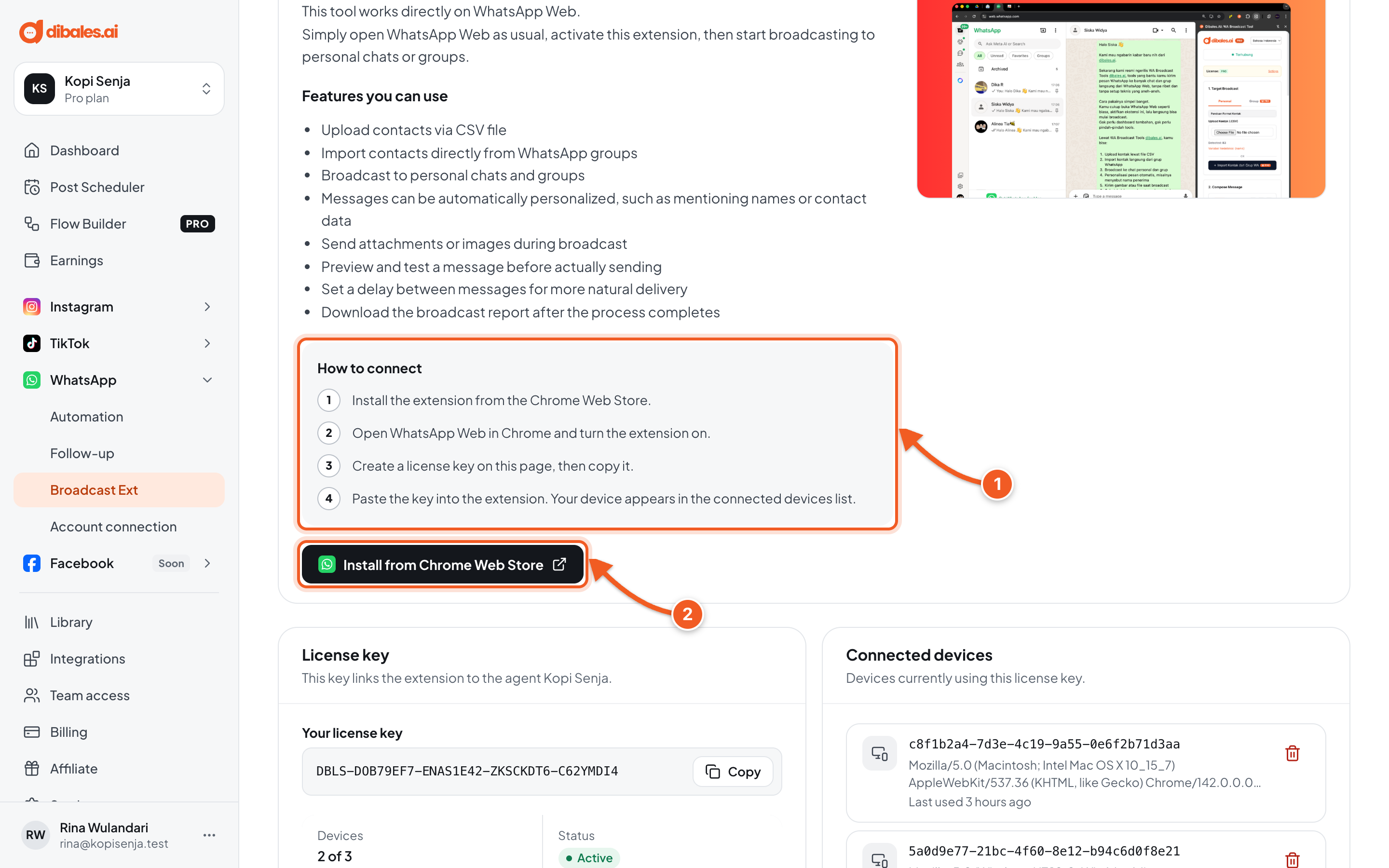
- How to connect sums up the steps on this page.
- Click Install from Chrome Web Store. The extension page opens in a new tab. Click Add to Chrome there, then confirm.
2. Create a license key
Go back to the dashboard tab and scroll to the License key section. If it says No license key yet, click Create license key.
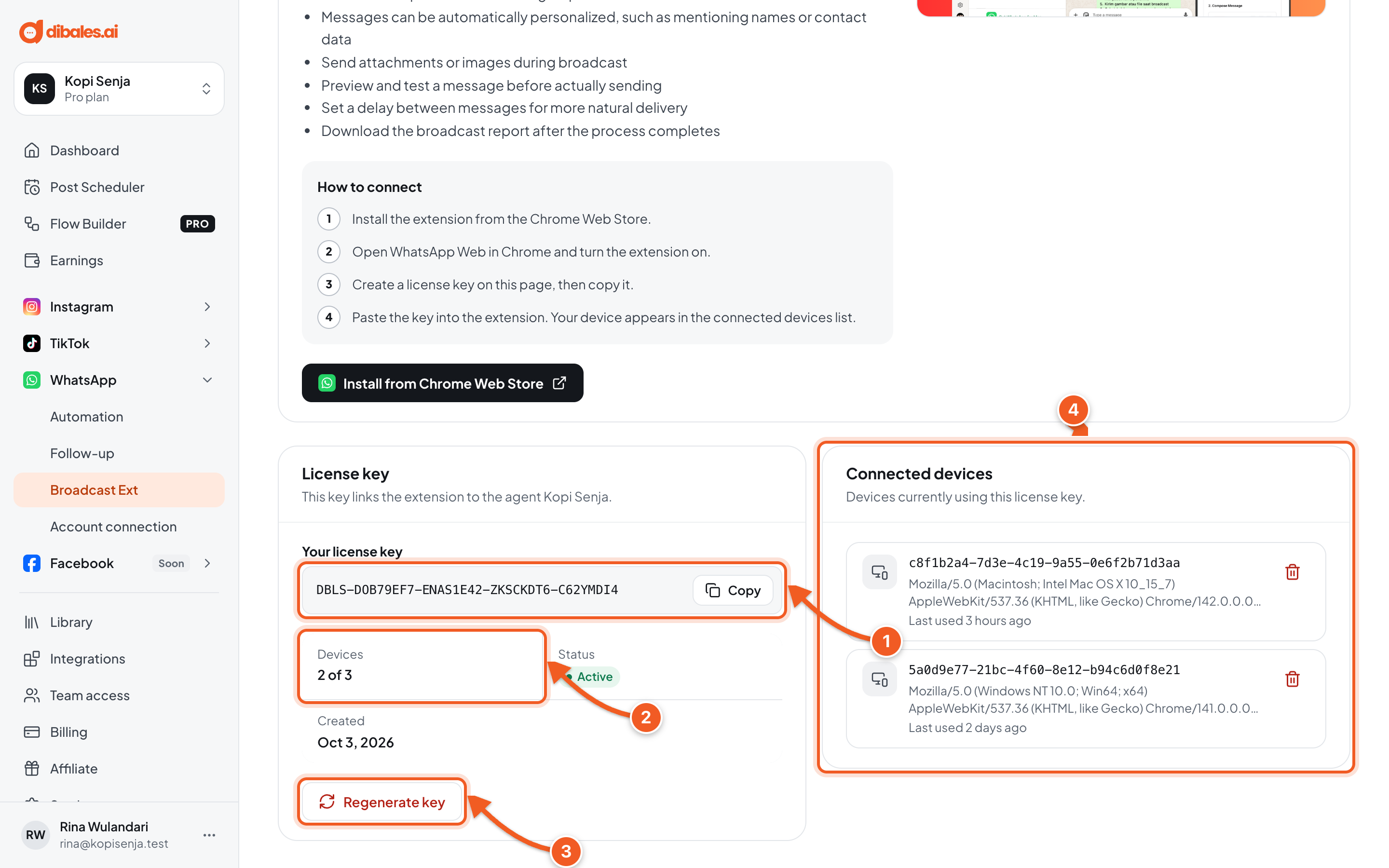
- Your license key: click Copy. This key links the extension to the agent you have open.
- Devices: how many devices use this key, out of the maximum.
- Regenerate key: revokes the current key and disconnects every device. Use it if the key has spread to other people.
- Connected devices: devices currently using this key.
3. Paste the key into the extension
- Open web.whatsapp.com in the same Chrome, and make sure you're logged in.
- Click the dibales.ai WA Broadcast extension icon in the Chrome toolbar. If you can't see it, click the puzzle icon and pin the extension.
- The first time you open it, the extension asks for the license key. Paste the key you copied, then continue.
4. Check the result
Go back to the Broadcast Ext page in the dashboard. Your device shows up under Connected devices, and the Devices count goes up. The extension panel in WhatsApp Web is ready to use.
To revoke a single device, click the trash icon on its row. The extension on that device stops working until the license key is entered again.
Troubleshooting
| Problem | Fix |
|---|---|
| The key is rejected or not valid | Copy the latest key from the dashboard with Copy, then paste it without spaces at the start or end. If the key was regenerated, the old key no longer works. |
| The subscription has ended or the agent isn't active | The extension needs an active Pro plan. Renew the Pro plan in Billing, then open the extension again. |
| The device limit is reached | Revoke one of the devices under Connected devices, then paste the key on the new device. |
| The extension stopped working after the key was regenerated | The old key was revoked. Copy the new key, then paste it into the extension again. |
| The license key could not be created. Try again. | Try again in a moment. |
Next step
Continue to Send to Contacts or Send to Groups.