
Connect Post Scheduler Accounts
Connect Instagram, Facebook, TikTok, and other platforms to Post Scheduler before you create a post.
Before you can create a post, connect the social media accounts you want to post to. The example in this guide: the Kopi Senja Facebook Page.
This connection is separate from Account connection for automations. An account already connected for Comment to DM still needs to be connected here. And if you later want to use Automation from Posts, the same Instagram or TikTok account also has to be connected in Instagram › Account connection or TikTok › Account connection.
Rules to know:
- Each platform can have only one account. To switch accounts, disconnect the old one first.
- An account can only be connected to one agent. If it's already used by another agent, disconnect it from that agent first.
1. Open Post Scheduler
In the sidebar, click Post Scheduler. On a phone, open the menu first with the ☰ icon at the top right.
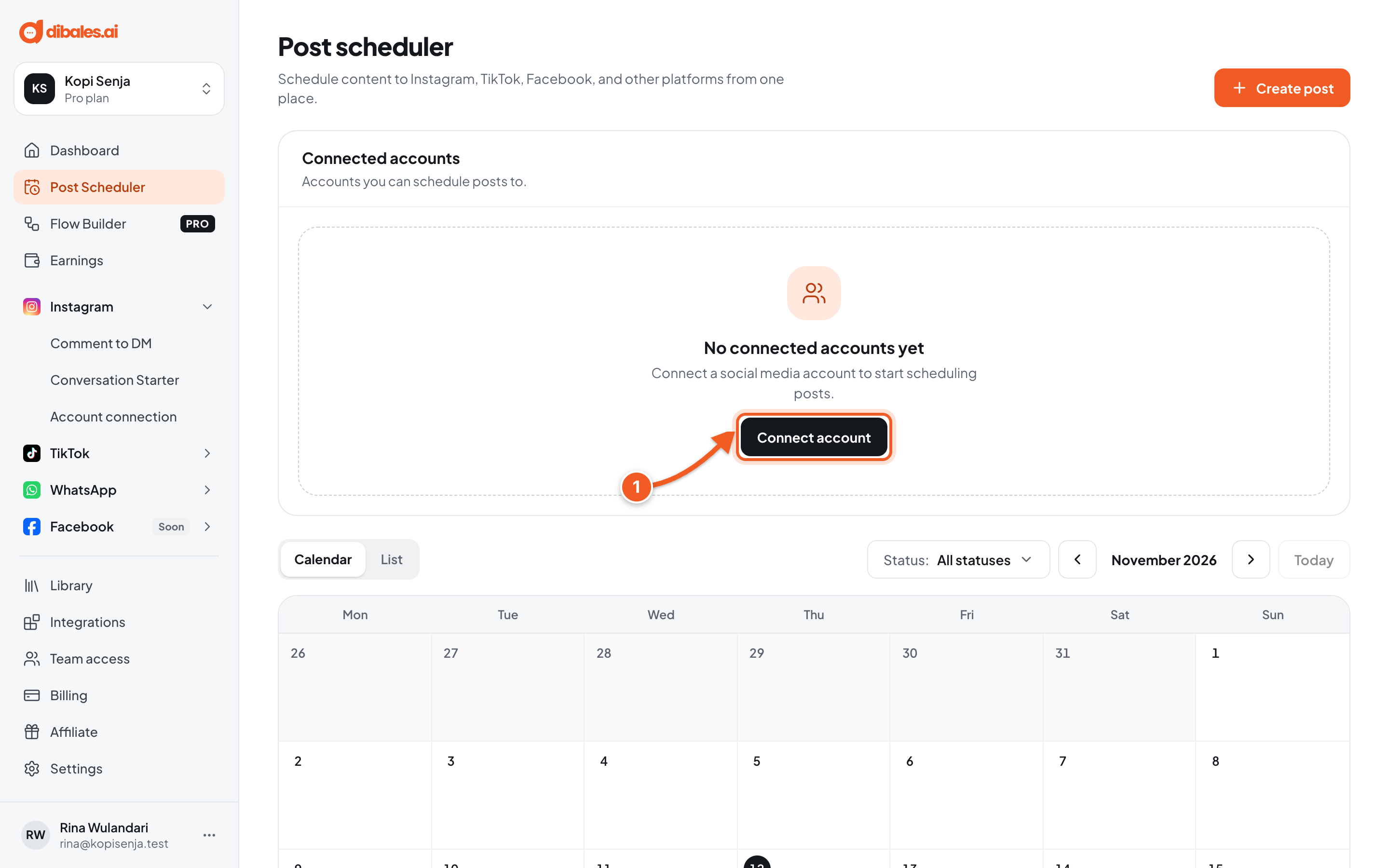
- In the Connected accounts section, click Connect account.
2. Choose a platform
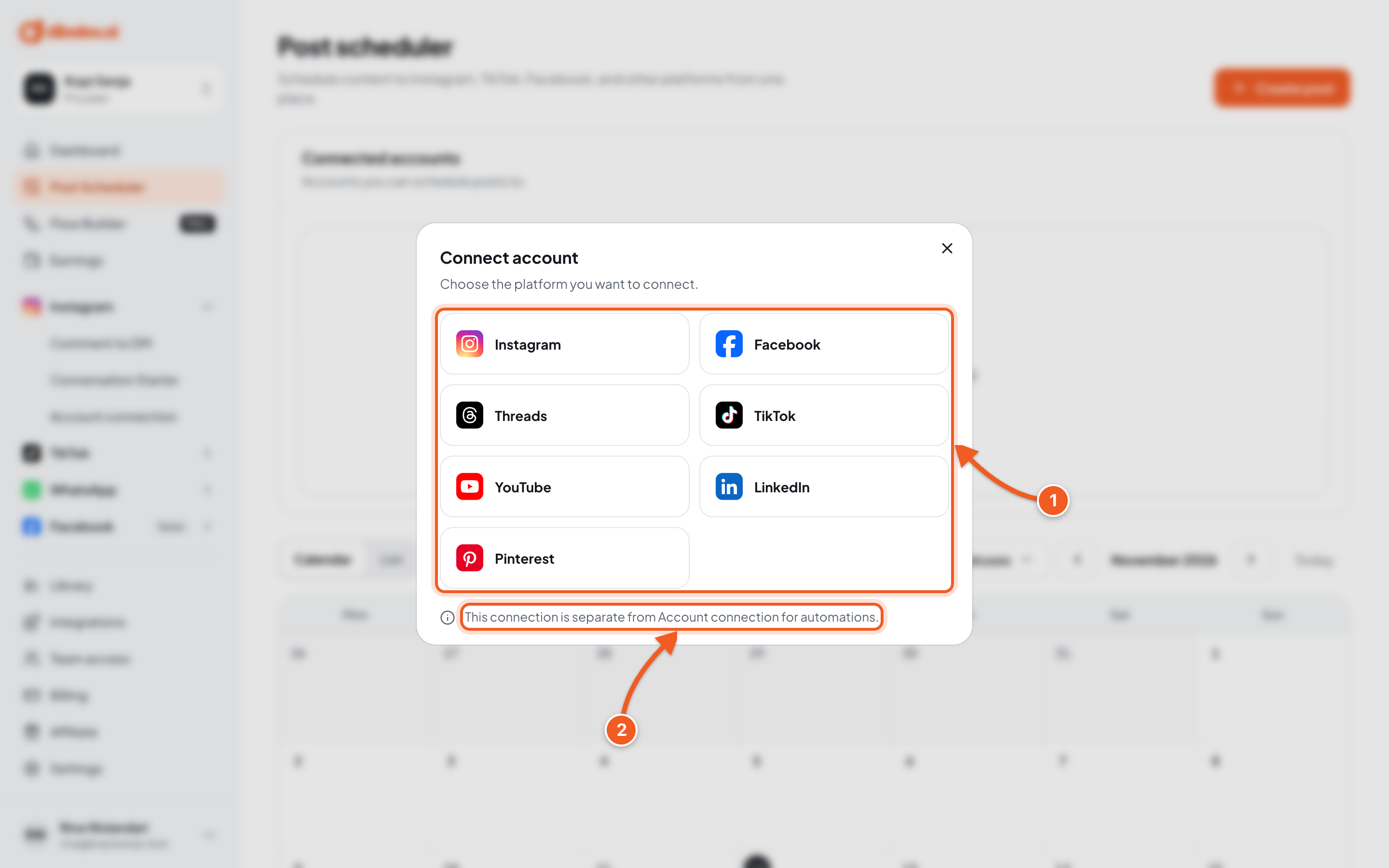
- Click the platform, for example Facebook. Platforms that already have an account are marked Connected and can't be clicked.
- The note below reminds you that this connection is separate from Account connection for automations.
3. Log in and allow access on the platform
That platform's login page opens, for example facebook.com.
- Log in with the account you want to use.
- Approve the permissions dibales.ai asks for. If you deny them, the account isn't connected and you'll need to start again from step 1.
You're then sent back to dibales.ai, and a Connecting account... screen shows for a moment.
4. Choose a page (Facebook and LinkedIn only)
This screen only appears for Facebook and LinkedIn. Other platforms go straight to step 5.
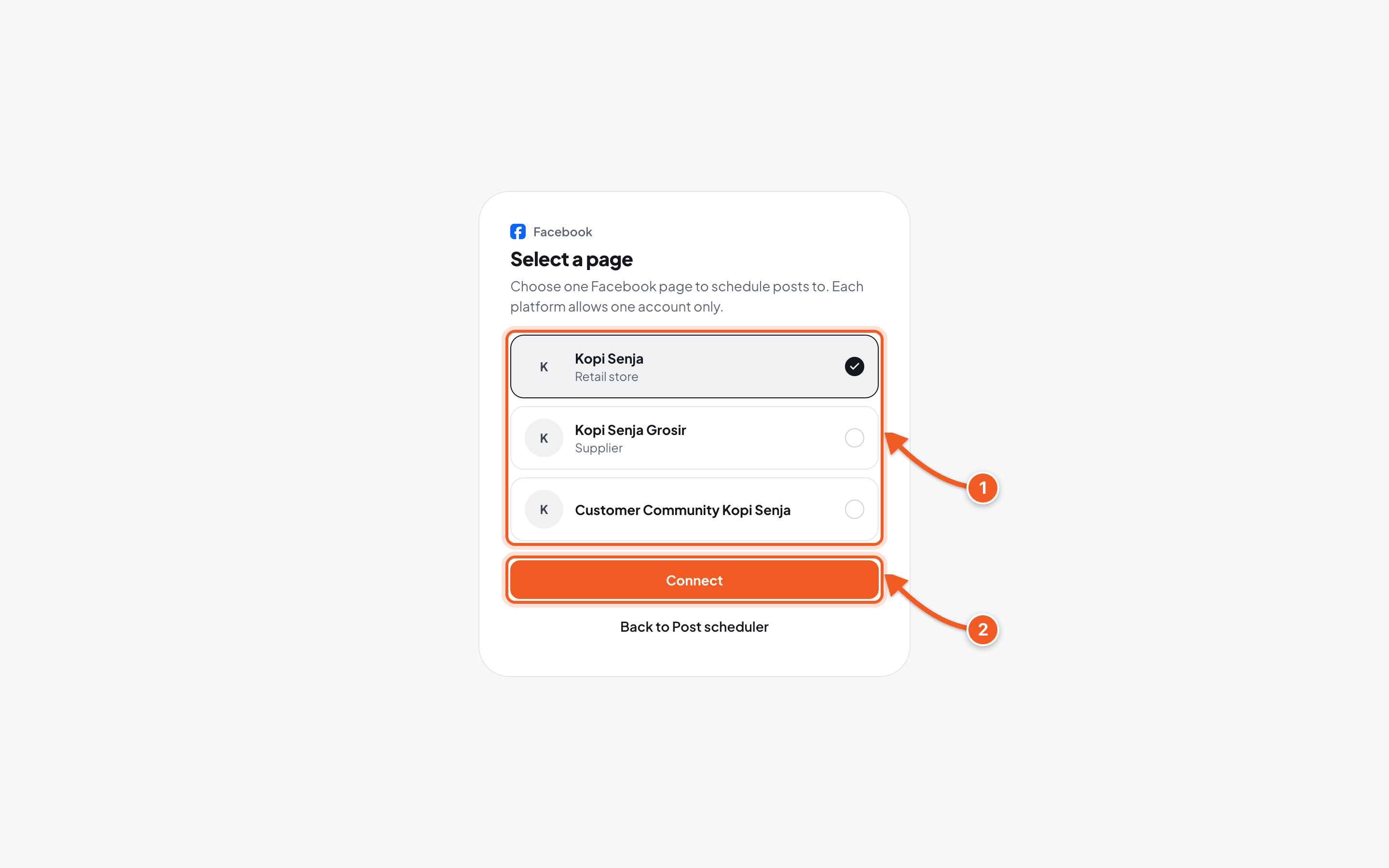
- Click the page you want to use, for example Kopi Senja. Each platform can have only one page.
- Click Connect.
If you see No pages yet, that account doesn't manage any page that can be connected. Create or get access to a Facebook Page first, then try again. Click Back to Post scheduler to cancel.
5. Check the result
You're back in Post Scheduler.
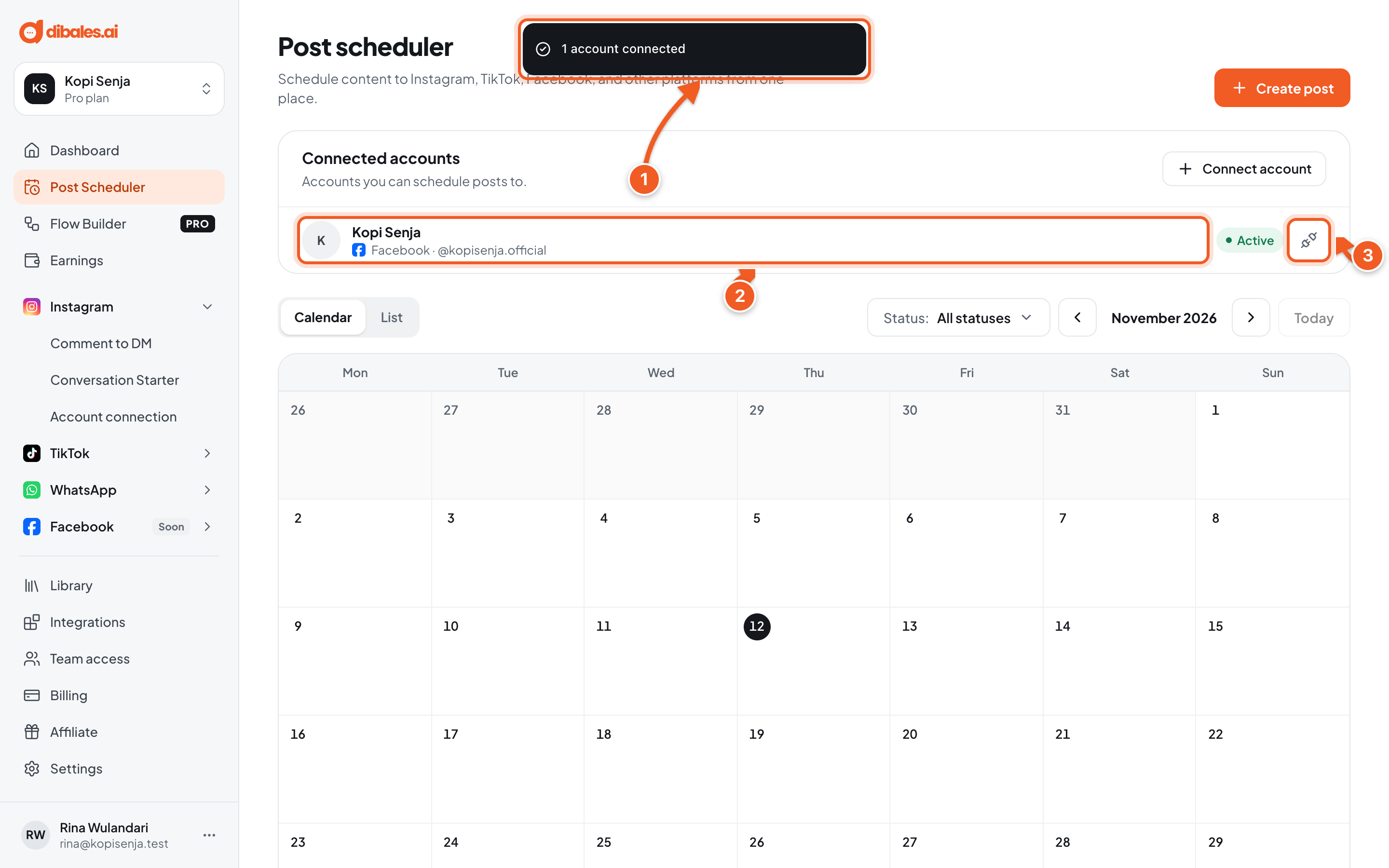
- A notice like 1 account connected appears.
- The account shows in Connected accounts as Active, with its platform name.
- The disconnect icon at the end of the row removes the account from Post Scheduler. Scheduled posts to it will fail, but you can connect it again at any time.
Repeat steps 1 to 5 for every other platform you want to use.
If an account ever shows Needs reconnecting (for example after its password changed), click Reconnect on its row and log in again. Until you do, scheduled posts to that account will fail.
Troubleshooting
| Message | Fix |
|---|---|
| This platform is already connected. Each platform allows one account only | Disconnect the old account on that platform, then connect the new one. |
| This account is already connected to another agent. Disconnect it from that agent first. | Open that other agent (with the agent name at the top left), disconnect the account in Post Scheduler, then try again. |
| Permission was not granted on the platform page. Try again and approve the permission. | Start again from step 1 and approve every permission requested. |
| The account connection session has expired. Start again from the beginning. | You stayed too long on the platform page. Start again from step 1. |
| The account could not be connected. Try again. | Try again in a little while. |
Next step
Once your accounts are ready, continue to Create & Schedule Posts.