
Message Types
Choose the DM format: Template Button, Text, or Carousel.
Messages sent through Comment to DM come in three formats: Template Button, Text, or Carousel. This guide builds on the automation from Set Up Comment to DM, so create your first automation there first.
| Type | Best for | Strengths | Keep in mind |
|---|---|---|---|
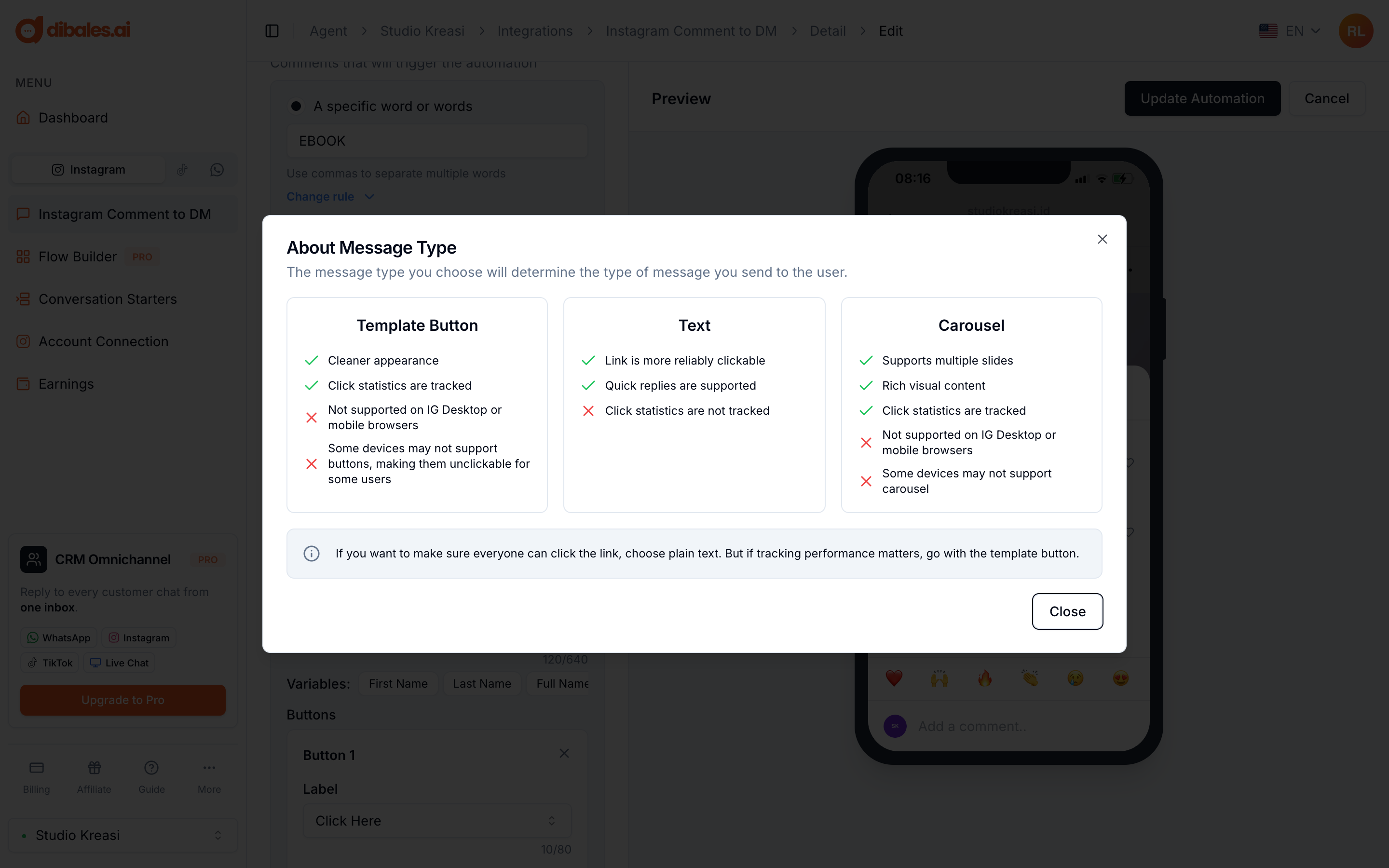
| Template Button | One product, one link | Clean look, button clicks are tracked in statistics | Buttons can't be tapped on Instagram desktop, mobile browsers, or some devices |
| Text | Making sure everyone can open the link | Links are more reliably clickable, Quick Replies are supported | Link clicks aren't tracked in statistics |
| Carousel | Several products at once | Visual cards with images, up to 9 slides, clicks are tracked | Like Template Button, it can't be tapped on every device |
Not sure which to pick? If it matters most that everyone can open the link, choose Text. If click statistics matter more, choose Template Button or Carousel.
Changing the message type
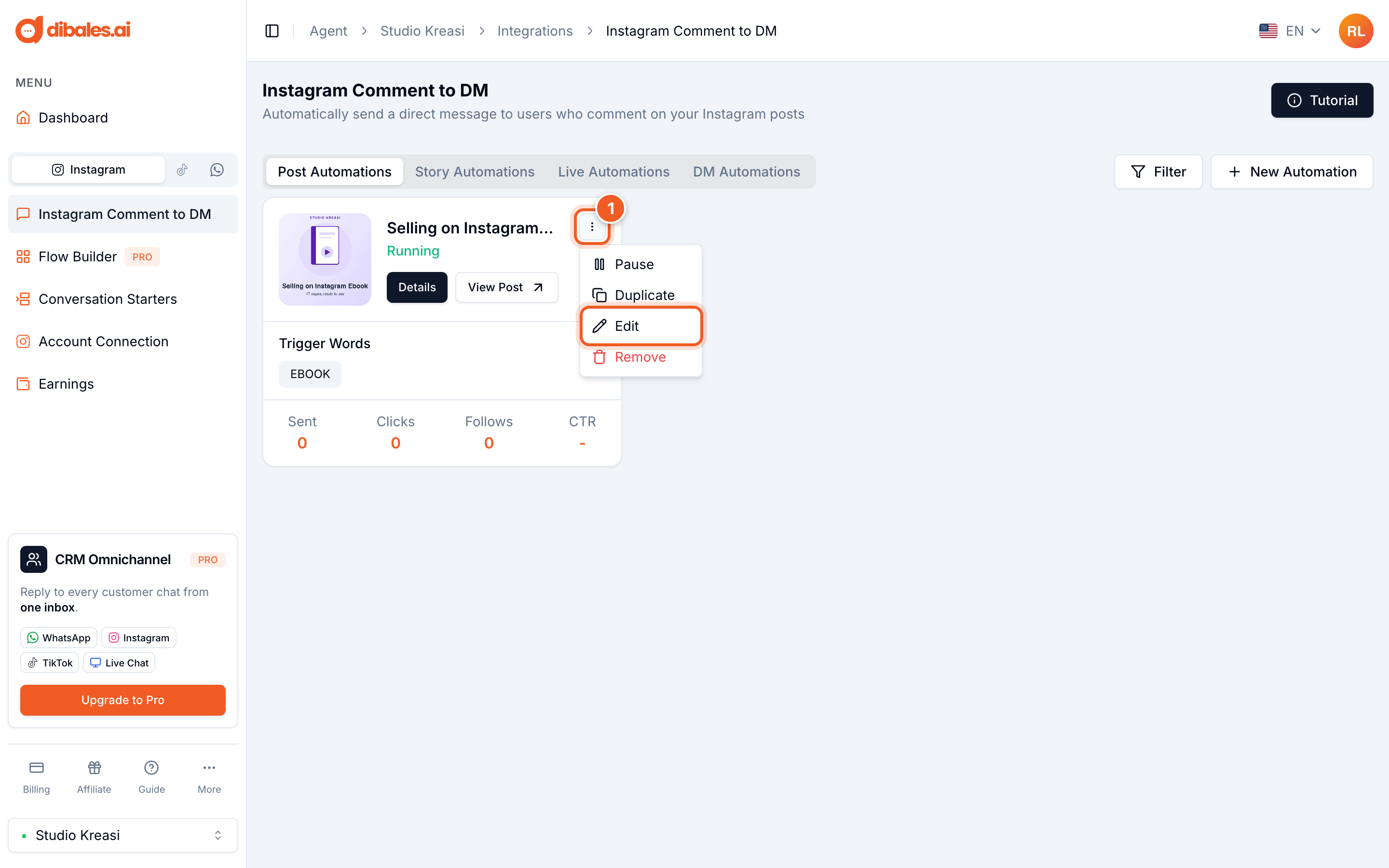
- On the Instagram Comment to DM page, click the ⋮ icon on the automation you want to change, then choose Edit.
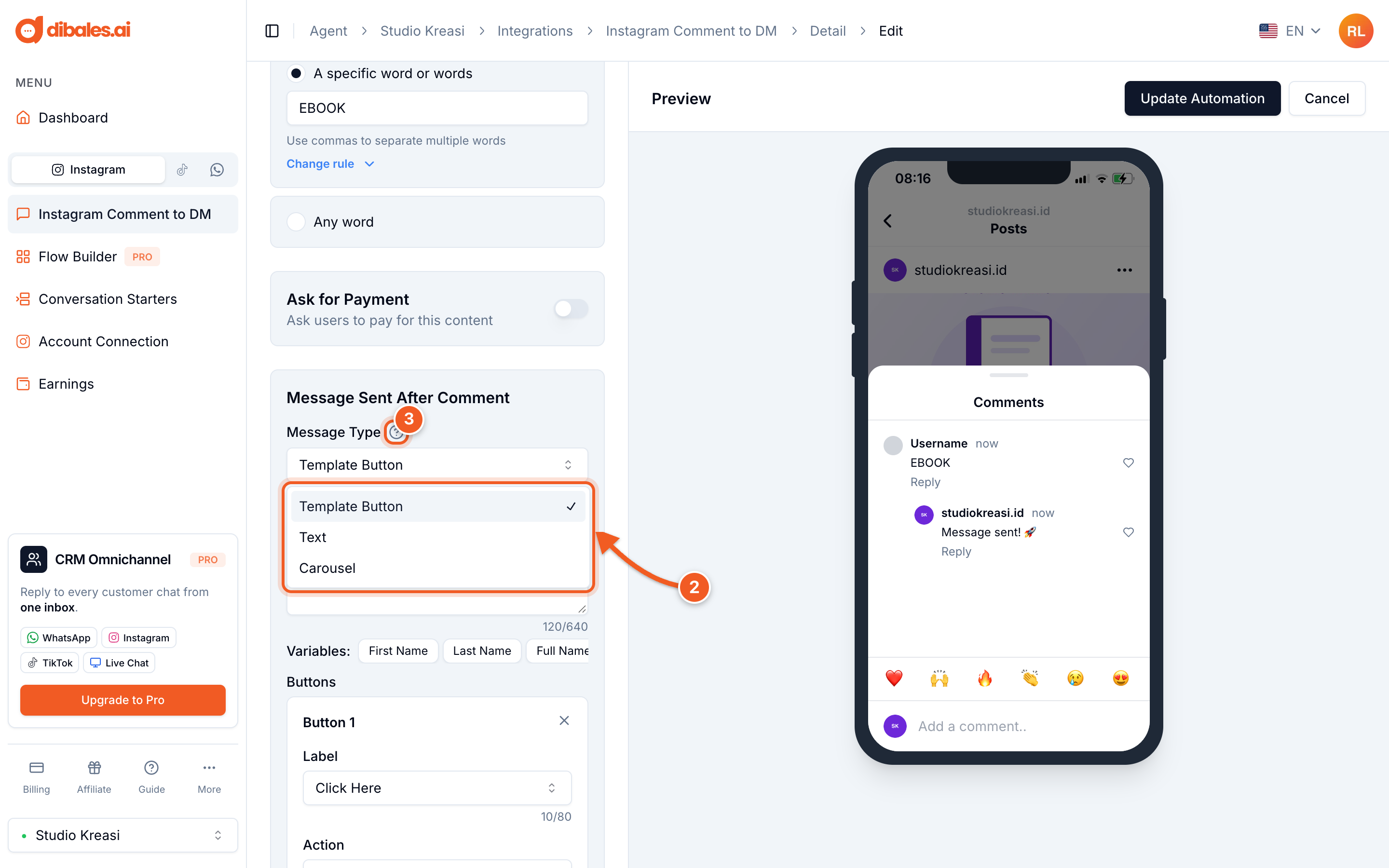
- In the Message Sent After Comment section, click Message Type, then choose the type you want.
- Click the ? icon next to Message Type to see a comparison of the three message types right in the app.
Template Button
This is the default message type used in Set Up Comment to DM: message text (up to 640 characters) plus buttons below it.
- One message can have up to 3 buttons. Click Add More Button to add one.
- Each button has two possible actions:
- Open Website, to open a link, such as a product page on Lynk.id.
- Send Text, to reply with another text message when the button is tapped.
- The default button label is Click Here. Choose Custom under Label to write your own, for example Buy Ebook.
Text
- Choose Text under Message Type. The message can be up to 1,000 characters. Existing buttons are kept, but sent as text: the button label followed by its link. You can see the result in the Preview.
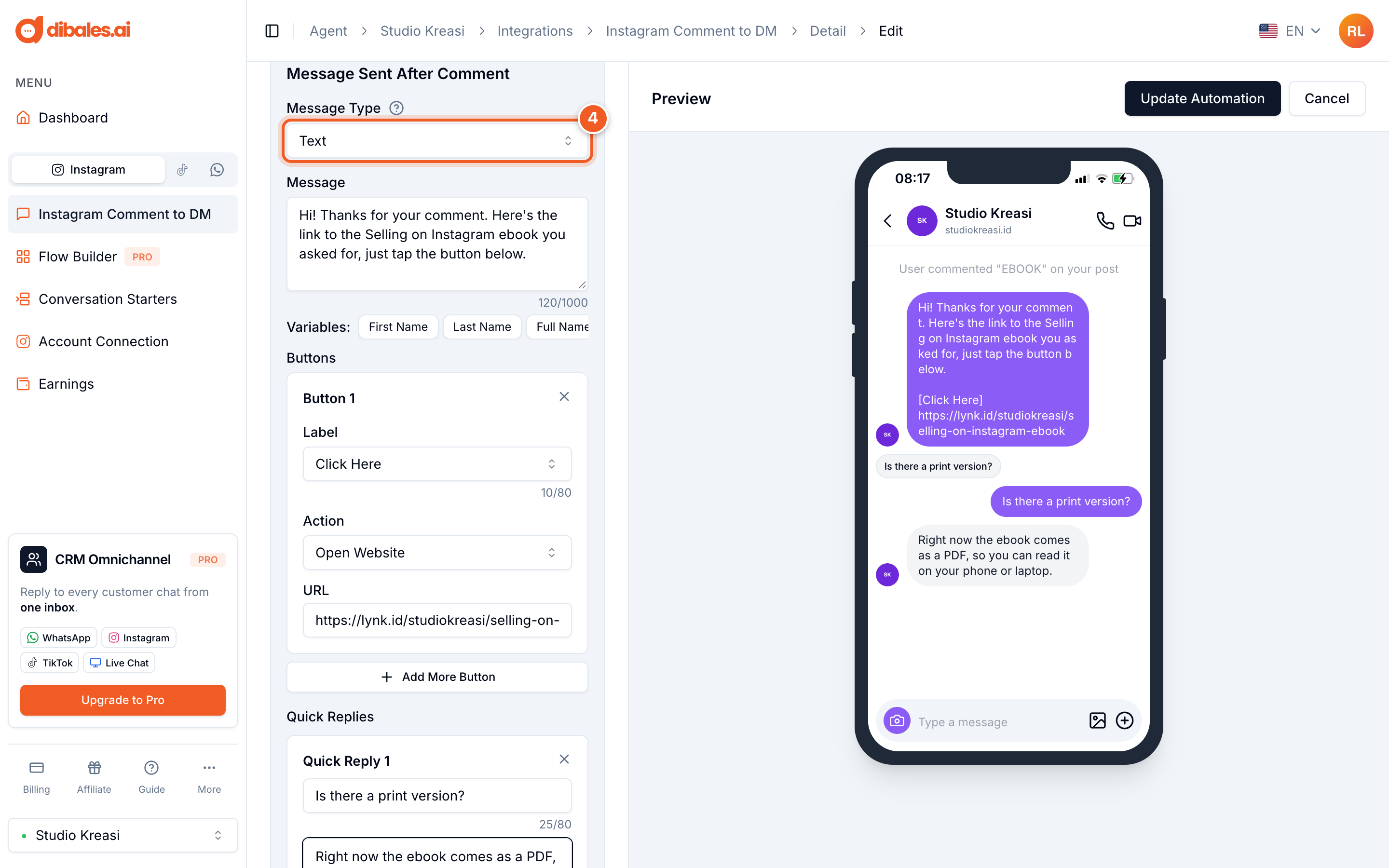
- Optional: add Quick Replies, ready-made answer options that appear below the message. Click Add Quick Reply, fill in the label (what the customer sees), then the reply text. When a customer taps a Quick Reply, that reply is sent automatically. One message can have up to 3 Quick Replies.
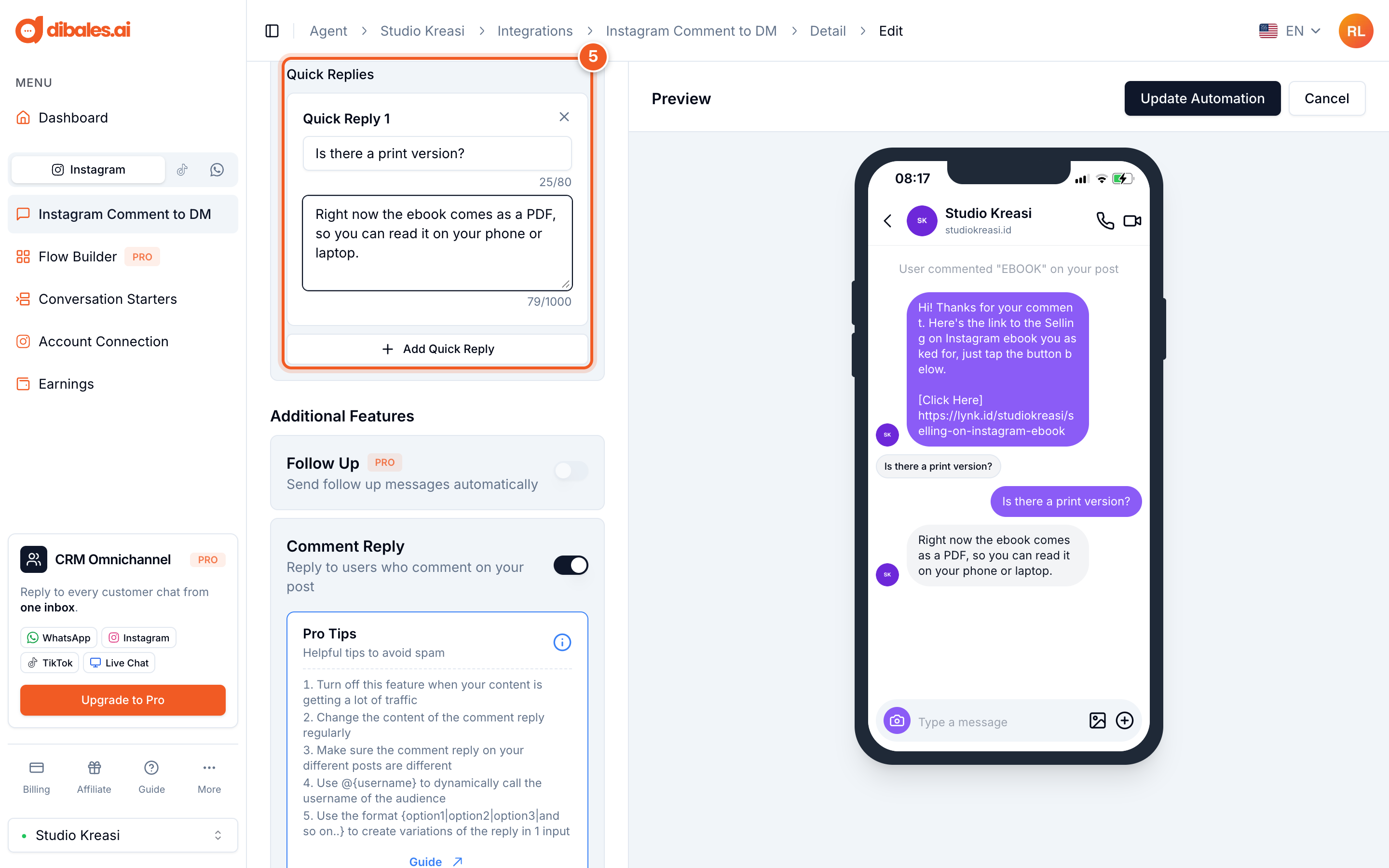
Quick Reply ideas for a digital product: "Is there a print version?", "Can I pay with a card?", or "How long do I get access?". Common questions get answered right away without you replying manually.
Carousel
A carousel shows several swipeable cards with images, which is great when you want to offer several products at once.
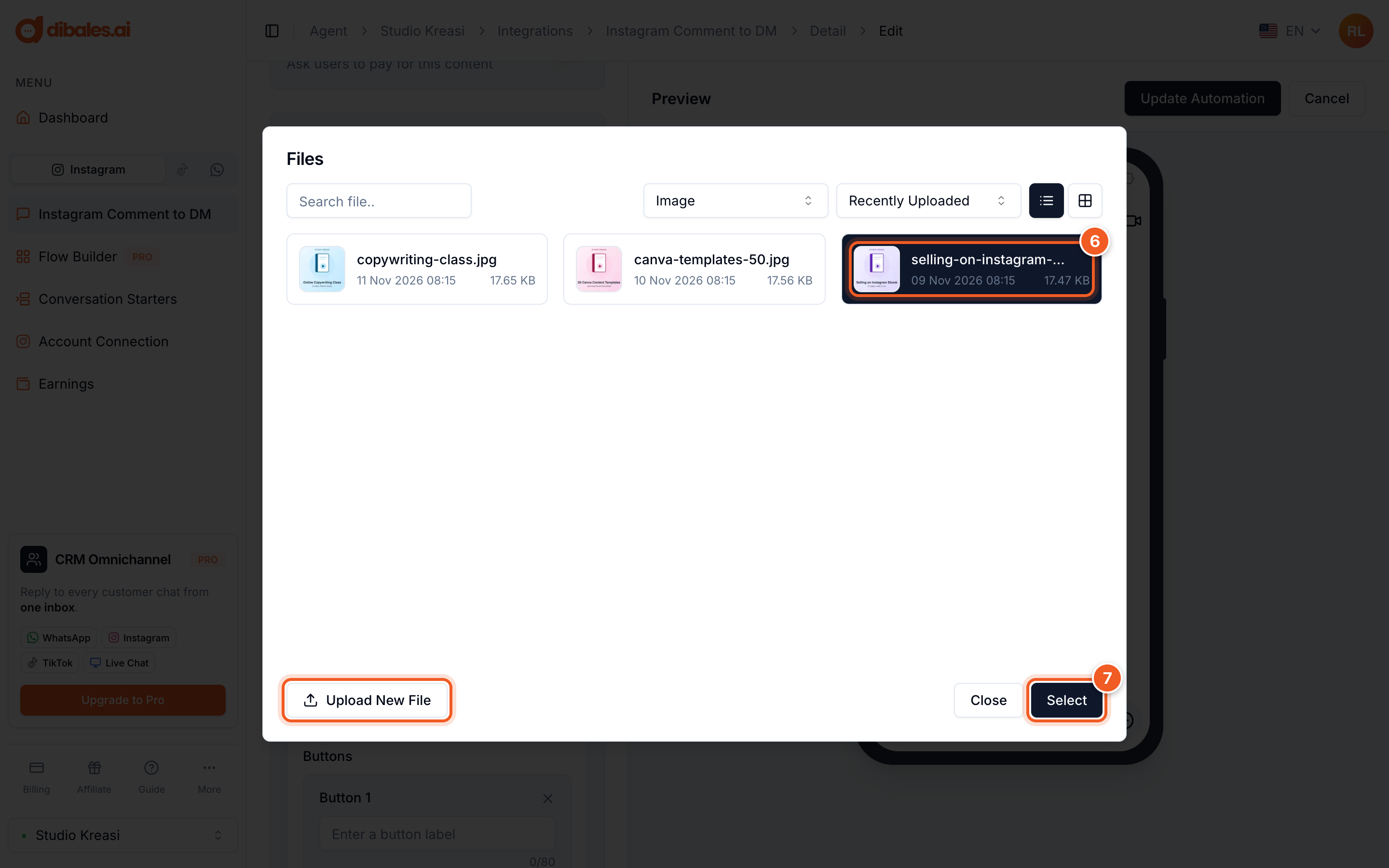
Choose Carousel under Message Type, then click Choose Image on Slide 1. The agent's file library opens.
- Choose an image from the list. If the image isn't there yet, click Upload New File first.
- Click Select.
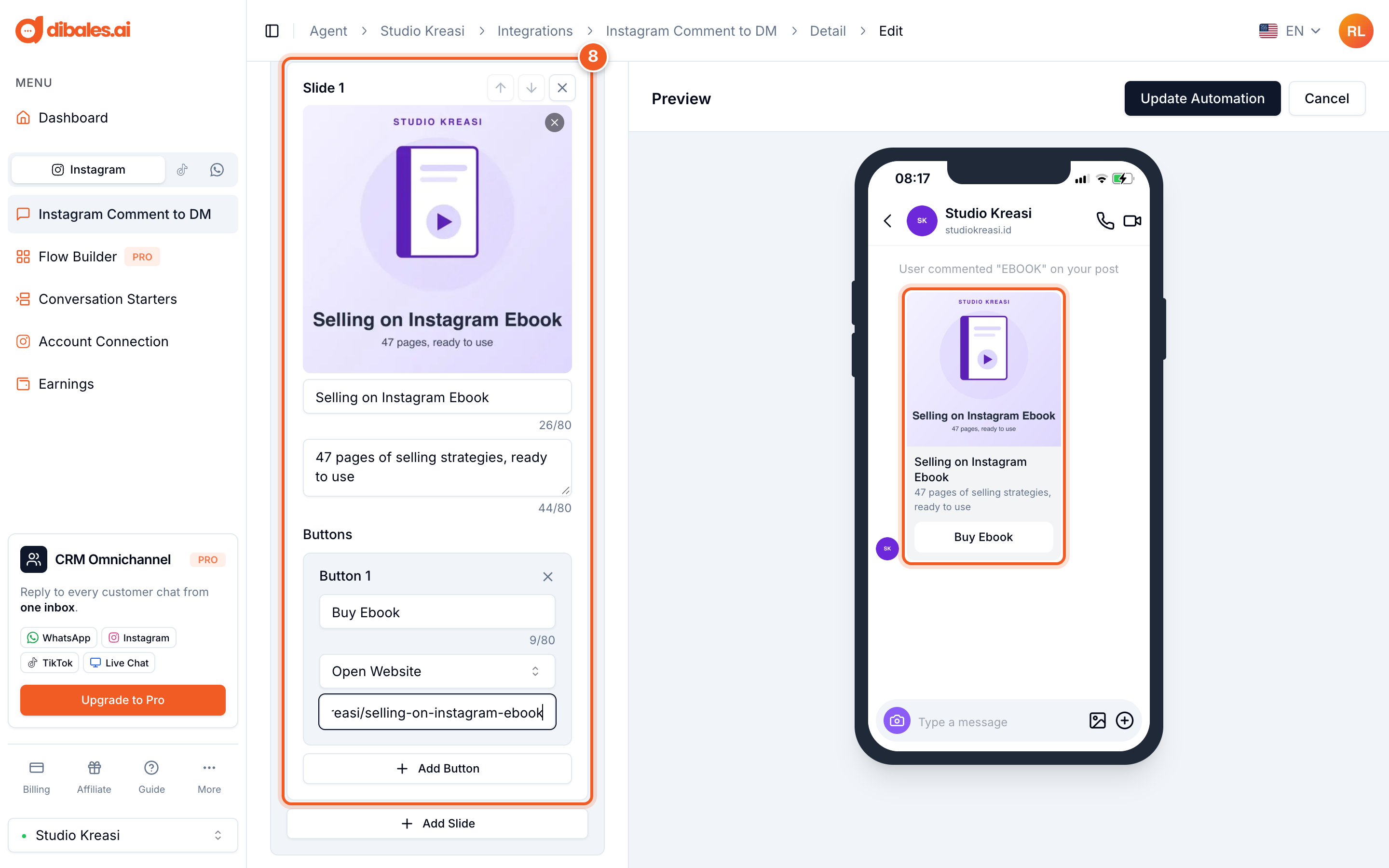
- Fill in the slide's title (required), subtitle, and button, for example a Buy Ebook button with the Open Website action pointing to its Lynk.id link.
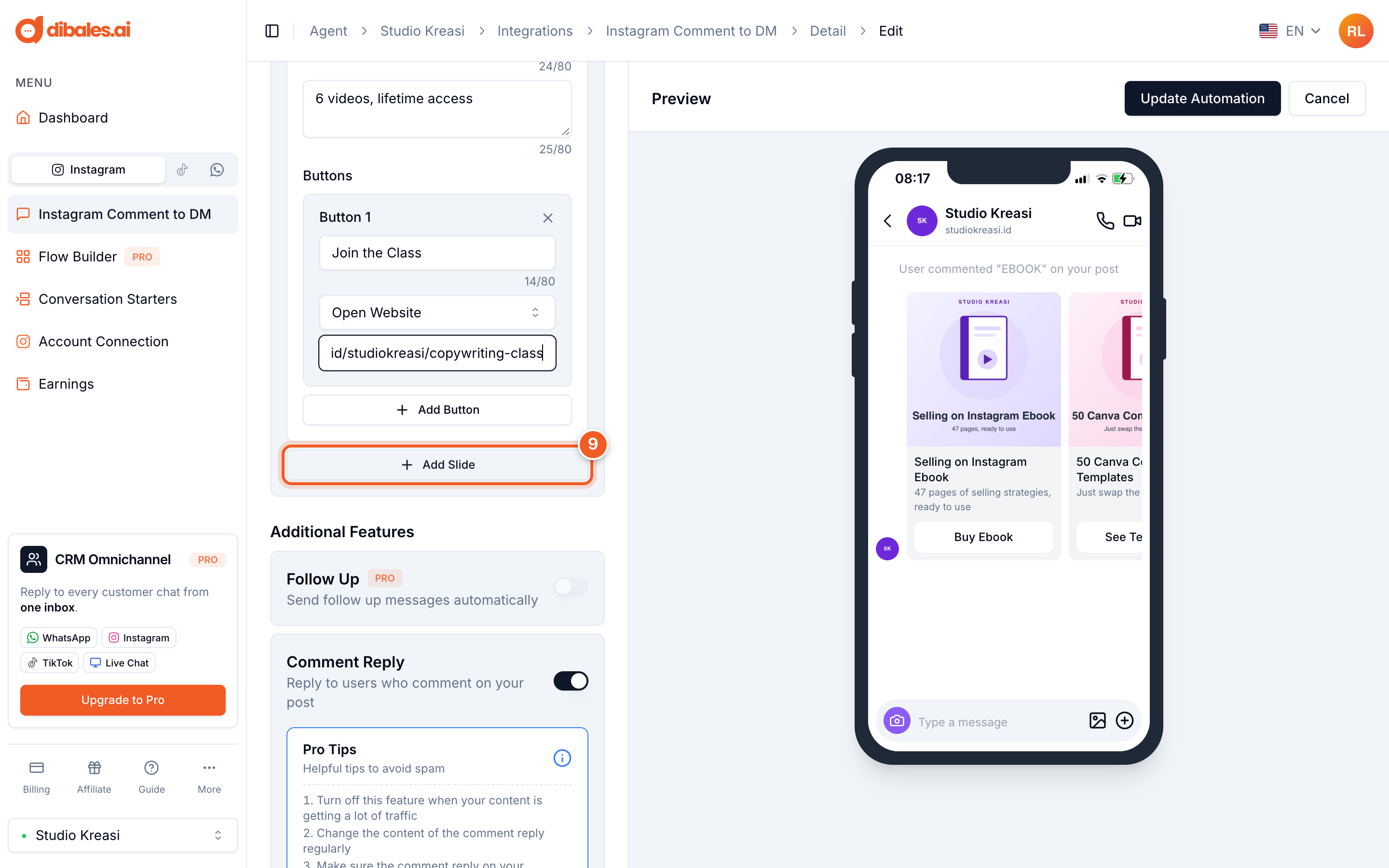
- Click Add Slide for the next product, then fill it in the same way.
- Once every slide is filled in, click Update Automation.
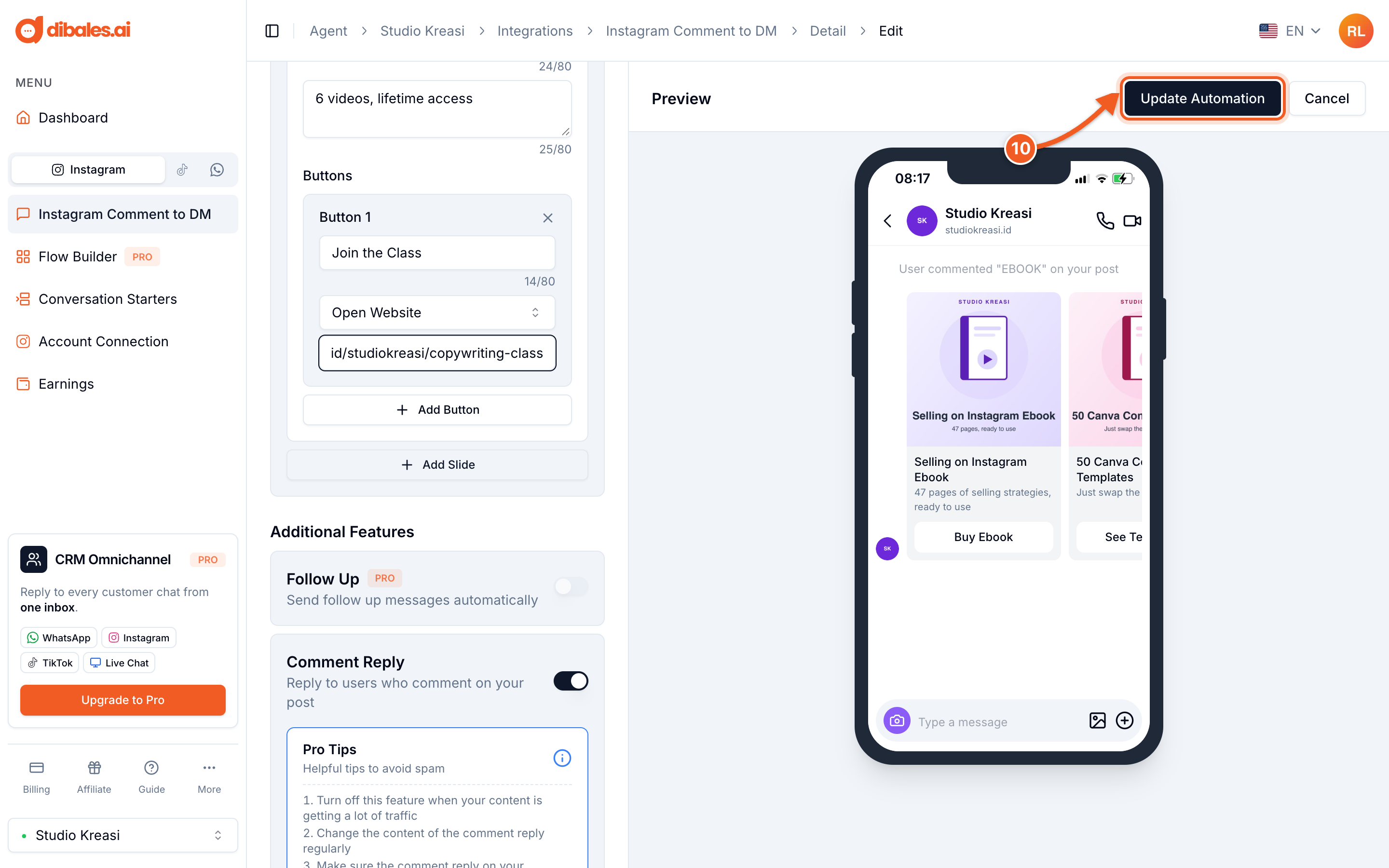
Carousel rules:
- 1 to 9 slides.
- If one slide has an image, every slide must have an image.
- Every slide must have the same number of buttons, from 1 to 3.
- Images must be JPEG, PNG, or GIF, up to 3 MB. The recommended size is 512×512 px (square).
- Titles and subtitles can each be up to 80 characters.
Click statistics
Button clicks in Template Button and Carousel are tracked on the automation's detail page, as long as Enable Link Tracking in Additional Features is on (it's on by default). Link clicks in Text aren't tracked.
More ways to build on your automation are in Set Up Comment to DM, under "Want to do more?".