
Set Up Comment to DM
Automatically send a link by DM whenever someone comments a keyword on your post.
The video is in Indonesian. The steps below walk through the same setup in English.
Comment to DM automatically sends a DM whenever someone comments a specific keyword on your post. The example in this guide: everyone who comments EBOOK on the ebook post instantly gets the purchase link on Lynk.id by DM.
This guide starts with the simplest setup: choose a post, set a keyword, send a message. Other variations are listed at the end of the page.
Before you start, make sure your Instagram account is connected. See Connect Your Instagram Account.
Creating your first automation
- Open Instagram Comment to DM in the sidebar. On a phone, open the menu first with the icon at the top left.
- Click New Automation.
- Choose Basic Automation.
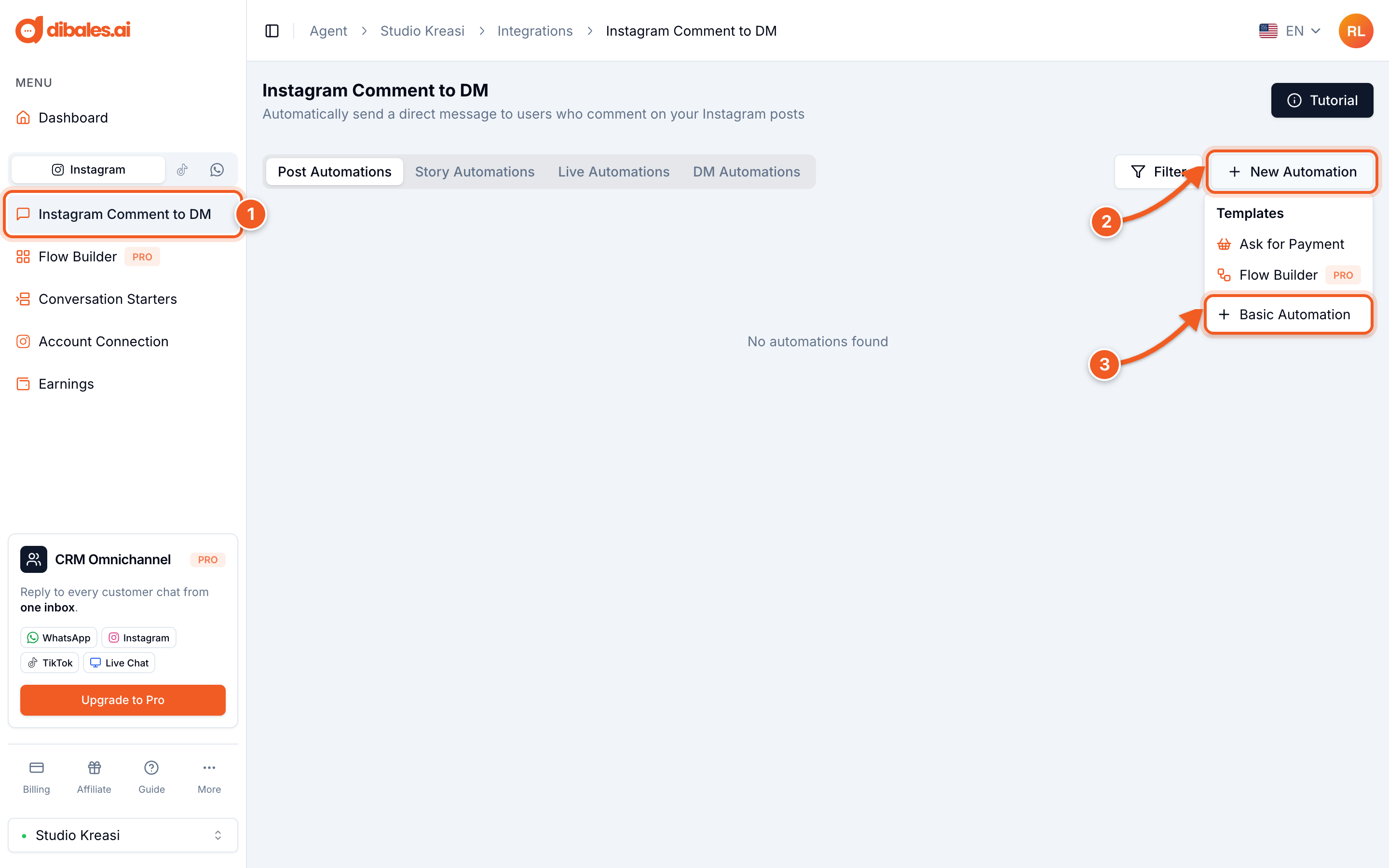
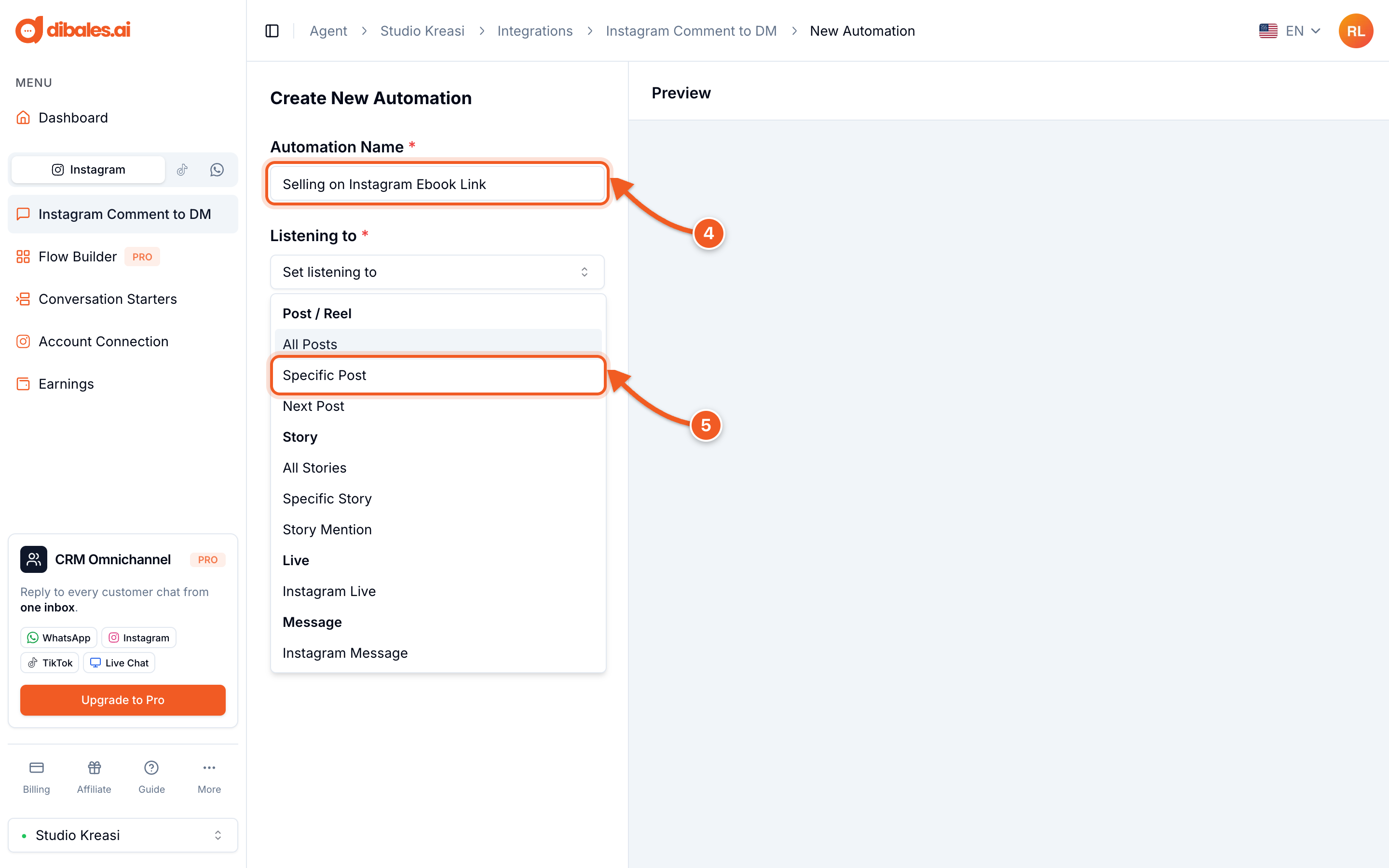
- Fill in the Automation Name. Only you can see this name, so make it easy to recognize, for example Selling on Instagram Ebook Link.
- Under Listening to, choose Specific Post.
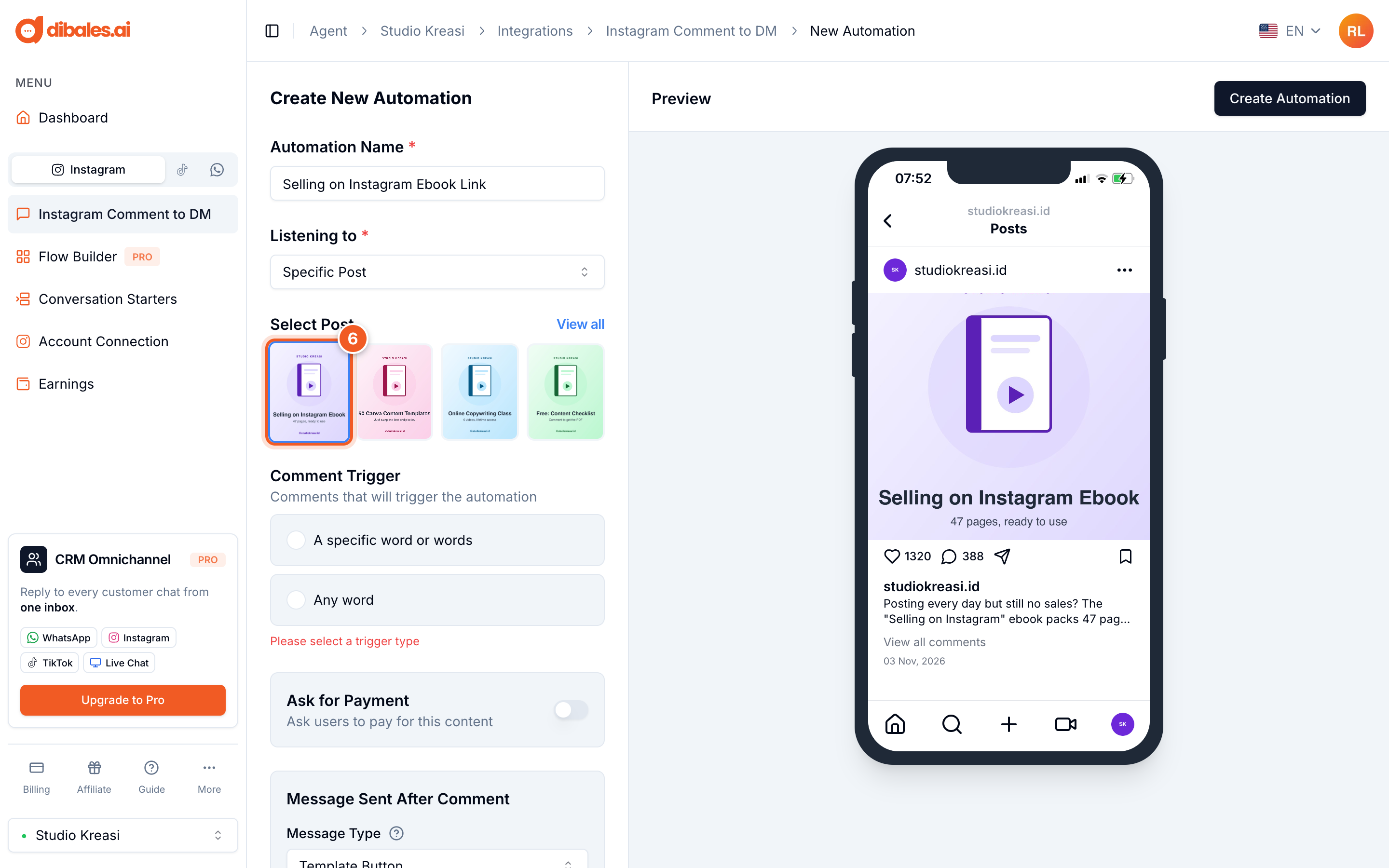
- Choose the post you want to attach the automation to. Click View all if the post isn't in the first row. The selected post shows up right away in the Preview.
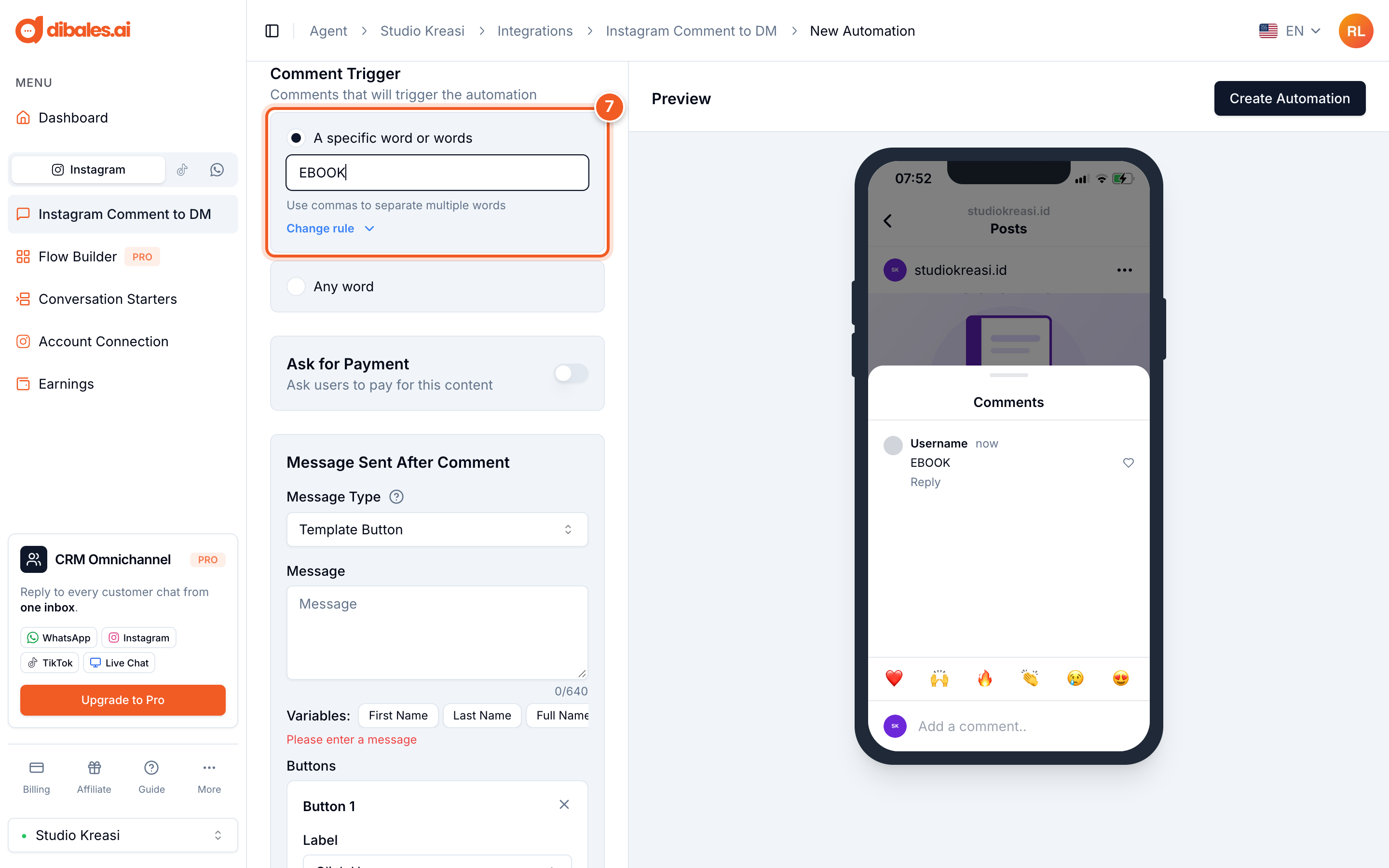
- Under Comment Trigger, choose A specific word or words, then enter the keyword, for example
EBOOK. For more than one keyword, separate them with commas, for exampleEBOOK, YES.
- Under Message Sent After Comment, leave the Message Type as Template Button, then write your message in the Message field.
- Under Button 1, leave the action as Open Website, then enter your destination link in URL, for example your product link on Lynk.id.
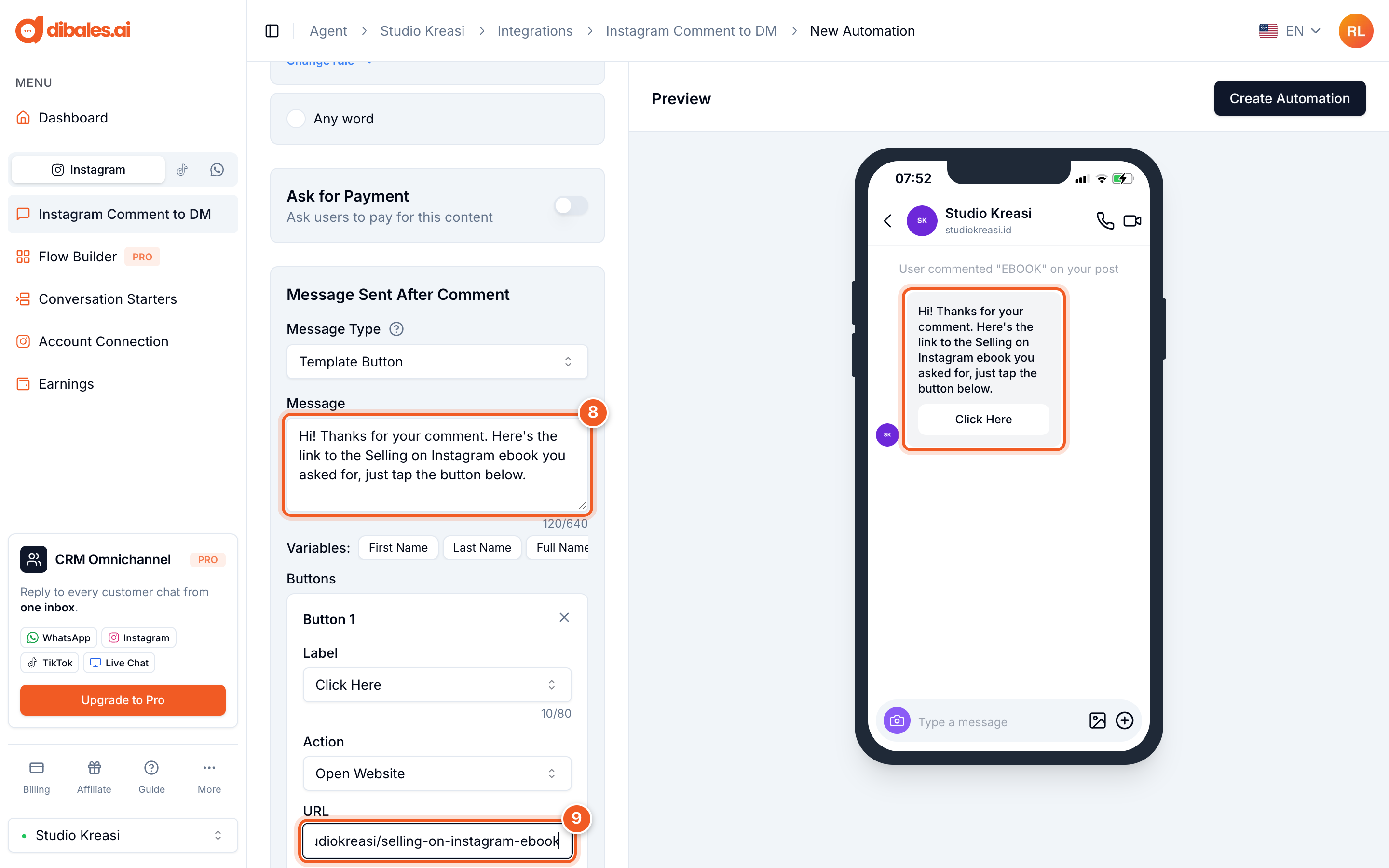
- Recommended: click Show Additional Features, then turn on Comment Reply. With this feature, customers' comments also get a public reply, for example "Hello @rara.learns, check your DMs! 📬". Three sample replies are already filled in, so you don't need to write anything.
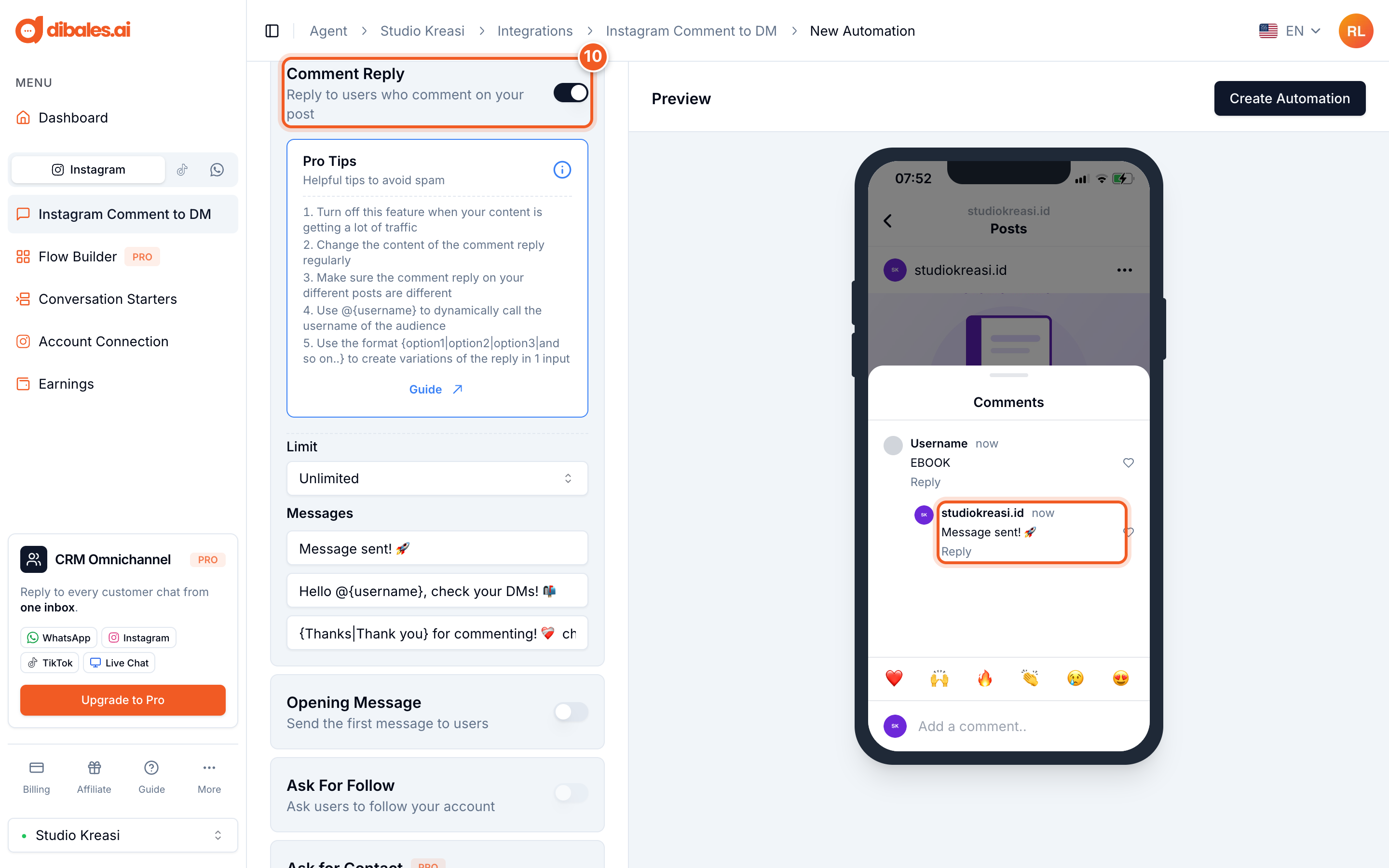
Why does it matter? DMs from accounts people don't follow land in Message Requests, not in their main inbox. A reply in the comments lets them know there's a message waiting. If your post is getting a huge number of comments, turn this feature off for a while so Instagram doesn't treat it as spam.
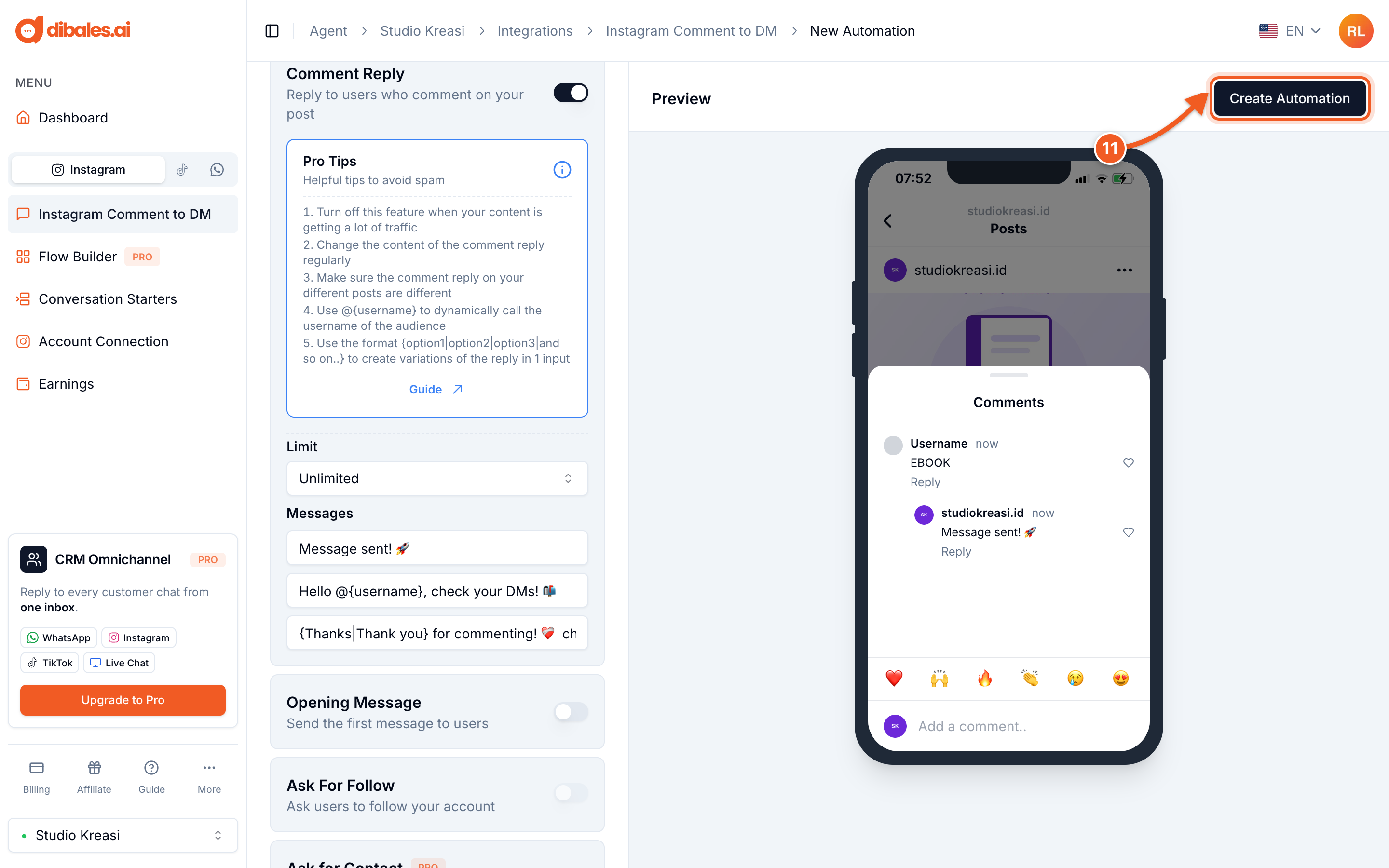
- Check how the DM and the comment reply look in the Preview. When everything looks right, click Create Automation.
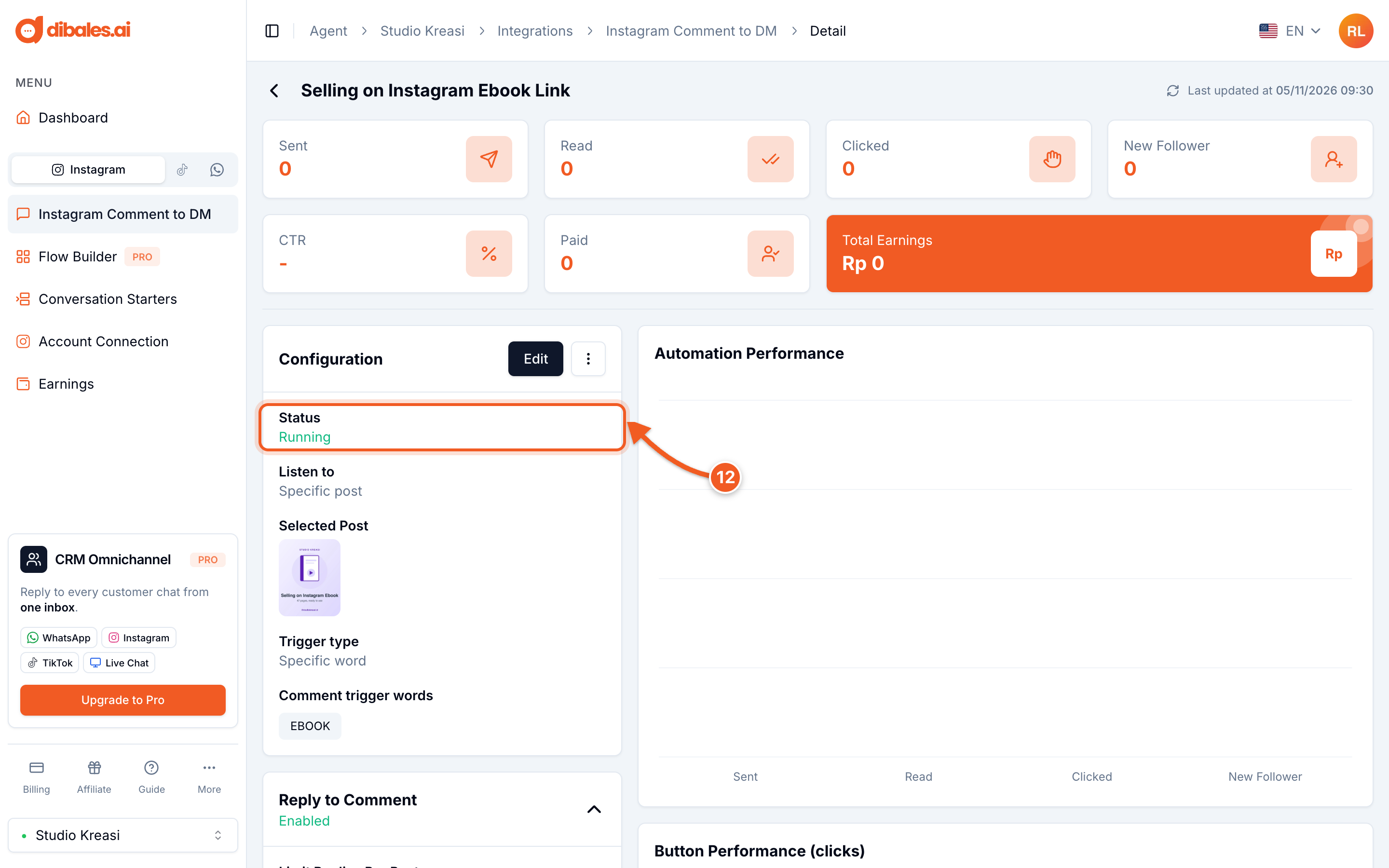
- The automation is saved and active right away. The status on the detail page shows Running.
Testing the automation
- Comment your keyword (for example
EBOOK) on that post from a different Instagram account, such as a personal account or a friend's. DMs can't be sent to your own account. Then check the DM and the comment reply on the account that commented.
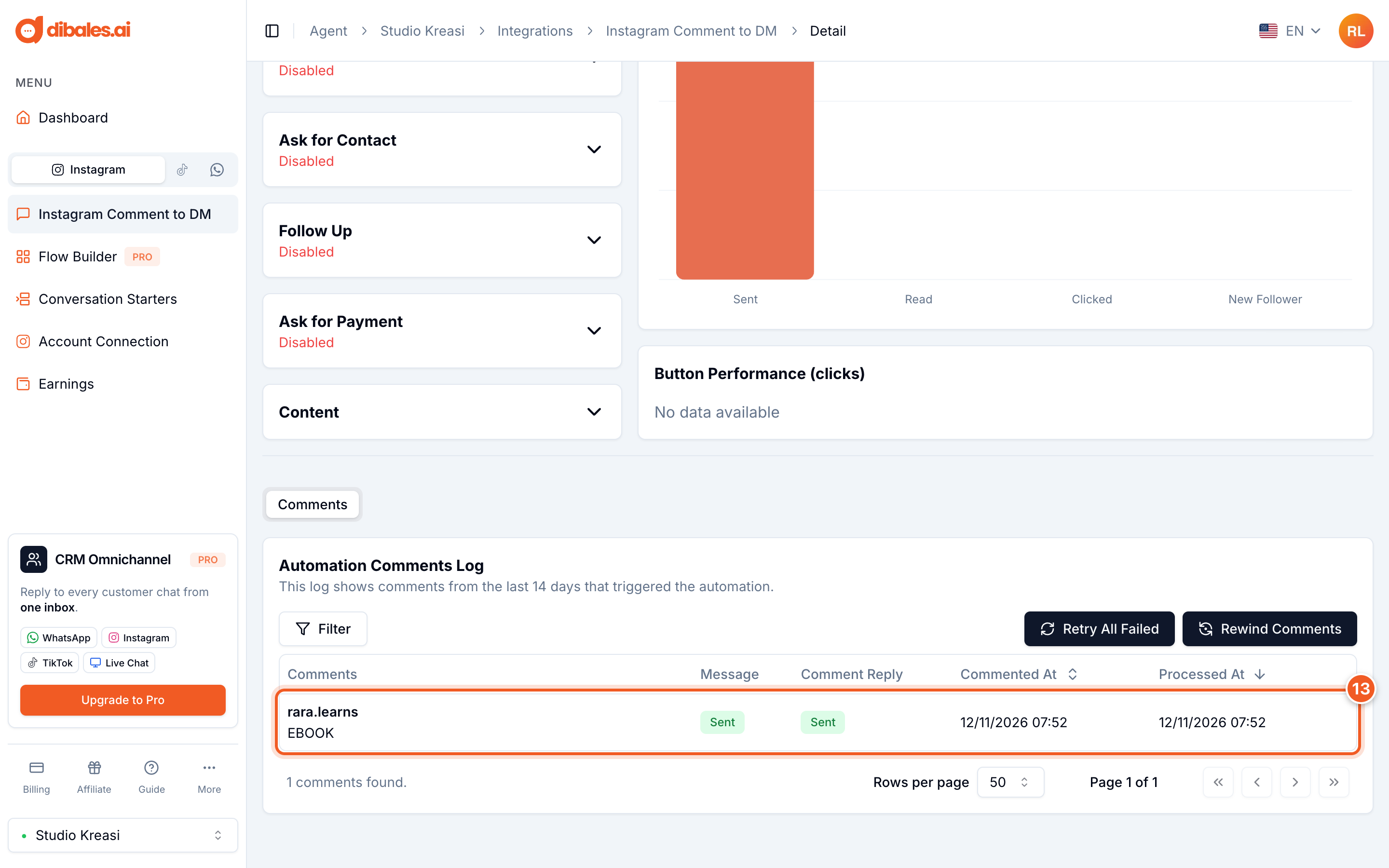
Every comment that triggers the automation is recorded in the Automation Comments Log, at the bottom of the detail page. The Message and Comment Reply columns show whether the DM and the comment reply were sent successfully.
Only top-level comments on the post trigger the automation. Replies to other people's comments don't count.
Want to do more?
You can build on the automation you just created:
- Other targets: all posts, the next post, stories, live, or DMs. Choose them under Listening to.
- Other message types: text only, multiple buttons, or a carousel. See Message Types.
- Customize comment replies: change the reply text, greet people with
@{username}, add variations with{hi|hey|hello}, and limit the number of replies. See Reply to Comments. - Ask for a follow before the link is sent: see Ask for Follow.
- Collect customers' emails and WhatsApp numbers (Pro plan): see Ask for Contact.
- Send automatic follow-up messages (Pro plan): see Follow Up.
- Accept payments right in the DM: see Ask for Payment.
Full examples are in Special Use Case.