
Automation from Posts
Set up an Instagram or TikTok Comment to DM straight from a scheduled post, so the automation starts as soon as the post goes live.
When you schedule an Instagram or TikTok post, you can set up an automation that answers comments with a DM at the same time. The automation is created automatically as soon as the post goes live, so you don't have to wait for the post to set it up.
| Post | What the automation does |
|---|---|
| Instagram Feed | Replies to comments with a DM, plus an optional public reply in the comments |
| Instagram Story | Sends a DM automatically to anyone who replies to this story |
| TikTok | Replies to comments with a DM, plus an optional public reply in the comments |
Before you start
The automation needs the same account to be connected in Account connection for automations too, not only in Post Scheduler: Instagram › Account connection or TikTok › Account connection. See Connect Your Accounts.
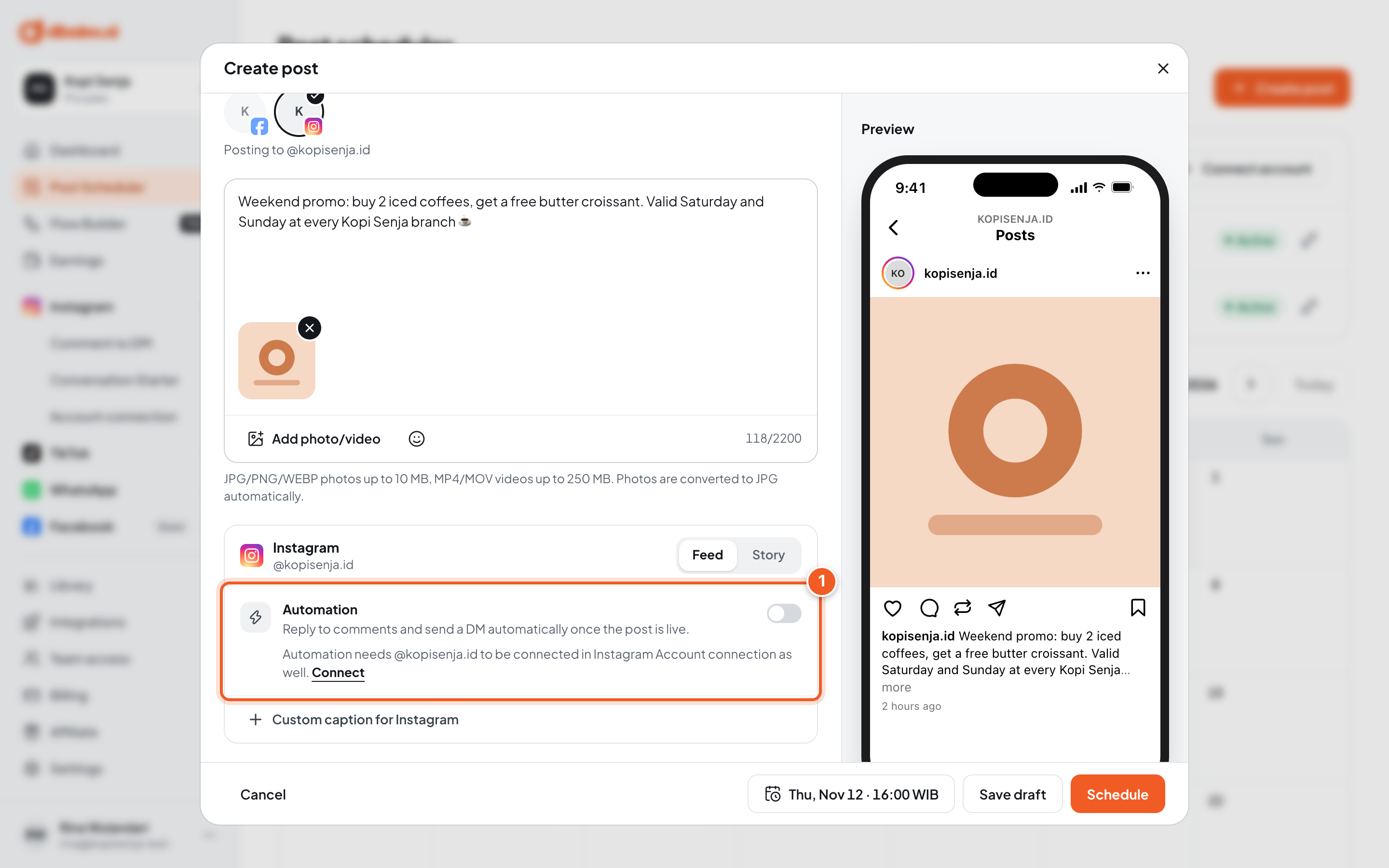
- If it isn't connected, the Automation section shows Automation needs ... to be connected in Instagram Account connection as well. and the switch can't be turned on. Click Connect to open Account connection, connect the account, then come back to the post editor.
1. Turn on Automation
In the post editor (see Create & Schedule Posts), turn on the Automation switch in the Instagram or TikTok section. Its settings window opens right away.
2. Fill in the settings
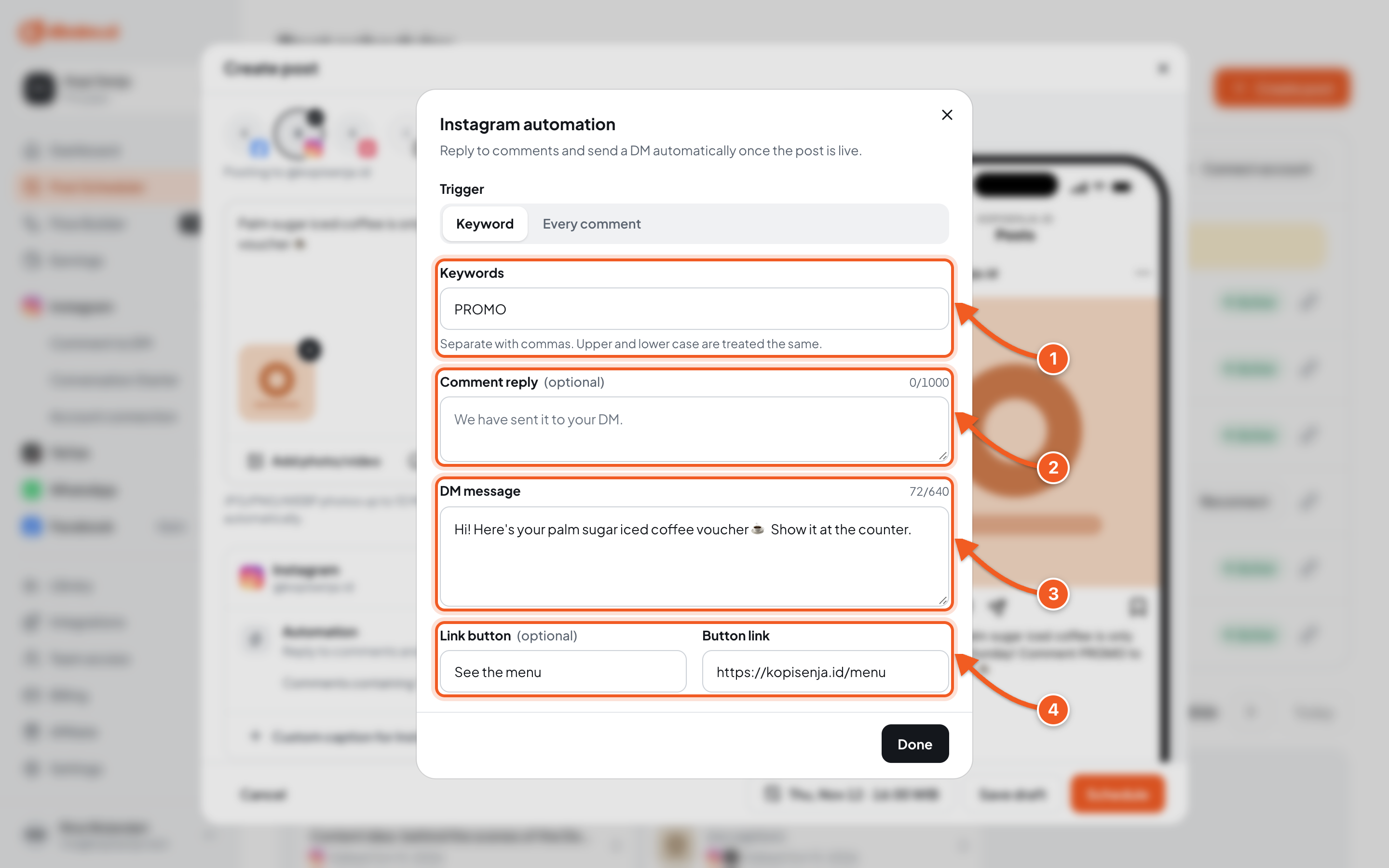
- Trigger and Keywords: comments containing this word get a DM, for example PROMO. Separate several with commas. Choose Every comment if every comment should get one.
- Comment reply (optional): the public reply in the comments. For TikTok, up to 150 characters.
- DM message: the DM that's sent.
- Link button and Button link (optional, Instagram only): a button in the DM that opens a website.
For an Instagram Story, the trigger is Keyword or Every reply, and there's no comment reply because stories don't have comments.
Click Done.
3. Check the result
A summary shows in the Automation section, for example Comments containing "PROMO" get a DM. Click Set up to change it. If it says Incomplete, click Set up and finish the fields.
Continue until you click Schedule. Then in the post details:
- before the post is live: Automation is created when the post goes live;
- after it's live: Automation active and a View automation button.
To test it, comment the keyword on that post from another account, because a DM can't be sent to your own account.
You can edit or pause the created automation from Instagram › Comment to DM or TikTok › Automation, just like any other automation. See Manage Automations.
Troubleshooting
| Problem | Fix |
|---|---|
| The Automation switch can't be turned on | The same account isn't connected in Account connection yet. Click Connect below the switch. |
| Incomplete. Click Set up to finish. | Click Set up, then fill in the keywords and the DM message. |
| The DM doesn't arrive when testing | Comment from another account, not your own, and make sure the post is Published. |