
Billing
Renew or upgrade your plan, top up AI responses, and download your agent's invoices.
Billing holds your agent's plan, AI response quota, and transaction history. Each agent has its own plan, so this page always shows the agent you have open.
This guide is for the new dibales.ai dashboard. Still on the old layout? See Billing.
Before you start
- Open the right agent: click the agent name at the top left to switch agents. The plan and transactions on this page only belong to the agent you have open.
- A voucher code (optional), if you have one.
- Have a payment method ready. You finish paying on the payment provider's page.
1. See your plan and transactions
In the sidebar, click Billing. On a phone, open the menu first with the ☰ icon at the top right.
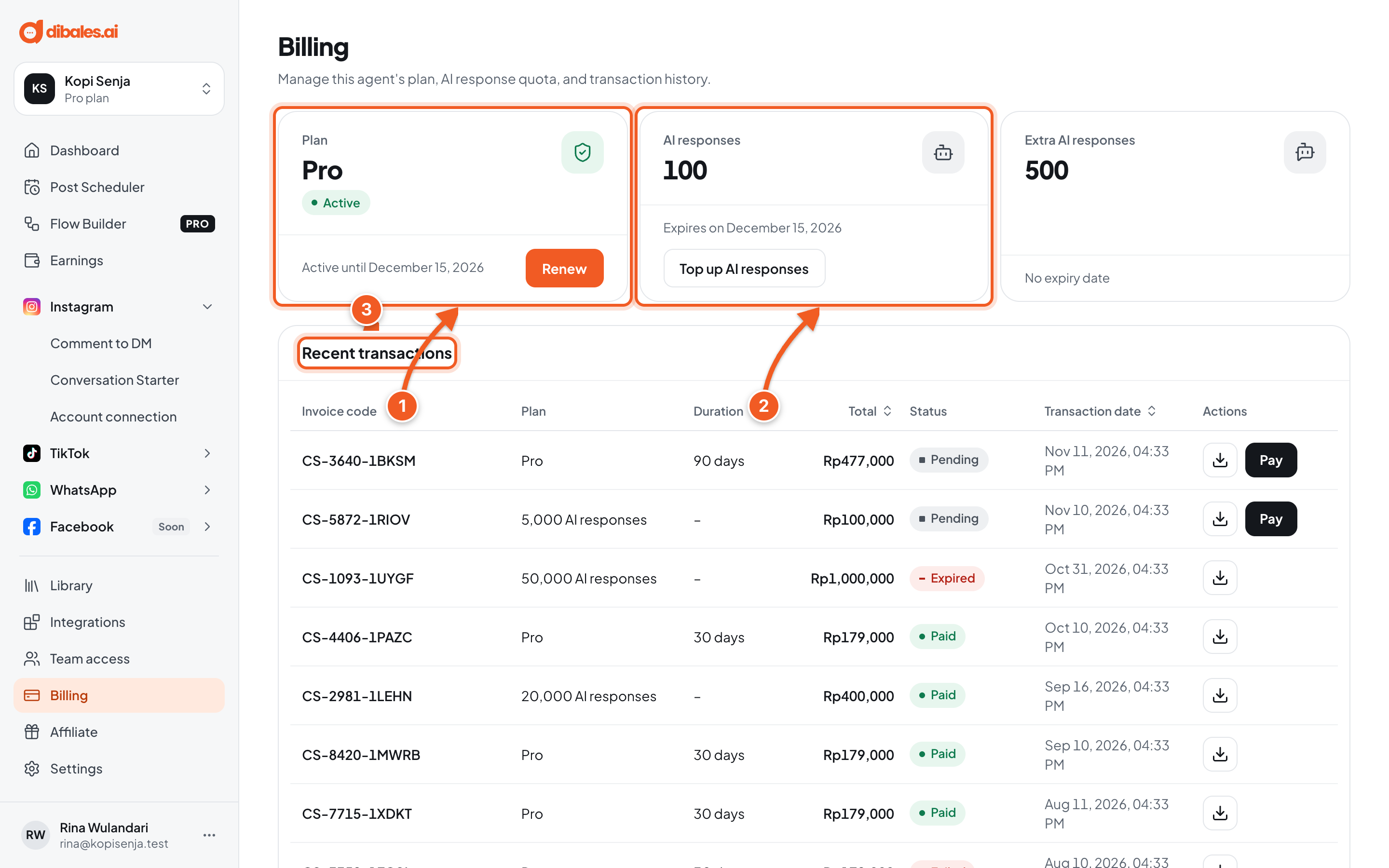
- Plan: your active plan and when it ends. Click Renew to add more time, or Upgrade to move up a plan.
- AI responses: the remaining AI response quota used by the CRM and Flow Builder, and when it expires. Extra AI responses next to it have no expiry date.
- Recent transactions: the invoice code, plan, total, and status of each transaction. Click Pay to finish a Pending bill, or the download icon to save the invoice.
💡 Click Turn on notifications in the notice at the top of the page to get renewal reminders on WhatsApp a few days before your subscription ends.
2. Renew or change your plan
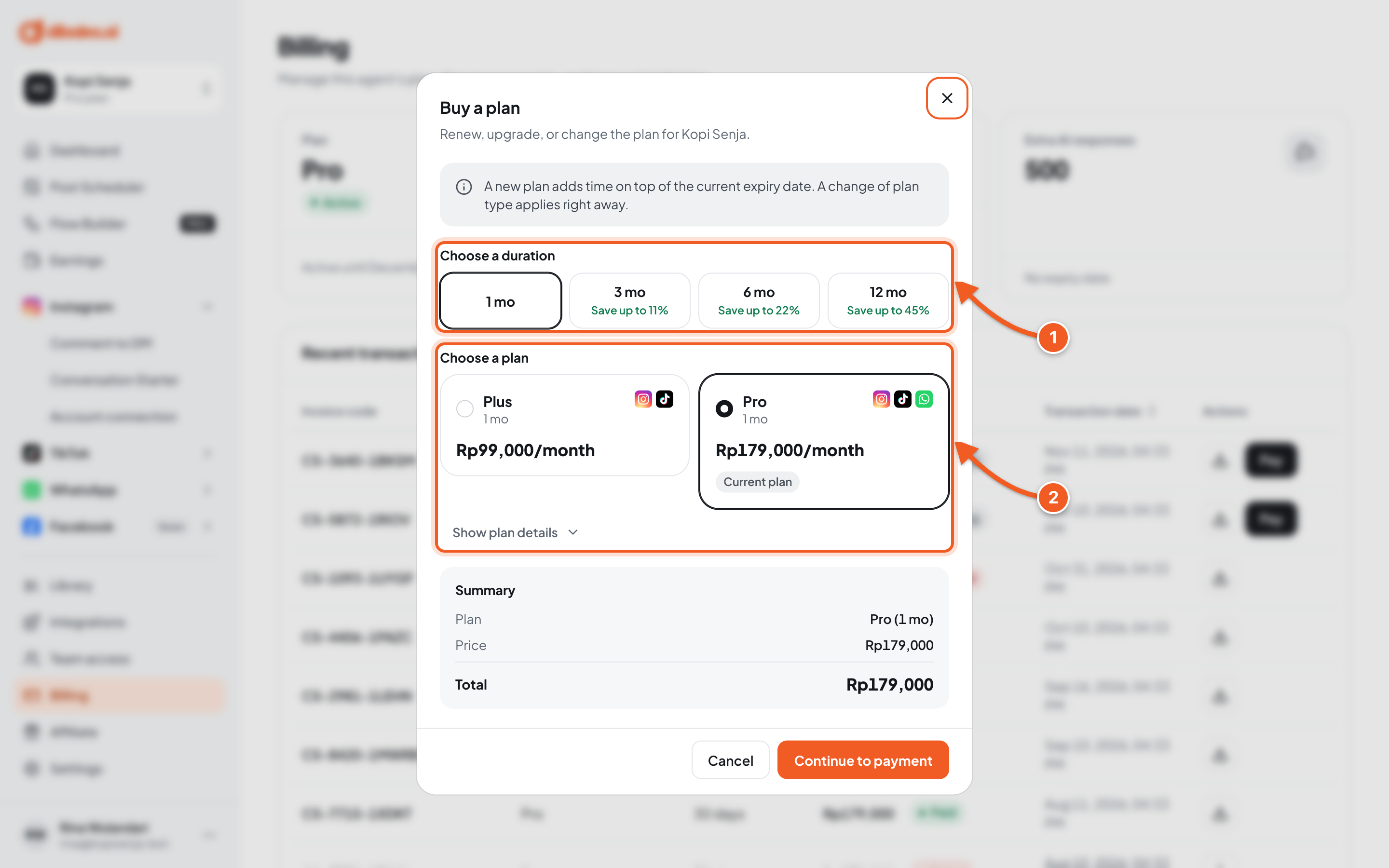
- Choose a duration: 1, 3, 6, or 12 months. The longer the duration, the more you save.
- Choose a plan: Plus or Pro. Click Show plan details to compare features.
Enter a Voucher code if you have one, check the Summary below, then click Continue to payment.
| Choice | What happens |
|---|---|
| Same plan | Time is added on top of the current expiry date. |
| Upgrade (Plus to Pro) | Takes effect right away. The time left on the old plan is used as a discount (prorated credit). |
| Downgrade (Pro to Plus) | Scheduled for your next renewal. You keep the Pro features until then, and you can cancel it with Cancel downgrade. |
3. Top up AI responses (Pro plan)
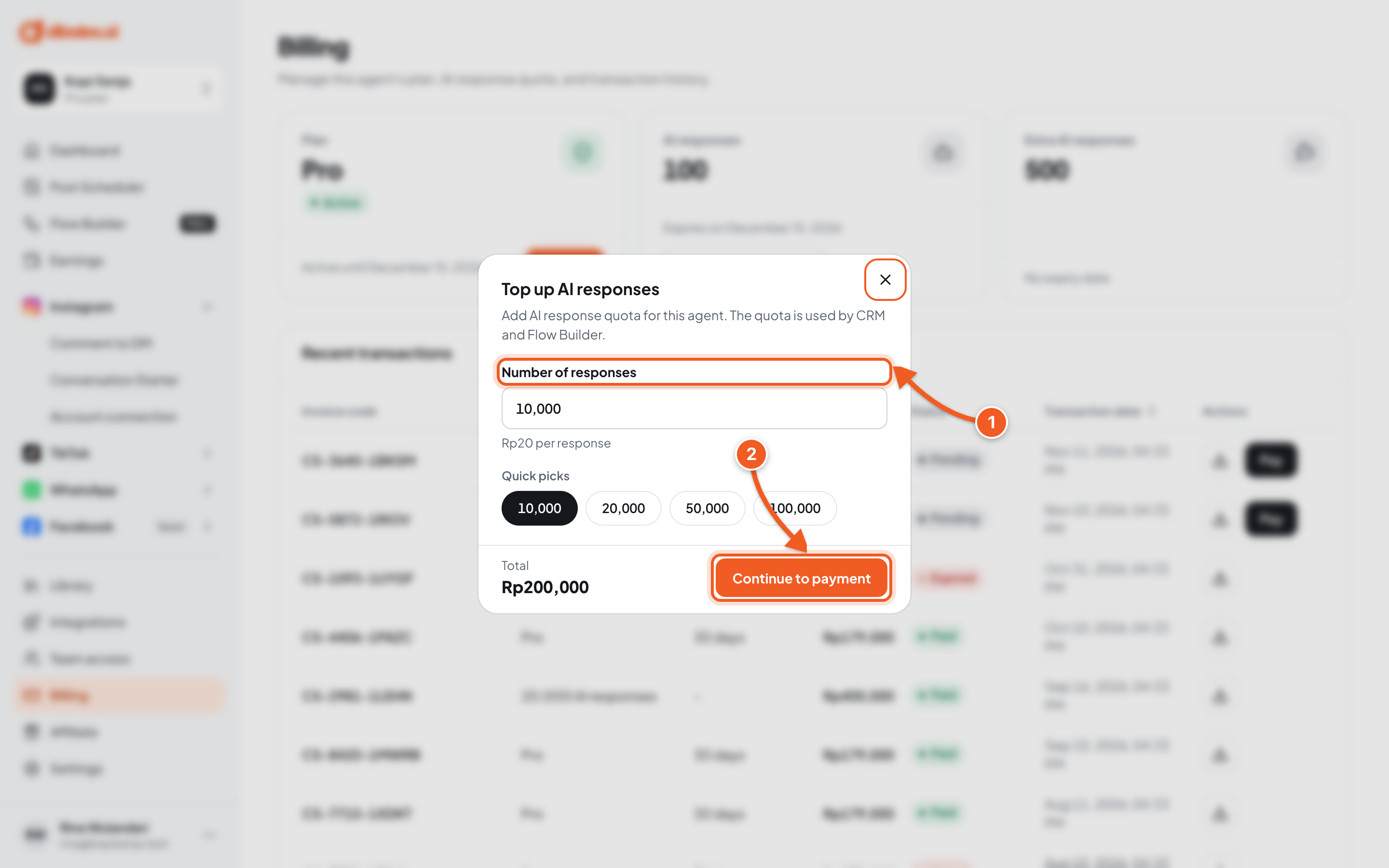
- Number of responses: enter an amount, or click one of the Quick picks. The price per response and the total show right away.
- Click Continue to payment.
Top-ups are only available for active Pro plans.
When a subscription ends, all of the agent's automations stop until it's renewed.
4. Check the result
- Once you've paid, go back to Billing. The transaction shows up under Recent transactions with the status Paid.
- For a renewal or upgrade, the Plan card shows the new plan and end date. For a top-up, the Extra AI responses count goes up.
- Click the download icon on the transaction's row to save the invoice.
💡 Bought a plan through Lynk? The purchase shows up in the Payment received notice. Click Claim to create an agent from that purchase.
Troubleshooting
| Problem | Fix |
|---|---|
| A transaction says Pending | The payment isn't finished yet. Click Pay on its row to finish it. |
| A transaction says Expired or Failed | The payment deadline passed or the payment was declined. Create a new payment through Renew, Upgrade, or Top up AI responses. |
| The payment could not be created. Try again. | Try again in a moment. If it still fails, contact customer service. |
| Your prorated credit is more than this plan's price. Choose a longer duration. | The remaining time on your current plan is worth more than this option. Choose a longer duration. |
| AI response top-ups are only for Pro plans. | Upgrade to Pro first, then top up. |
| The invoice could not be downloaded. Try again. | Try again in a moment. |
| The transactions could not be claimed. Try again. | Try again. If you see This claim is already being processed, wait a moment, then reload the page. |
| Subscription ended | All automations stop. Click Renew subscription, then finish the payment. |