
Create a List
Create a WhatsApp Follow-up list to hold the contacts who will get your follow-up messages.
A list holds the contacts who receive your Follow-up messages. Create one list per purpose, with a name that makes its context obvious, for example Barista Class Participants or December Price Leads.
Make sure you meet Before you start: the Pro plan and a connected WhatsApp number.
1. Open Follow-up
In the sidebar, open WhatsApp › Follow-up. On a phone, open the menu first with the ☰ icon at the top right.
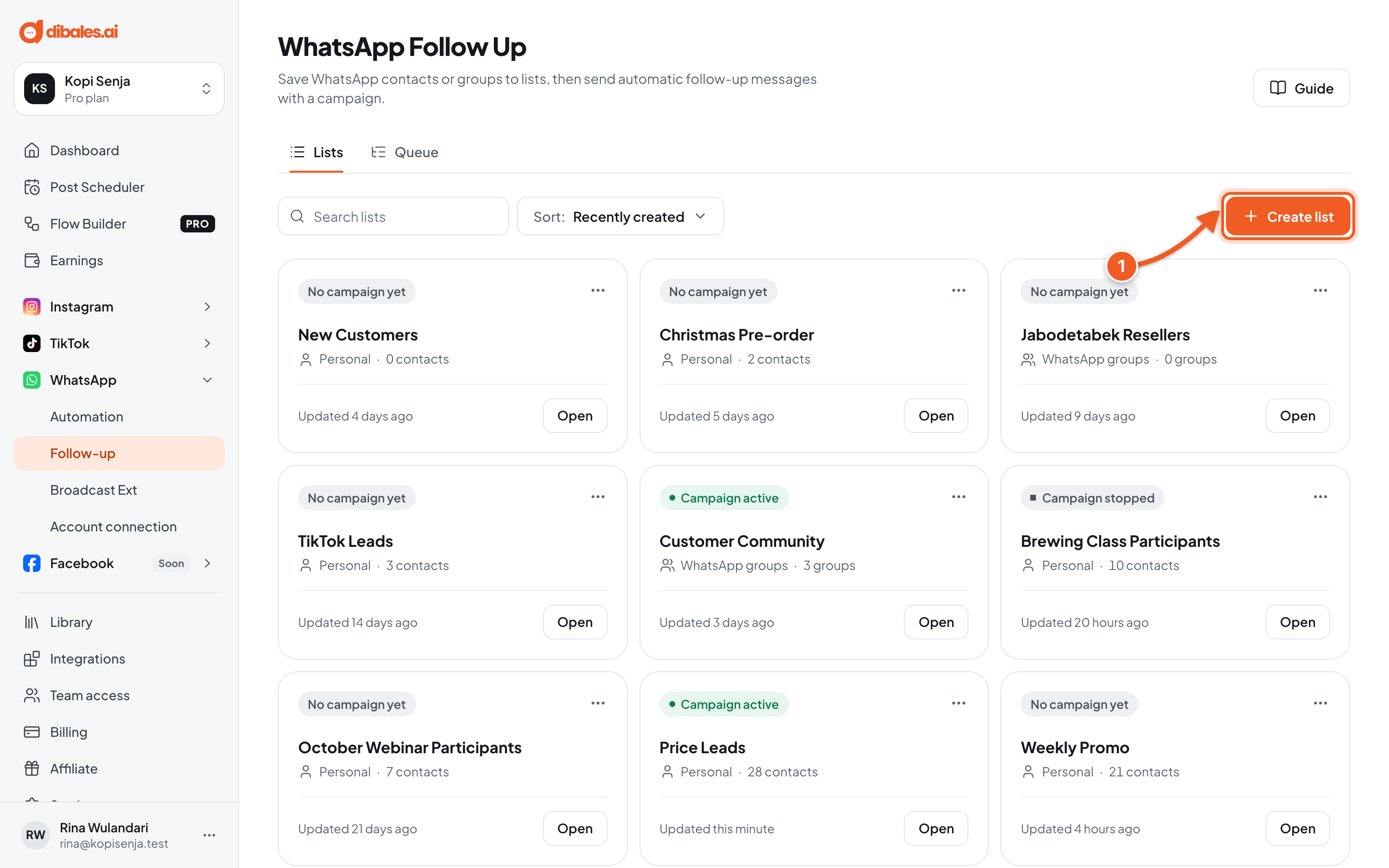
- Click Create list.
2. Choose the list type and name
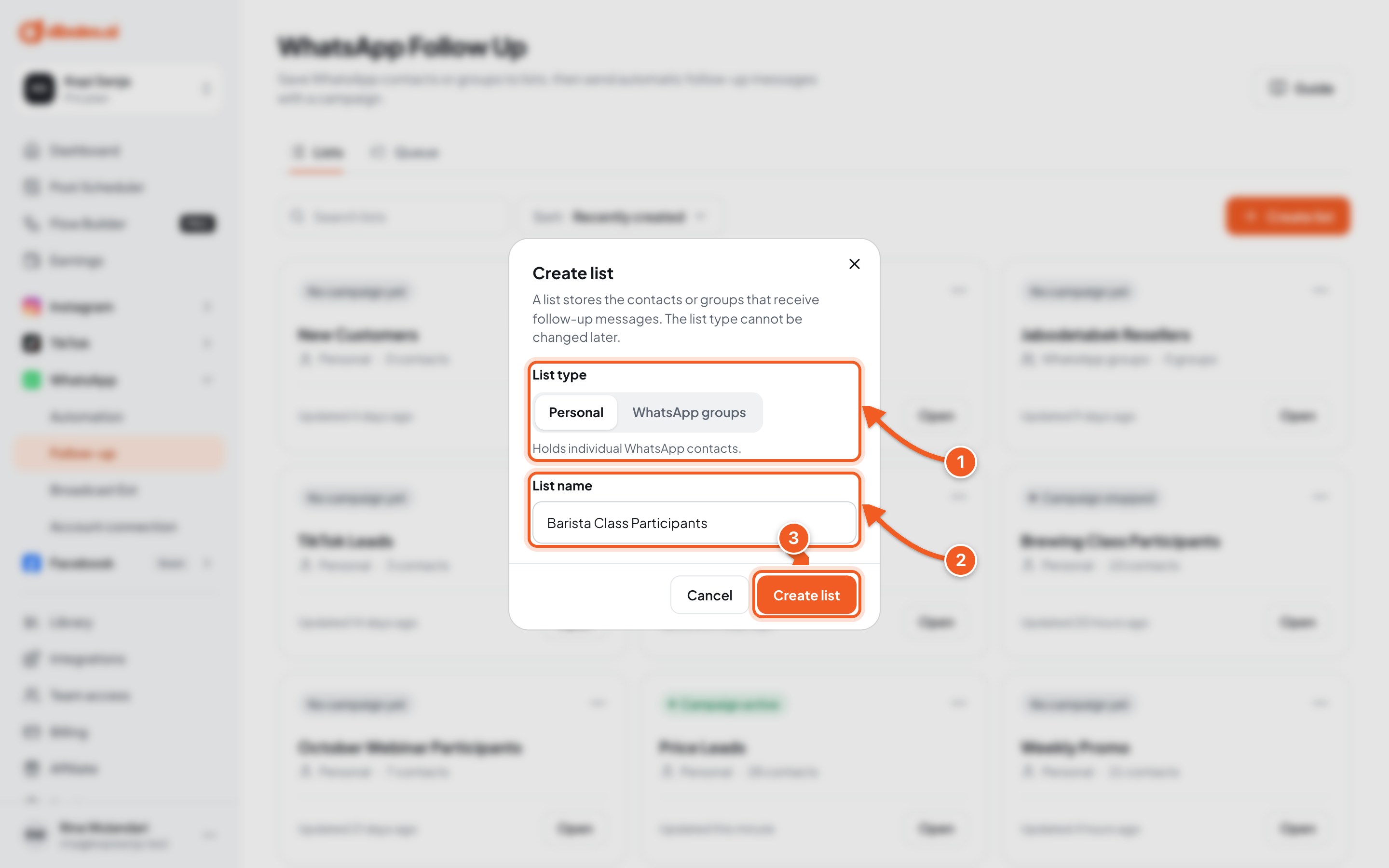
- List type: choose Personal for individual contacts. The list type can't be changed after it's created.
- List name: for example Barista Class Participants.
- Click Create list.
3. Check the result
Your new list opens right away, empty and marked No campaign yet.
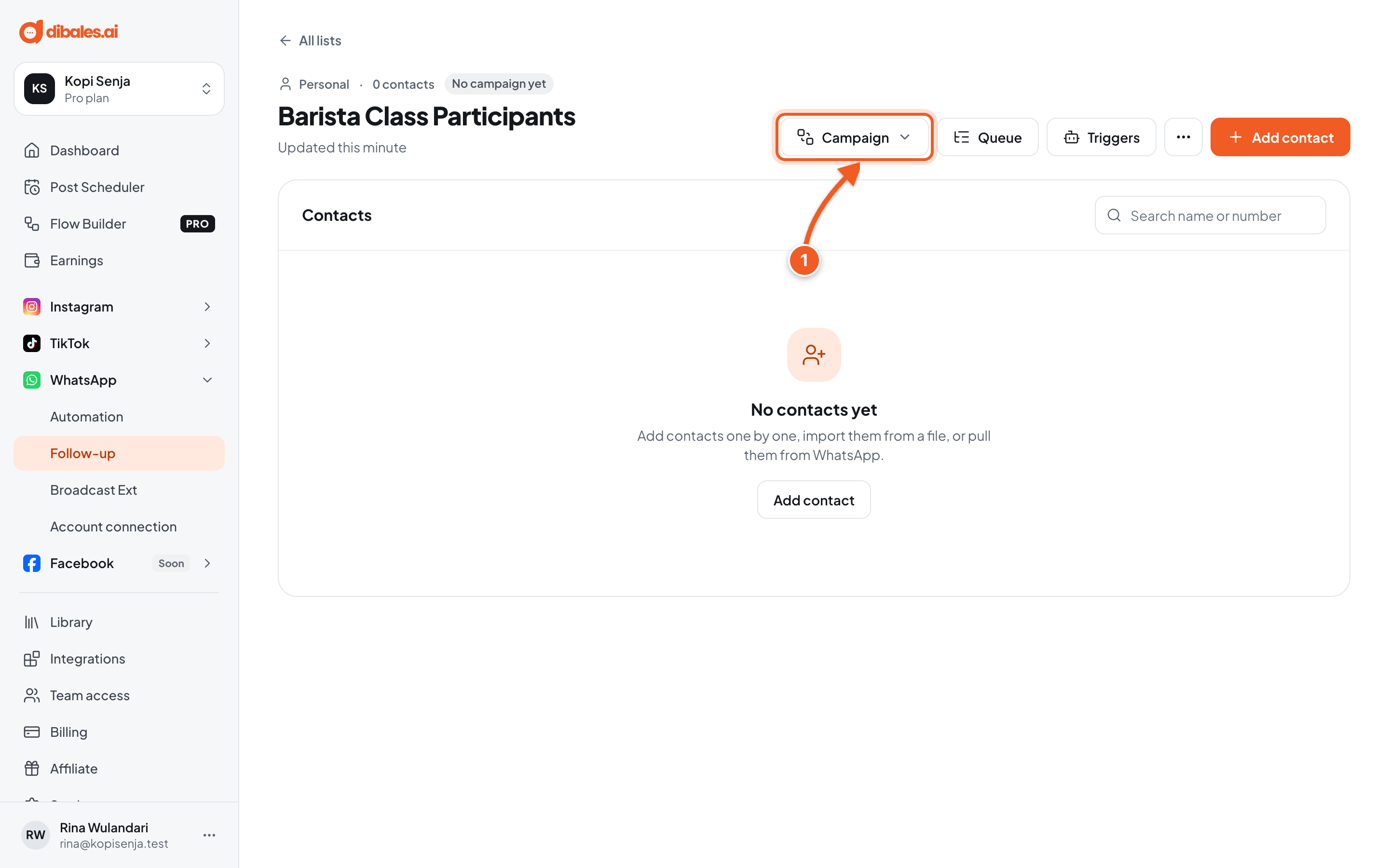
- Next: click Campaign to write the messages.
WhatsApp group lists
Choose the WhatsApp groups type if campaign messages should go into groups, for example a class participants group. How it differs from a Personal list:
- Fill the list with Add group, then tick the groups. Only choose groups you manage, so your messages aren't treated as spam.
- Triggers aren't available for group lists.
- The only message variable you can use is Group name.
Troubleshooting
| Problem | Fix |
|---|---|
| The page shows WhatsApp is not connected | Click Connect WhatsApp, then scan the QR code as in Connect Your Accounts. |
| The page shows WhatsApp Follow Up needs the Pro plan | Upgrade your plan in Billing. |
| You picked the wrong list type | The list type can't be changed. Create a new list with the right type, then delete the old one with More › Delete list. |
Next step
Continue to Build the Campaign.