
Add Contacts Manually (Optional)
Optional: add contacts to a Follow-up list manually, from an Excel file, or from WhatsApp. Triggers are the safer way.
Besides triggers, you can add contacts to a list yourself. This isn't recommended for WhatsApp connected by QR code.
Why isn't it recommended? Contacts you add yourself may never have chatted with you, yet an active campaign starts messaging them right away. WhatsApp tends to limit numbers that often message people they haven't interacted with. Contacts from triggers are safer, because they contacted you first.
To reach many existing contacts with more peace of mind, use WhatsApp Official Follow Up in the CRM, which uses official message templates.
If you still want to add contacts, start small, pick people who already know your business, and test first with your personal number (not the number connected to the agent). If the list already has an active campaign, new contacts get the first step's message right away.
1. Open the list and click Add contact
Open the list from WhatsApp › Follow-up.
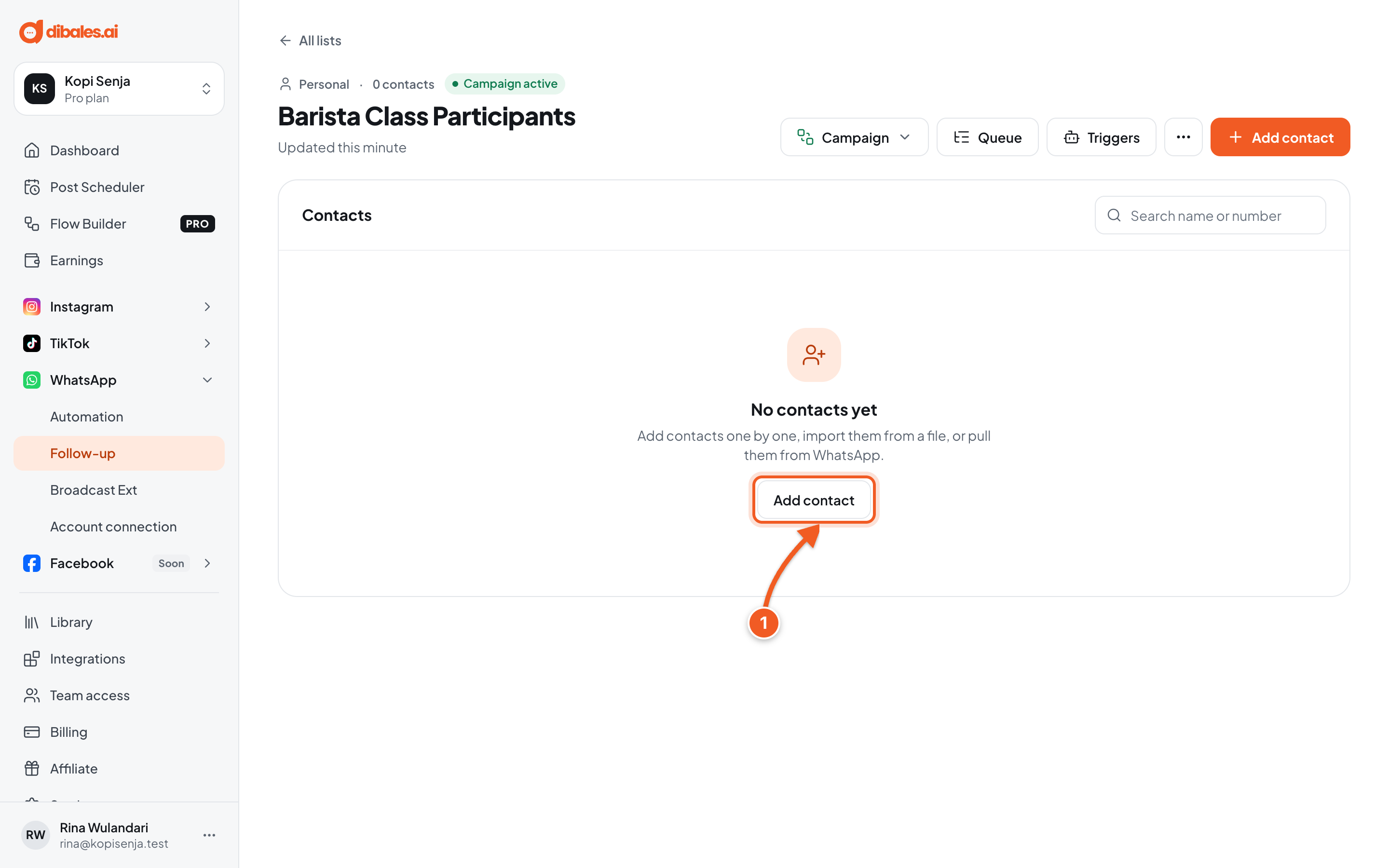
- Click Add contact.
2. Choose how
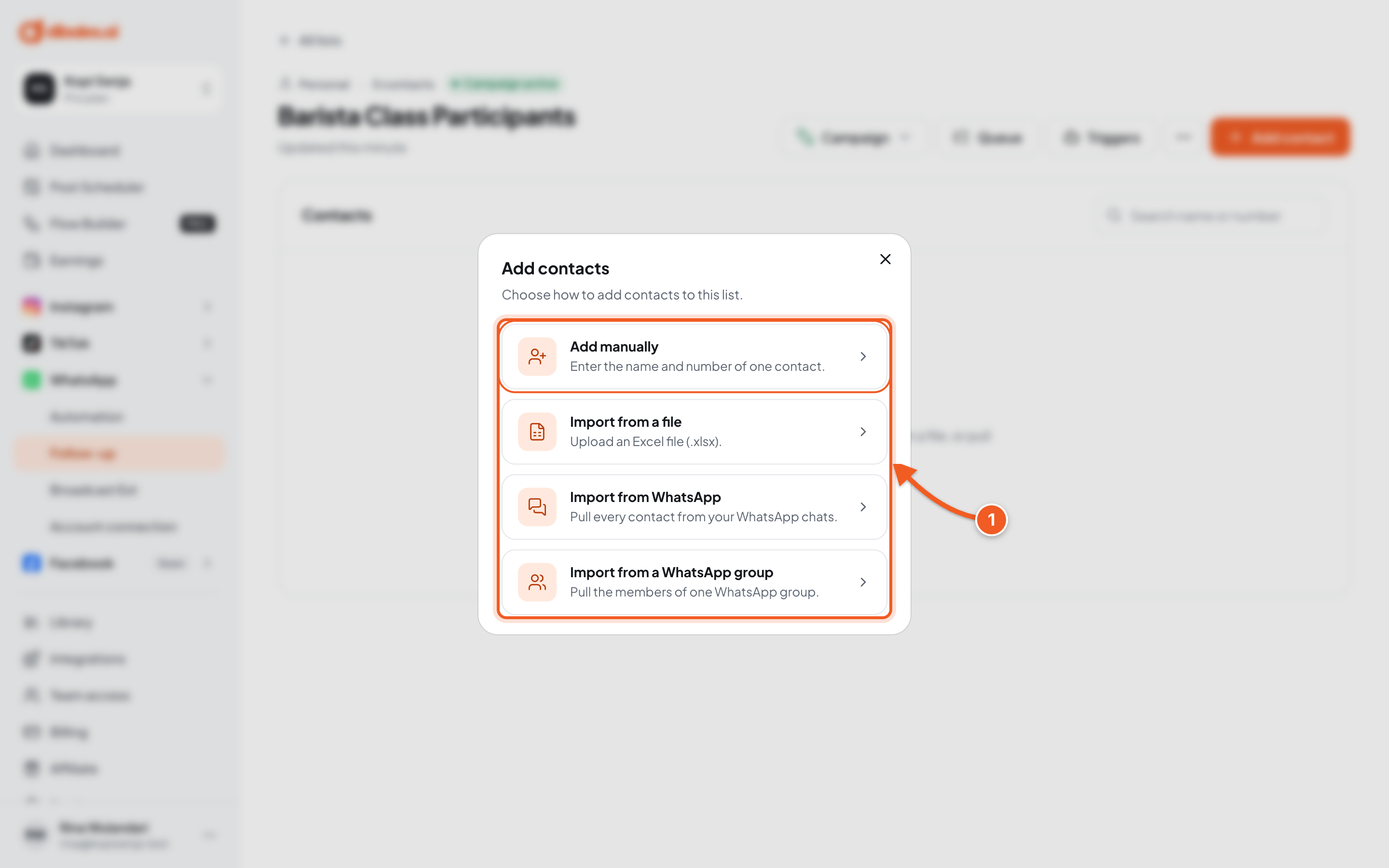
- Choose one:
- Add manually: enter one contact's name and number.
- Import from a file: upload an Excel file (.xlsx) with Name and Phone Number columns, up to 40 MB. Click Download template for an example. Numbers without a country code are treated as Indonesian numbers.
- Import from WhatsApp: every contact from the connected WhatsApp's chats joins the list. Contacts already there are skipped.
- Import from a WhatsApp group: every member of the group you choose joins the list.
3. Add a contact manually
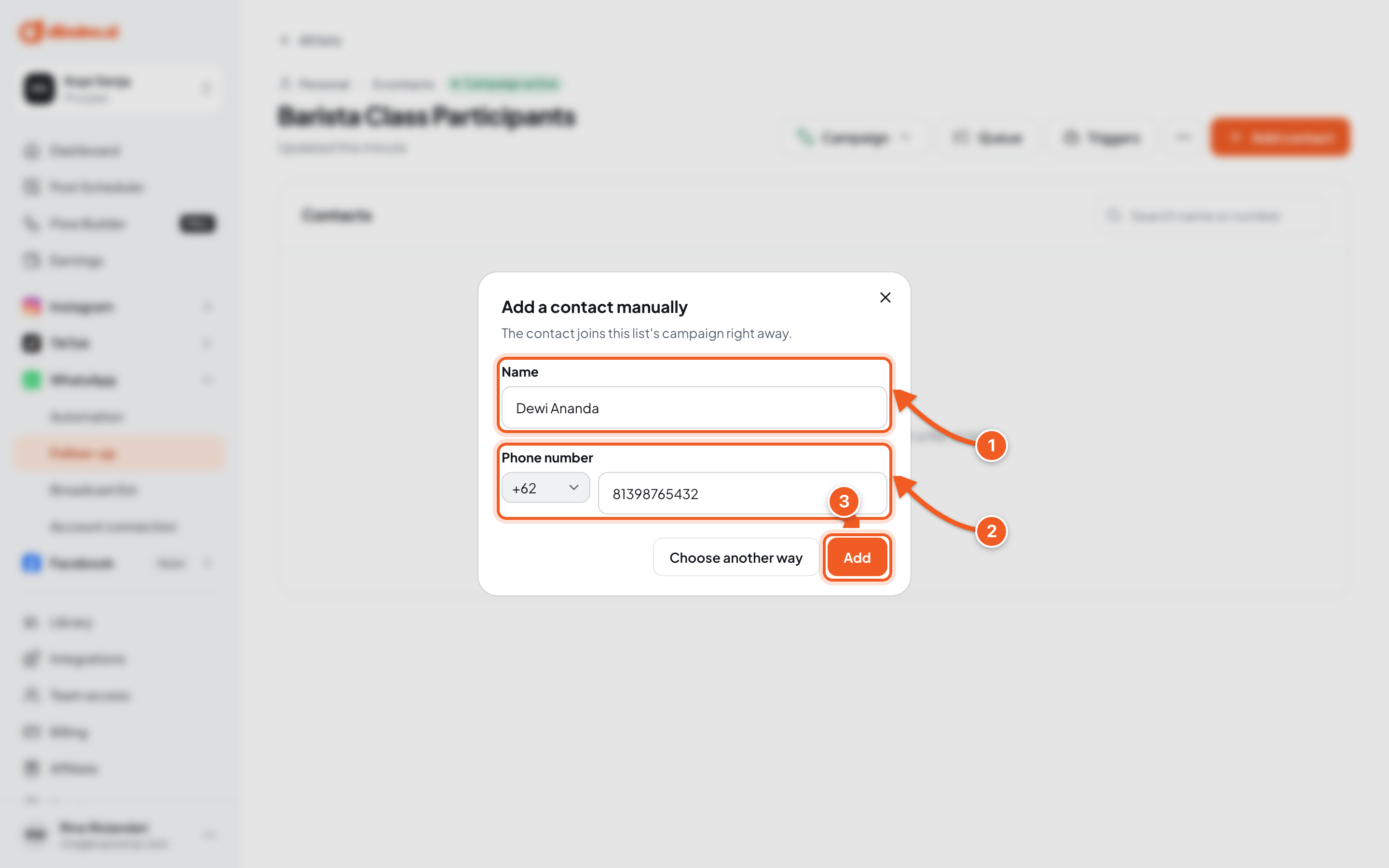
- Name: the contact's name.
- Phone number: choose the country code, then enter the number.
- Click Add. Click Choose another way to go back to the previous choices.
4. Check the result
A Contact added notice appears.
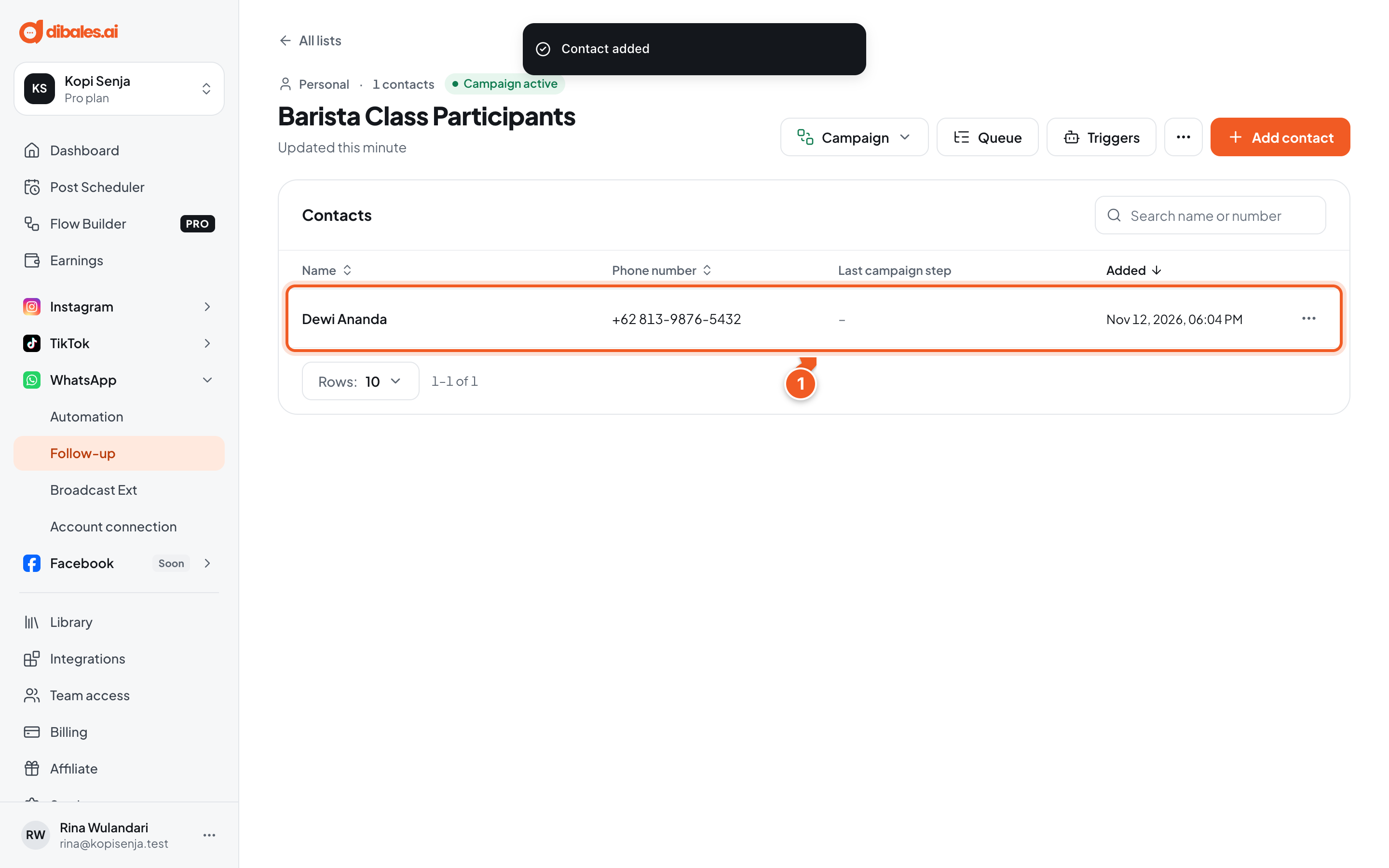
- The contact shows up in the table, with their number, the last campaign step they received, and when they were added. If the campaign is active, this contact starts receiving the first step right away.
Click ⋯ on a contact's row to Move, Edit, or Remove from list. The More menu above the table has Export contacts, Remove all contacts, Rename list, and Delete list.
Troubleshooting
| Message | Fix |
|---|---|
| This contact is already in the list. | There's no need to add them again. |
| This is the agent's own WhatsApp number. | Use another number. The number connected to the agent can't be a contact. |
| Some import rows failed | Usually because the contact is already in the list, or the row is empty. Check the file, then import again. |