
Extra Steps
Ask for a follow, collect emails or WhatsApp numbers, and send automatic reminders before or after the main message.
In the automation editor, you can turn on a few steps between the Opening message and the Main message:
| Step | What it does | Plan | Needs |
|---|---|---|---|
| Ask for Follow | Asks your audience to follow you before the main message is sent | Plus and Pro | Opening message |
| Ask for Contact | Asks for an email or WhatsApp number before the main message is sent | Pro | - |
| Ask for Payment | Asks for payment before the main message is sent | Plus and Pro | Identity verification, see Ask for Payment |
| Follow-up | Sends a reminder after a set delay | Pro | Opening message |
This guide is for the new dibales.ai dashboard. Still on the old layout? See Ask for Follow, Ask for Contact, and Follow Up.
Before you start
- A Comment to DM automation that's already made or that you're making. Don't have one yet? Follow Comment to DM first. The examples on this page continue the Coffee Saver Voucher automation.
- The Opening message turned on, for Ask for Follow and Follow-up only. While the Opening message is off, both show a lock with Locked, needs opening message.
- The Pro plan for Ask for Contact and Follow-up. These steps are marked PRO in the step list.
- Another Instagram account to test the result.
Open the editor
If the automation already exists, open Instagram › Comment to DM, click the ⋯ icon on the automation's row, then choose Edit. When you're done, click Save changes. If the automation is new, you can turn these steps on before clicking Create automation.
Ask for Follow
The main message is only sent once your audience follows you. People who already follow you get the main message as soon as they tap the button.
Hey! I'm really glad you're here—thanks a lot for your interest! 😊 Just click below, and I'll send you the link in no time! ✨
Send me the link! 🚀Follow me for getting the link! 🙌
Already following 🙌You still haven't followed me yet! 😅 Please follow me first to get the link. I'll be waiting! 🙏
Already following 🙌Here's your Rp10,000 voucher! Show the code COFFEESAVER at the counter ☕
See the menu1. Turn on and fill in Ask for Follow
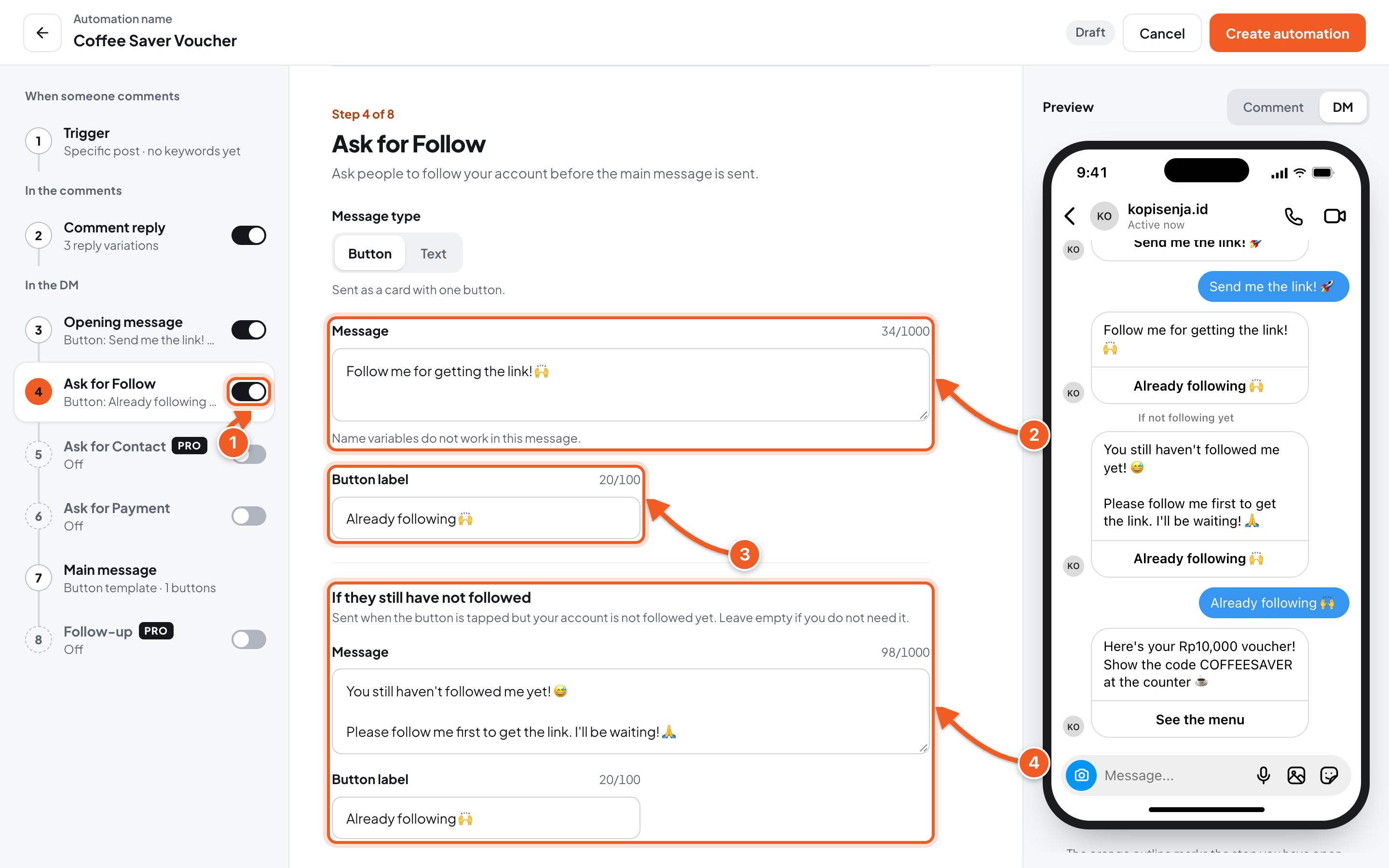
- Turn on the Ask for Follow switch in the step list, then click the step. On a phone, tap the step once its switch is on.
- Message: your call to follow. Mention your username too, for example Follow @kopisenja.id first, so people know which account to follow. Name variables don't work in this message.
- Button label: the button people tap after following, for example Already following 🙌.
- If they still have not followed: sent when someone taps the button but hasn't followed you yet. Filling it in is recommended, so people know they need to follow first. Leave it empty if you don't need it.
The preview on the right shows the order of messages, including the one for people who haven't followed.
2. Save, then try it
- Click Create automation or Save changes.
- From another Instagram account that doesn't follow you yet, comment the keyword, then tap the Opening message button in the DM.
- The Ask for Follow message arrives. Tap its button without following: the If they still have not followed message is sent.
- Follow your account, then tap the button again. The main message arrives.
Turn on the Comment reply too. DMs from accounts people don't follow land in their message requests, so a reply in the comments helps them notice the DM.
Ask for Contact (Pro plan)
The main message is only sent after your audience sends their email or WhatsApp number in the DM.
Hey! I'm really glad you're here—thanks a lot for your interest! 😊 Just click below, and I'll send you the link in no time! ✨
Send me the link! 🚀Here's your Rp10,000 voucher! Show the code COFFEESAVER at the counter ☕
See the menu1. Turn it on and pick the details
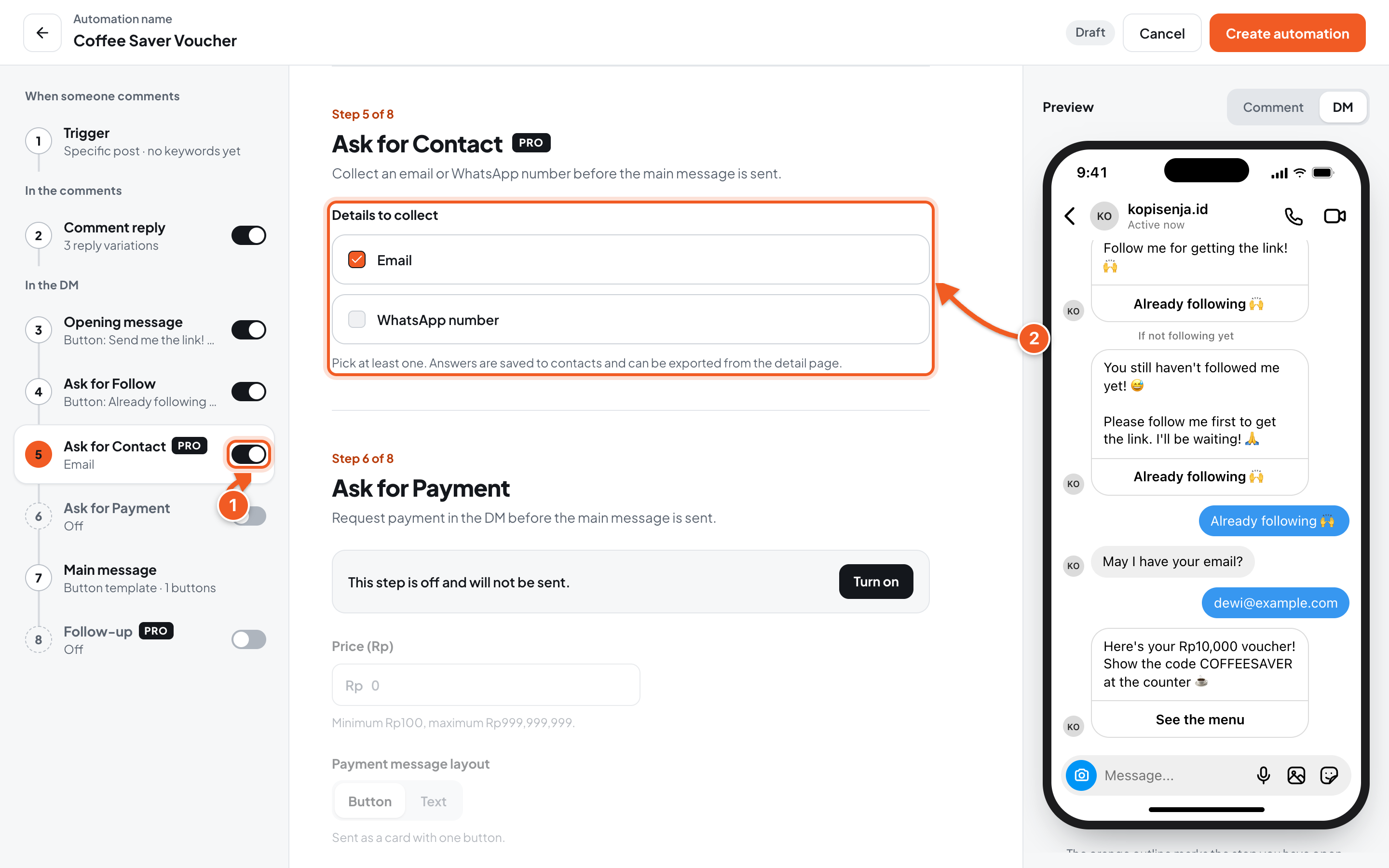
- Turn on the Ask for Contact switch in the step list, then click the step.
- Details to collect: tick Email, WhatsApp number, or both. At least one must be ticked.
The editor preview shows a sample question, such as May I have your email?. The DM your audience actually receives uses a fixed system question in Indonesian: Silakan masukkan alamat email kamu untuk melanjutkan (please enter your email address to continue) or Silakan masukkan nomor WhatsApp kamu untuk melanjutkan (please enter your WhatsApp number to continue), with a Batal (Cancel) quick reply.
2. Save, then try it
- Click Create automation or Save changes.
- From another Instagram account, comment the keyword, then follow the DM until you're asked for an email or WhatsApp number. Send your answer.
- The main message arrives once the answer is accepted.
- On the automation's detail page, open the Contacts tab. The answer is saved there and can be exported, see Manage Automations.
Good to know
- When it's asked: if the Opening message is on, the question is sent after the Opening message button is tapped (and after passing Ask for Follow, if it's on). If the Opening message is off, the question is sent right after someone comments.
- The format is checked automatically. Emails must be valid, for example
name@email.com. WhatsApp numbers must have 10 to 15 digits. Spaces,+, and-are ignored, so+62 813 0000 2222is saved as6281300002222. - 3 wrong answers cancel the process. The person needs to comment again to start over.
- People can cancel by tapping Batal (Cancel). After that they can chat as usual, and the main message isn't sent.
- Nobody is asked twice. People whose email or WhatsApp number is already saved, including from another automation, go straight to the next step and are still listed in the Contacts tab.
- The email and WhatsApp questions are set by the system and can't be changed in the dashboard.
Follow-up (Pro plan)
Send automatic reminders after a set delay, for example to people who haven't opened the message with the voucher.
Hey! I'm really glad you're here—thanks a lot for your interest! 😊 Just click below, and I'll send you the link in no time! ✨
Send me the link! 🚀Here's your Rp10,000 voucher! Show the code COFFEESAVER at the counter ☕
See the menu1. Turn on and set up the follow-up
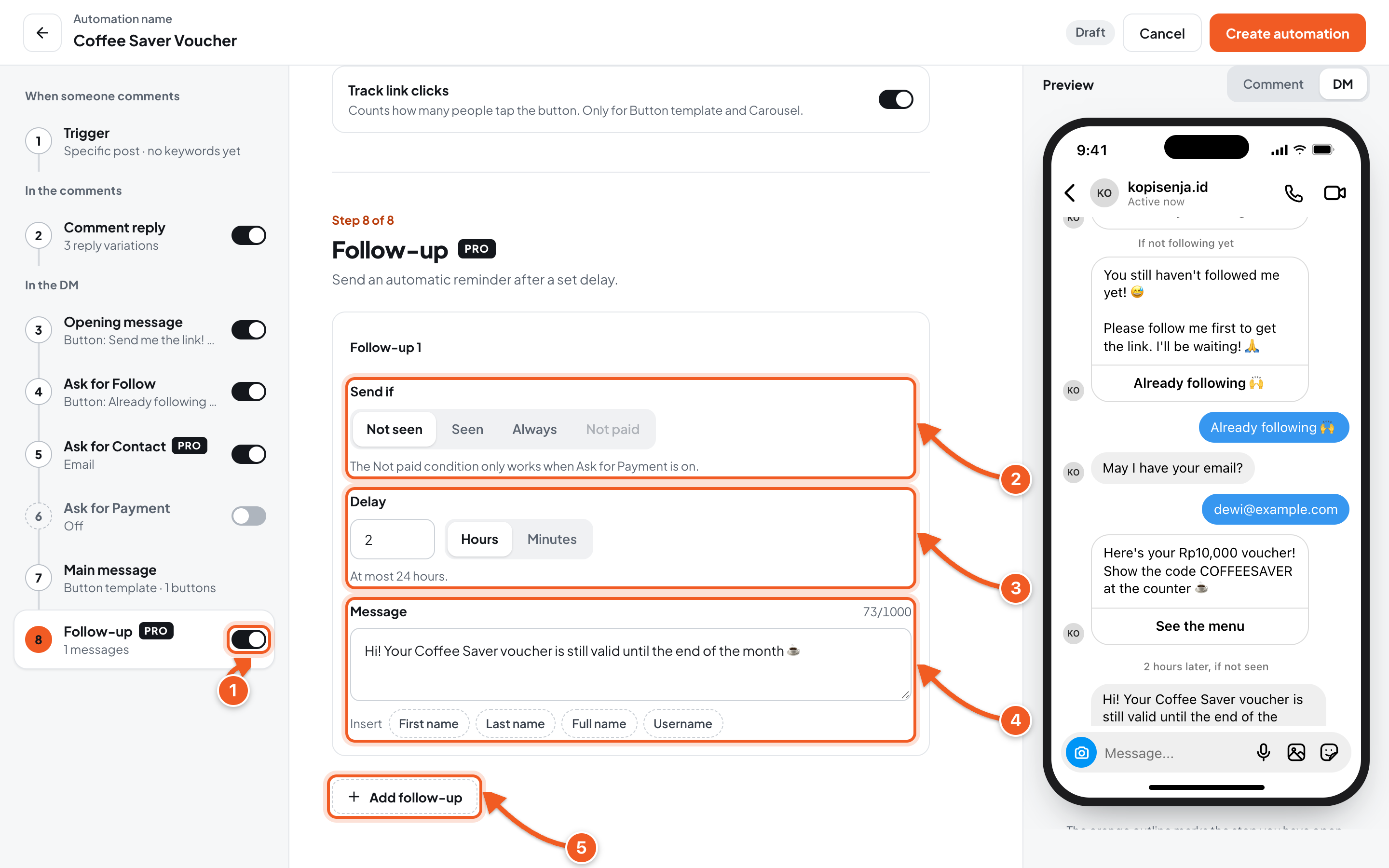
- Turn on the Follow-up switch in the step list, then click the step.
- Send if: when the reminder is sent. See the table below.
- Delay: enter a number, then choose Hours or Minutes. At most 24 hours.
- Message: write the reminder, up to 1,000 characters. Click First name, Last name, Full name, or Username under Insert to include your audience's name.
- Add follow-up: add another reminder with its own condition and delay.
| Send if | When it's sent |
|---|---|
| Not seen | After the delay, only if the person hasn't opened the message with the link. If they have, the reminder isn't sent. |
| Seen | After the delay, counted from when the person opened the message with the link. Good for asking what they think or offering help. |
| Always | After the delay, counted from when the message with the link was sent. |
| Not paid | After the delay, if the person hasn't paid. Only works when Ask for Payment is on. |
Instagram only allows automated messages within 24 hours of the person's last interaction. A follow-up that falls more than 24 hours after the message with the link was sent won't be delivered.
2. Save, then try it
- Click Create automation or Save changes.
- To see it quickly, temporarily set the Delay to a few minutes with the Always condition. From another Instagram account, comment the keyword, then follow the DM until the main message arrives.
- Wait for the delay to pass. The reminder shows up in that account's DMs. Once it works, set the delay and condition back to what you want.
Tips: one or two follow-ups are usually enough. Greet people by first name so the message feels personal.
Troubleshooting
| Problem | Fix |
|---|---|
| Ask for Follow or Follow-up is locked (Locked, needs opening message) | Turn on the Opening message switch first. |
| Ask for Contact or Follow-up can't be turned on | Steps marked PRO are only available on the Pro plan. |
| The person already follows you but is still asked to follow | Ask them to check they followed the right account, then tap the button again. |
| The person isn't asked for an email or WhatsApp number | Their details are already saved from this automation or another one, so they go straight to the main message. Check the Contacts tab. |
| The follow-up isn't sent | Check the condition: Not seen isn't sent if the message was opened. Also make sure the timing isn't more than 24 hours after the message with the link was sent. |
| You can't save: The Not paid condition needs Ask for Payment. Change the condition or turn on Ask for Payment. | Change the condition, or turn on Ask for Payment. |
| You can't save: Pick at least one detail. | In Ask for Contact, tick Email or WhatsApp number. |