
Connect to Claude
Add dibales.ai as a custom connector in Claude (claude.ai or Claude Desktop), then allow access.
This guide adds dibales.ai as a connector in Claude, on claude.ai or in the Claude Desktop app. You only do it once. The example uses the dibales.ai account Rina Wulandari with the agent Kopi Senja.
This guide is for the new dibales.ai dashboard. What MCP is and what it can do is explained in MCP.
Before you start
- A dibales.ai account with an agent on an active Plus or Pro plan.
- A Claude account. On the Free plan, Claude allows only one custom connector. On Claude Team or Enterprise, custom connectors are added by an organization Owner, and then each member connects with their own account.
- A computer with a browser (claude.ai) or the Claude Desktop app. The steps are the same in both.
1. Open Integrations
Open the dibales.ai dashboard. On a phone, open the menu first with the ☰ icon at the top right.
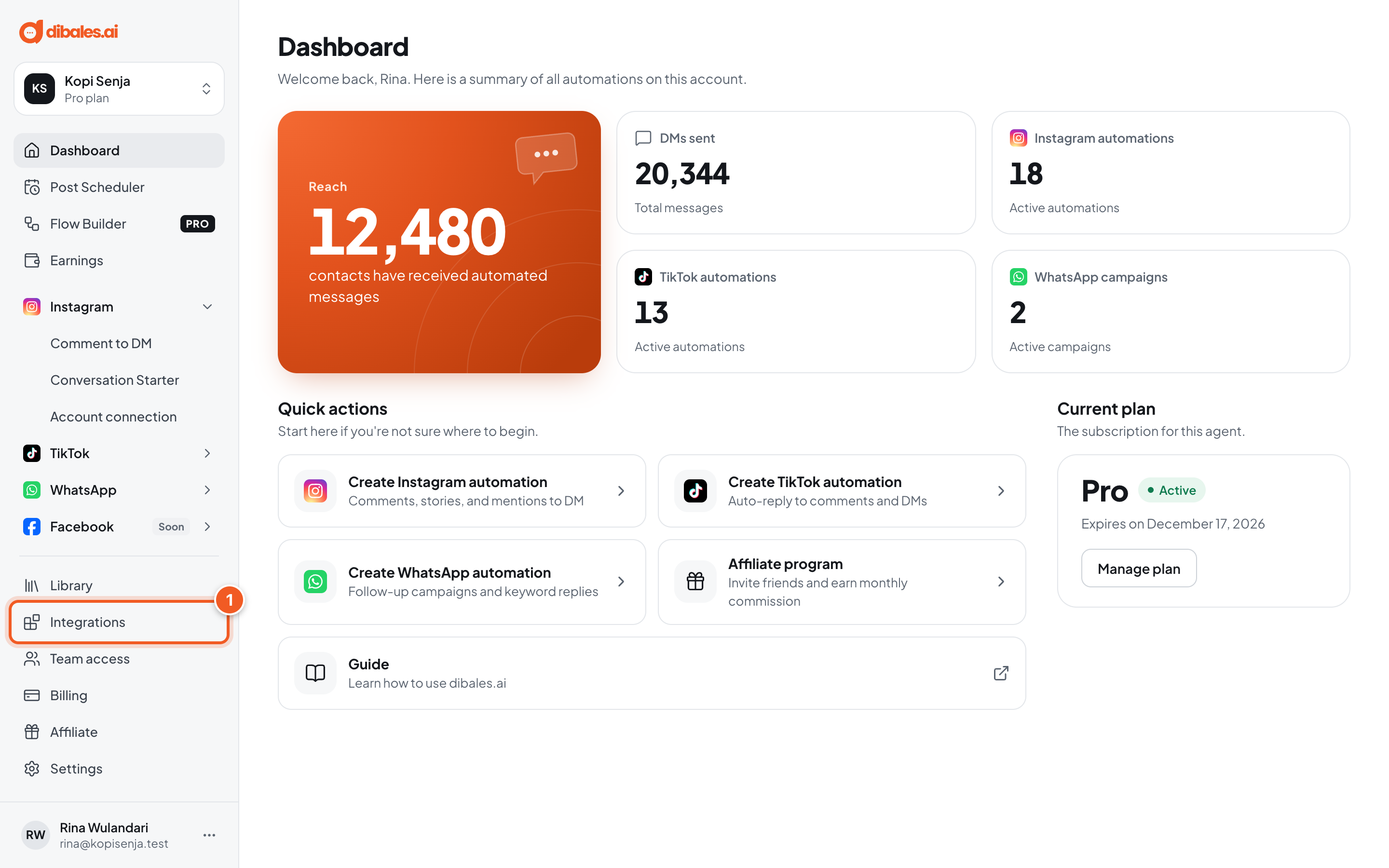
- In the sidebar, click Integrations.
2. Open the MCP page
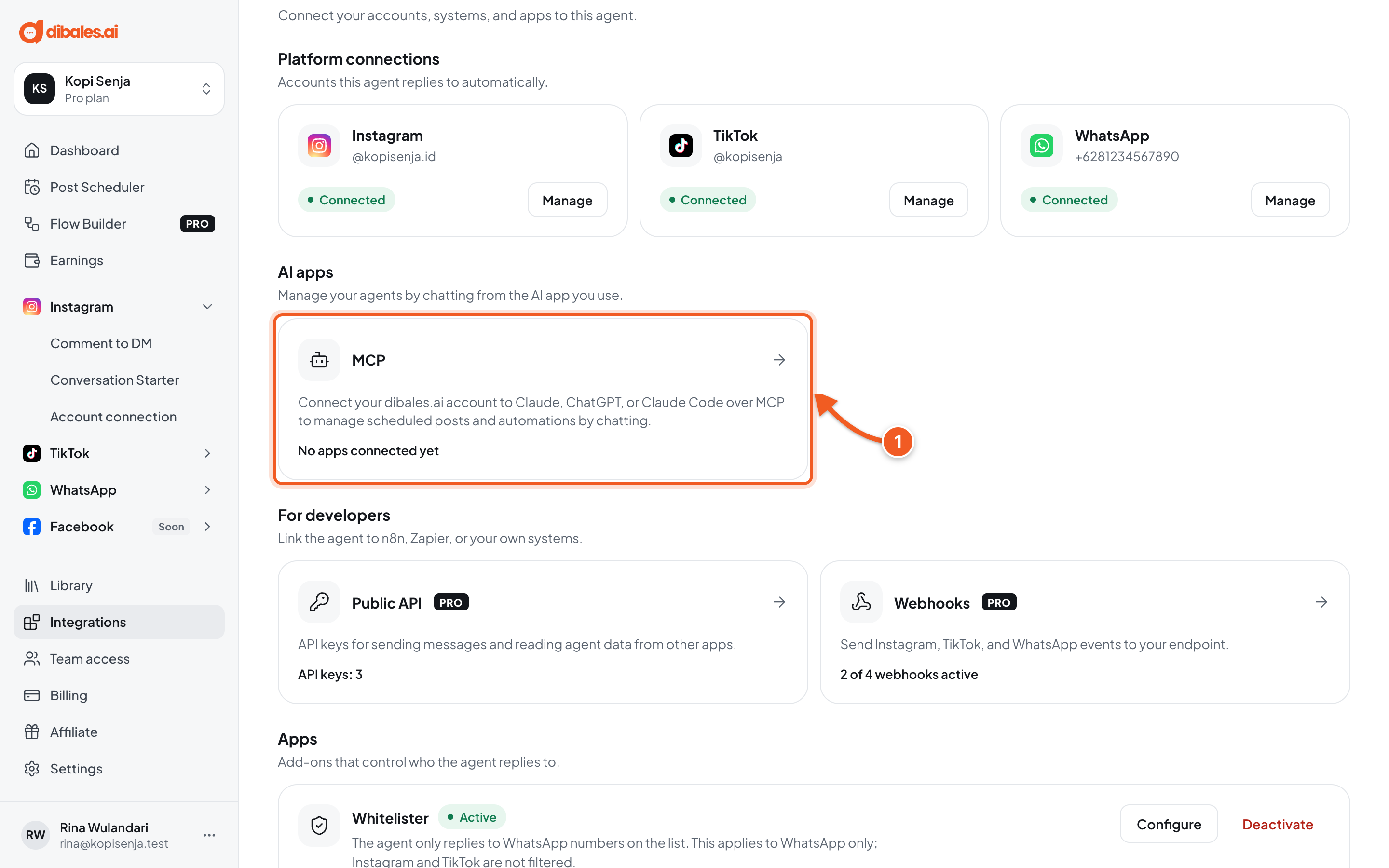
- In the AI apps section, click MCP. The line at the bottom shows how many apps are connected, such as No apps connected yet.
3. Copy the MCP server URL
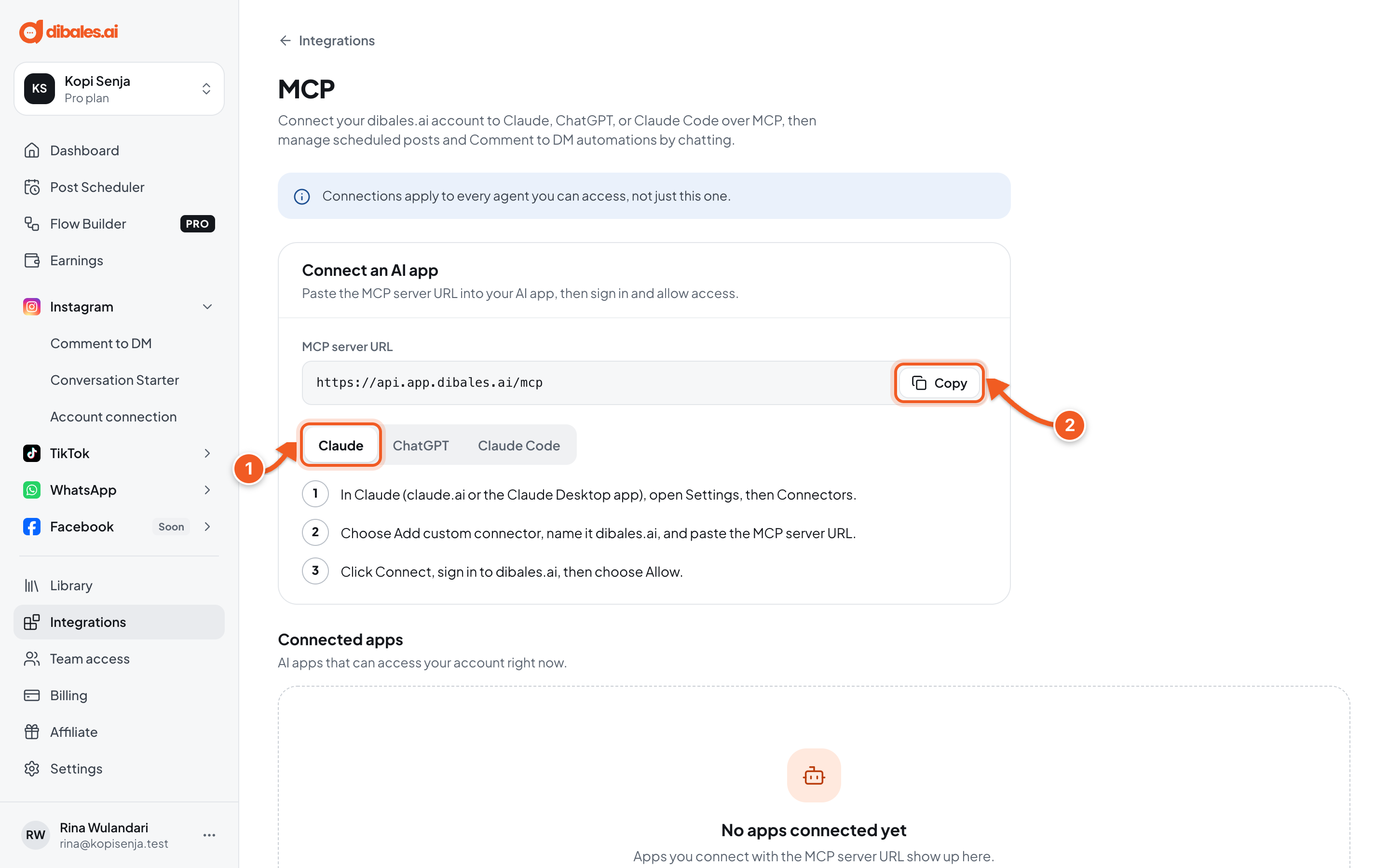
- Make sure the Claude tab is selected. A short version of the steps appears under the tabs.
- Next to MCP server URL, click Copy. The copied URL is
https://api.app.dibales.ai/mcp.
4. Open Connectors in Claude
Open claude.ai or the Claude Desktop app, then sign in to your Claude account.
- Click your profile name at the bottom left, then choose Settings.
- Choose Connectors. In some versions of Claude, this menu is under Customize › Connectors.
5. Add a custom connector
- Click Add custom connector. If you don't see it, click the + button first.
- Name it
dibales.ai. - Paste the MCP server URL you copied in step 3.
- Leave Advanced settings (OAuth Client ID and Client Secret) empty.
- Click Add.
The dibales.ai connector now appears in your Connectors list, but it isn't linked to your dibales.ai account yet.
6. Sign in and allow access
- In the Connectors list, click Connect on the dibales.ai row.
- The dibales.ai page opens in a new tab (in Claude Desktop, in your browser). If you're not signed in, sign in to your dibales.ai account first, as in Sign Up & Log In.
- The page Connect Claude to dibales.ai appears, with the Verified label.
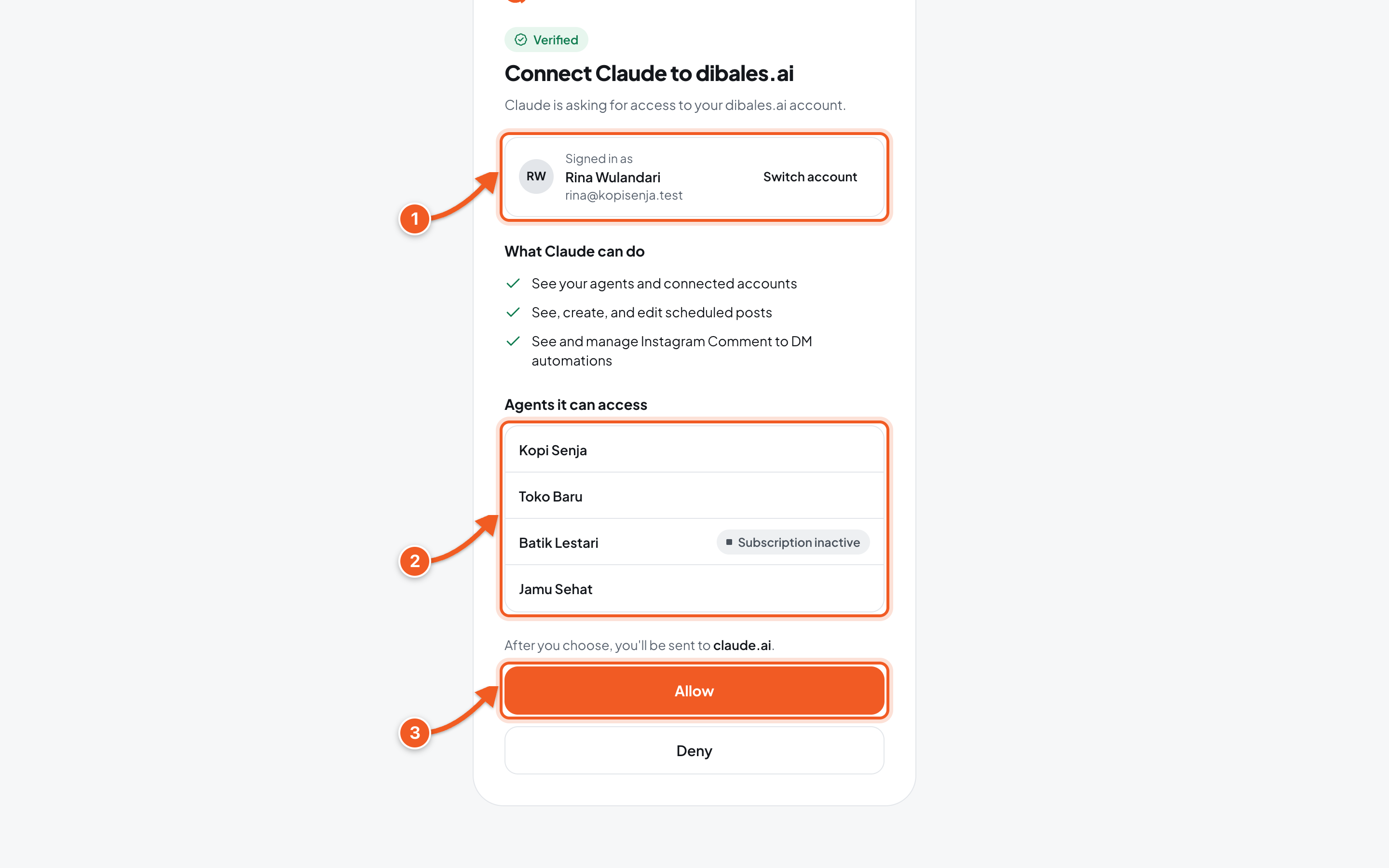
- Signed in as: make sure this is the right dibales.ai account. If it isn't, click Switch account and sign in with the right one.
- Agents it can access: the agents Claude can manage. Agents labeled Subscription inactive still show up, but can't be managed until the plan is renewed. Above it, What Claude can do sums up the access being requested.
- Click Allow. You're sent back to claude.ai.
If you change your mind, click Deny. Claude gets no access, and you can repeat step 6 at any time.
7. Check the result
Go back to the MCP page in dibales.ai and reload it.
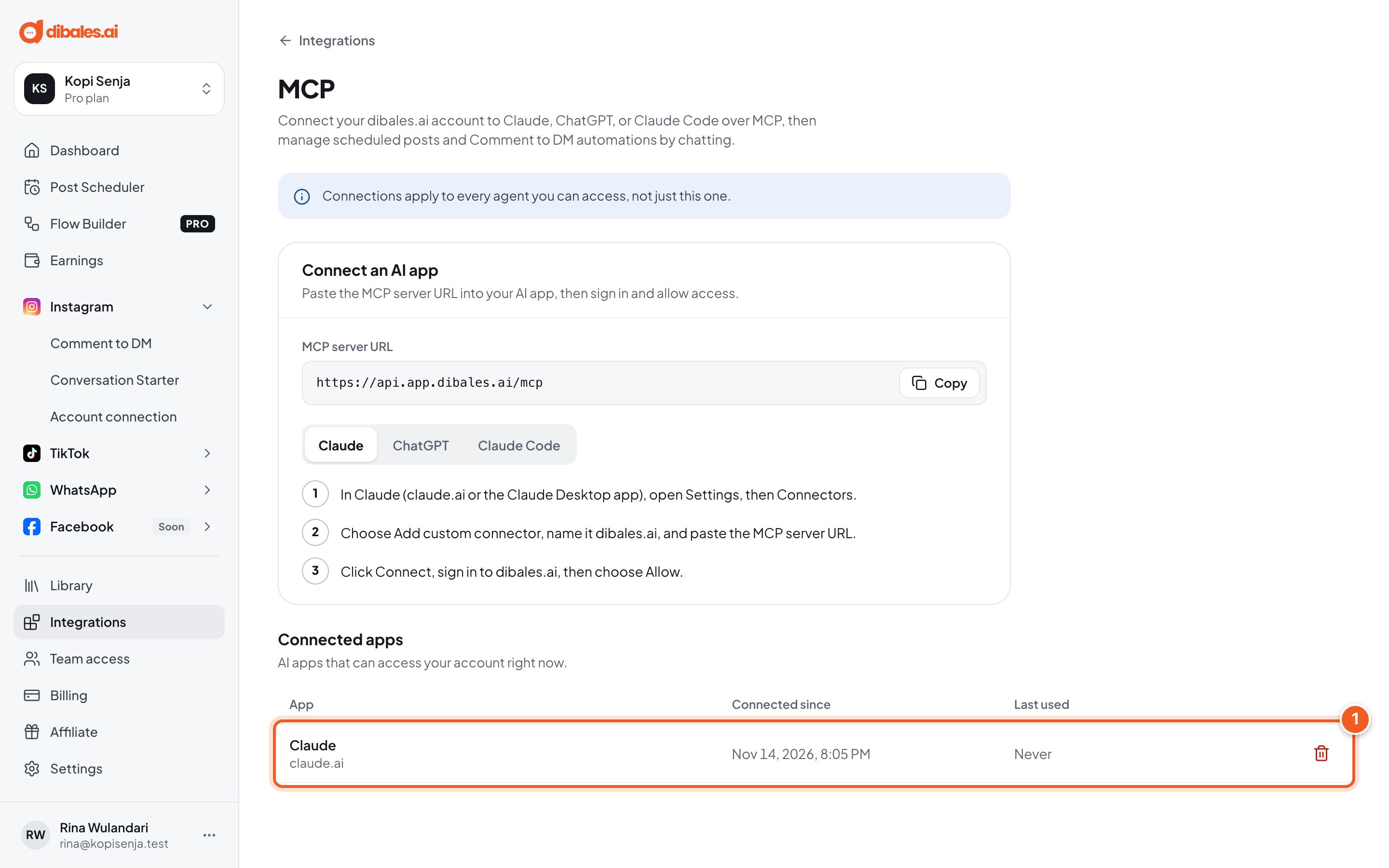
- Claude appears under Connected apps with claude.ai below it. Connected since shows when you chose Allow, and Last used still says Never.
Then test it from Claude:
- Start a new chat in Claude and type: Show my dibales.ai agents.
- If Claude asks for permission to use a tool from dibales.ai, allow it.
- If it works, Claude shows your agents, their plans, and their connected accounts. Last used in dibales.ai also changes from Never to the last time Claude accessed your account.
Troubleshooting
| Problem | Fix |
|---|---|
| No Add custom connector button | Your Claude plan or role can't add custom connectors. On the Free plan, check whether you already have another custom connector. On Team or Enterprise, ask an organization Owner to add it. |
| This request has expired | The consent page is valid for 10 minutes and works only once. Go back to Claude and click Connect again. |
| Sign-in didn't carry over | Your sign-in couldn't be read after you were sent back. Close that page, then start again from Claude by clicking Connect. |
| Couldn't send your choice. Try again. | Click Allow once more. If it still fails, repeat step 6. |
| The account under Signed in as is the wrong one | Click Switch account, then sign in with the right dibales.ai account. If you see Couldn't sign you out. Try again., click Switch account once more. |
| Claude doesn't use dibales.ai when asked | Make sure the dibales.ai connector is turned on in the tools menu of the Claude chat box, and mention "dibales.ai" in your request. |
| Claude replies Langganan agent ini tidak aktif. ("This agent's subscription is inactive.") | That agent's plan has ended. Renew it in Billing. |
Next steps
Try your first post or automation by chatting in Manage Through Chat.