
Facebook Automation
Automatically reply to post comments and Messenger messages on your Facebook Page, then send the full details in Messenger.
Facebook automation replies to comments on your Facebook Page's posts and to Messenger messages sent to that Page, automatically, based on keywords. It works a lot like Comment to DM on Instagram: people who comment can get a Messenger message right away with a link, a promo code, or a price list.
Facebook automation is available on the Plus and Pro plans.
Before you start
- A Facebook Page connected to your agent, and you're an admin of that Page. Personal Facebook profiles can't be used. If it isn't connected yet, the Automation page shows Facebook Page not connected with a Connect Facebook button. Follow Connect Your Accounts.
- A published post on that Page, if you want to reply to comments on a specific post.
- What you want to send in Messenger, such as a catalog link, a promo code, or a price list.
- Another Facebook account to test with, such as your personal account or a friend's. Comments and messages from your own Page don't trigger automations.
Automation types
| Guide | Trigger | What gets sent |
|---|---|---|
| Comments to Messenger | Comments on all posts or on one post you choose | A reply in the comments (can be turned off) and a Messenger message to the commenter |
| Reply to Messenger Messages | Messenger messages that contain your keywords | A reply in Messenger |
| Manage Automations | Stats, clicks per button, the comment log, plus pausing, editing, duplicating, and deleting |
The opening message and the main message
Messenger messages are sent in two parts:
- Opening message: the first message they receive in Messenger, with one button, for example Yes, please.
- Main message: what you promised, up to 5 messages. These are sent once the button in the opening message is tapped.
For comments, Messenger only allows one message as the reply. Once the person taps the button, the conversation opens and all the main messages can be sent. You can turn the opening message off, but then the main message can only be one text or button message.
Opening the editor
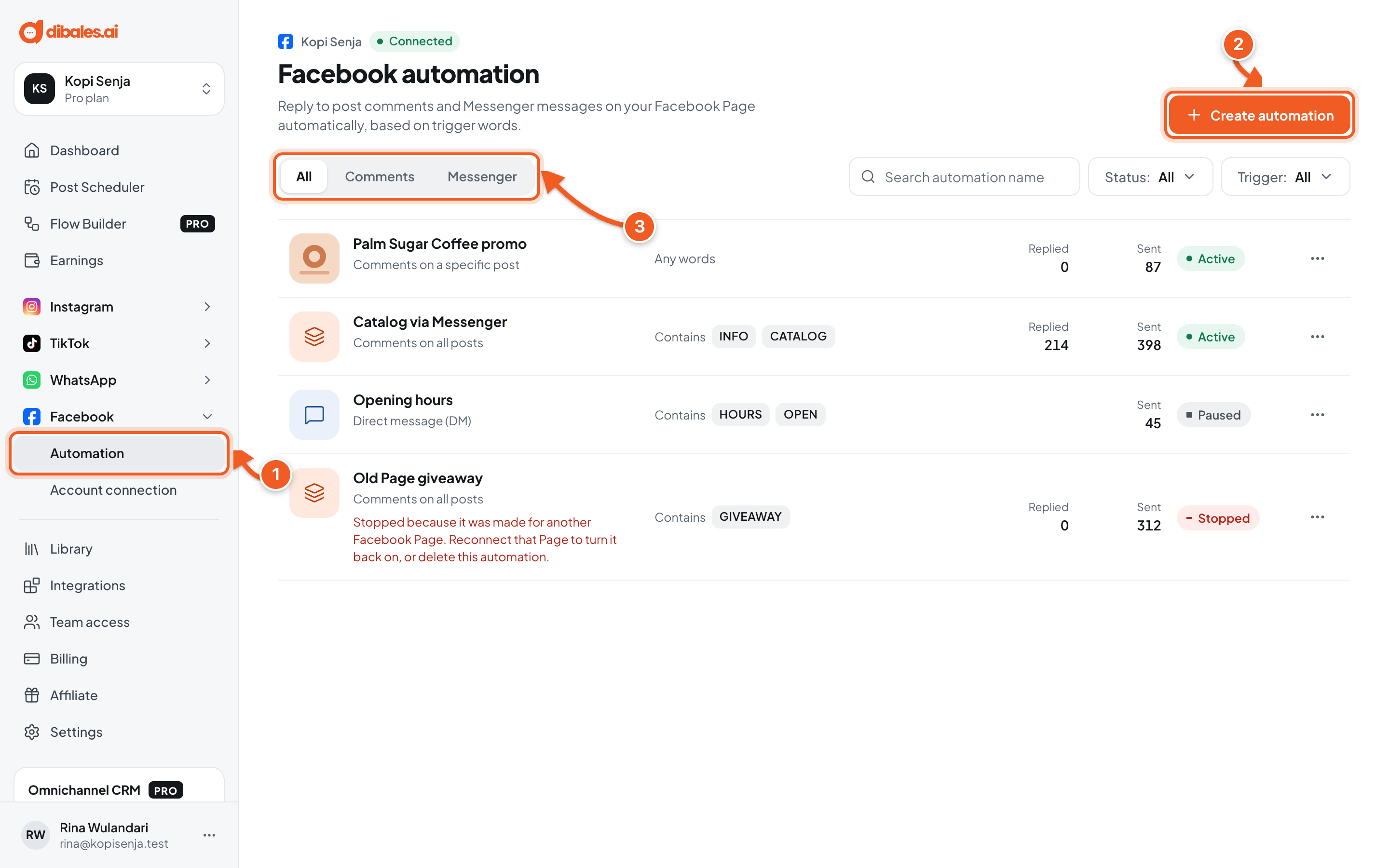
- In the sidebar, open Facebook › Automation. On a phone, open the menu first with the ☰ icon at the top left.
- Click Create automation. The automation editor opens right away.
- The All, Comments, and Messenger tabs group automations by trigger.
The editor has three parts:
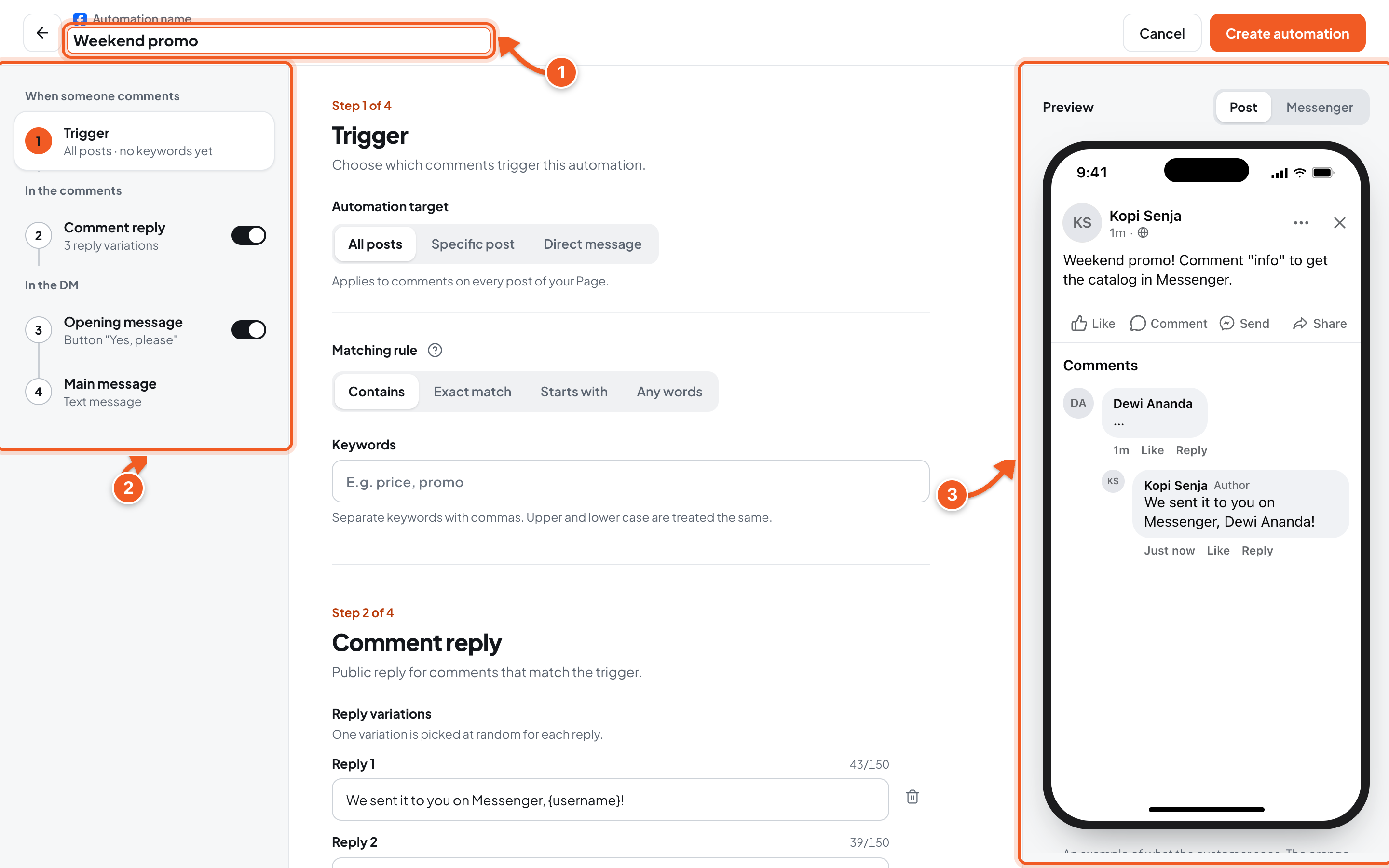
- Automation name: a name just for you, your audience never sees it. Example: Weekend promo.
- Step list: the automation flow from top to bottom, grouped into When someone comments, In the comments, and In the DM. Click a step to fill it in. Steps with a switch (Comment reply and Opening message) can be turned off.
- Preview: what your audience sees, with Post and Messenger tabs. It updates as you type, and an orange line marks the step that's open.
On a phone, the step list fills the screen. Tap a step to open it, then tap Done to go back. Open the preview with the Preview button at the bottom.
Continue based on the trigger: Comments to Messenger or Reply to Messenger Messages.
Troubleshooting
| Problem | Fix |
|---|---|
| Facebook Page not connected when opening Automation | Click Connect Facebook, then follow Connect Your Accounts. |
| Facebook Page disconnected shows | All Facebook automations are stopped. Click Reconnect, then choose the same Page. |
| Status Stopped: Stopped because it was made for another Facebook Page. | That automation was made for a Page that used to be connected. Reconnect that Page to turn it back on, or delete the automation. |
| Can't resume yet because the Facebook Page this automation uses is not connected. | Reconnect the same Page in Facebook › Account connection, then click Resume. |