
Comments to Messenger
Reply to comments on your Facebook Page's posts, then send a link, promo code, or full details to the commenter in Messenger.
This automation replies to comments that match your keywords on your Facebook Page's posts, then sends a Messenger message to the person who commented. For example, someone who comments PROMO gets the promo details in Messenger right away, and their comment gets a reply so others know the info has been sent.
Make sure you meet everything in Before you start. Open Facebook › Automation, then click Create automation. Fill in the Automation name at the top left, for example Weekend promo.
1. Choose the post
In the Trigger step:
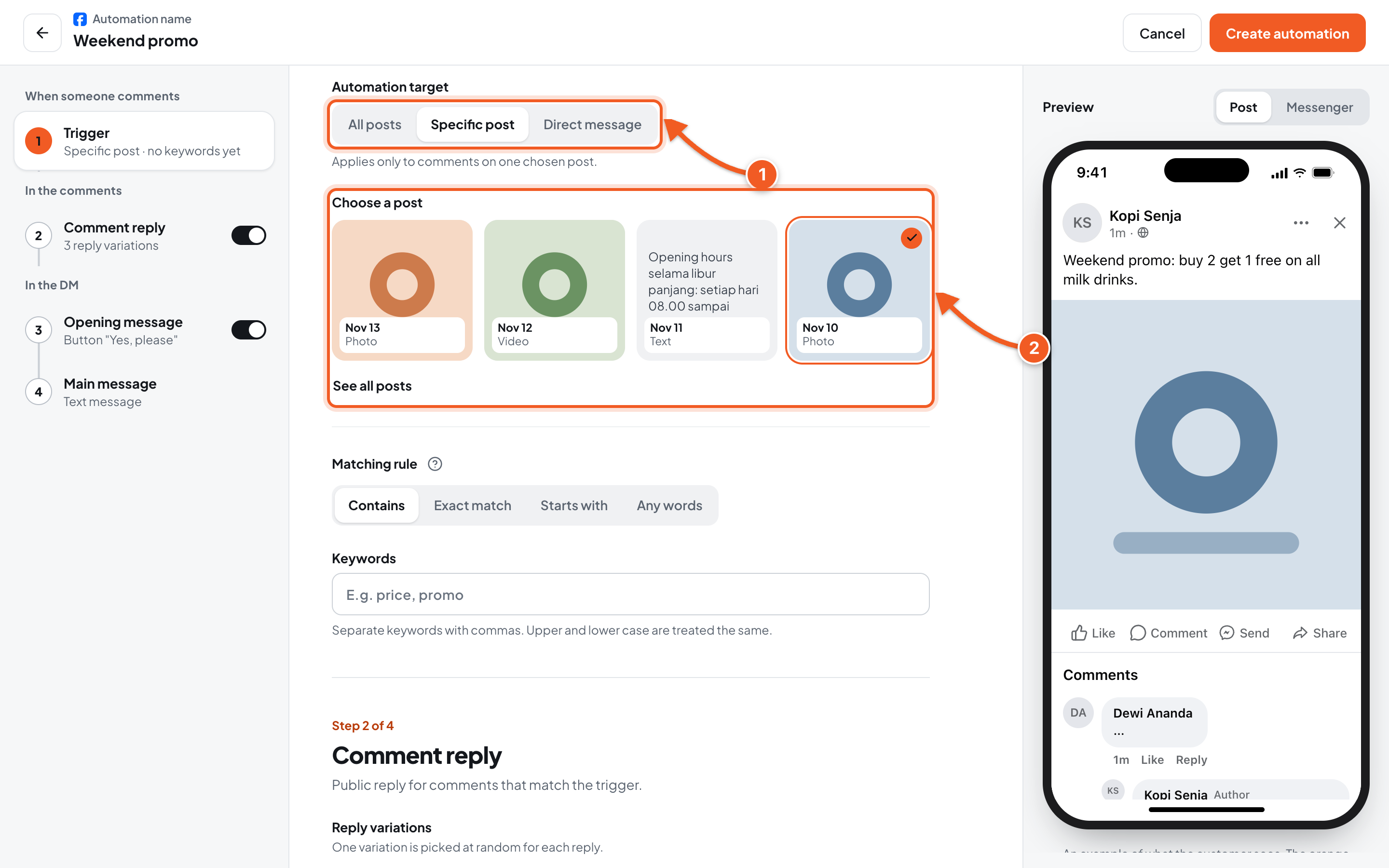
- Automation target:
- Specific post: only comments on one post you choose.
- All posts: applies to comments on all your Page's posts. If you choose this, skip number 2.
- Direct message: for replying to Messenger messages, see Reply to Messenger Messages.
- Choose a post: click the post you want. Click See all posts if you can't see it.
2. Set the keywords
-
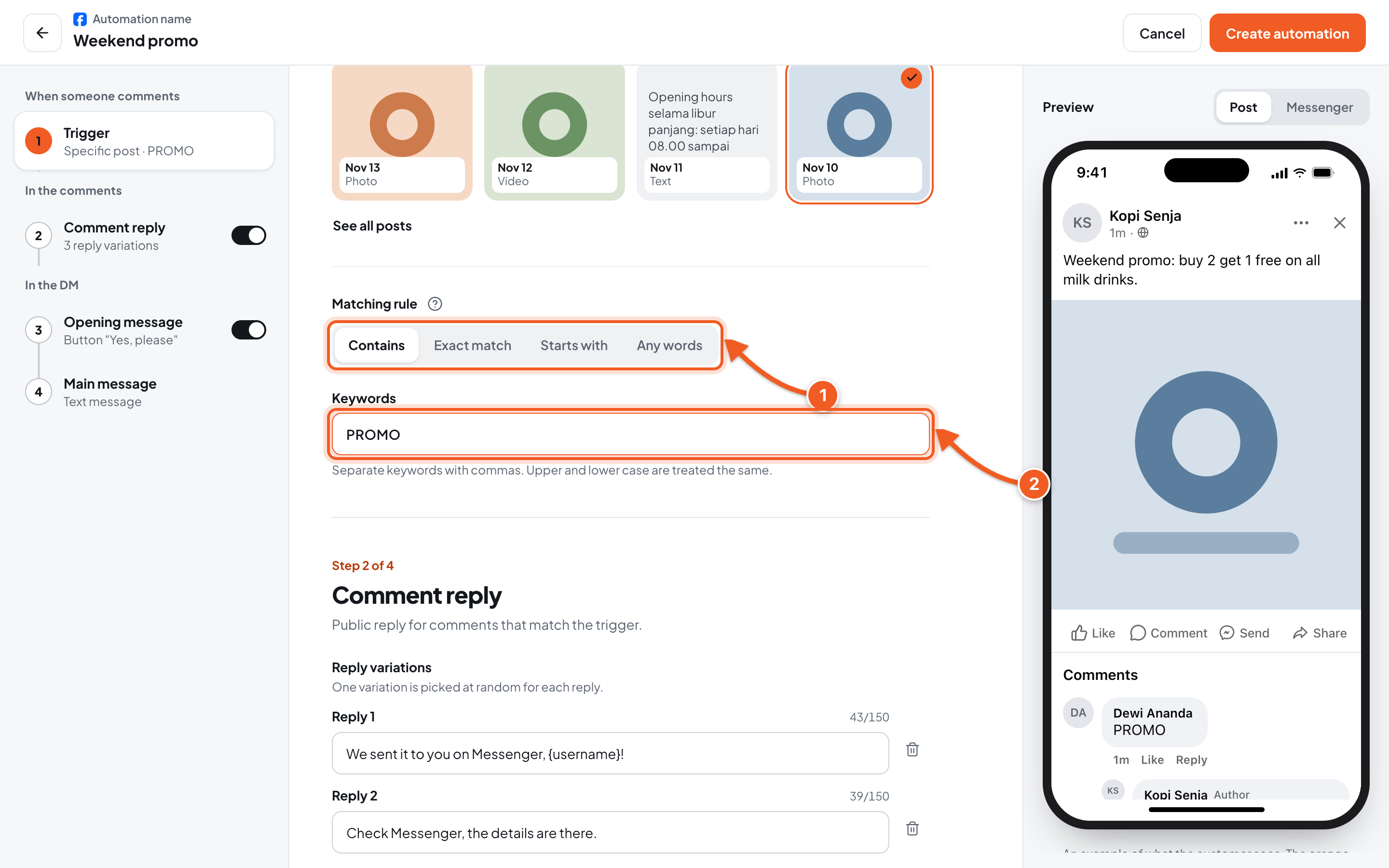
Matching rule:
- Contains: matches if the keyword appears anywhere. any promo this week? matches the keyword promo.
- Exact match: matches only if the whole comment is exactly the keyword.
- Starts with: matches if the comment starts with the keyword.
- Any words: every comment triggers the automation, whatever it says.
Click the question mark icon next to it to see an example of each rule.
-
Keywords: for example PROMO. Separate several keywords with commas. Upper and lower case are treated the same.
When several automations match at once, the order is: Exact match, Starts with, Contains, then Any words.
3. Write the comment reply
Click the Comment reply step. This step is already on and has 3 sample replies. You can use them as they are or replace them.
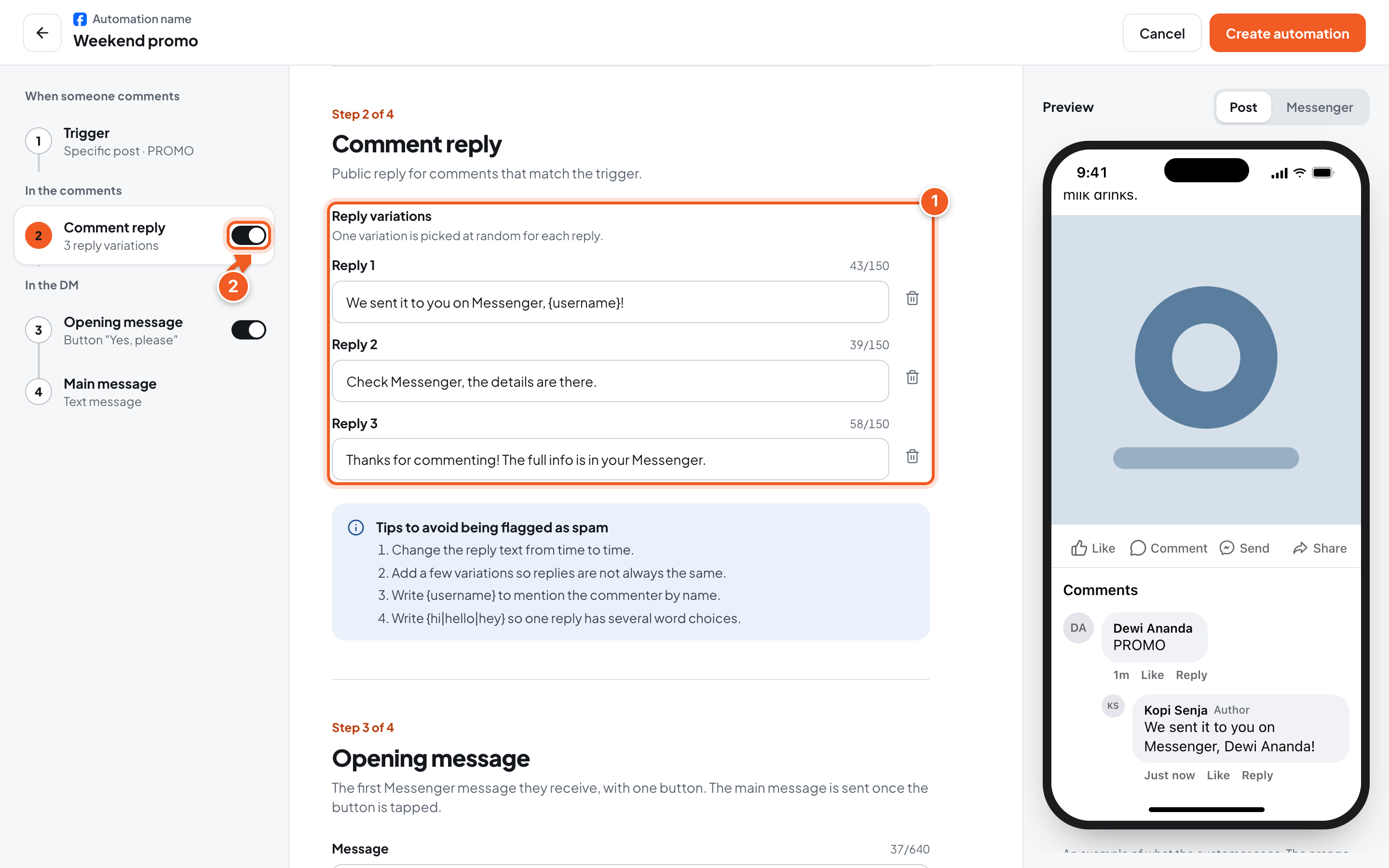
- Reply variations: one variation is picked at random for each reply, up to 3 variations and 150 characters per reply. Write
{username}to mention the commenter by name, or{hi|hello|hey}so one reply has several word choices. Click Add variation to add a reply. - Comment reply switch: turn it off if you don't want to reply in the comments. The Messenger message is still sent.
To avoid being flagged as spam: add a few reply variations and change the text from time to time.
4. Set the opening message
Click the Opening message step. This is the first Messenger message the commenter receives, with one button. The main message is only sent once the button is tapped.
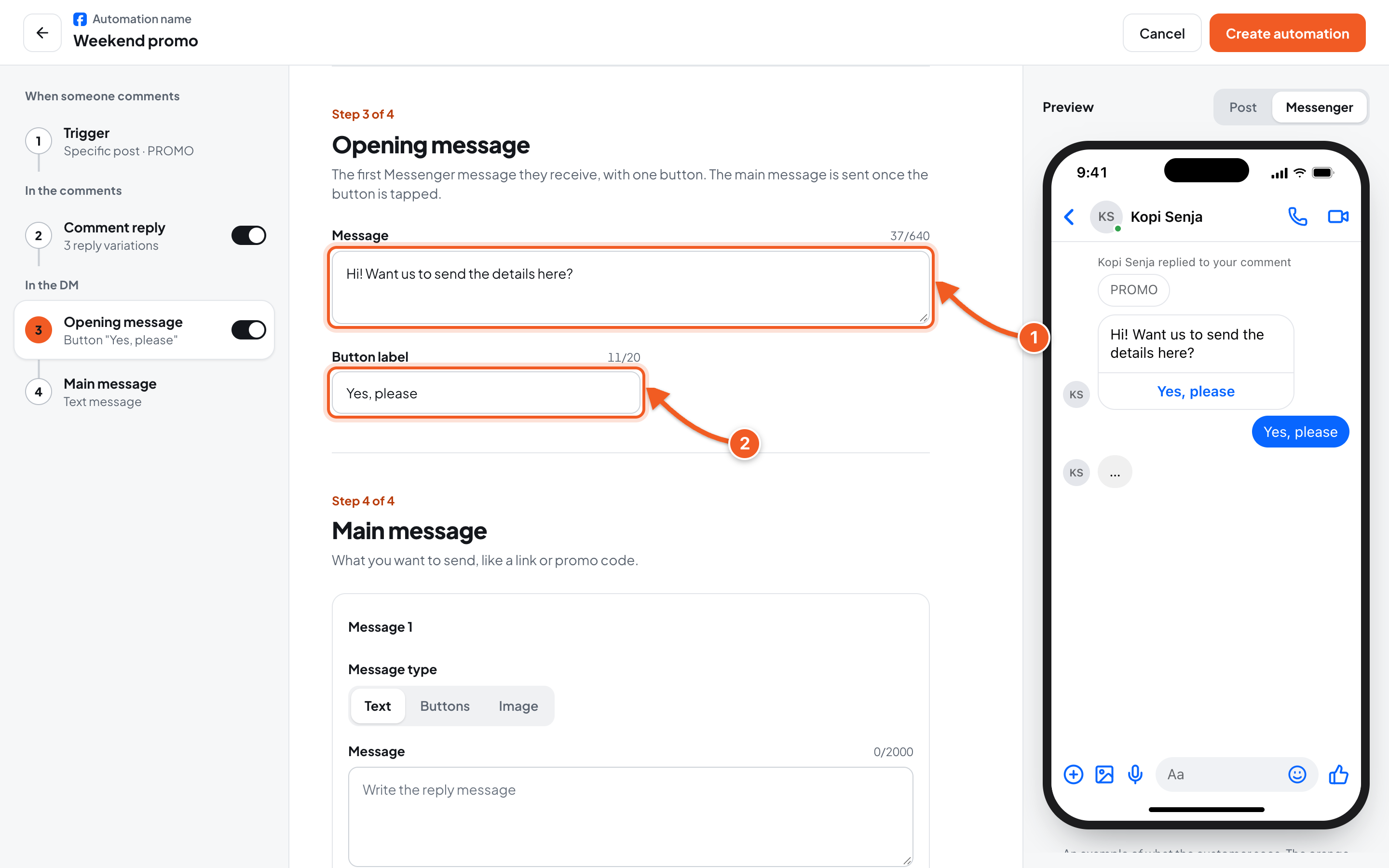
- Message: up to 640 characters, for example Hi! Want us to send the details here?
- Button label: the text on the button your audience taps, up to 20 characters, for example Yes, please.
If you turn off the Opening message switch, the main message is sent right away as the first message. But the main message can then only be one text or button message, because Messenger only allows one message as a comment reply.
5. Fill in the main message
Click the Main message step. This is what you promised, such as a link, a promo code, or a price list.
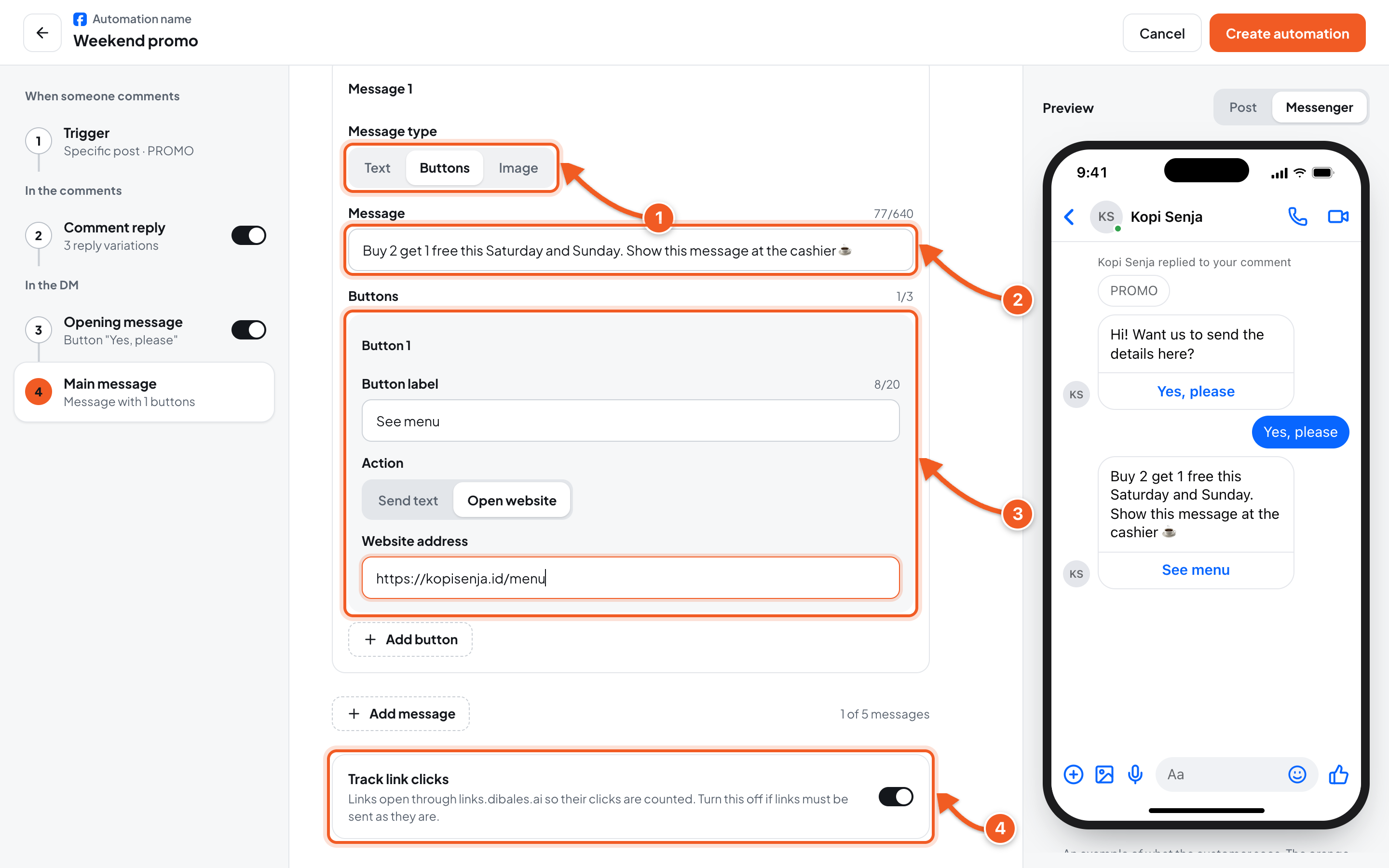
-
Message type:
- Text: a regular message, up to 2,000 characters.
- Buttons: a short message (up to 640 characters) with up to 3 buttons.
- Image: one image, 1:1 ratio, 512 x 512 px recommended.
-
Message: write the content, for example the promo details.
-
Buttons: fill in the Button label, then choose an Action:
- Open website: fill in the Website address, starting with
https://. - Send text: fill in Reply when the button is pressed. That text is sent as soon as the button is tapped, for example a price list.
Click Add button if you need more than one.
- Open website: fill in the Website address, starting with
-
Track link clicks: when it's on, links open through links.dibales.ai so their clicks are counted in Button performance. Turn it off if links must be sent as they are. On a phone, scroll down to find it.
Click Add message to send several messages in a row, up to 5 messages. Change their order with the arrow icons on each message.
6. Check the preview, then save
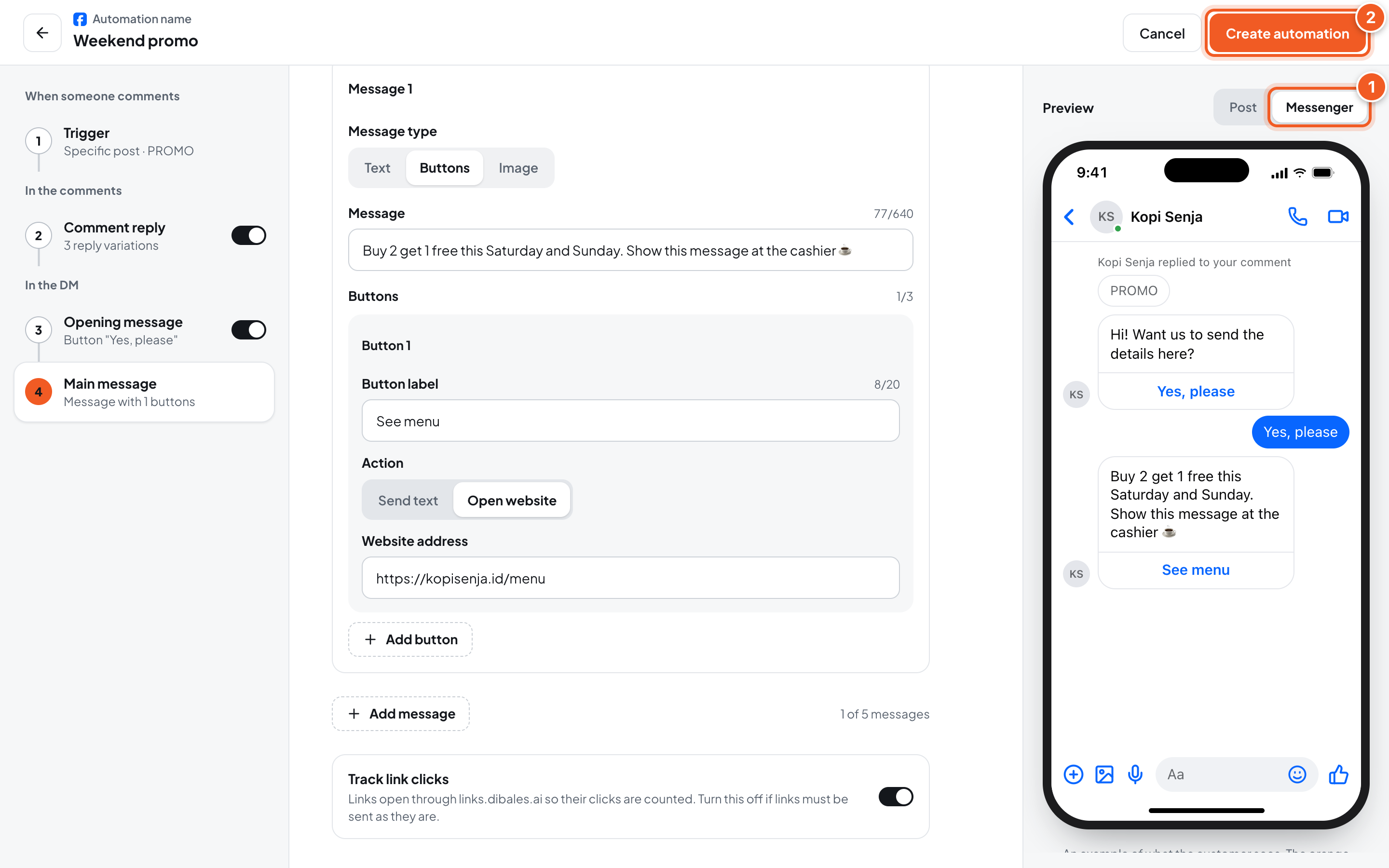
- Click the Messenger tab in the preview. The order is: the notice that the Page replied to the comment, the opening message, the tapped button, then the main message.
- Click Create automation. The automation is active right away.
On a phone, tap Preview at the bottom, choose Messenger, close the preview, then tap Create automation.
If … sections still need fixing shows, the incomplete steps are marked Needs fixing. Fix them first, then click Create automation again.
7. Test it, then check the comment log
- From another Facebook account, open the post and write a new comment that contains the keyword, for example any promo this week?. Write it as a new comment, not as a reply to someone else's comment.
- Check the reply under that comment, then open Messenger on the account that commented. If that account has never chatted with your Page, the message may land in message requests. Tap the button in the opening message to get the main message.
- In the dashboard, click the automation name to open its detail page, then scroll down to the Comment log.
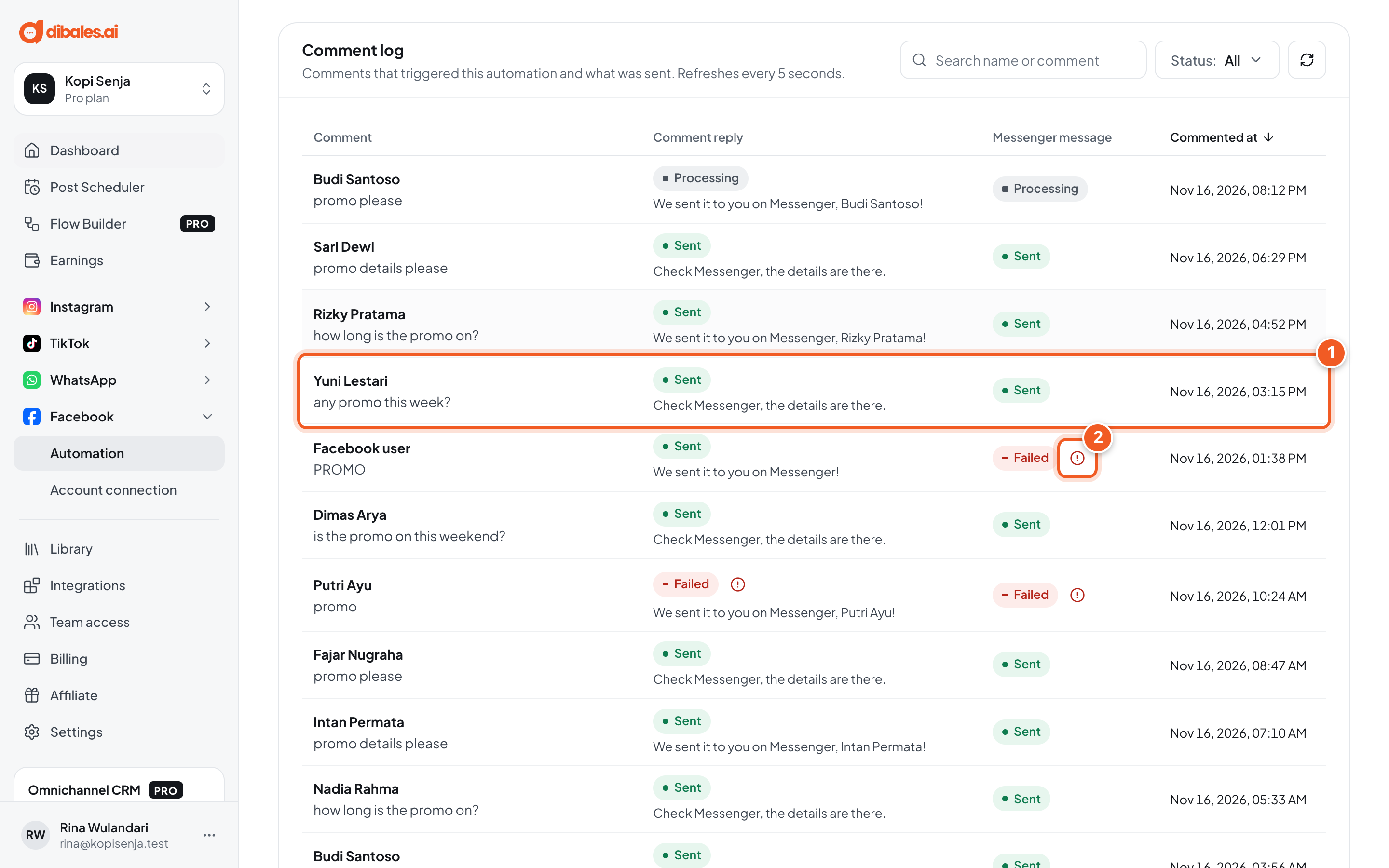
- Every comment that triggered the automation shows in the log, with results in the Comment reply and Messenger message columns: Sent, Processing (still sending), or Failed. The log refreshes every 5 seconds. Search by name or comment text, or filter by Status.
- If the status is Failed, click the icon next to it to see why:
- Rejected by Meta.
- The automation was paused or the Page was disconnected before sending.
- Not sent because an earlier step failed.
- Failed after 3 attempts.
Only top-level comments on the post trigger the automation. Replies to other people's comments and comments from your own Page don't count.
Stats and clicks per button are explained in Manage Automations.
Troubleshooting
| Problem | Fix |
|---|---|
| The test comment gets no reply | Make sure you commented from another account, on the post chosen in the trigger, as a top-level comment, and that the keyword fits the Matching rule. Also check that the automation is Active, not Paused. |
| The comment got a reply, but no Messenger message shows | Check message requests in Messenger on the account that commented. Then look at the Messenger message status in the comment log. |
| The opening message arrived, but the main message didn't | The main message is only sent once the button in the opening message is tapped. |
| Can't save: Choose a post. | Under Specific post, click one of the posts, or switch to All posts. |
| Can't save: Already used by another automation: … | That keyword is already used by another automation on this Page. Change the keyword, or edit the older automation. |
| Without an opening message, the main message must be one text or button message. | Turn on the Opening message, or keep just one Text or Buttons message. |
| Enter a valid website address that starts with http:// or https://. | Write the full address, for example https://kopisenja.id/menu. |
| Up to 150 characters. | Shorten the comment reply. |