
Reply to Messenger Messages
Automatically reply to Messenger messages sent to your Facebook Page, based on keywords.
This automation replies to Messenger messages sent to your Facebook Page when they match your keywords. It's handy for questions that come up a lot, like the menu, opening hours, or prices.
Make sure you meet everything in Before you start. Open Facebook › Automation, then click Create automation. Fill in the Automation name at the top left, for example Today's menu.
1. Set the trigger
In the Trigger step:
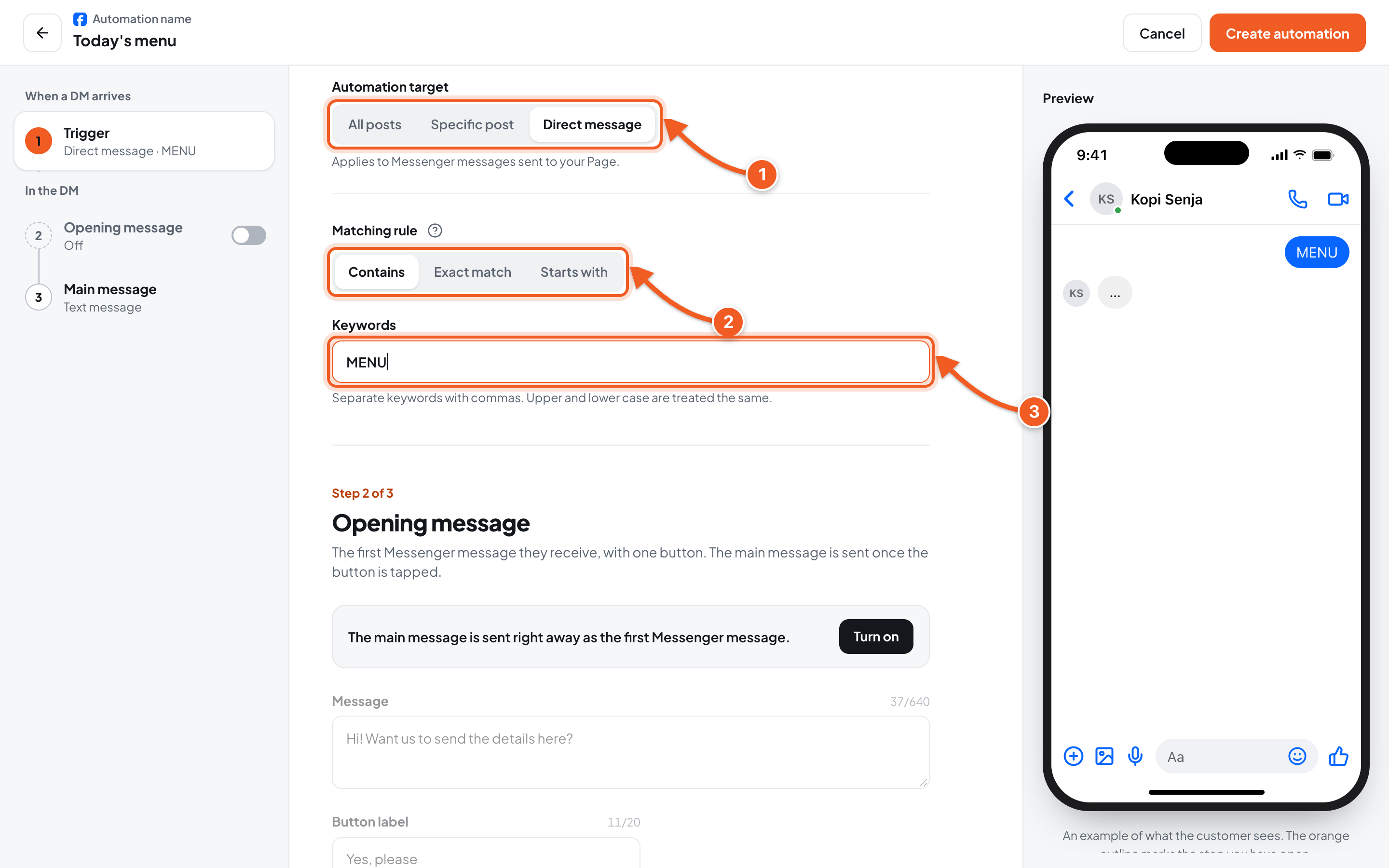
- Automation target: choose Direct message. The step list changes to Trigger, Opening message, and Main message.
- Matching rule: Contains, Exact match, or Starts with. They work the same as in Comments to Messenger. Any words isn't available for direct messages.
- Keywords: for example MENU. Separate several keywords with commas. Upper and lower case are treated the same.
2. Write the reply
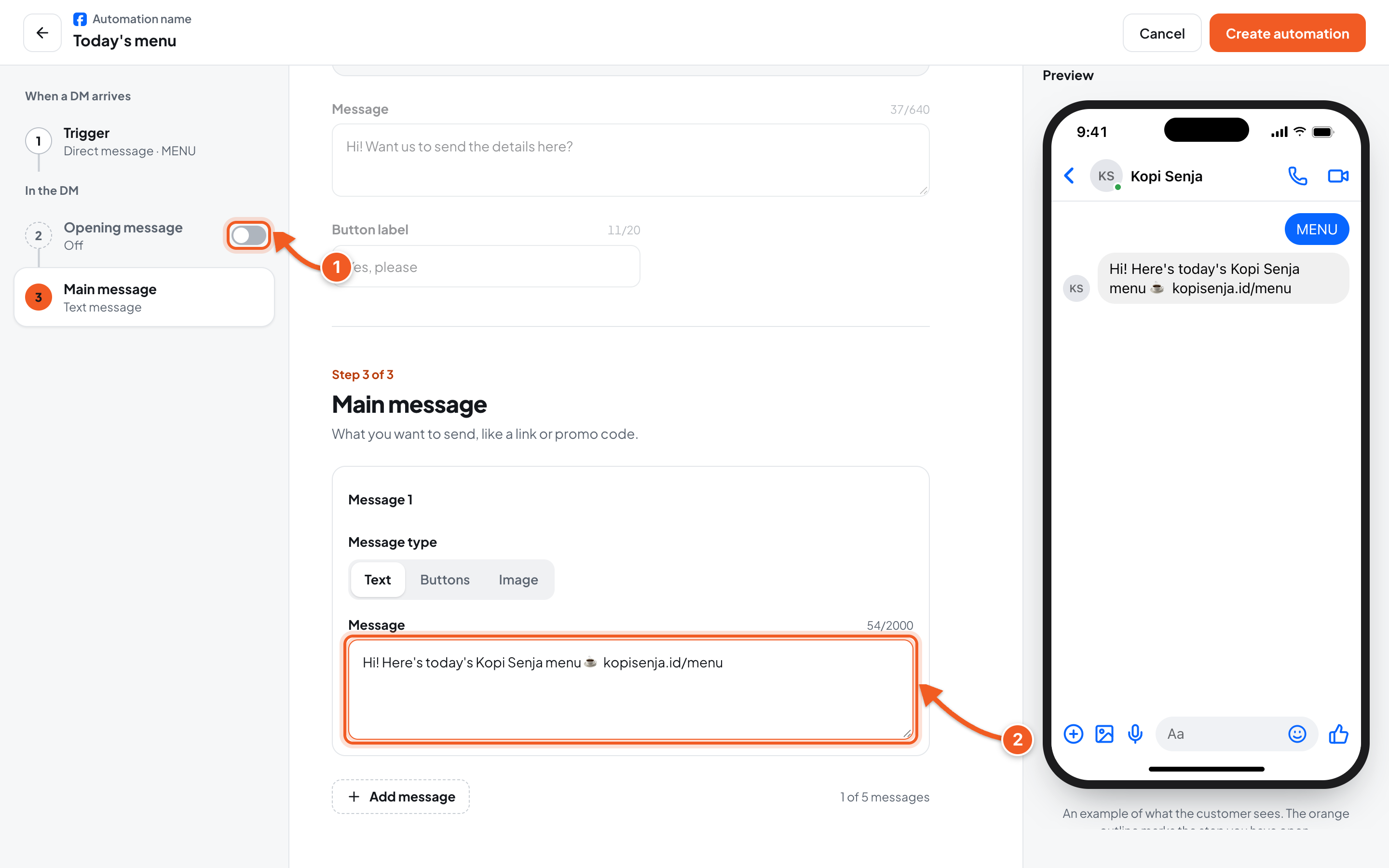
- Opening message: for direct messages, this step is off by default, so the reply is sent right away. Turn the switch on if you want your audience to tap a button before they get the main message.
- Main message: click the step, then write your reply in Message, for example Hi! Here's today's Kopi Senja menu ☕ kopisenja.id/menu. The Buttons and Image message types, and Add message (up to 5 messages), work the same as in Comments to Messenger.
Click Create automation at the top right. The automation is active right away.
3. Test the automation
- From another Facebook account, send a Messenger message with the keyword to your Page, for example what's on the menu today?.
- The reply arrives within a few seconds.
- In the dashboard, click the automation name to see the Sent and Recipients counts, see Manage Automations.
Troubleshooting
| Problem | Fix |
|---|---|
| The test message gets no reply | Make sure you sent it from another account, the keyword fits the Matching rule, and the automation is Active. |
| This rule isn't available for direct messages. | Choose Contains, Exact match, or Starts with, then fill in the keywords. |
| Can't save: Already used by another automation: … | That keyword is already used by another automation on this Page. Change the keyword, or edit the older automation. |
| Enter at least one keyword. | Fill in Keywords, for example MENU. |