
Manage Facebook Automations
Pause, edit, duplicate, or delete Facebook automations, and track recipients, clicks per button, CTR, and the comment log.
All your Facebook automations are in Facebook › Automation, grouped into the All, Comments, and Messenger tabs. Find an automation with Search automation name, or filter by Status and Trigger. Each row shows how many comments were Replied to and how many messages were Sent.
Don't have an automation yet? Create one with Comments to Messenger or Reply to Messenger Messages.
Each automation's menu
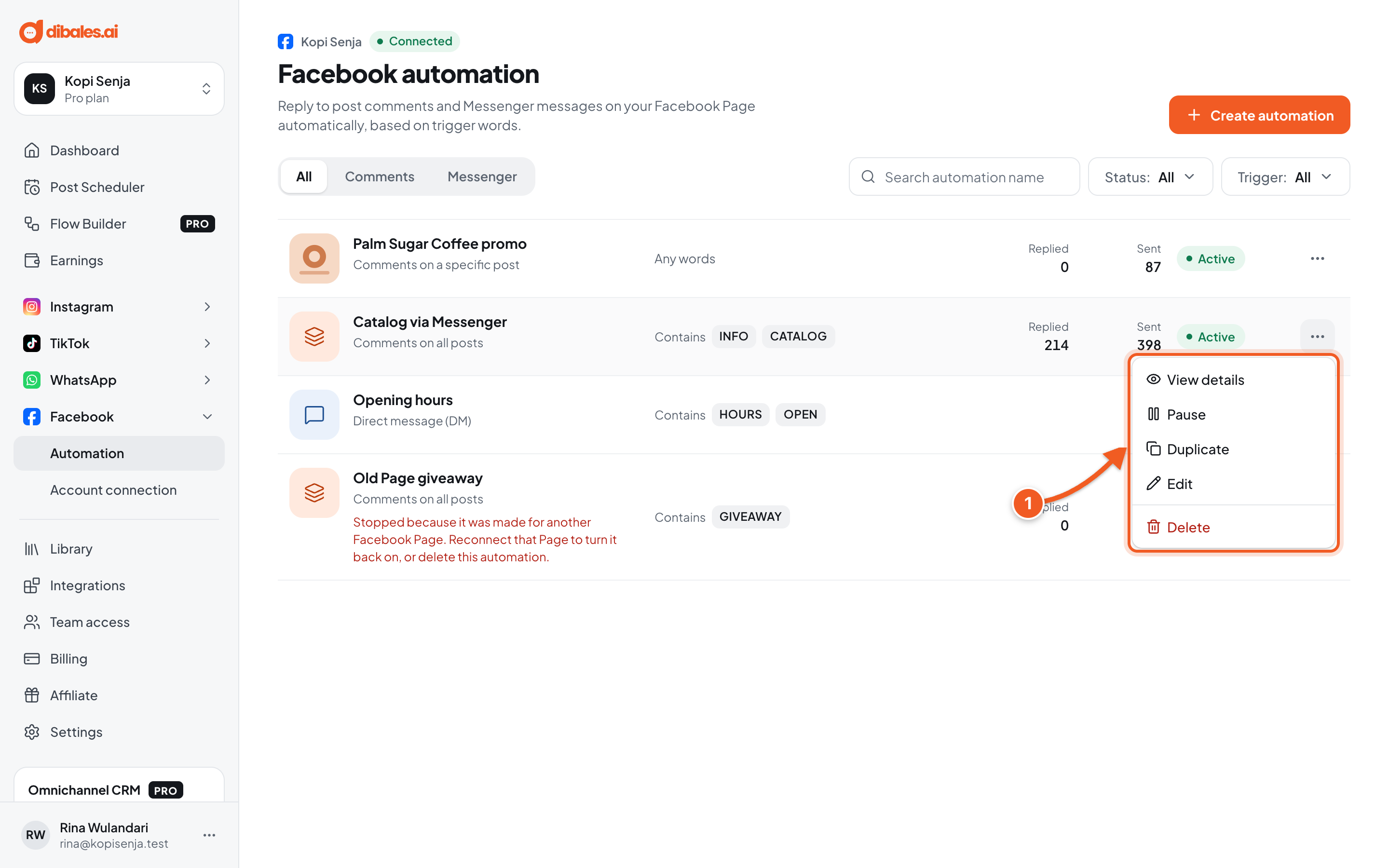
- Click the ⋯ icon on an automation's row to open its menu:
- View details: opens the stats and log page.
- Pause / Resume: stops the automation for a while, then runs it again.
- Duplicate: creates a new automation with the same content, for example for another post. Fill in new keywords before saving, because keywords can't be the same as another automation's.
- Edit: opens the editor again. Click Save changes when you're done. A paused automation stays paused after you save.
- Delete: asks Delete this automation?. Once you click Delete automation, it stops replying and all its data is permanently deleted. If you only want to stop it for a while, use Pause.
The detail page
Click an automation's name to open its detail page.
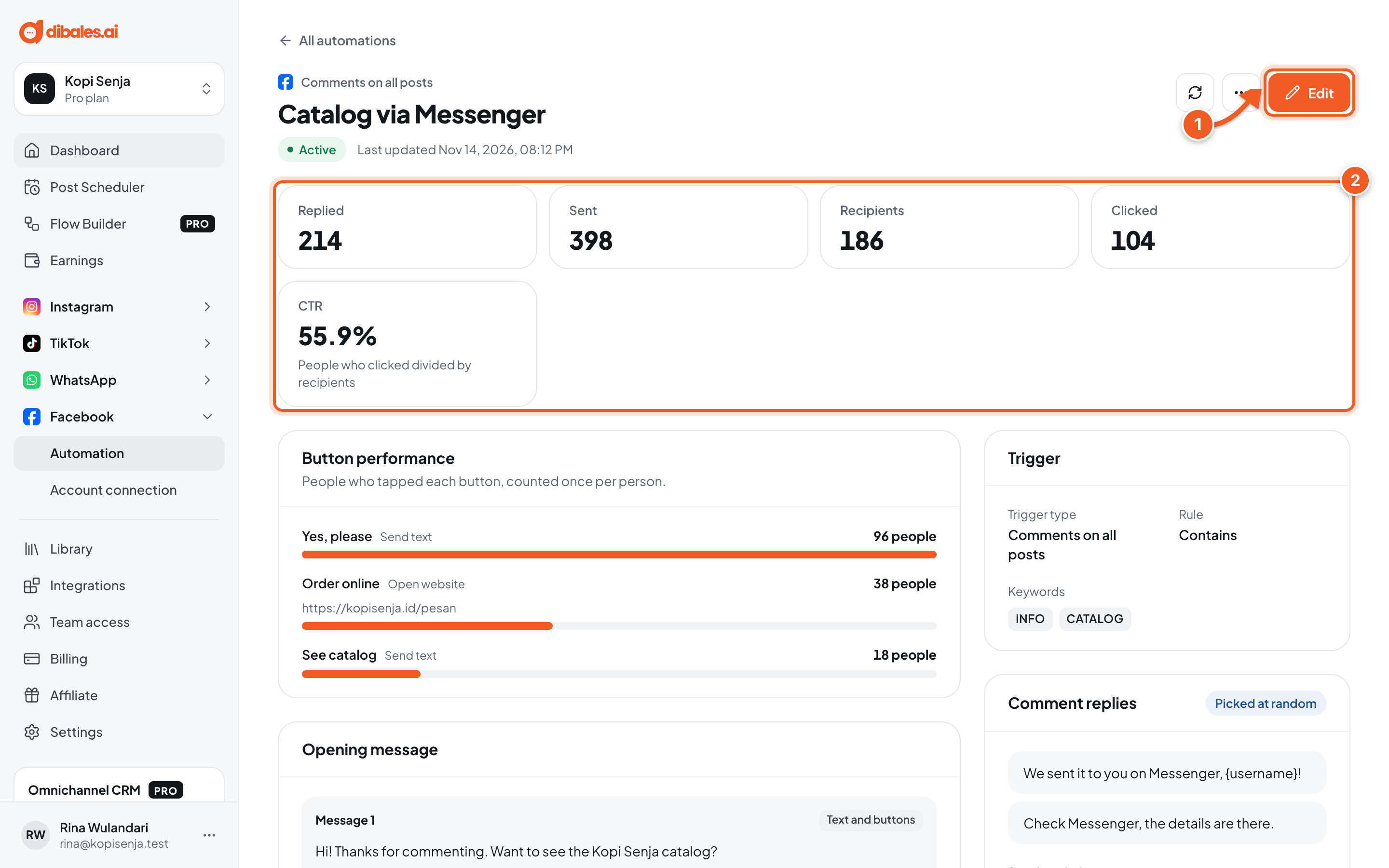
- Edit opens the editor. The ↻ icon reloads the data, and the ⋯ icon has Pause / Resume, Duplicate, and Delete.
- Stats:
- Replied: comments that got a reply in the comments (comment automations only).
- Sent: how many times the automation sent a Messenger message. It counts once per matching comment or message, not per message bubble.
- Recipients: how many people got a Messenger message from this automation.
- Clicked: how many people tapped at least one button.
- CTR: people who clicked divided by recipients.
Below that is a summary of the Trigger, Comment replies, Opening message, main message, and Configuration. If the automation is for a specific post, click View post in the Trigger section to open the post on Facebook.
Button performance
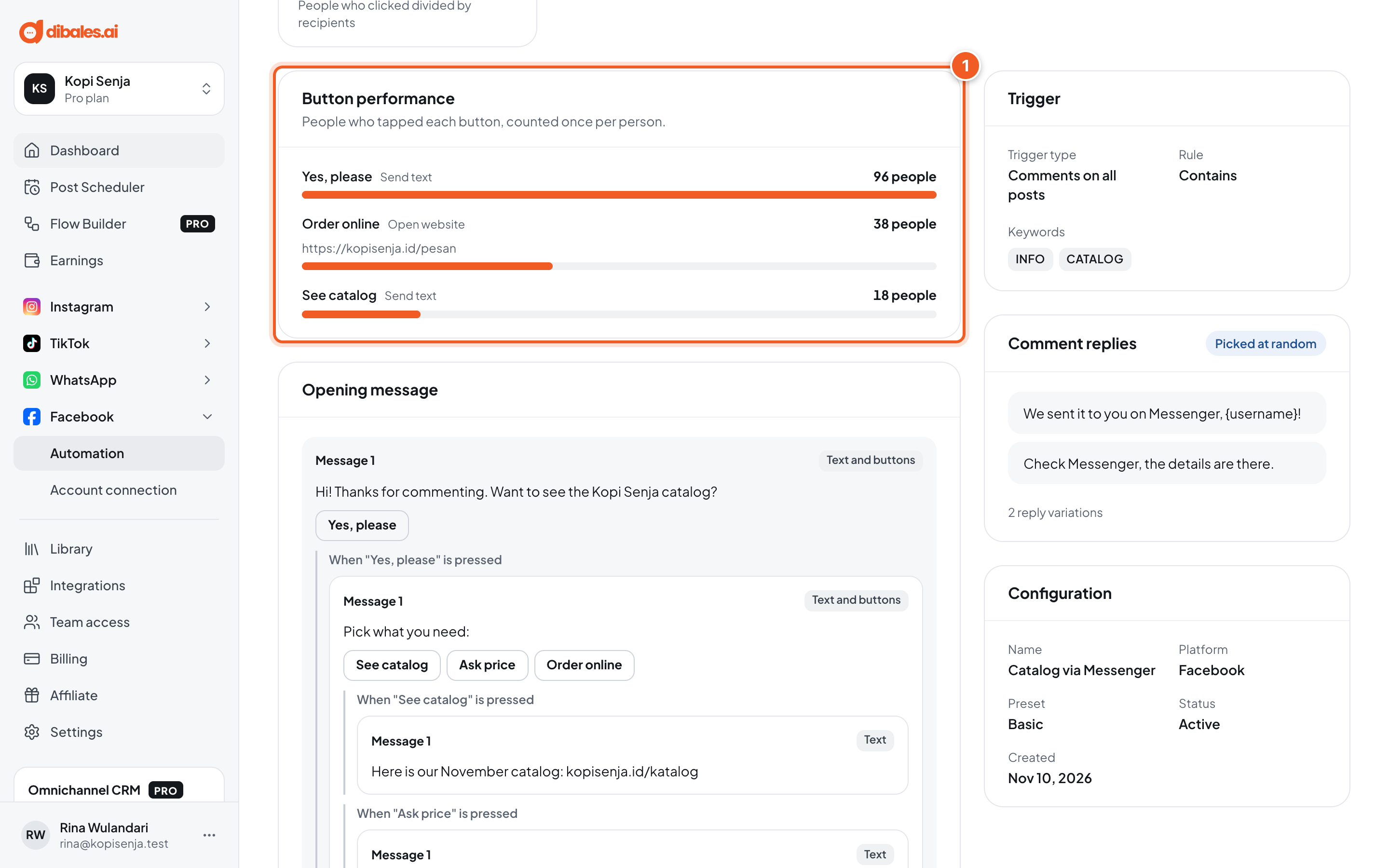
- Button performance shows how many people tapped each button, counted once per person. Send text buttons are always counted. Open website buttons are only counted when Track link clicks is on in the editor. Buttons that were removed from the automation are marked Old button.
Comment log
Comment automations have a Comment log at the bottom of the detail page. It lists every comment that triggered the automation, with the status of the comment reply and the Messenger message. How to read it is explained in Comments to Messenger.
When an automation stops on its own
The Stopped status shows when an automation can't run. The reason is written under the automation name:
| Message | What to do |
|---|---|
| Stopped because the Facebook Page was disconnected. | Reconnect the same Page in Facebook › Account connection. |
| Stopped because it was made for another Facebook Page. | Reconnect that Page to turn it back on, or delete the automation. |
| Stopped by the system and can't be resumed. | This automation can only be deleted. Create a new one if you still need it. |